Framia by Converge AITurn Inspirations into Masterpieces

From IDEAS to READY CONTENT — An All-in-One AI Creative Workspace

Framia is an AI creative platform built for both creators and enterprise clients, where professional-quality content can be produced in just minutes or hours.

Whether you want to quickly produce marketing campaigns, ads, shorts, brand promotions, or cinematic studio level content — or just to build a stable, reusable AI workflow — Framia helps you get it done faster.

We believe an AI tool platform should do more than just generative tasks. It should seamlessly turn ideas into reality — through great features and intelligent Agents with fine tastes that help users throughout the entire creative process.

On this page

  • One Subscription, Endless Creativity
    • Text Models
    • Image Models
    • Video Models
    • Audio Models
  • Quick Start
    • The Canvas Mode — Allow an AI Agent to do the jobs for you
    • The Workflow Mode — blank canvas to workflows
    • The Remix Mode — Inspired by the community with professional templates
  • Core Features
    • Agent
    • Canvas
    • Workspace
    • Assets
  • Tool Bar — More Superpowers
    • Video Editor
    • Brand Kits
    • Apps
    • Social Publisher
  • Framia Social Media — More Creations & Tutorials
    • YouTube
    • TikTok
    • Instagram
    • X / Twitter

01 · MODEL ADVANTAGES

One Subscription, Endless Creativity

Access to world's top AI generative models, without tool-switching hassle

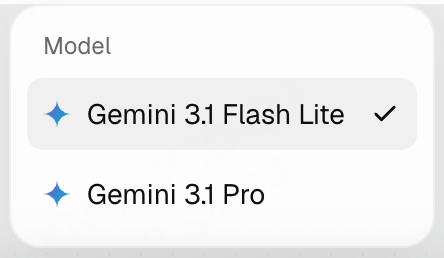
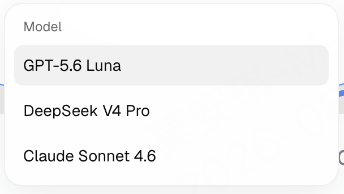
Text Models

Text-based model list with Gemini 3.1 Flash Lite selected and Gemini 3.1 ProText-based model list with GPT-5.6 Luna, DeepSeek V4 Pro, and Claude Sonnet 4.6

Image Models

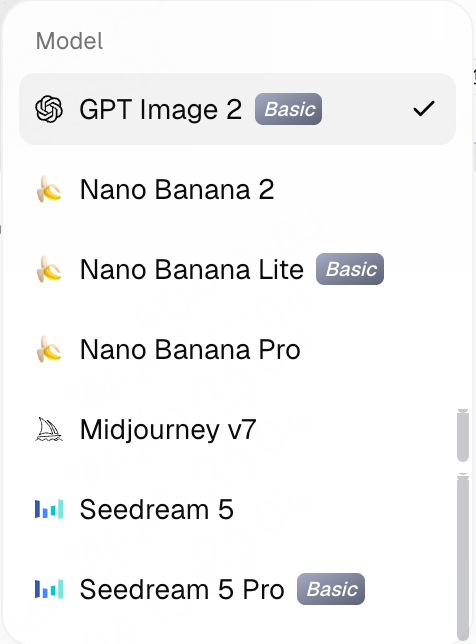
Image-based model list with GPT Image 2, Nano Banana 2 / Lite / Pro, Midjourney v7, Seedream 5, and Seedream 5 Pro

Video Models

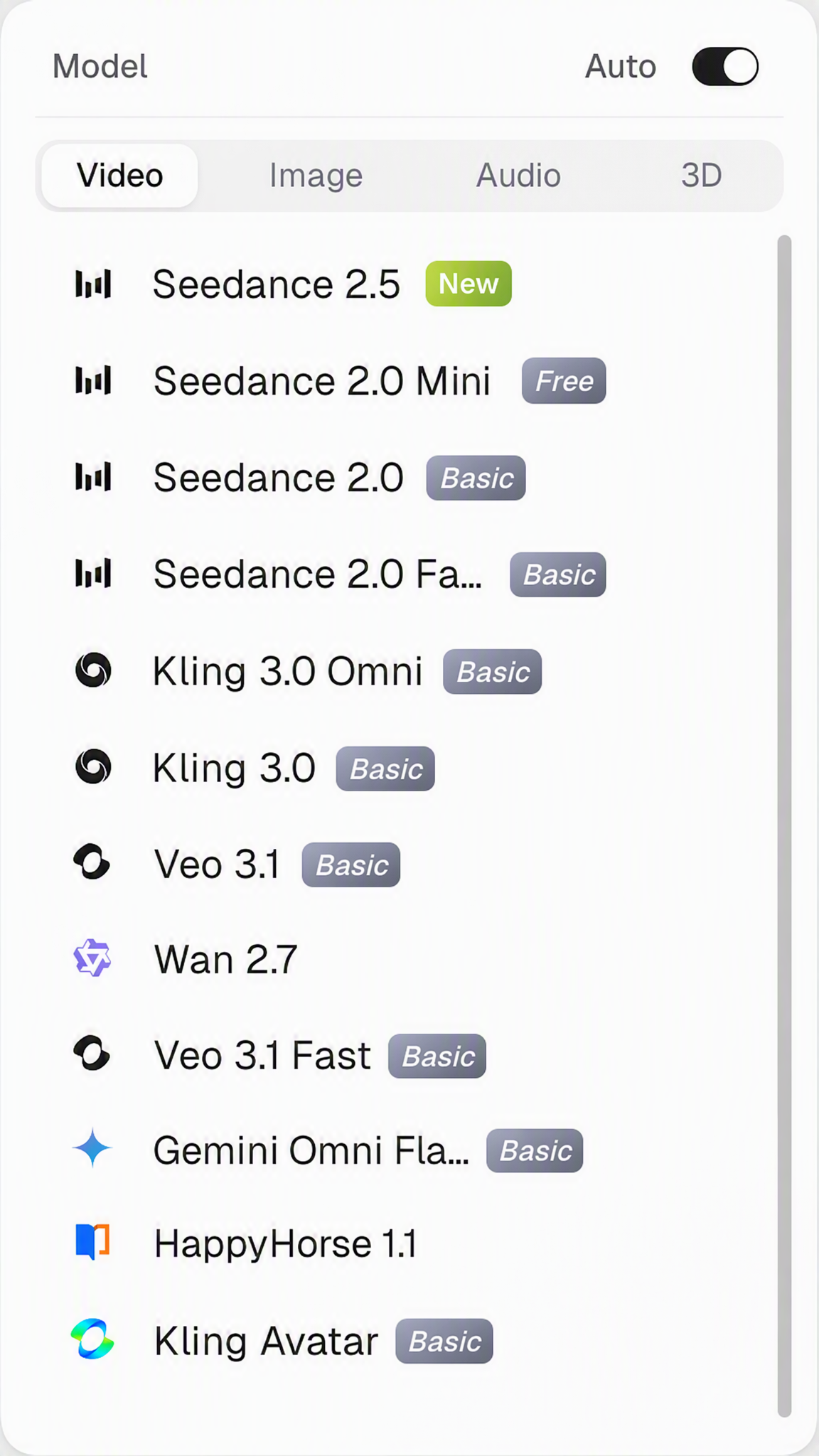
Video-based model list with Seedance 2.5, the Seedance 2.0 series, Kling 3.0 Omni, Veo 3.1, Wan 2.7, HappyHorse 1.1, Kling Avatar, and more

Audio Models

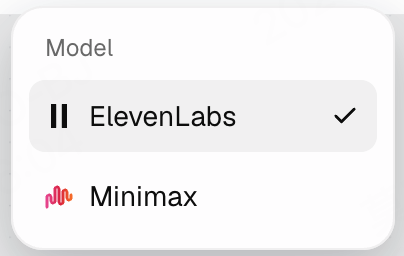
Audio-based model list with ElevenLabs and Minimax

Official Website: https://framia.converge.ai

02 · QUICK START

Quick Start

Whether this is your first time on Framia or you already have a handful of experience with some personalized workflow habits, Framia gives you multiple ways to kickstart the creative journey. Describe your idea in plain words and let the Agent build it for you. Build a workflow from scratch manually. Or remix templates and content shared by other creators in the community — and get started in no time.

A

The Canvas Mode — Allow an AI Agent to do the jobs for you

Best for

  • A precise creative input
  • A fast generative output with time constraints
  • Skip the manual toggling hassles

Get started with "The Canvas Mode"

  1. Visit the homepage
  2. Describe your intent in the chatbox
  3. The AI Agent will start self-planning with execution plans and complete workflows, and do everything for you
  4. Assets are generated — creative plans, scripts, images, a music track, voiceover, and video
  5. If you weren't satisfied with the generated outcome, you can continue the chat with the Agent, share your suggestions, and watch how the Agent revises the project details based on your requirements.

For example

Generate an iced drink commercial for a summer campaign, include a poster design and a 15-second promotional video
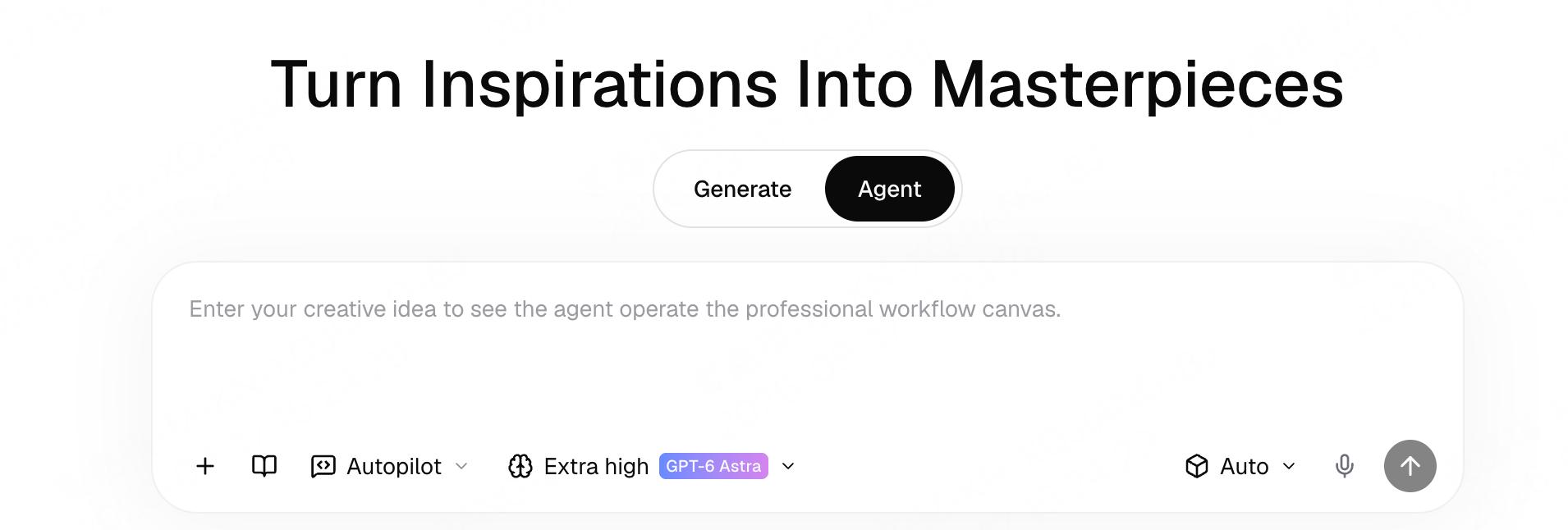
The Framia home page with Agent selected and the creative brief input ready for a request
01

Agent input on the home page
B

The Workflow Mode — blank canvas to workflows

Best for

  • Total control over creative details
  • Personalized creative habits
  • Complex tasks with a lot of fine-tuning

Get started with "The Workflow Mode"

  1. Choose Workflow mode and you will enter a blank canvas
  2. Follow the pop-up tutorials and add the nodes you need step by step — text, image, audio, video, editor, subtitles
  3. Type in your input, then run a single node or select a group to run together
  4. Change the details in each single node to keep improving the overall workflow

Flexibility is the key benefit of Workflow Mode. It allows you to create your very own way of working, and to share it among team members as templates or re-runnable workflows.

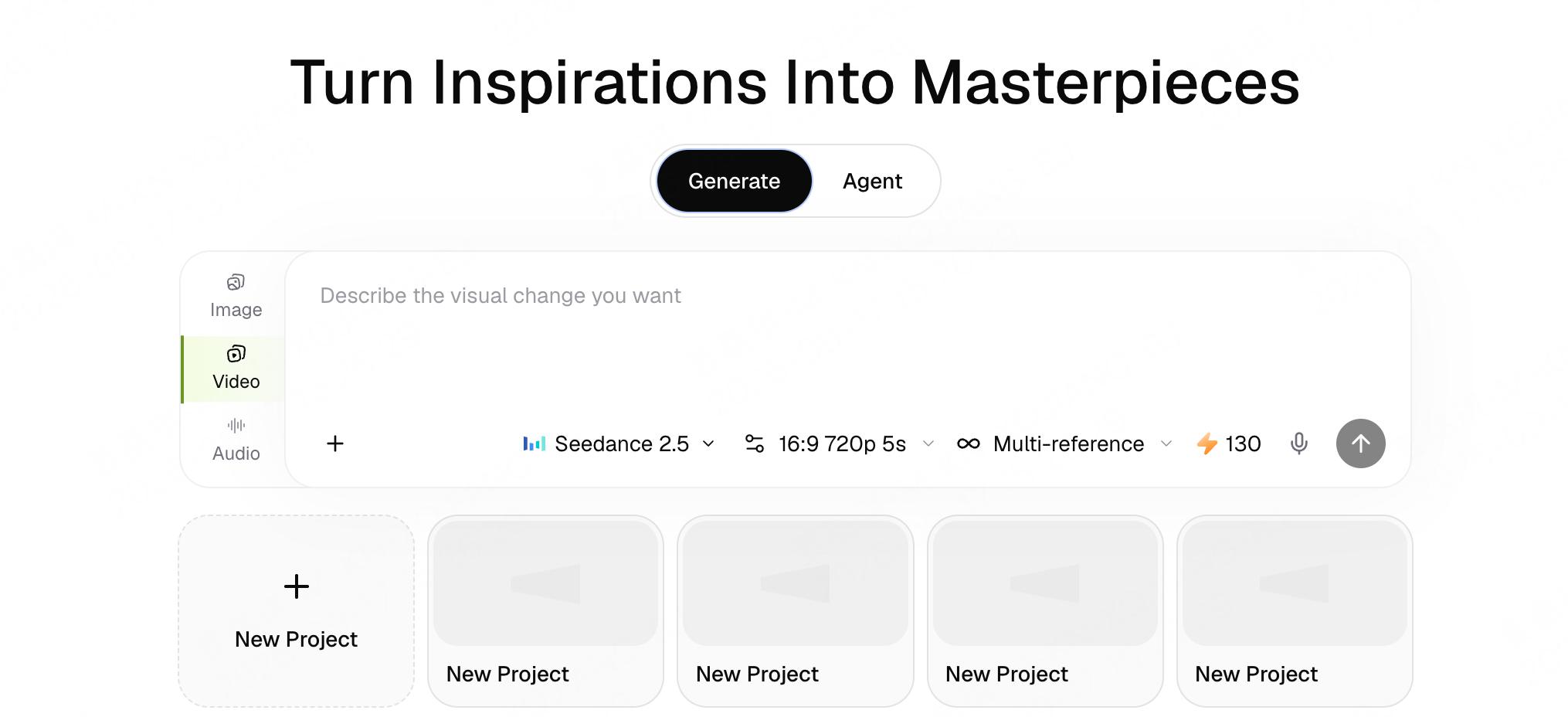
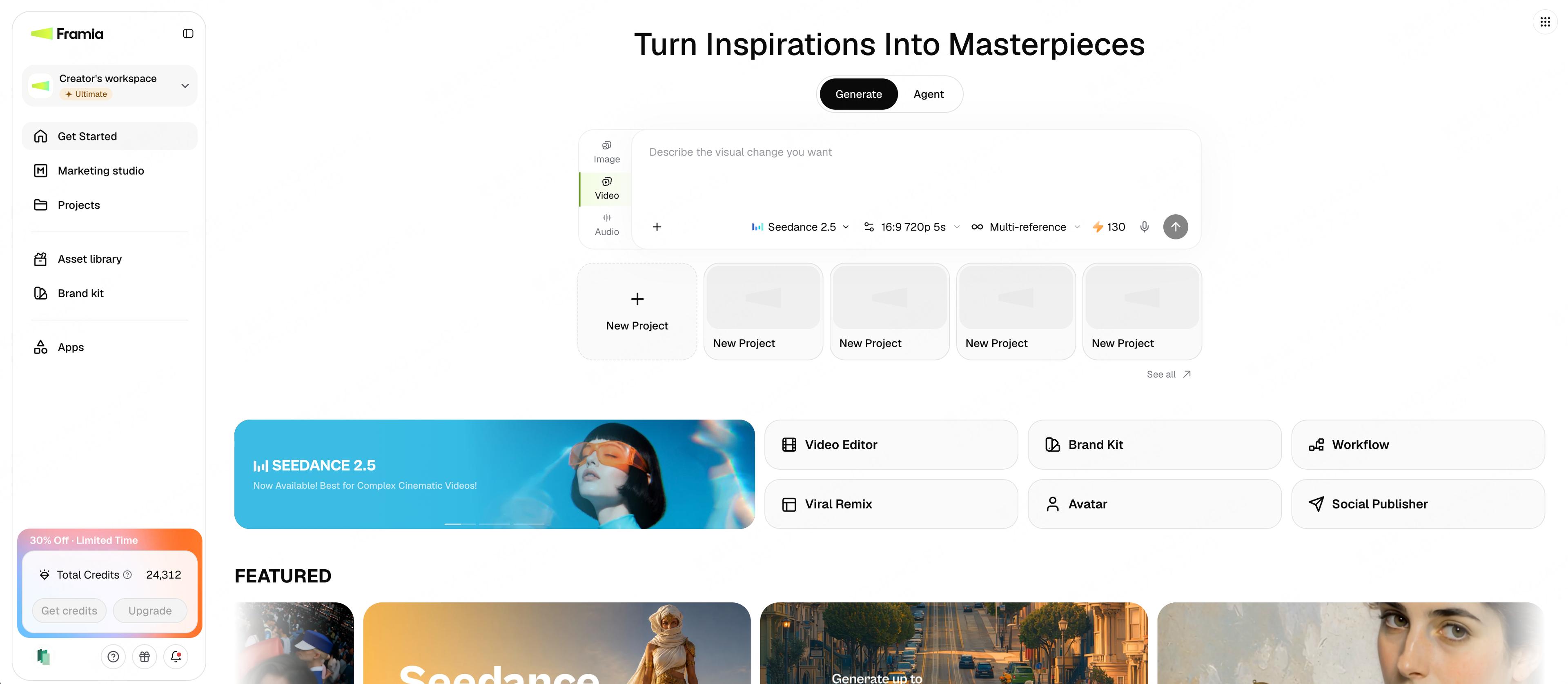
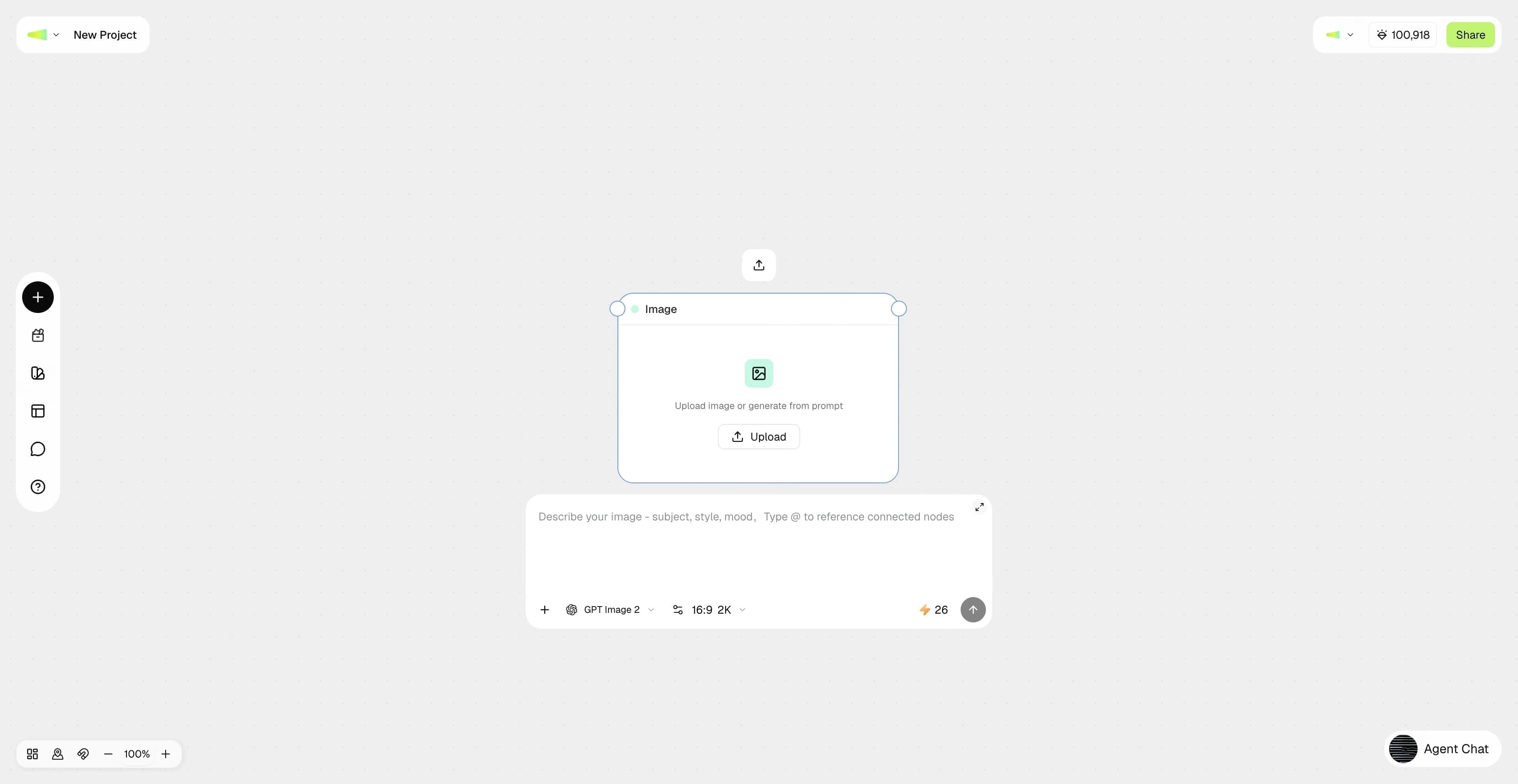
The Framia home page with Generate selected, image, video, and audio options, and the New Project entry
01

Start a new project from the home page

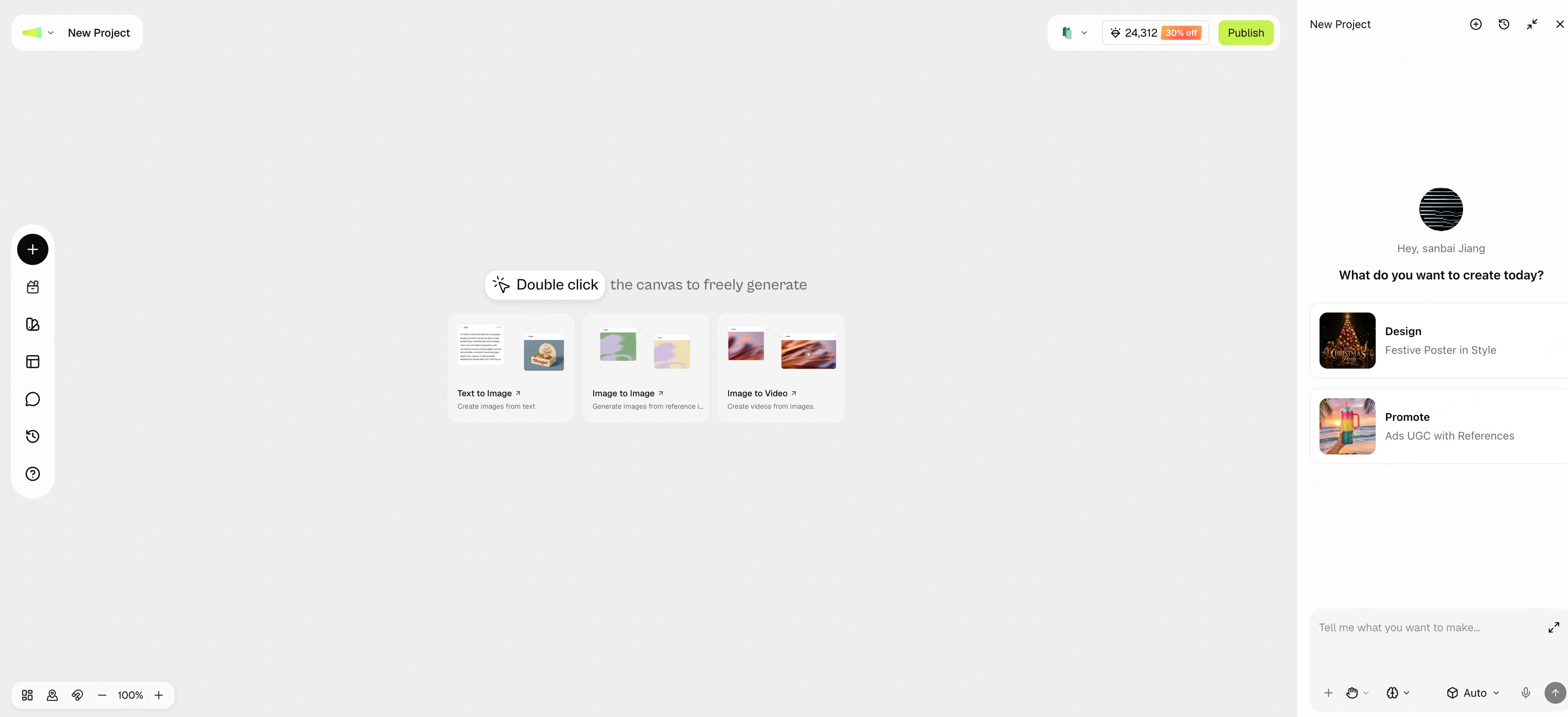
A blank Framia canvas with creation shortcuts and the Agent Chat panel open on the right
02

Blank Workflow canvas after entering

C

The Remix Mode — Inspired by the community with professional templates

Best for

  • No content inspiration yet
  • Need to replicate a good template
  • Learn from others' experience

Get started with "The Remix Mode"

  1. Scroll through the template sections
  2. Click to expand one particular project
  3. Choose Remix or Try it to enter a brand-new project with the exact workflow
  4. Adjust the assets, edit the prompt, or change the elements, then hit re-run

By remixing the community, you will immediately learn from the best and quickly understand the creative process, without starting from scratch by yourself while you're not that experienced yet.

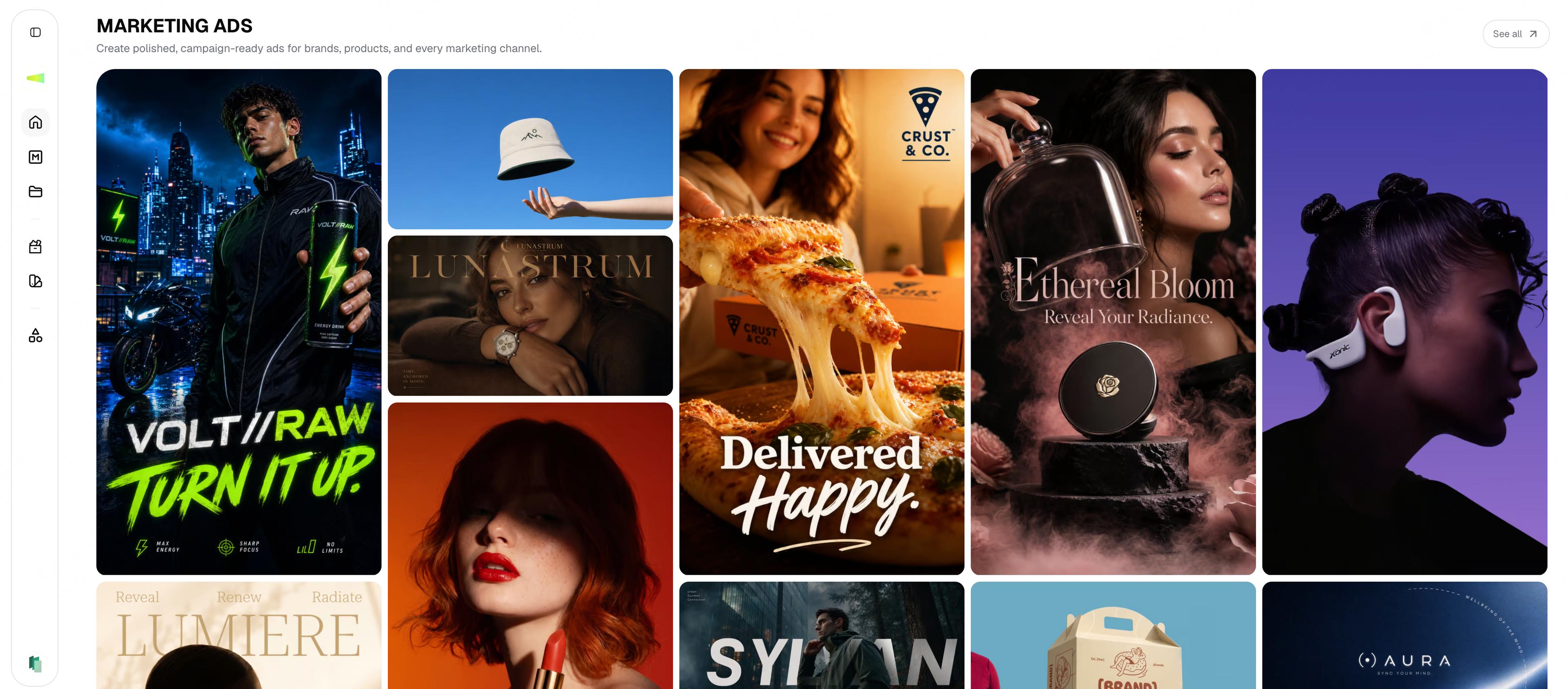
The Marketing Ads Gallery on the Framia home page with a masonry grid of projects
01

Gallery on the home page (with title)
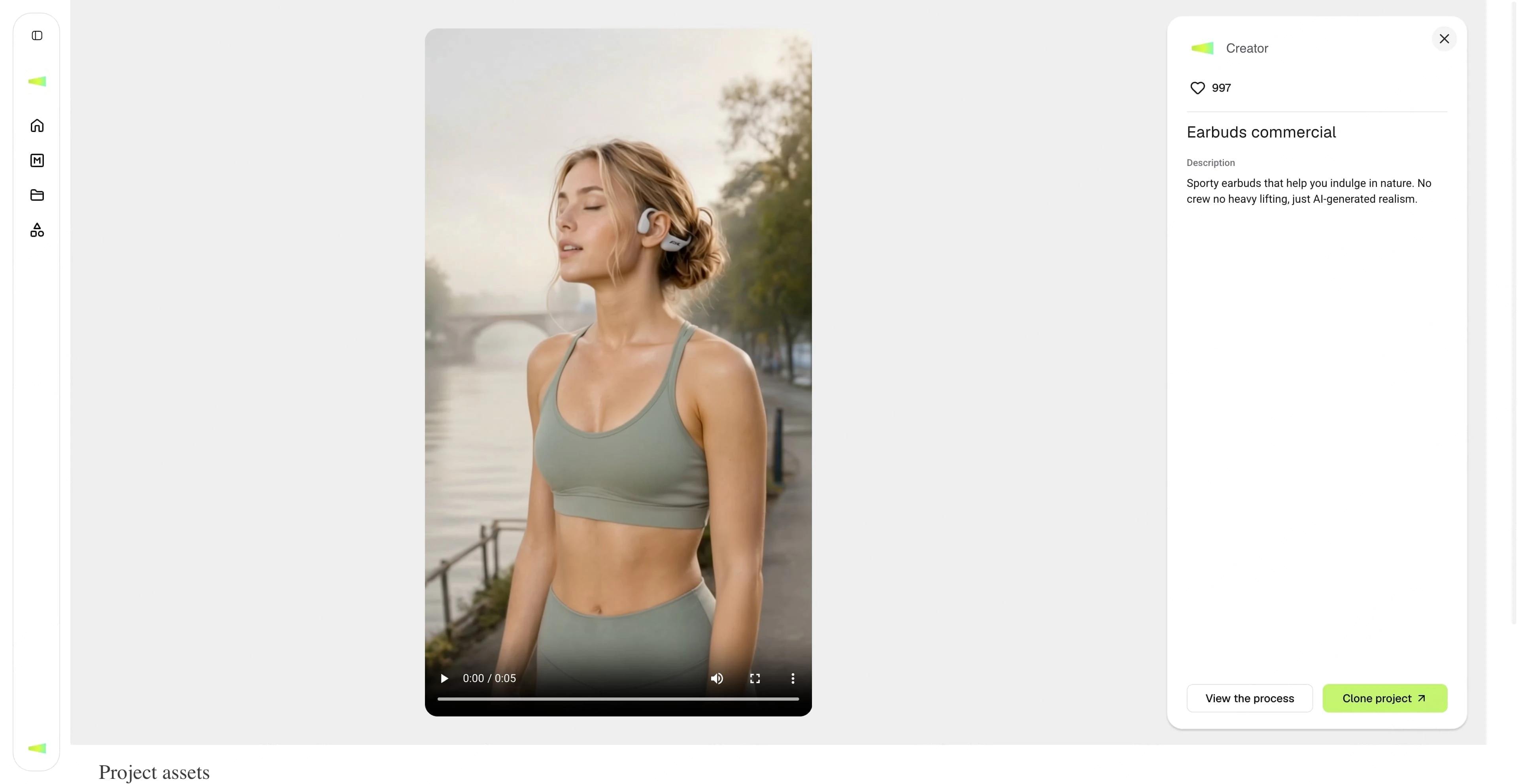
A Gallery project detail page with project actions in the right panel
02

Gallery detail page (with Try it)

The Framia Templates page with category tabs and a multi-column grid of template cards
03

Templates on the home page (with title)
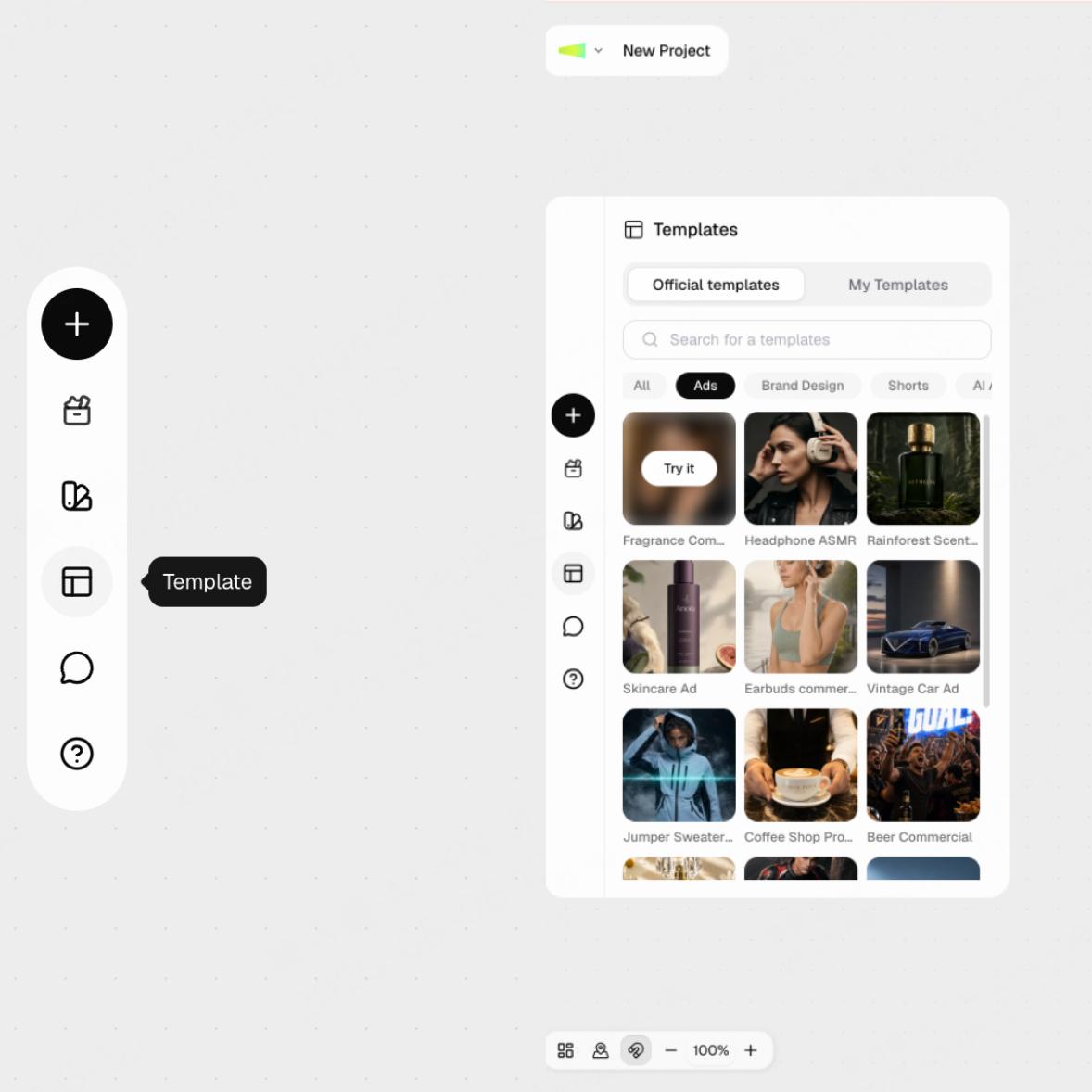
The Templates panel open in Canvas with official templates and Try it actions
04

Open the Templates panel in Canvas

03 · CORE CONCEPTS

Core Features

In the Framia workspace, there are a few core features that you need to understand to unlock the full potential. You are able to seamlessly call out the Agent Chat, Workflows, Assets, and many other features, and work with them all at the same time within the same canvas workspace.

Agent

An Agent is your creative assistant that we trained with high intelligence and useful skills. Using an Agent to start your creative process is always the officially recommended way. All you have to do is describe things naturally, using everyday language, not prompts. The Agent will try its best to understand your goal, search across the web to tailor a creative plan for your task, and deliver the final output to you. Besides that, the Agent can also act as a modifier — it will revise the whole project based on your comments and feedback, and automatically update the related nodes in the workflow.

You can use the Agent to:

  • Craft an entire creative campaign with breakdown steps
  • Automate a workflow with script, image, video, background music, voiceovers, edits, captions, and many more.
  • Take over the canvas to orchestrate the workflow details and accelerate your creative process.
Agent chat panel open beside the full creative workflow on the canvas
01

Short-drama creative workflow

Canvas workflow generated from the first creative brief
02

Marketing campaign workflow

Canvas

The canvas is the creative space inside Framia. You will use single nodes to unwrap the workflow steps, adjust them manually, and run or re-run groups. If an Agent is your creative assistant, the canvas is the place where the human and the Agent collaborate.

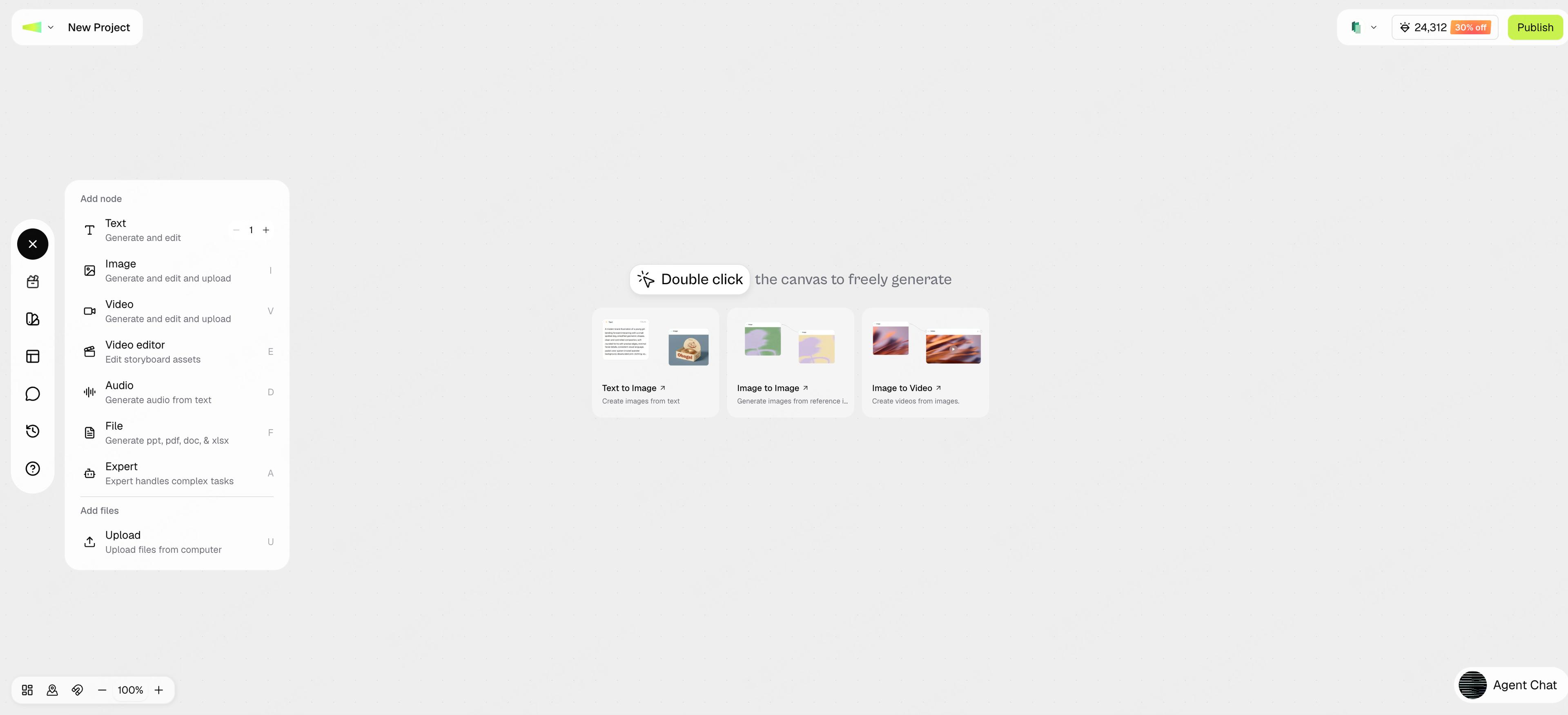
Add-node menu open from the left toolbar on the canvas
01

Add new nodes: click the left side toolbar, add new nodes.

An Image node with its prompt input on the canvas
02

Prompt & Configurations: You are able to type in prompt in the box below each node, and pick and choose what model you would like to use, what aspect ratio you would like to generate, as well as other details.

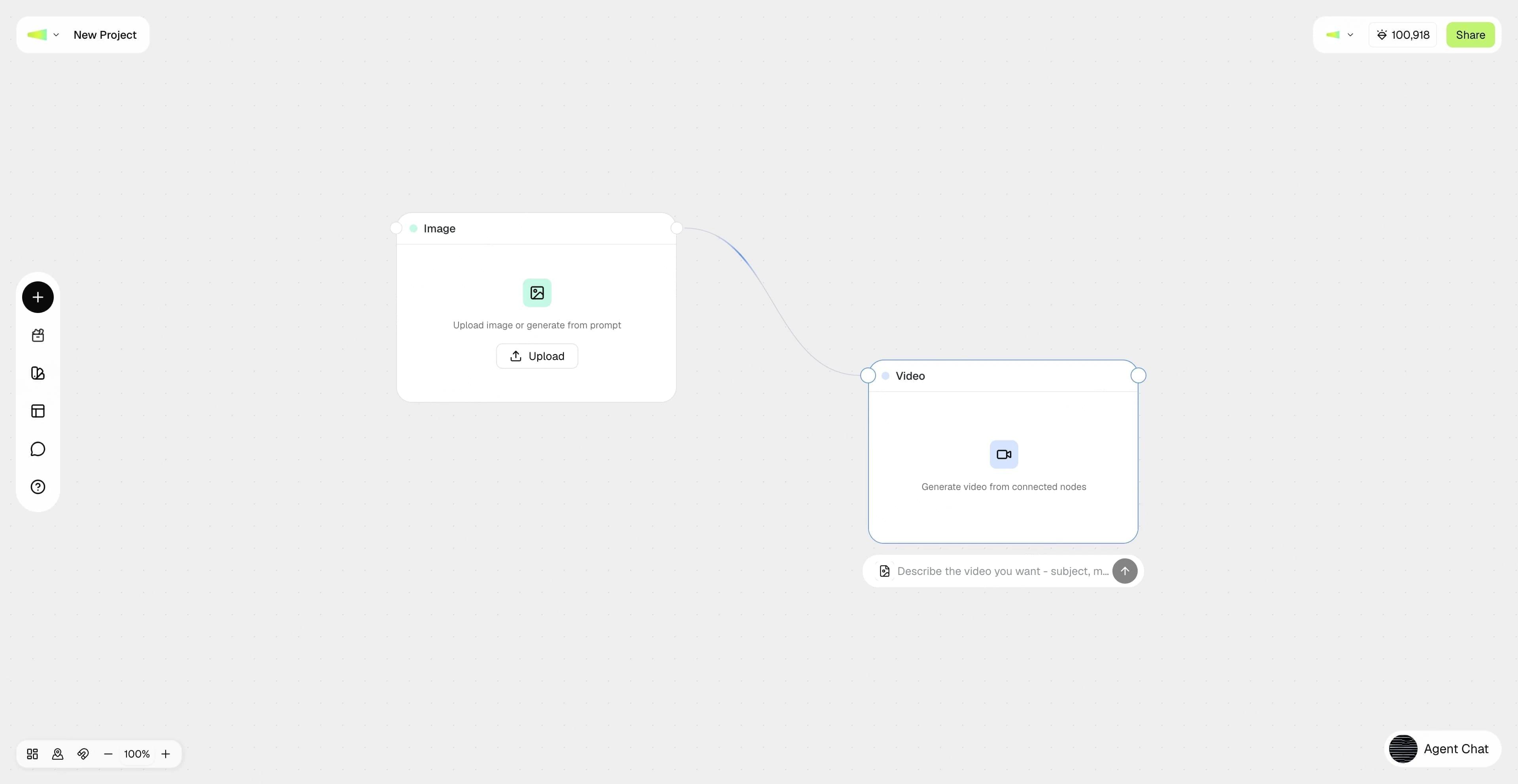
An Image node connected to a Video node
03

Connect the Nodes with Lines: the nodes are connected via lines, left side as input line, right side as output line.

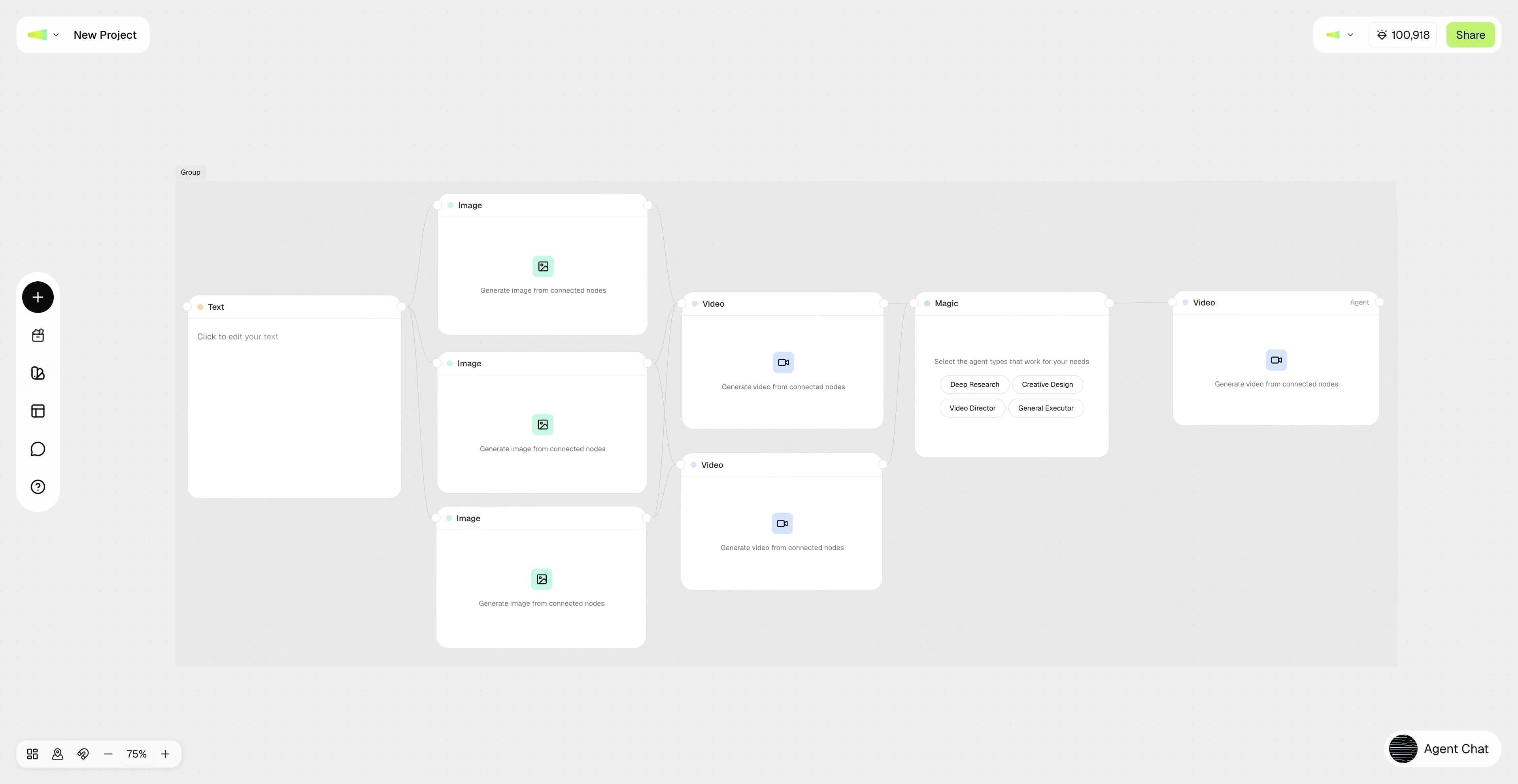
A multi-node workflow grouped on the canvas
04

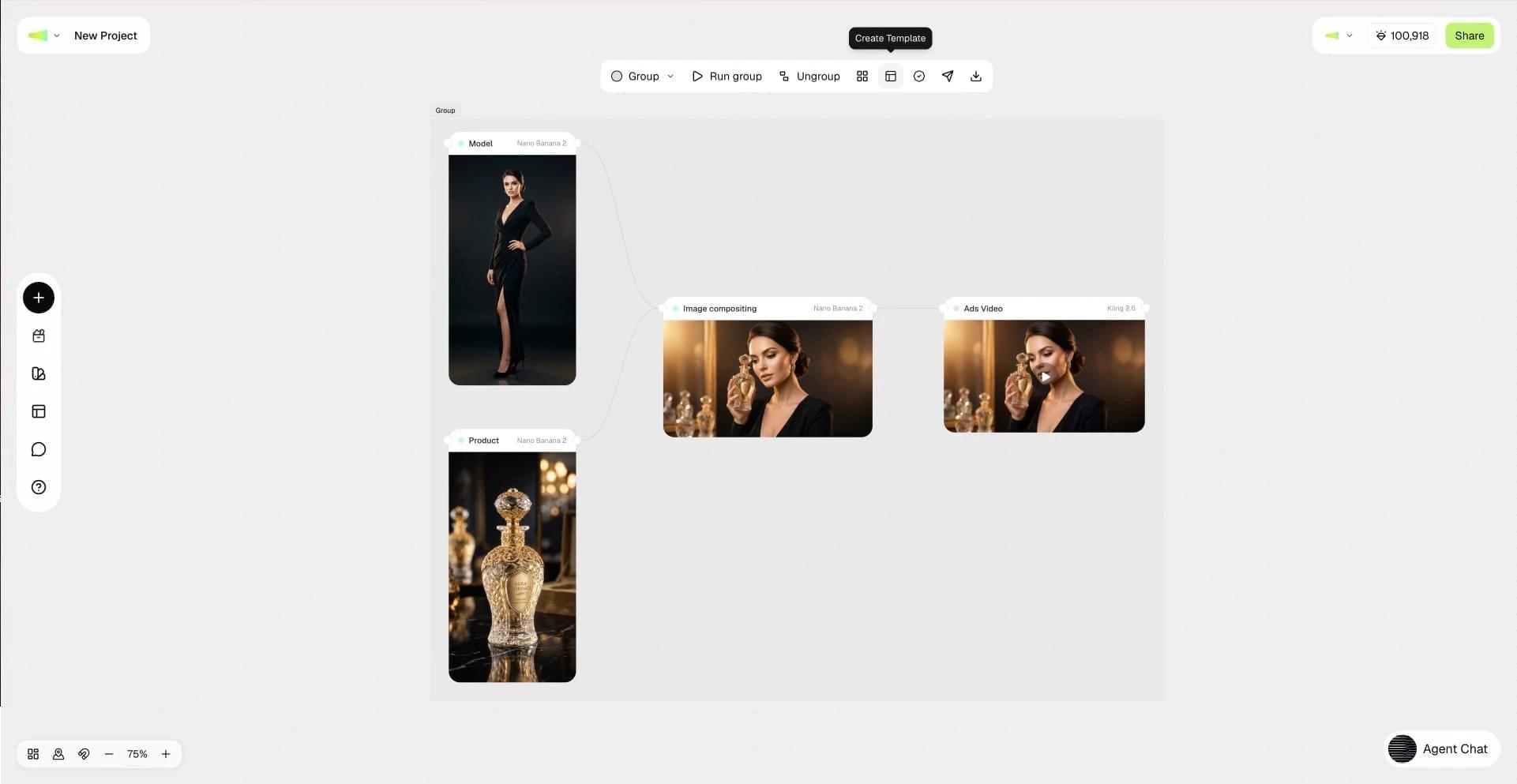
Multi-Nodes = A Workflow: You are allowed to connect multiple nodes to one after node as multi-reference, or output to multiple nodes after as multi-output. When multiple nodes are grouped, you have a new workflow, which can be re-run or re-generated with the same steps.

A finished workflow with generated results and group controls
05

Professional Templates: Framia's staff and official creators have made pro-level templates ready for you as templates, which you can copy and remix easily with your own reference assets.

Workspace

A workspace is similar to an account space, but with Framia's Team Workspace feature, you are allowed to invite your friends and colleagues to collaborate in the same workspace, with shared projects, assets, workflows, and chat histories among members.

You can use the Workspace to:

  • Manage members
  • Create mutual projects
  • Share a mutual canvas and co-create in the same canvas at the same time
  • Share the subscription and credits
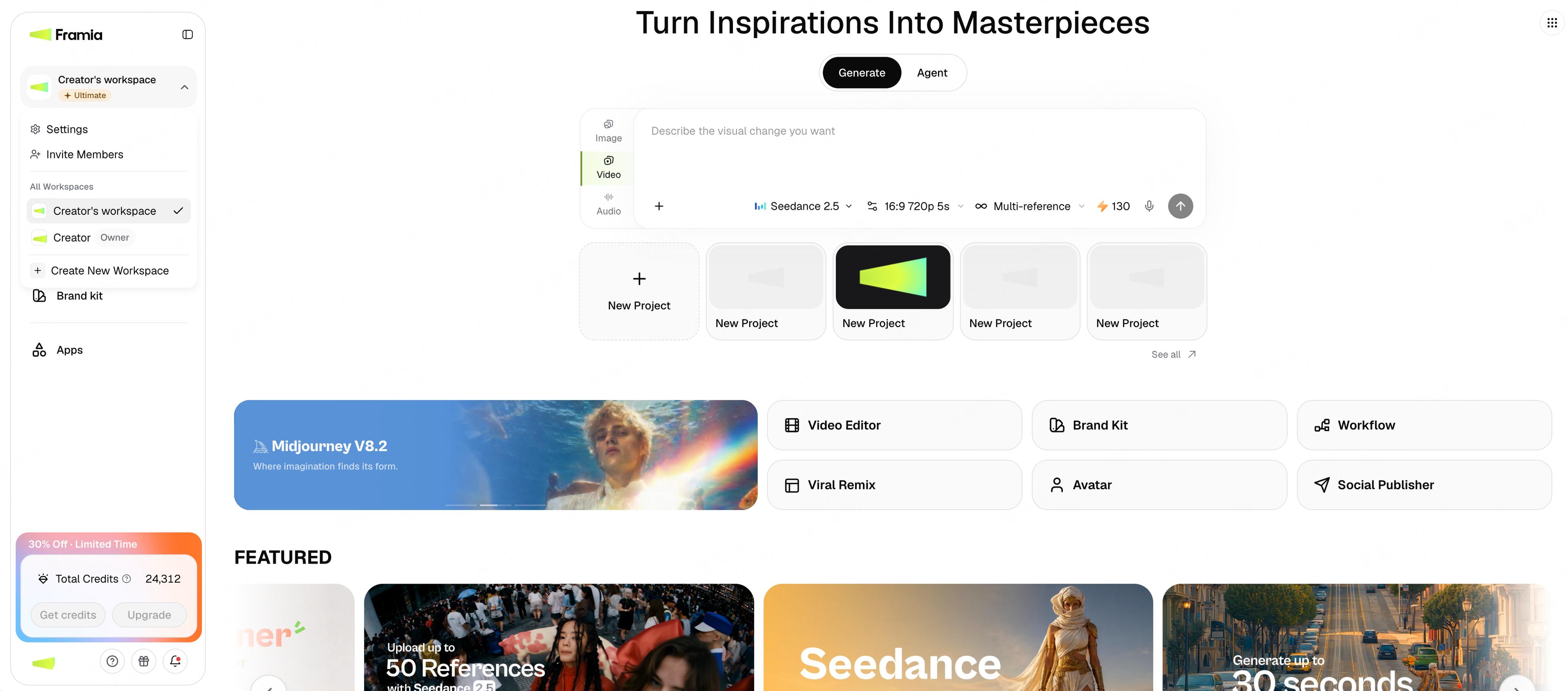
The Framia sidebar workspace dropdown for switching workspaces, inviting members, and creating a new one
01

Switch workspaces and invite members from the sidebar

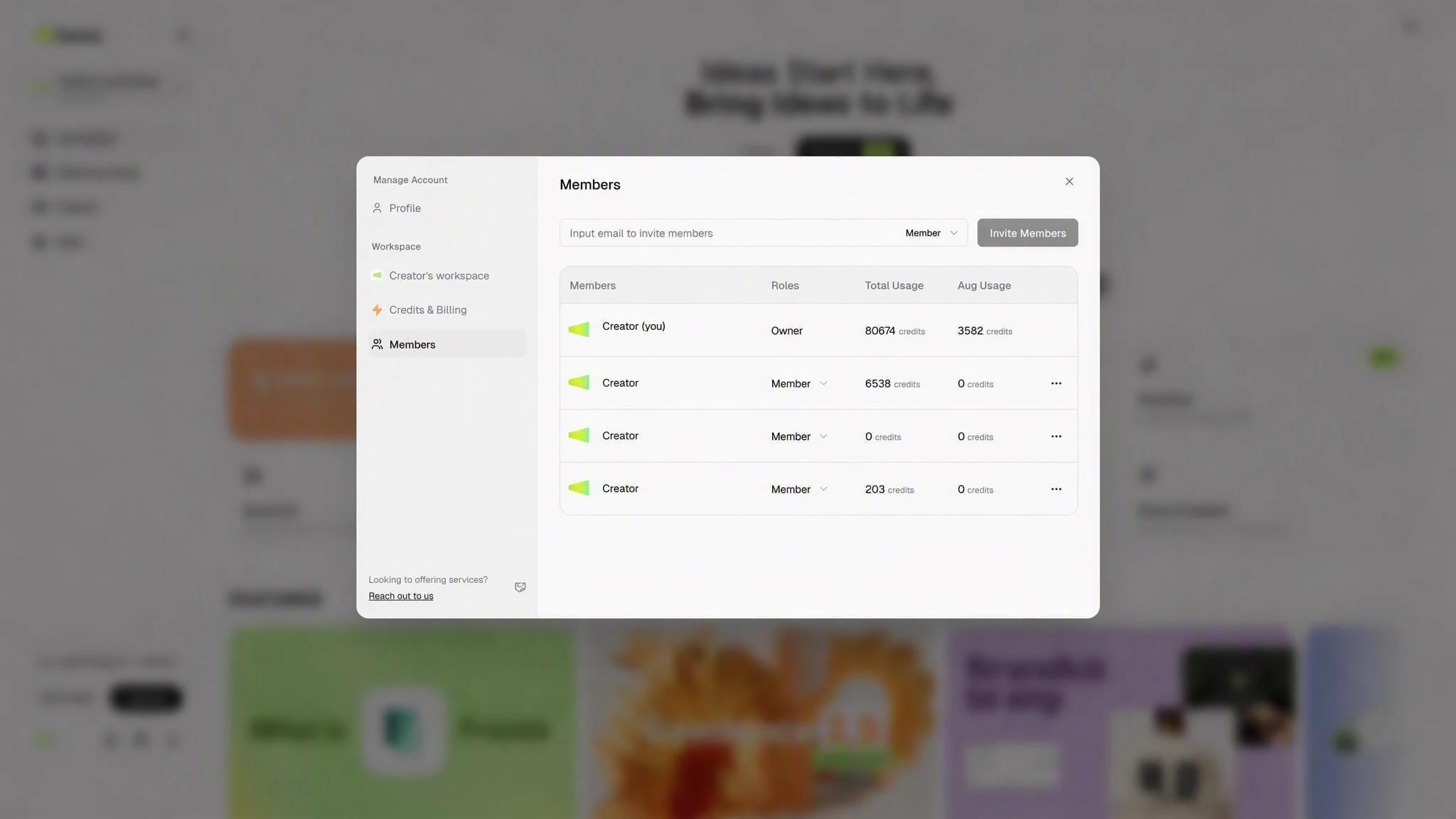
The Members management dialog showing the member list, roles, and credit usage
02

Manage members, roles, and shared credits

Assets

The "Assets" is an asset management space for all of the uploaded files and the generated content, stored in one place. It is convenient for users with multiple brands and groups of assets. Every piece of AI-generated asset you create within Framia can also be manually stored and saved to Assets.

Keeping track of generated assets can help avoid repetitive generation and upload.

You can use the Assets to:

  • Save and store assets / files
  • Search for previously stored files
  • Fast pick and drag to canvas
  • Share among different workflows
  • Sync assets with team members in the same workspace
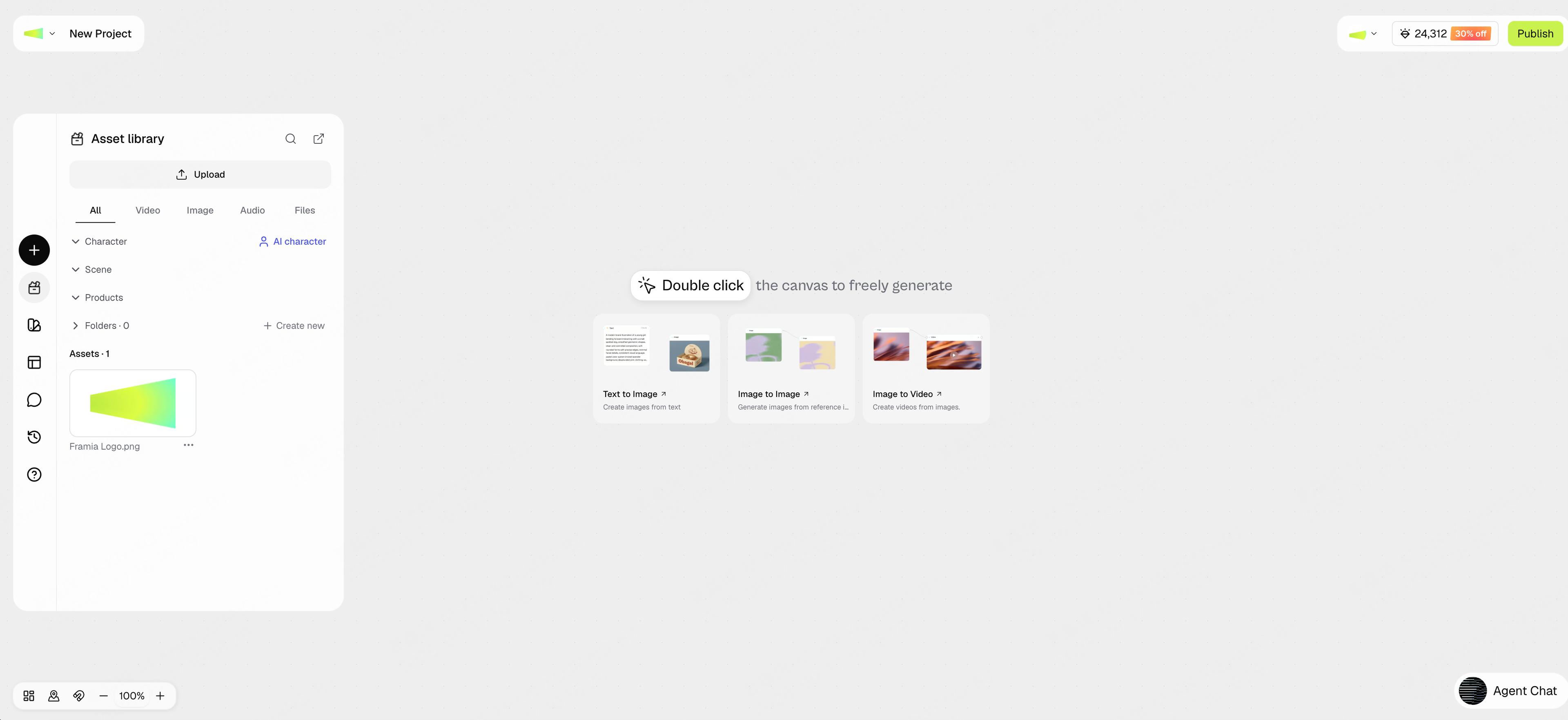
The Asset library panel with folders, media categories, Upload, and a saved logo beside the canvas
01

The Assets library, all in one place

04 · MORE TOOLS

Tool Bar — More Superpowers

Other than the core features, Framia is also equipped with many other super useful tools, all of which can be unlocked via the Tool Bar.

Video Editor

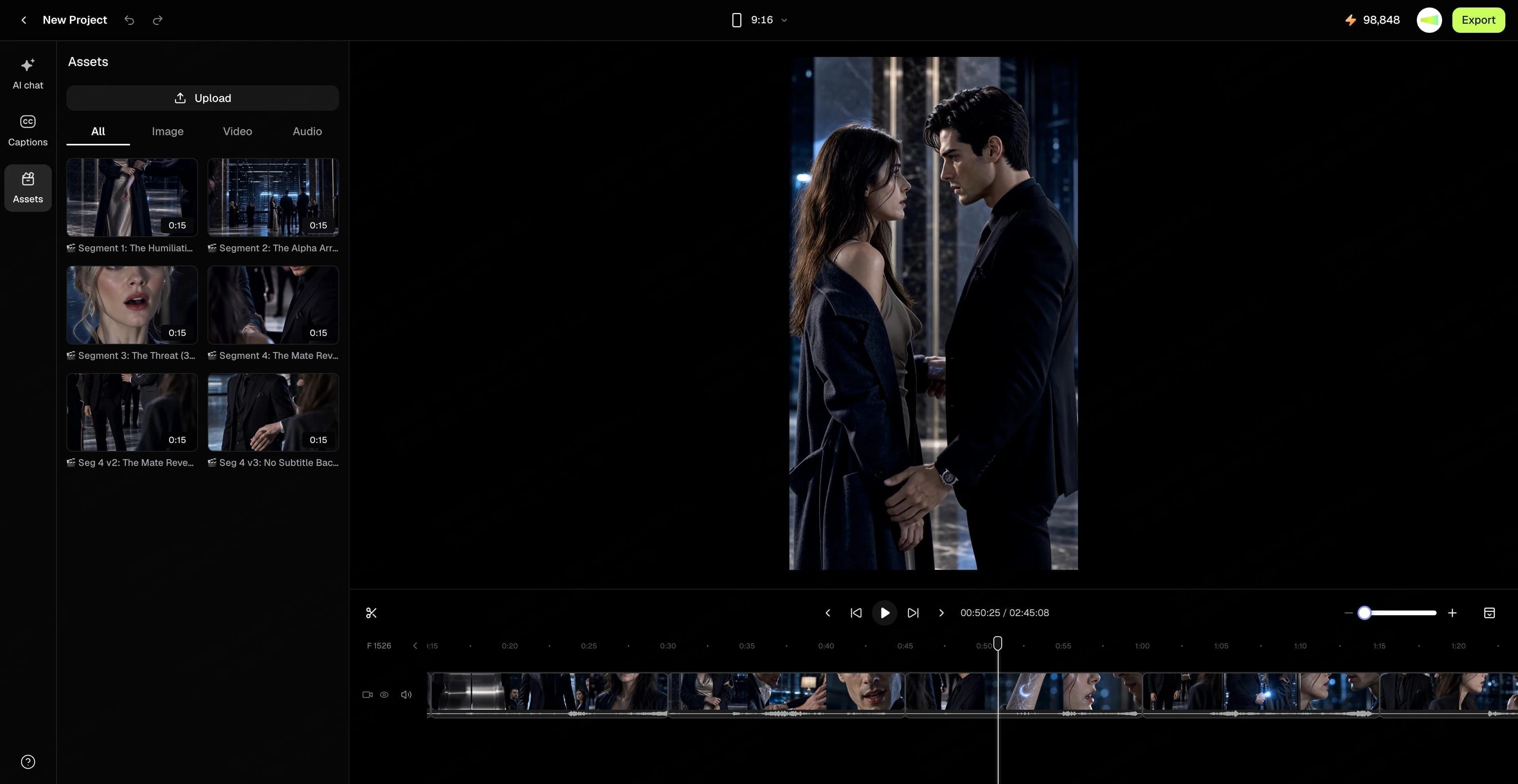
This is the embedded editing tool within Framia. No need to switch to another video editor — you are allowed to fine-tune the details of the generated content, and even regenerate them with AI powers.

You will be able to edit clips, adjust length, replace assets, add captions, add music, add transitions and many more, all in one workspace.

Access Video Editor:

  • Via Homepage's left sidebar
  • Add a new workflow node and choose Video Editor
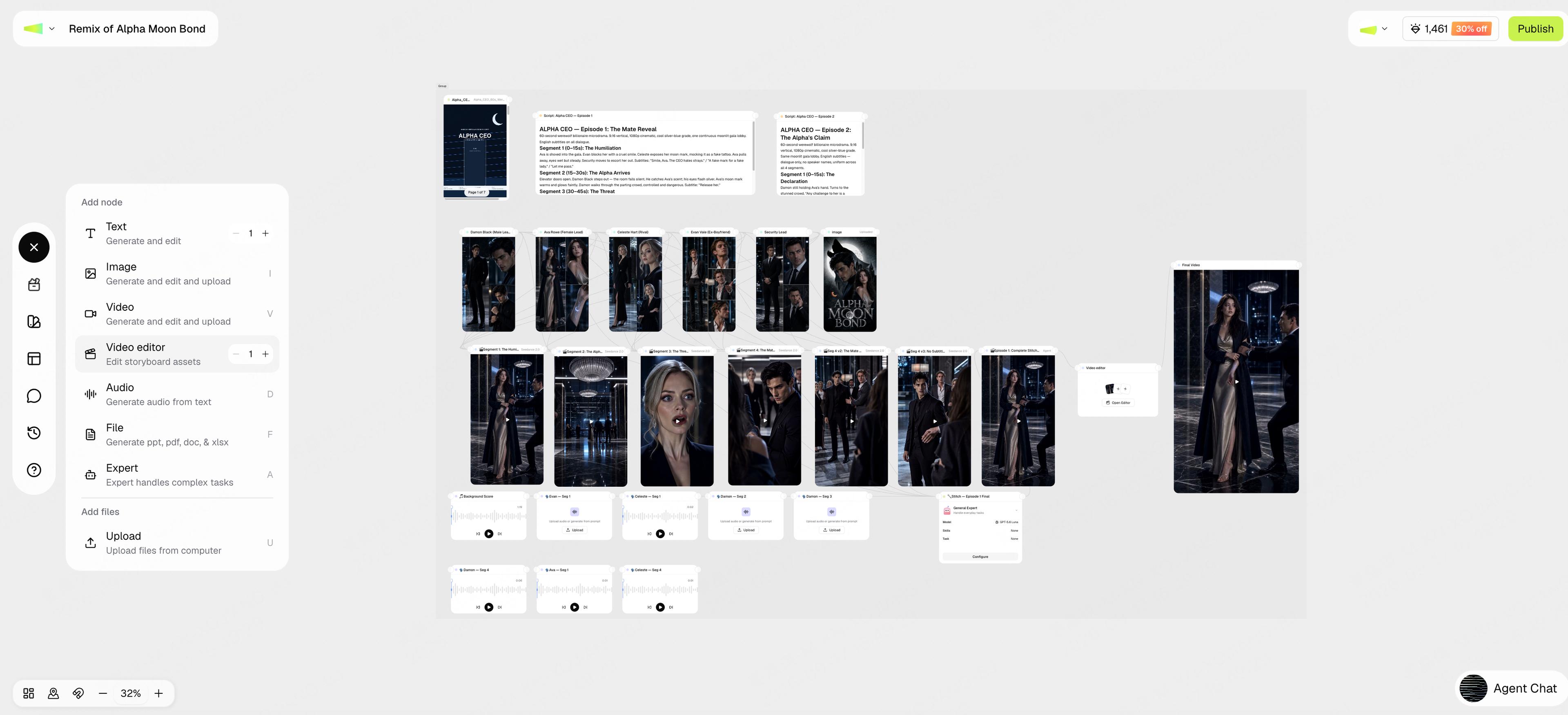
The add-node menu with Video editor highlighted
01

Add a Video Editor node from the menu

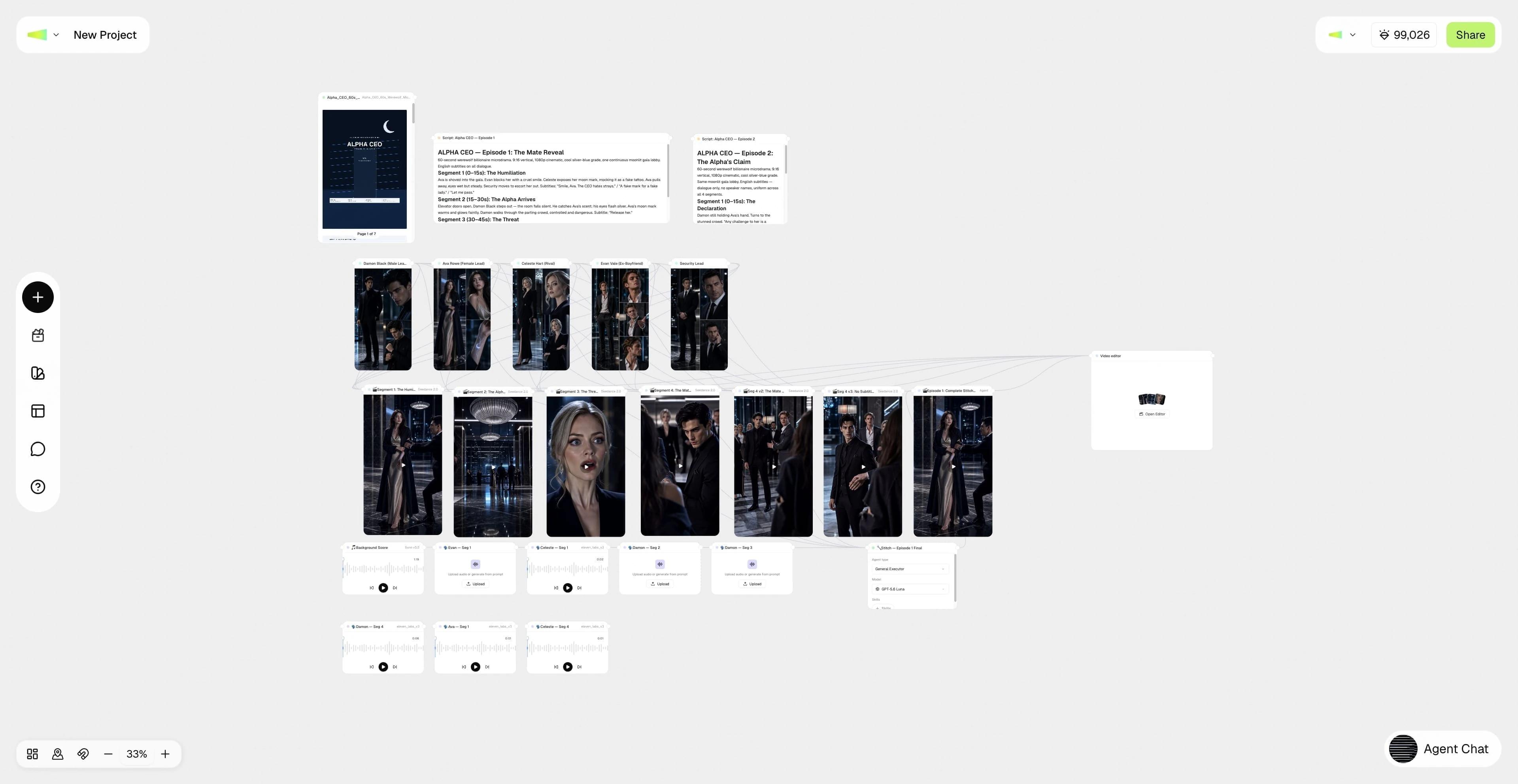
A workflow ending in a Video Editor node ready to render
02

A Video Editor node in your workflow

The Video Editor workspace with timeline, preview, and assets
03

Trim, caption, and export in the Video Editor

Brand Kits

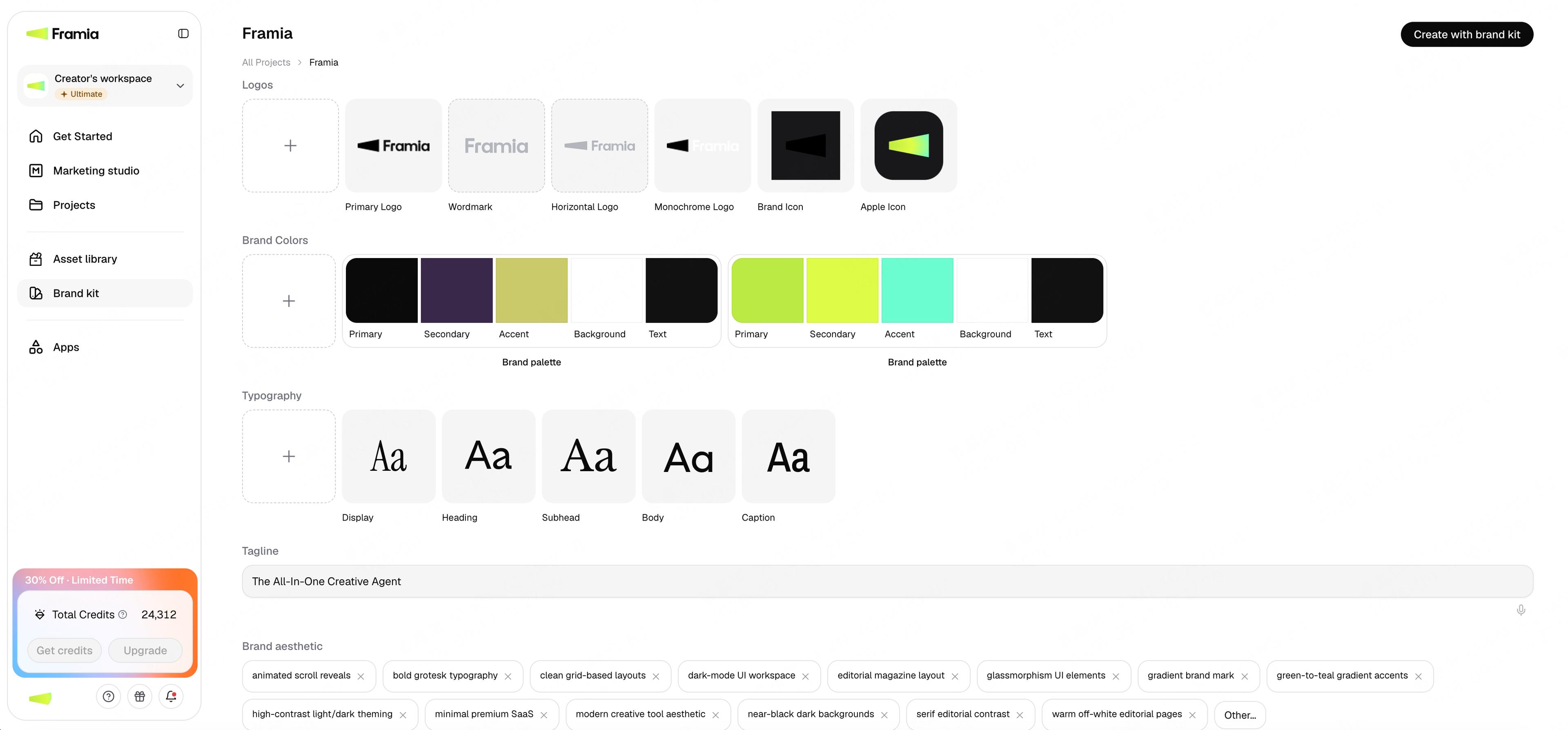
You are able to save a brand's essentials via the Brand Kits, along with other details such as color palette, font, product details, slogan, and other brand-specific details. With Brand Kits set up and enabled, the Agent will learn the brand-specific details, and it will be able to follow the protocols and produce AI content with consistency. This means any text, image, video, or audio content generated will be relevant to the brand details.

Access Brand Kits:

  • Via Homepage's left sidebar
  • Inside Canvas (an opened project), choose Brand Kits from the left sidebar and create a new brand. You can either use a URL to automatically generate a brand kit, or manually fill in the essentials of a brand.
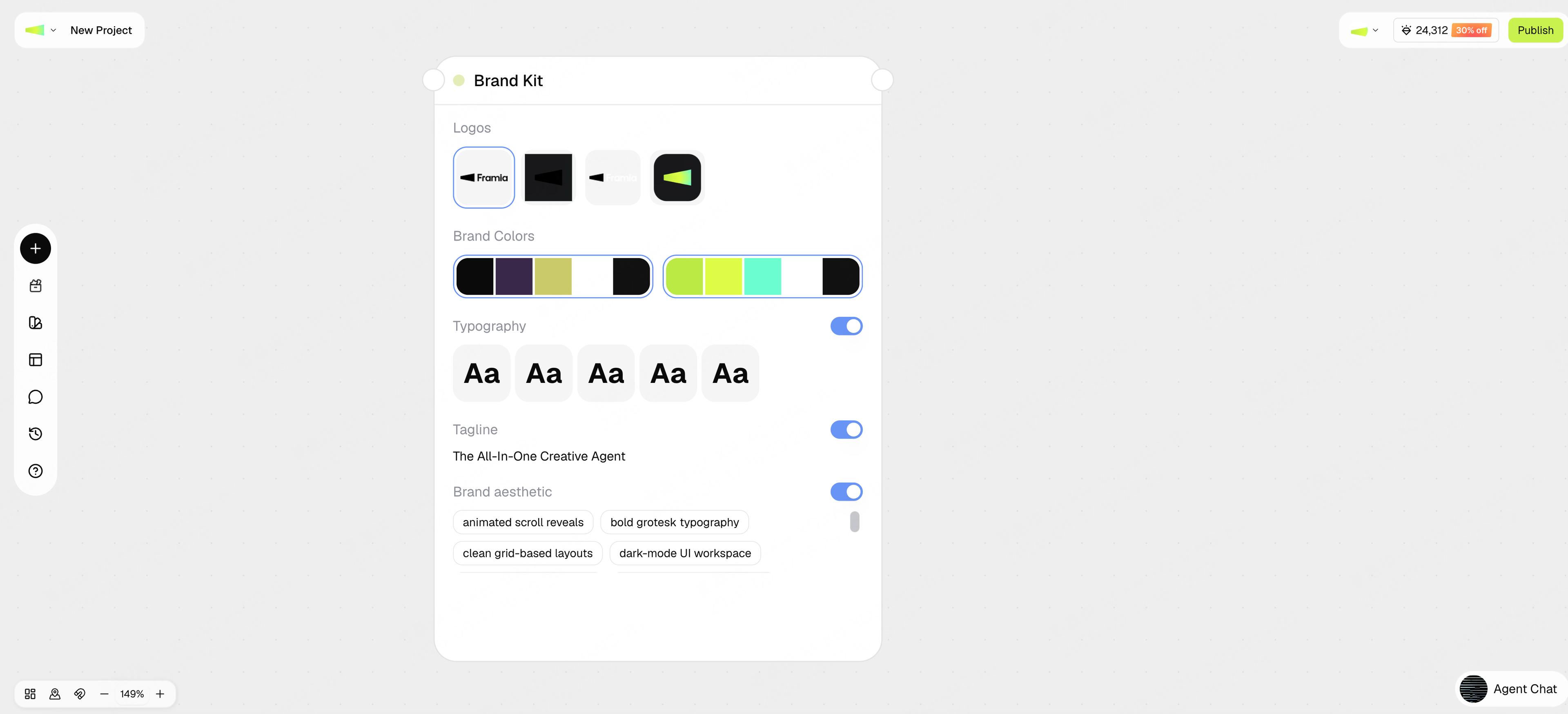
  • Add a new workflow node and choose Brand Kits, then drag a previously made brand kit onto the canvas.
  • Use the saved brands across different projects.
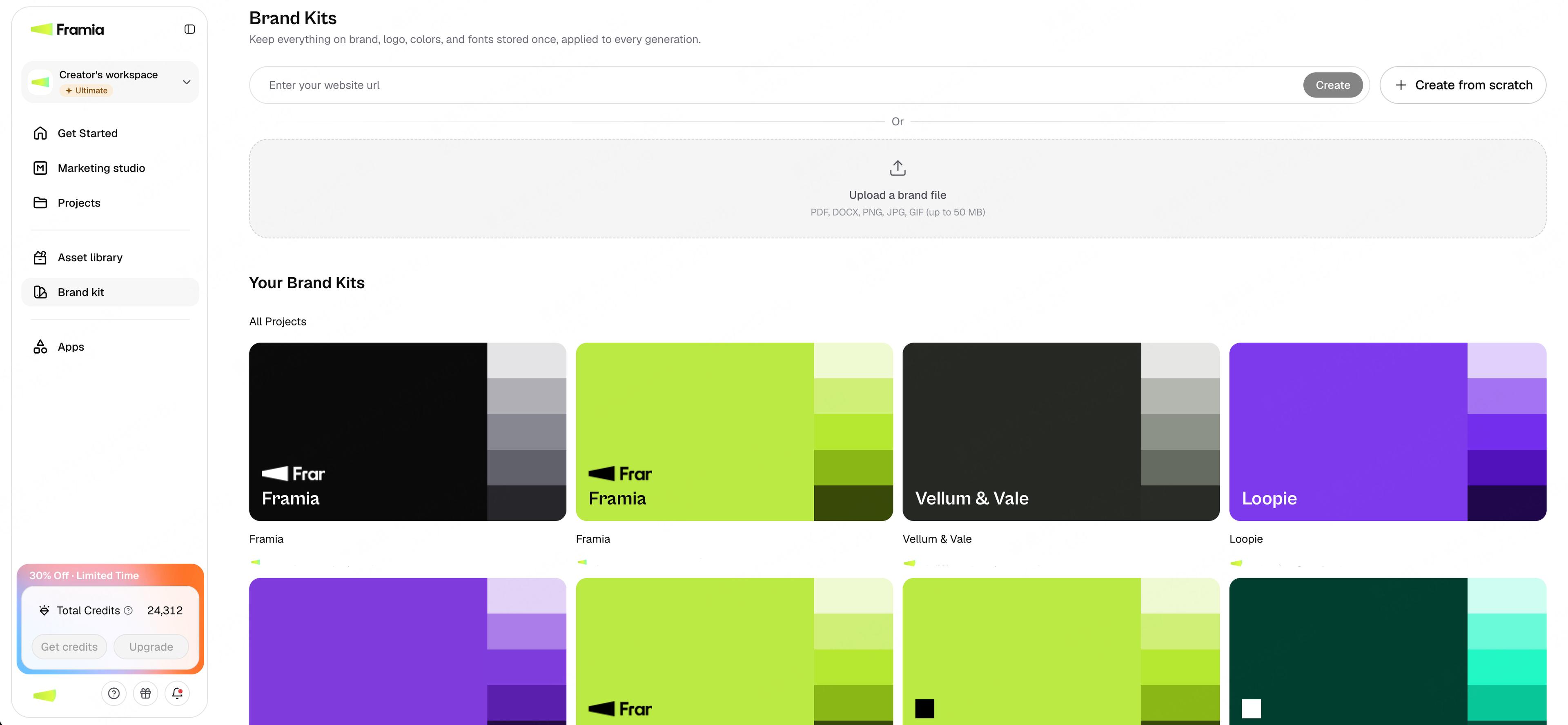
The Brand Kits page with website import, brand-file upload, Create from scratch, and saved brand cards
01

Open Brand Kits from the left sidebar

The Framia brand details page showing logos, brand colors, typography, tagline, and brand aesthetic
02

Manage your brand logos, colors, typography, and tagline

A Brand Kit node on the canvas with logos, colors, typography, tagline, and brand aesthetic controls
03

Use the saved Brand Kit in your canvas

Apps

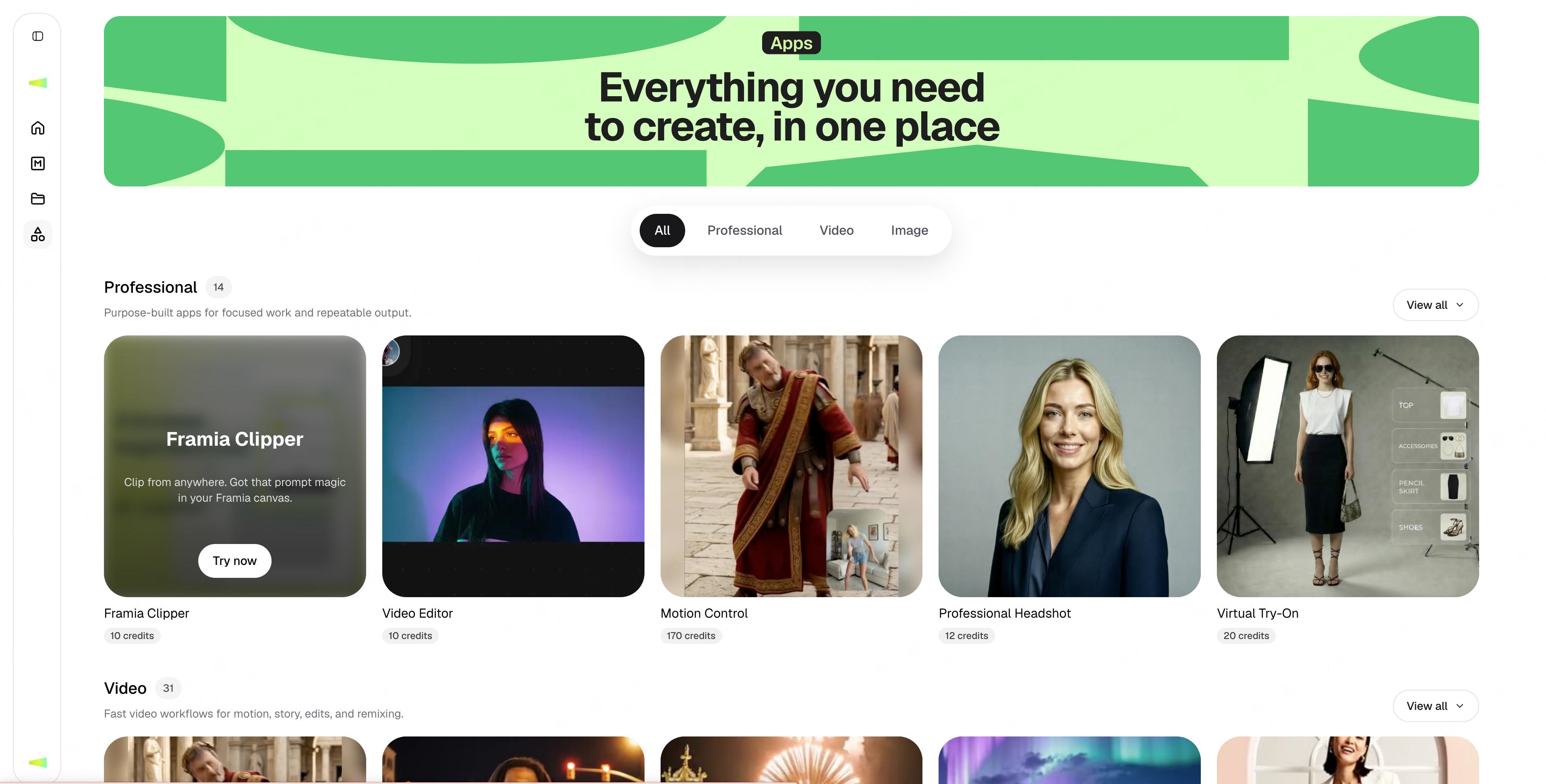
A collection of useful clippers and gadgets that help creators accelerate their creative process with smaller quick hacks and small tweaks. Such as:

  • Framia Clipper - helps you extract basically any prompt from online images and videos.
  • Virtual Try On - for E-Commerce sellers who want to change outfit for a model instantly
  • Motion Control - to quickly replicate the face swap and body change for any video to anyone
  • Professional Headshot - turn any simple photo into a LinkedIn profile picture with professional attire
  • ......

How to find and use Apps:

  1. Find the Apps tab in the left sidebar on the homepage.
  2. Click Apps to open the Apps Explore page.
  3. Once there, browse and click on any app you’re interested in to open its dedicated workspace.
  4. In the workspace, follow the template to upload your assets or select the desired parameters, then click Generate.
  5. Some apps don’t have a dedicated workspace and will redirect you to another feature page instead, such as the Video Editor or Framia Clipper.
The Framia Apps marketplace with a hero banner and app cards grouped by Professional, Video, and Image
01

The Apps tab in the left sidebar and the Professional tools

⭐️ Recommended Tool: Framia Clipper

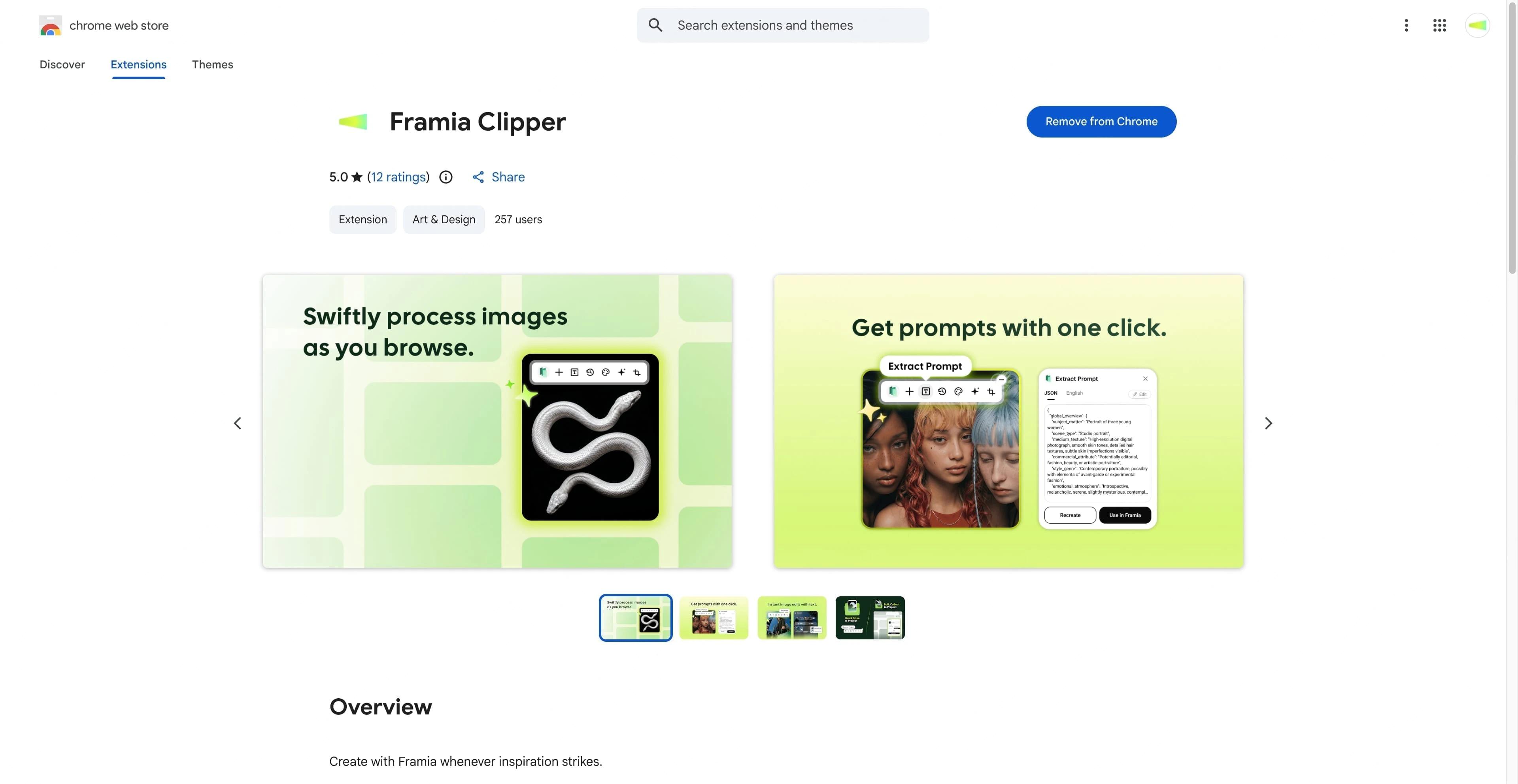
  • This is a Chrome browser extension that helps you take the first step from capturing inspiration to AI creation. While browsing the web, when you find an image or screenshot you like, you can analyze its prompt, save it to a Framia project, or remix the image in one click — a fast on-ramp that takes you straight into Framia.

⭐️ How to Find and Use Framia Clipper

  • Find the Apps tab in the left sidebar on the Framia homepage.
  • Click Apps to open the Apps Explore page. You’ll find Framia Clipper as the first tool under Professional Tools.
  • Click through to the Chrome Web Store to download the extension.
The Framia Clipper extension page on the Chrome Web Store
01

The Google extension download page

Social Publisher

To finish the last step in your creative process, we don't want you to switch tabs to multiple different social platforms and log in to multiple accounts repeatedly. You are able to do that within your Framia canvas. Not only that, you are also able to edit your published information separately for different platforms, within one window tab.

The social publisher feature in Framia allows you to fully manage the process from content production to publication, saving time and energy for a more seamless workflow.

Access Social Publisher:

  • On an opened canvas, top right, next to your credits, a green "share" icon — click on it.
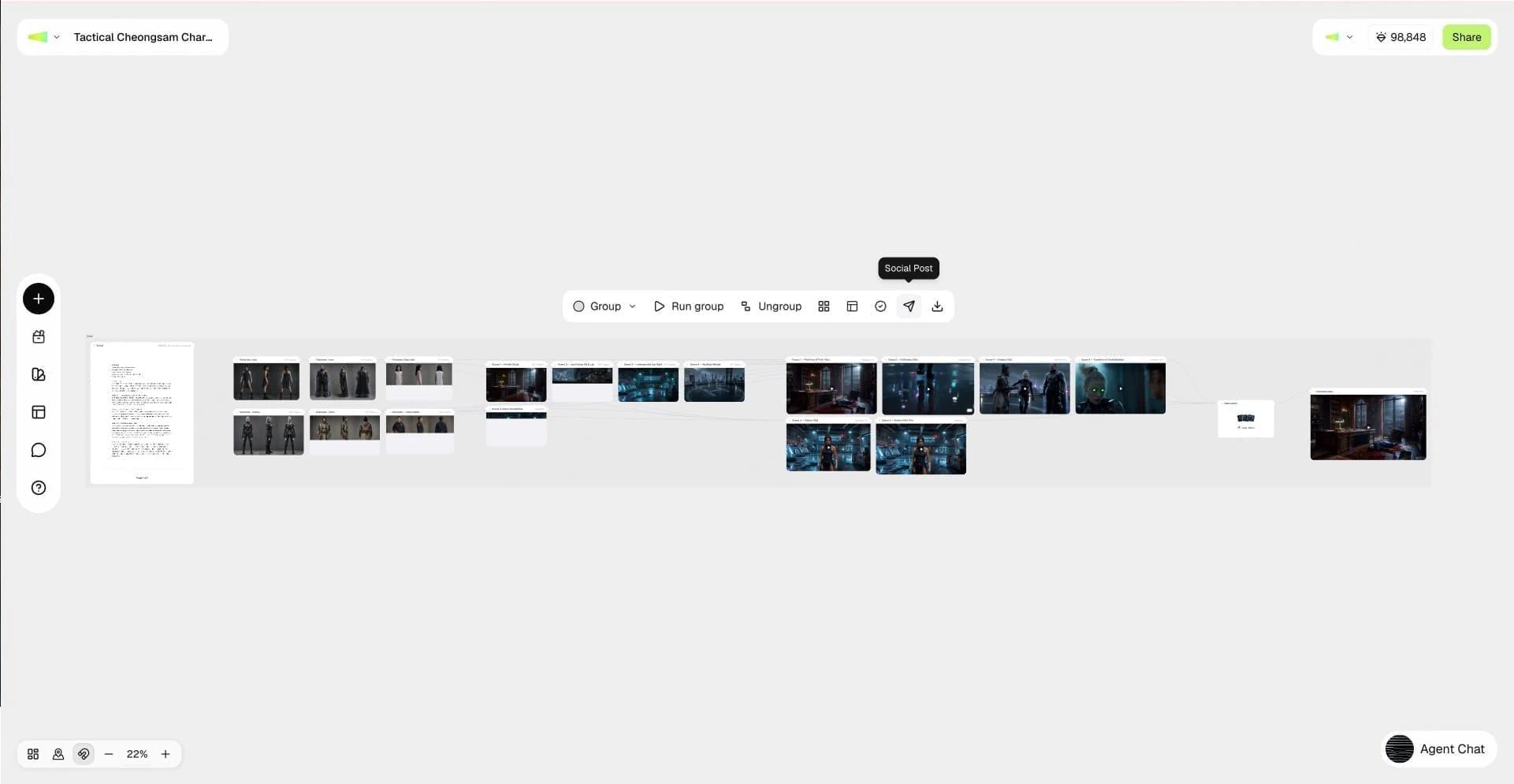
  • Choose a single node, and a "share" icon will show up on the top-right corner of the node — click on it.
  • Once you enter the Social Publisher window, you are allowed to edit the text and platform-specific details.
  • If you want to unbind a specific account, you can manage the social account details in your Framia account settings (Top Right → Profile Picture → Settings → Social Media Accounts).
  • (Under Development) Set a timer for your social posts' publishing date and time.
  • (Under Development) Manage historical posts.

Supported Platforms (currently):

  • YouTube
  • TikTok
  • Instagram
  • Facebook
  • X / Twitter
The Framia home page showing the Social Publisher entry card among the tools
01

Click the Social Publisher entry on the home page

A node toolbar on the canvas with the post icon highlighted
02

Open Social Publisher from the post icon on a node's toolbar

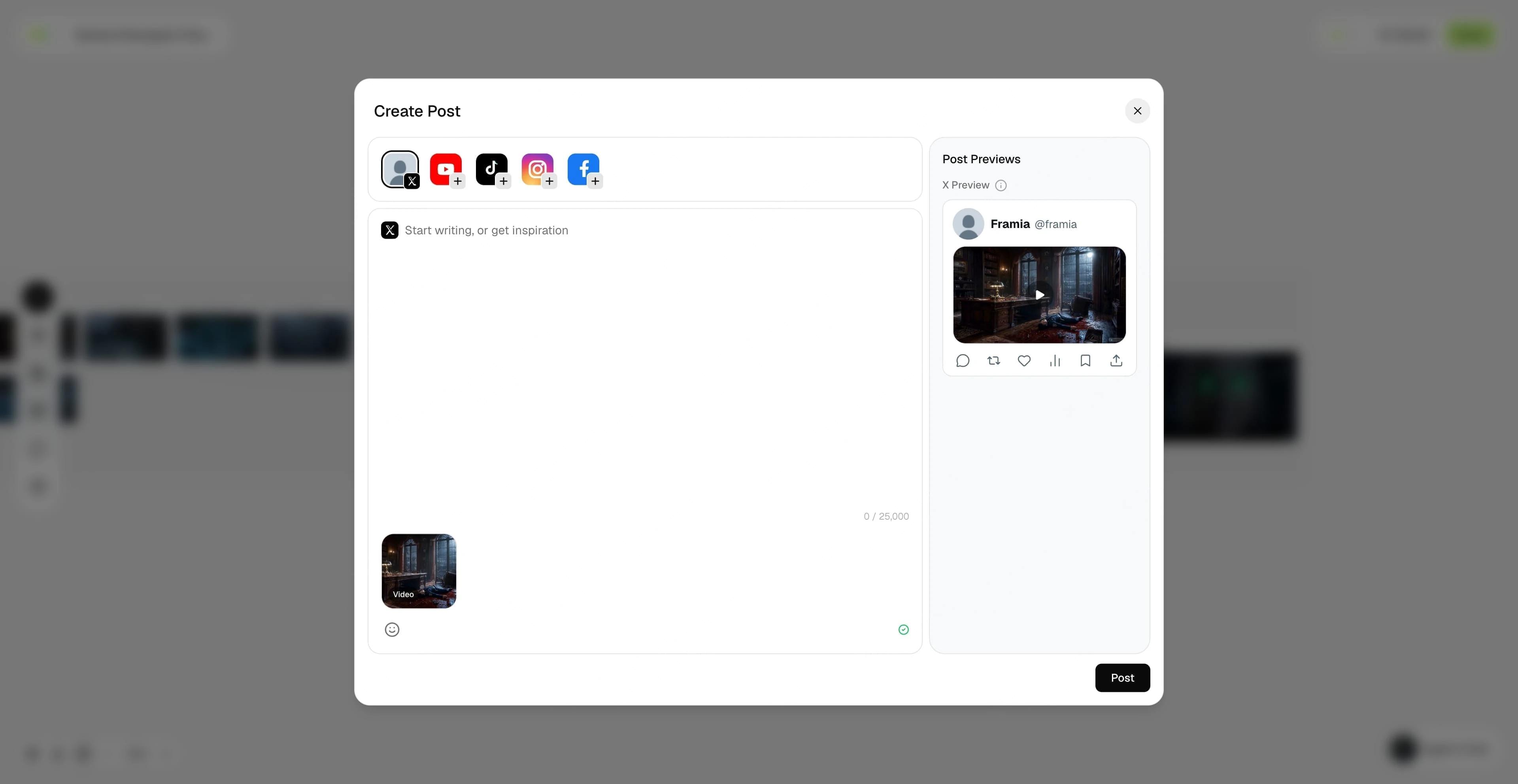
The Create Post window with platform icons, text, and post previews
03

Edit the post and pick platforms in one window

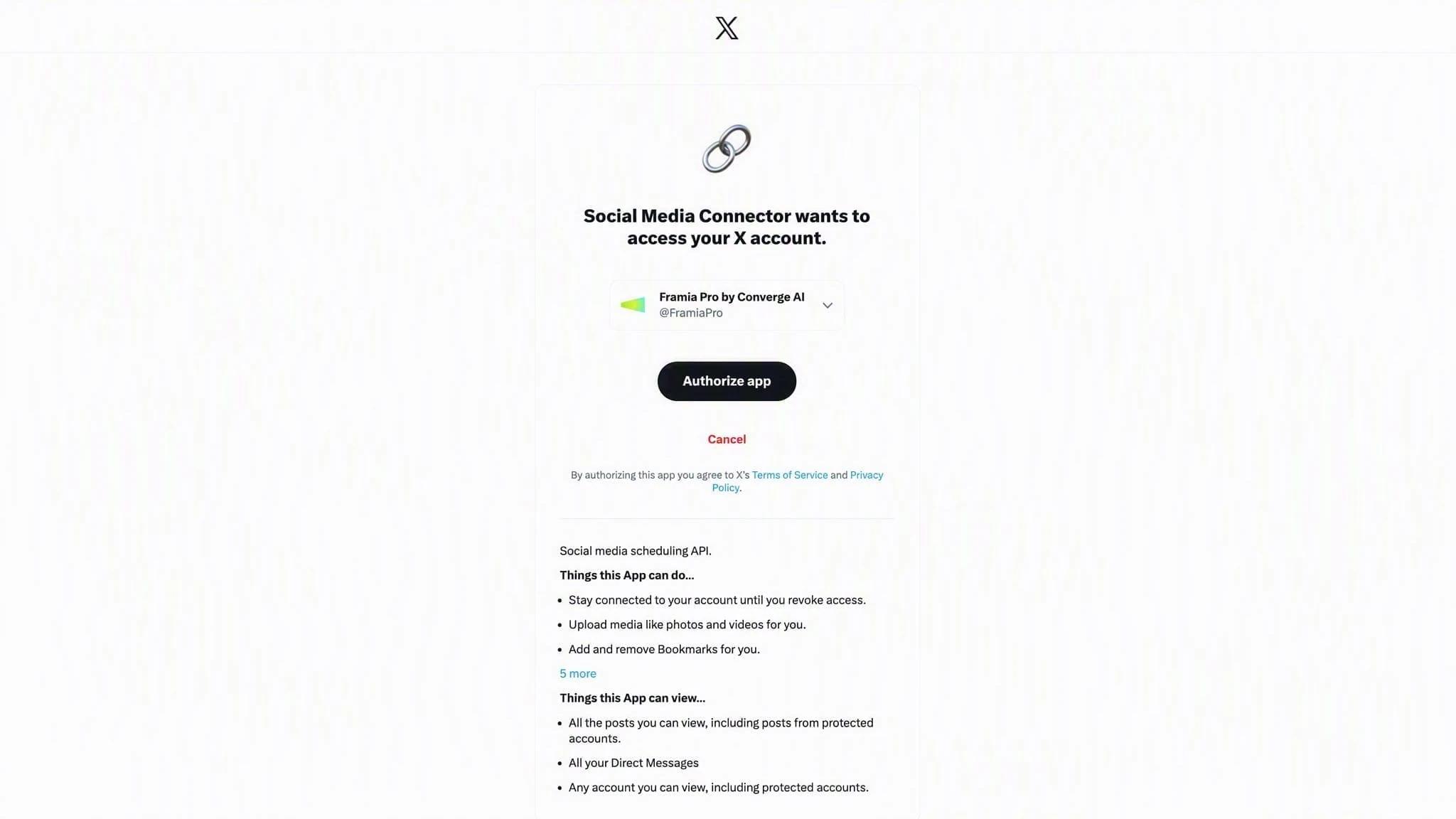
The X (Twitter) authorization page granting the Social Media Connector access for Framia Pro
04

Authorize the connection to your social account (e.g. X)

READY TO CREATE?

Now, let's start your full creative journey with Framia!

Begin with one sentence or a blank canvas. Framia will help turn the idea into finished work.
Official Website: https://framia.converge.ai

Framia Social Media — More Creations & Tutorials

  • YouTube
  • TikTok
  • Instagram
  • X / Twitter