What is YouTube picture-in-picture?
Picture-in-Picture (PiP) is a highly convenient feature on YouTube that fundamentally changes how you consume YouTube video content. Instead of trapping you within the YouTube application or browser tab, PiP shrinks your playing video into a small, floating thumbnail. This mini-player hovers on top of your screen, allowing you to seamlessly navigate to other apps, browse the web, read emails, or scroll through social media, all while your chosen video continues to play uninterrupted in the background.
Originally designed to boost multitasking, PiP YouTube mode is fully resizable and can be dragged to any corner of your screen to ensure it doesn't block essential text or interface elements. Whether you are catching up on a podcast, following a software tutorial, or simply listening to a music playlist, YouTube’s Picture-in-Picture feature breaks the barriers of single-app viewing. It is currently available across various platforms, including Android, iOS, and most modern desktop web browsers.

Benefits of using picture in picture on YouTube
Unlocking picture-in-picture mode for YouTube brings a whole new level of flexibility to your digital life. Here are four significant advantages of using this powerful multitasking feature on your devices.
- Effortless multitasking: With PiP, you no longer have to pause your video to reply to an urgent message. You can easily watch a detailed software tutorial while actively following the steps in a completely different app without ever losing your place.
- Continuous entertainment: Picture-in-Picture ensures your entertainment remains entirely uninterrupted. If you love listening to video podcasts, interviews, or lengthy documentaries, PiP keeps the media playing smoothly on your screen even when you need to quickly check your calendar or social feeds.
- Increased productivity: By utilizing PiP, you can effortlessly combine work and play. You can monitor live news broadcasts or educational lectures in a tiny, unobtrusive corner of your display while dedicating the main portion of your screen to typing important documents.
- Flexible screen space: The PiP floating window puts you in complete control of your screen real estate. You can instantly resize the player, drag it to different corners, or temporarily stash it off-screen, ensuring it never obstructs vital information on your display.
3 simple ways to use picture in picture on YouTube
Ready to upgrade your viewing experience? Enabling this feature is incredibly straightforward across all major devices. Here are three comprehensive ways to use YouTube Picture-in-Picture on your preferred platforms.
Method 1: How to use YouTube PiP on Android?
Using YouTube Picture-in-Picture on an Android device is a seamless experience, but it requires checking a few settings first to ensure everything works flawlessly.
For Android users in the United States, PiP is available for free on most non-music videos. However, if you live outside the US, you will need an active YouTube Premium subscription to access this feature for any content.
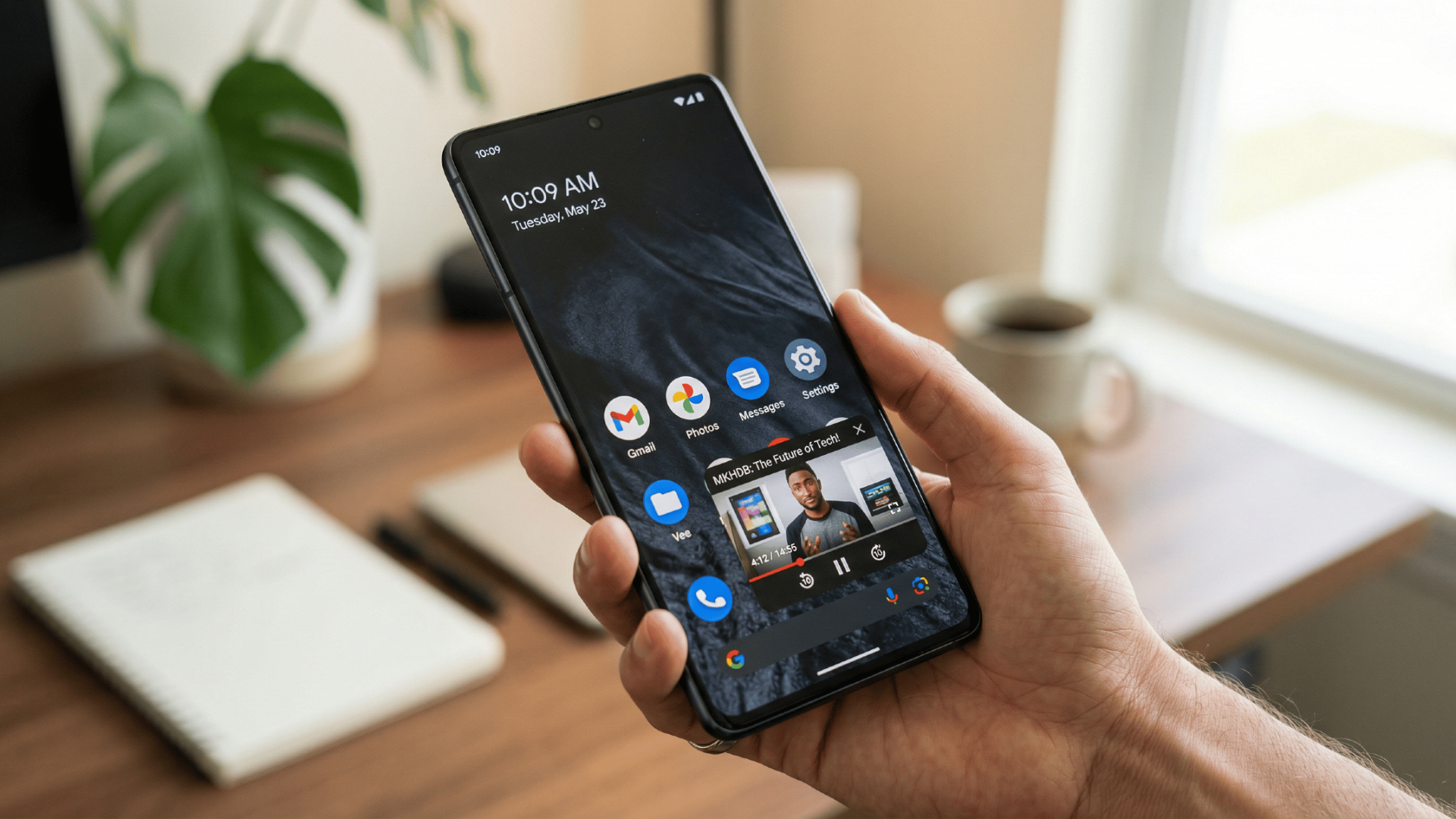
- Verify system-level permissions: Before opening YouTube, you must first verify that PiP permissions are allowed at the system level. Open your Android device’s main "Settings" app, navigate to "Apps" (or "Apps & notifications"), and select "Special app access." From there, tap on "Picture-in-picture," scroll down to find "YouTube," and ensure the "Allow picture-in-picture" toggle is turned on.
- Enable PiP in the YouTube app: Once your system settings are confirmed, open the official YouTube app. Tap your profile picture in the bottom-right or top-right corner to open your account menu, then select the gear icon to enter "Settings." Tap on "General" (or "Playback" depending on your specific app version) and locate the "Picture-in-picture" option. Toggle this switch until it turns blue, indicating the feature is now fully active.
- Activate the mini-player: Now, the magic happens. Search for a video you want to watch and press play. While the video is running, simply swipe up from the bottom of your screen to return to your device's home screen (or press the physical home button if your phone has one). Instead of closing out the app, the YouTube video will instantly shrink down into a floating mini-player.
- Control your floating window: You can easily drag this window to any corner of your screen using your finger. To resize it, simply use a standard two-finger pinch or spread gesture. If you need to temporarily hide the video without stopping the audio, drag the player toward the edge of your screen to stash it. Tap the window once to reveal playback controls or to return to full-screen mode.
Method 2: How to use YouTube PiP on iOS or iPad OS?
Activating YouTube Picture-in-Picture on an iPhone or iPad brings incredible multitasking capabilities to your Apple ecosystem. Similar to Android, there are a few prerequisites.
If you reside outside the United States, or if you want to watch music videos in PiP mode globally, a YouTube Premium subscription is strictly required. For general video content within the US, the feature is available for free users.
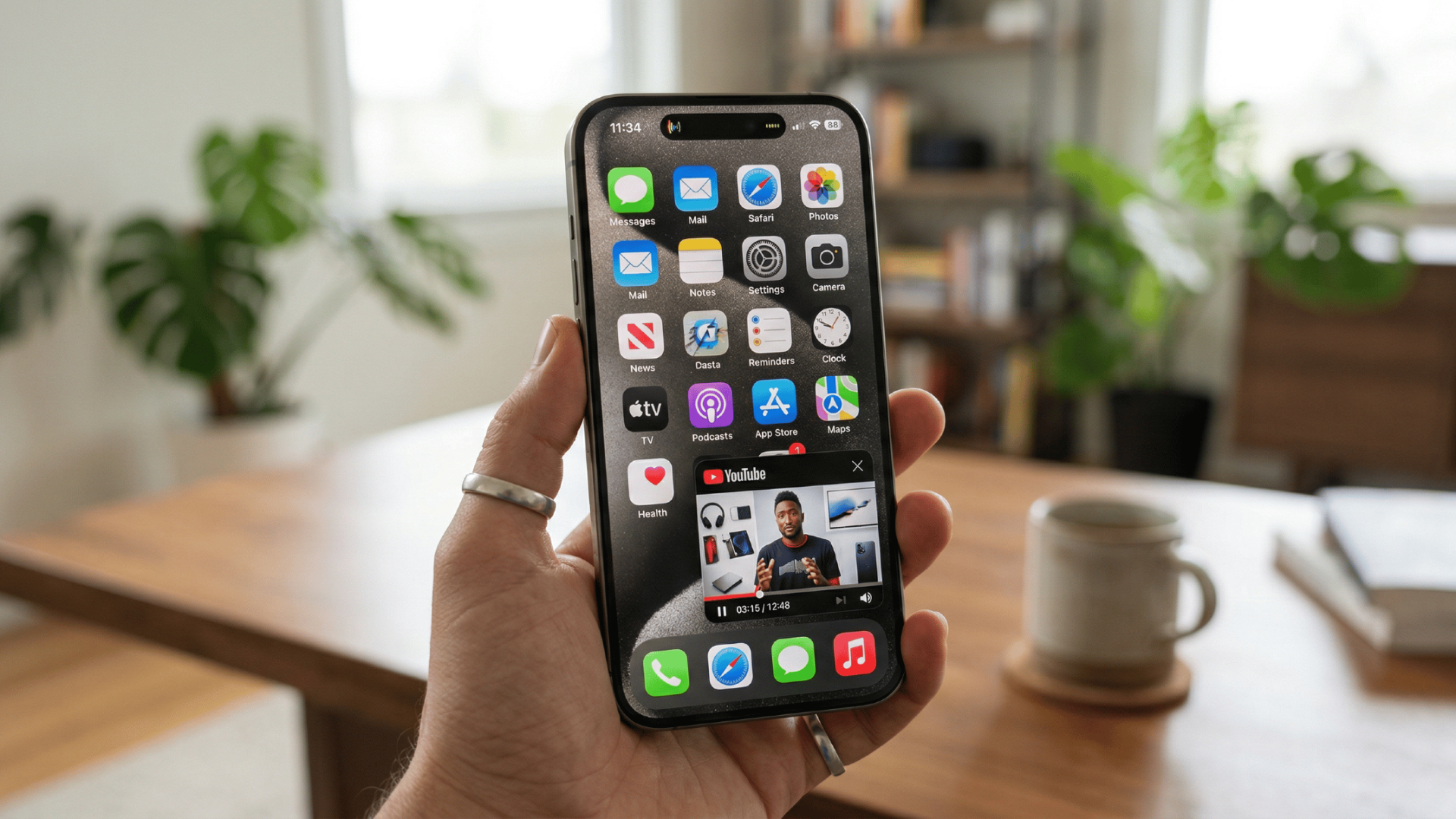
- Configure iOS system settings: To enable it, begin by configuring your iOS system settings. Open the "Settings" app on your iPhone or iPad, tap on "General," and select "Picture in Picture." Make sure the "Start PiP Automatically" toggle is switched to the "On" position (it will turn green). This essential step ensures that compatible apps can trigger the floating window when you exit them.
- Toggle YouTube app settings: Next, launch the official YouTube app. Tap your profile picture icon in the corner, head into the "Settings" menu, and then tap on "General." Look closely for the "Picture-in-Picture" setting and turn the toggle on. With both your iOS and YouTube app settings properly configured, you are ready to use the feature.
- Trigger the picture-in-picture mode: Start playing any compatible video in the YouTube app. While the video is actively playing on your screen, simply swipe up from the bottom of your display to go back to your iOS home screen. The video will immediately transition into a small, floating thumbnail hovering above your other apps.
- Interact with the PiP player: This PiP player is highly interactive: you can drag it across all four corners of your display, and you can pinch to zoom in or out, making the window larger or smaller based on your needs. If you need to clear your screen entirely without stopping the audio, swipe the mini-player off the left or right edge of your screen to "stash" it. A small arrow will appear on the edge, which you can tap to bring the video window right back into view.
Method 3: How to use YouTube PiP on a computer?
Enjoying YouTube Picture-in-Picture is not limited to mobile devices; it is incredibly easy to set up on desktop computers, whether you are using Windows or macOS.
The best part about using PiP on a computer is that it does not require a YouTube Premium subscription, regardless of what country you live in or what type of video you are watching. It relies entirely on the built-in capabilities of modern web browsers like Google Chrome, Safari, Microsoft Edge, and Firefox.
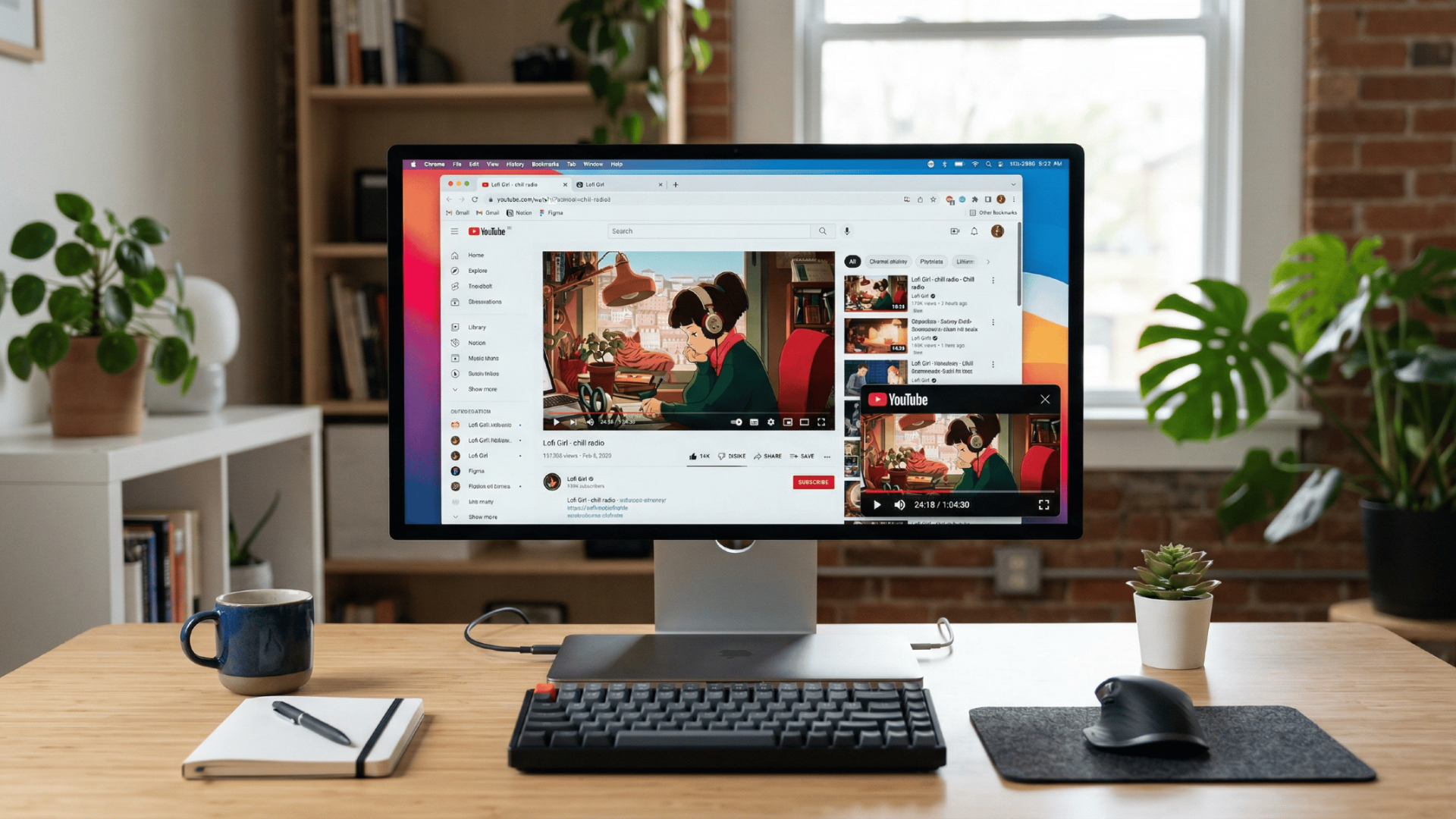
- Navigate to your chosen video: First, open your preferred web browser and navigate directly to youtube.com. Find the video you want to watch, click on it, and let the playback begin normally.
- Perform the "double right-click" trick: Next, hover your mouse cursor directly over the playing video pane. Right-click once, and you will see YouTube’s custom black-themed menu appear, showing standard options like "Loop" and "Copy video URL." Ignore this first menu entirely. Without moving your cursor, right-click a second time. This clever action will bypass YouTube's custom menu and bring up your browser's native system menu instead.
- Activate picture-in-picture: From this second, in the native browser menu, look for and click on "Picture in picture" (note: on Safari, this option may be labeled "Enter Picture in Picture").
- Manage the floating window: Instantly, the video will pop out of the browser tab into a clean, floating window in the corner of your monitor. You can now freely minimize your browser or switch to entirely different applications like Microsoft Word, email clients, or spreadsheets, and the video will remain pinned on top of all your other windows. You can click and drag the edges of this PiP window to resize it to your liking, and drag the center of the window to move it anywhere on your desktop screen. To exit PiP mode, simply click the small "Back to tab" icon in the center of the floating player or click the "X" to close it completely.
What to do if YouTube picture-in-picture is not working?
Experiencing issues with YouTube's Picture-in-Picture mode can be frustrating, but the solutions are usually quite simple. If your floating window isn't appearing, try these four quick troubleshooting tips to fix it.
- Check YouTube Premium status: Ensure you have an active YouTube Premium subscription if you are outside the US or watching music videos. PiP features are restricted geographically and by content type, so verifying your membership status is the best first step.
- Update the YouTube app: Outdated software can cause unexpected glitches. Head to the Apple App Store or Google Play Store and check for pending updates. Installing the latest version of the YouTube app often resolves underlying bugs preventing PiP from working.
- Clear app cache (Android): If you are using an Android device, corrupted temporary data might be the culprit. Go to your system settings, locate the YouTube app under your installed applications, and clear its cache to refresh its background processes completely.
- Restart your device: When all else fails, a simple device reboot can work wonders. Restarting your smartphone, tablet, or computer clears the system memory and resolves temporary software conflicts that might be stopping the floating player from functioning correctly.
How to create YouTube videos seamlessly with Framia Pro?
While Picture-in-Picture makes watching videos easier, what if you want to become a creator? Producing engaging YouTube content is now effortless with Framia Pro, a powerful generative AI video tool.
By conversing with intelligent AI agents, you can generate, edit, and design stunning, professional-quality cinematic videos without needing technical skills.
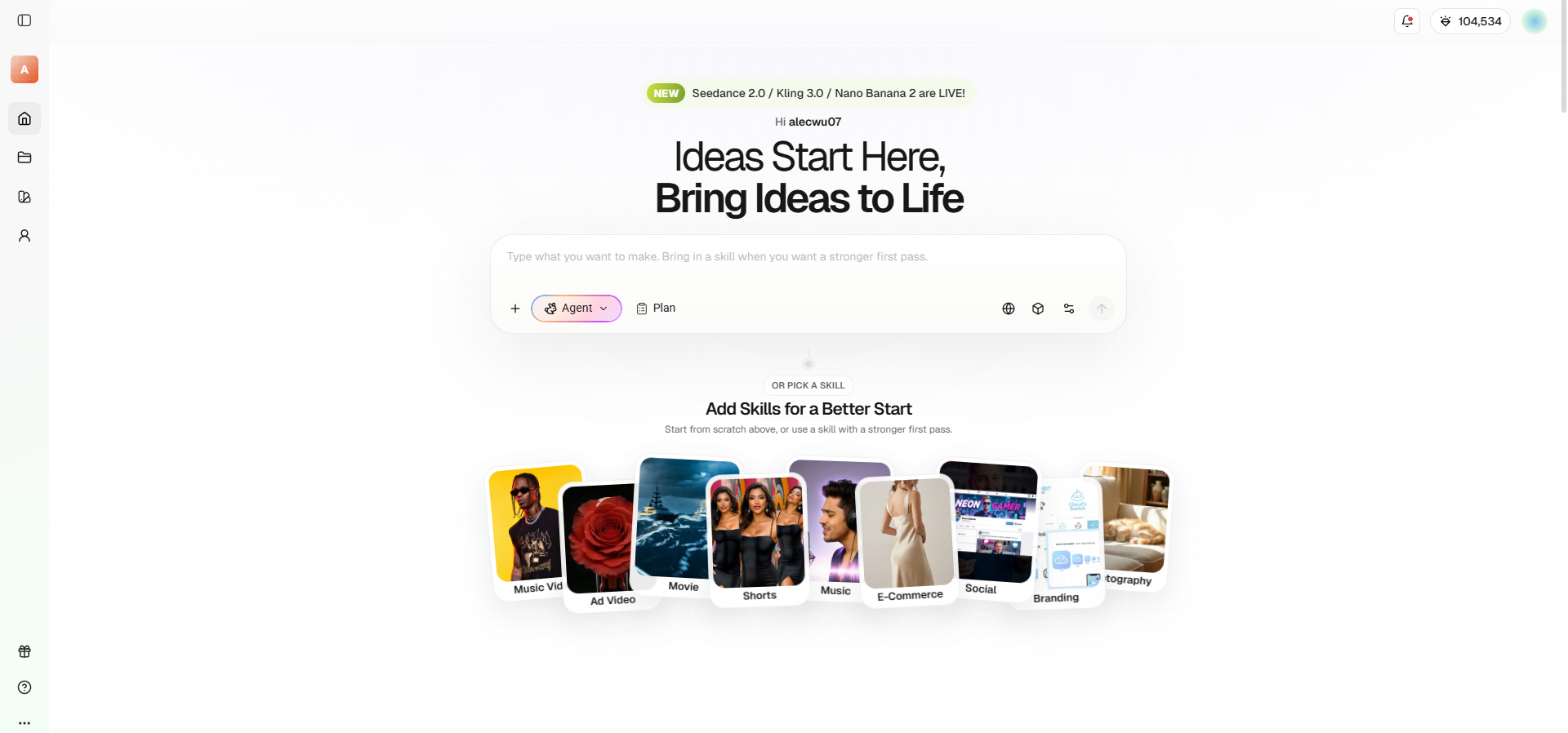
Key features of Framia Pro:
- Specialized shorts agent: Instantly produce highly engaging, vertical YouTube Shorts. This tool automatically handles smart cropping, accurate captions, synced music, and viral pacing.
- Character consistency engine: Maintain the exact same virtual character faces across multiple different video scenes to build a highly recognizable YouTube brand identity.
- Conversational timeline editing: Easily refine your entire YouTube video by typing simple natural language commands to trim clips, swap shots, or change music.
- Unified multimodal creation: Generate stunning cinematic B-roll footage, realistic AI voiceovers, original background tracks, and eye-catching YouTube thumbnails within one seamless creative workspace.
Why use Framia Pro for YouTube video creation:
- Zero editing experience required: Replaces complex timelines with intuitive text prompts, allowing anyone to direct high-end videos without technical expertise.
- Rapid content production: Transforms a raw concept into a fully produced, 4K-ready YouTube Short or ad in just a few minutes.
- All-in-one subscription cost: Eliminates the need to pay for separate stock footage, music licensing, and voiceover tools, saving creators significant money.
- Cinematic production value: Powered by advanced models like Kling 3.0 and Nano Banana 2, ensuring outputs look deeply professional and visually stunning.
How to use Framia Pro for creating YouTube videos:
Step 1: Select your desired Framia AI agent and video generation model
Begin your creative process by choosing a specialized Framia AI agent, such as the "Shorts" agent or "Movie" agent. Next, select your preferred video generation model to ensure the style matches your vision perfectly, such as Veo, Kling, or Seedance.
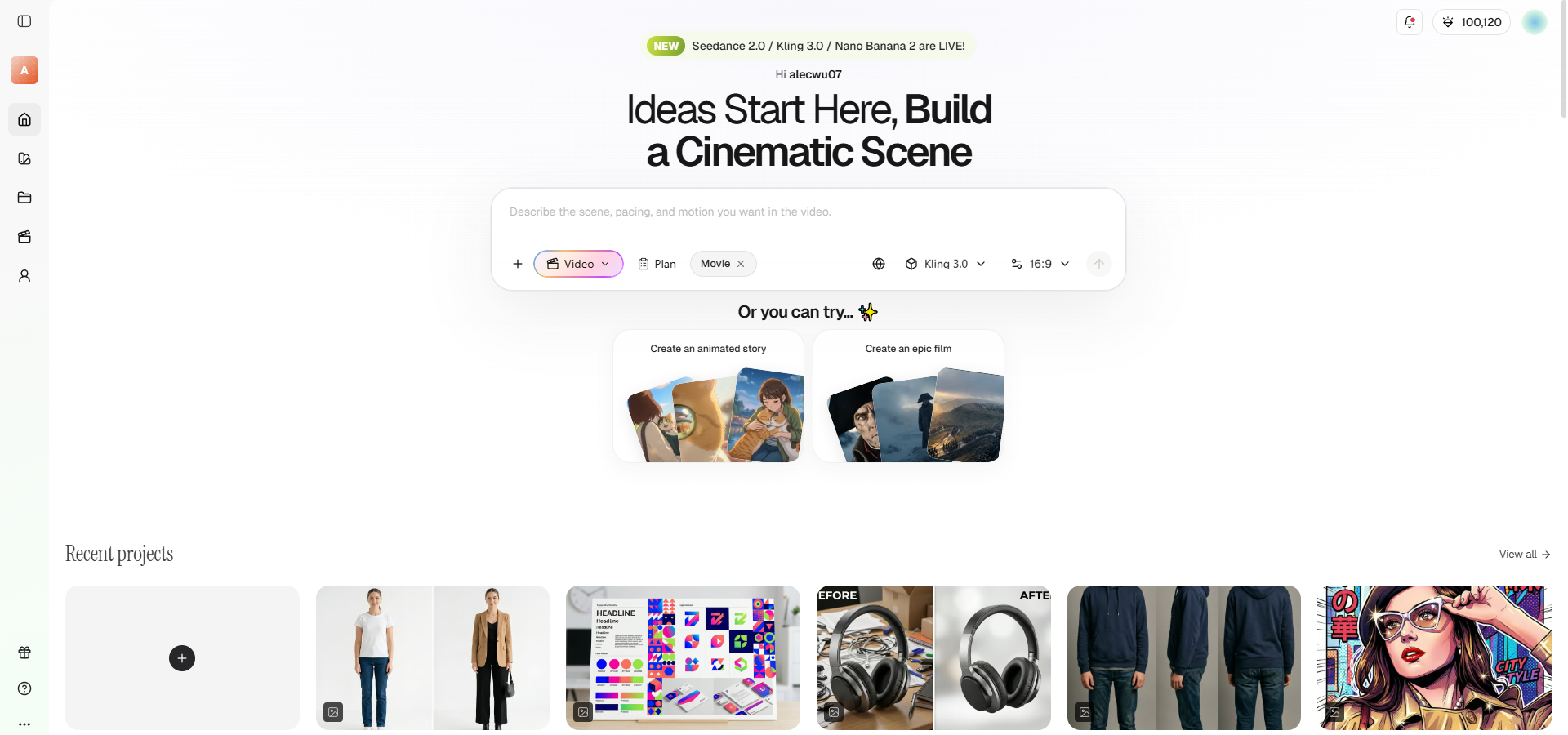
Step 2: Provide your detailed prompt for video generation
Type a clear, descriptive prompt outlining your video's core concept, desired tone, and visual elements. The more natural language details you provide, the more accurate the AI-generated timeline will be.
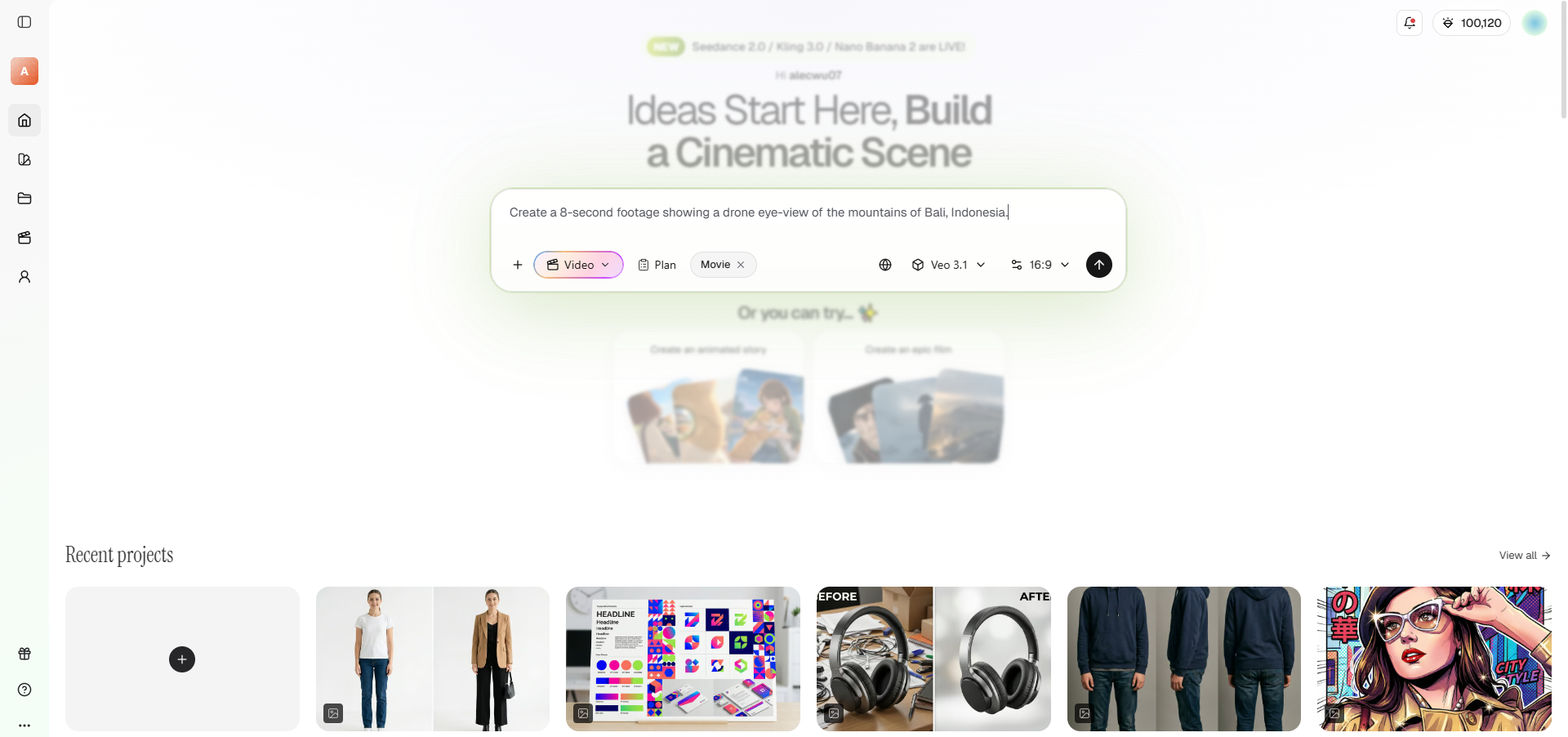
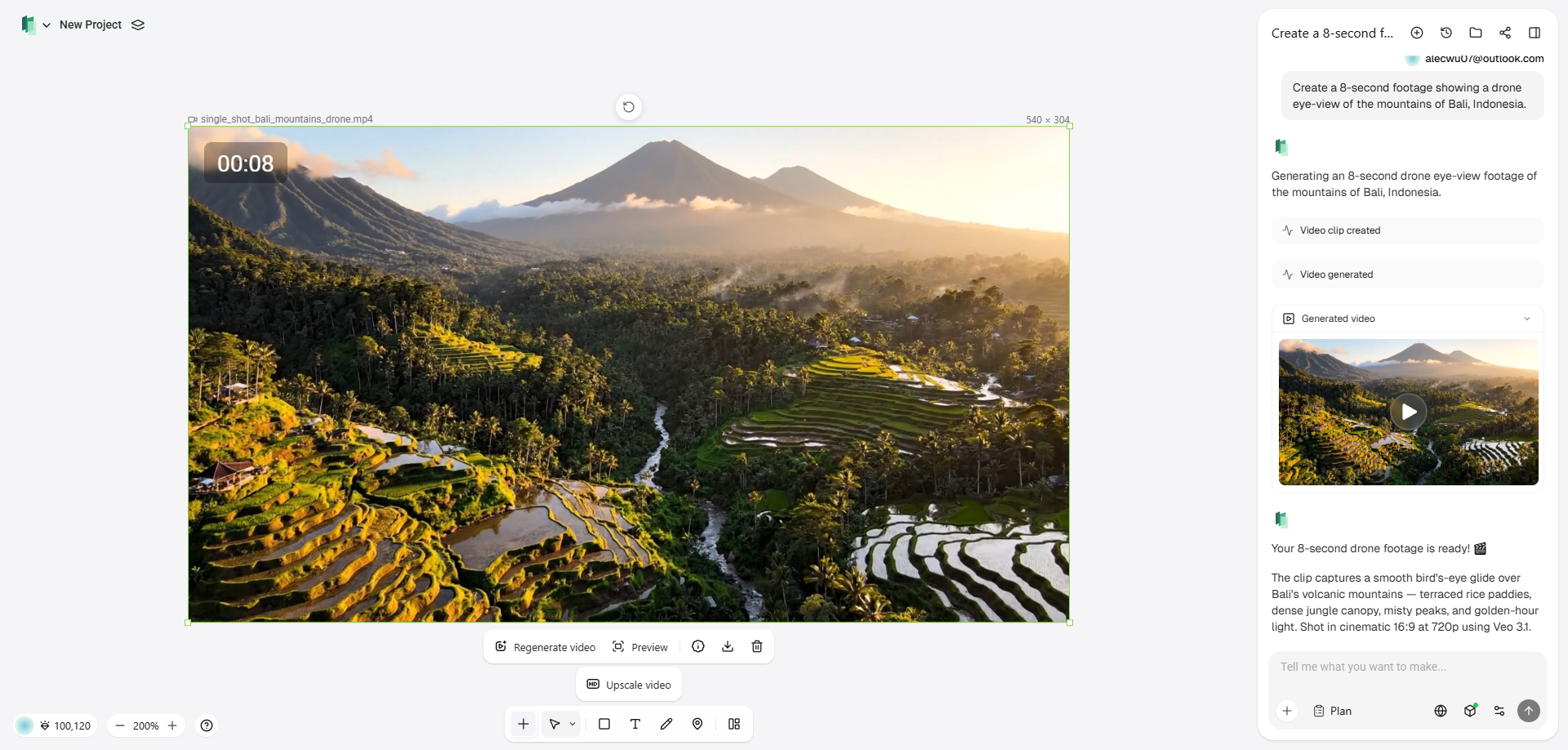
Step 3: Finalize and export your video for sharing on YouTube
Review your generated video and use conversational commands, via the "Edit in Video Editor" option, to tweak the music, b-roll, or captions. Once satisfied, export the final high-resolution cinematic file, perfectly formatted and ready for YouTube upload.
Wrapping up
YouTube’s Picture-in-Picture mode is an absolute game-changer for digital multitasking, allowing you to seamlessly watch videos while navigating other apps.
Whether using an Android smartphone, an iPhone, or browsing on a desktop computer, enabling PiP is a straightforward process that instantly boosts your productivity and keeps your entertainment uninterrupted. While occasional glitches can occur, simple troubleshooting steps like updating your app or checking your Premium status will quickly resolve them.
Furthermore, with emerging generative AI tools like Framia Pro, transitioning from consuming videos to effortlessly creating your own content has never been more accessible.
FAQs
Do I need YouTube Premium to use picture-in-picture?
If you live in the United States, the Youtube app picture in picture mode is free for non-music videos. However, international users and anyone watching music videos globally must have an active YouTube Premium subscription.
Why did my picture-in-picture YouTube feature suddenly stop working?
Your app might need an update, or your device permissions may have reset. It also stops working if you attempt to play a music video without a Premium account.
How do I enable YouTube PiP on my computer?
Simply hover your mouse over the playing video, right-click twice in a row to bypass the custom YouTube menu, and select "Picture in picture" from your browser's native list.
How to make the YouTube screen smaller, on a computer or mobile?
To make the YouTube video screen smaller without closing it, simply swipe up to your home screen on your mobile, or use the double right-click PiP method on your desktop browser.
Can I resize the picture-in-picture window on my phone?
Yes, the floating window is fully customizable. You can drag it to any corner of your screen and use a two-finger pinch or spread gesture to shrink or enlarge it.
How to change YouTube picture in picture size, whether on mobile or computer?
To change your YouTube picture-in-picture size, use a two-finger pinch gesture on mobile screens, or click and drag the edges of the floating window on your computer.
Does YouTube PiP work with background play when my screen is locked?
Playing audio while your screen is completely locked is a specific background play feature that strictly requires a YouTube Premium subscription, even if you are located within the US.
How to do YouTube mini player on PC?
Learning how to do YouTube mini player on PC is easy: hover over the video, right-click twice to bypass the custom menu, and click "Picture in picture."