
Putting together professional-looking videos doesn't have to mean wrestling with complicated desktop software. For plenty of creators, a fast, browser-based tool is all they really need to trim, merge, and polish content for social media or work presentations. Clideo has become one of the more popular online editing suites out there, offering a collection of simple but surprisingly useful utilities. But is it actually the right fit for your workflow? In this detailed review, we'll explore the Clideo video editor, its pricing, the good and the bad, and some solid alternatives if you need more advanced features.
What is Clideo?
Clideo is a cloud-based, all-in-one online video and image editing platform. Unlike traditional software that asks you to download and install heavy files, Clideo runs entirely in your web browser. When you land on Clideo, you're greeted with a clean, grid‑style interface that gives you standalone tools for cutting, merging, compressing, and adding subtitles to videos.
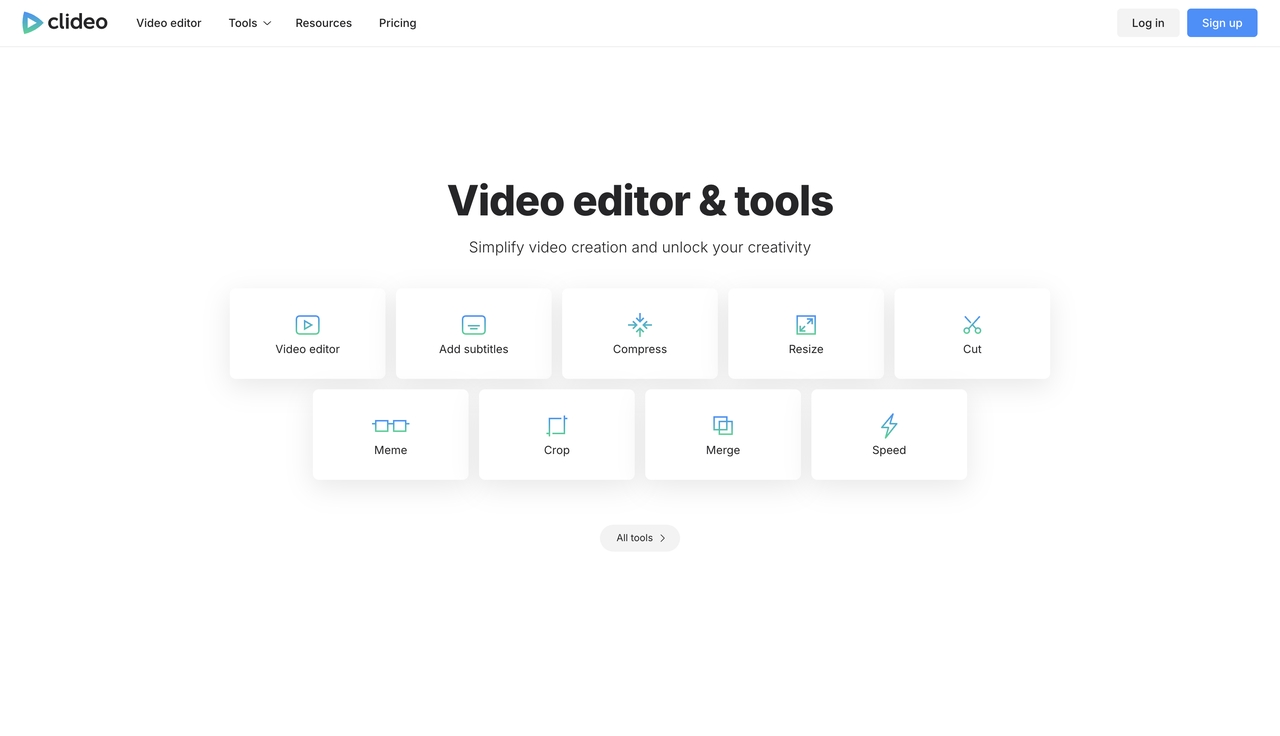
The Clideo online video editor is built for people who want things simple. You don't need a high‑end computer or any prior editing experience. Whether you're a small business owner making product demos, a teacher recording lessons, or a social media manager creating Reels, the platform's modular design helps you finish tasks in just a few minutes. Everything processes on Clideo's servers, so your own machine stays responsive even when you throw large files at it.
Key features of the Clideo video maker
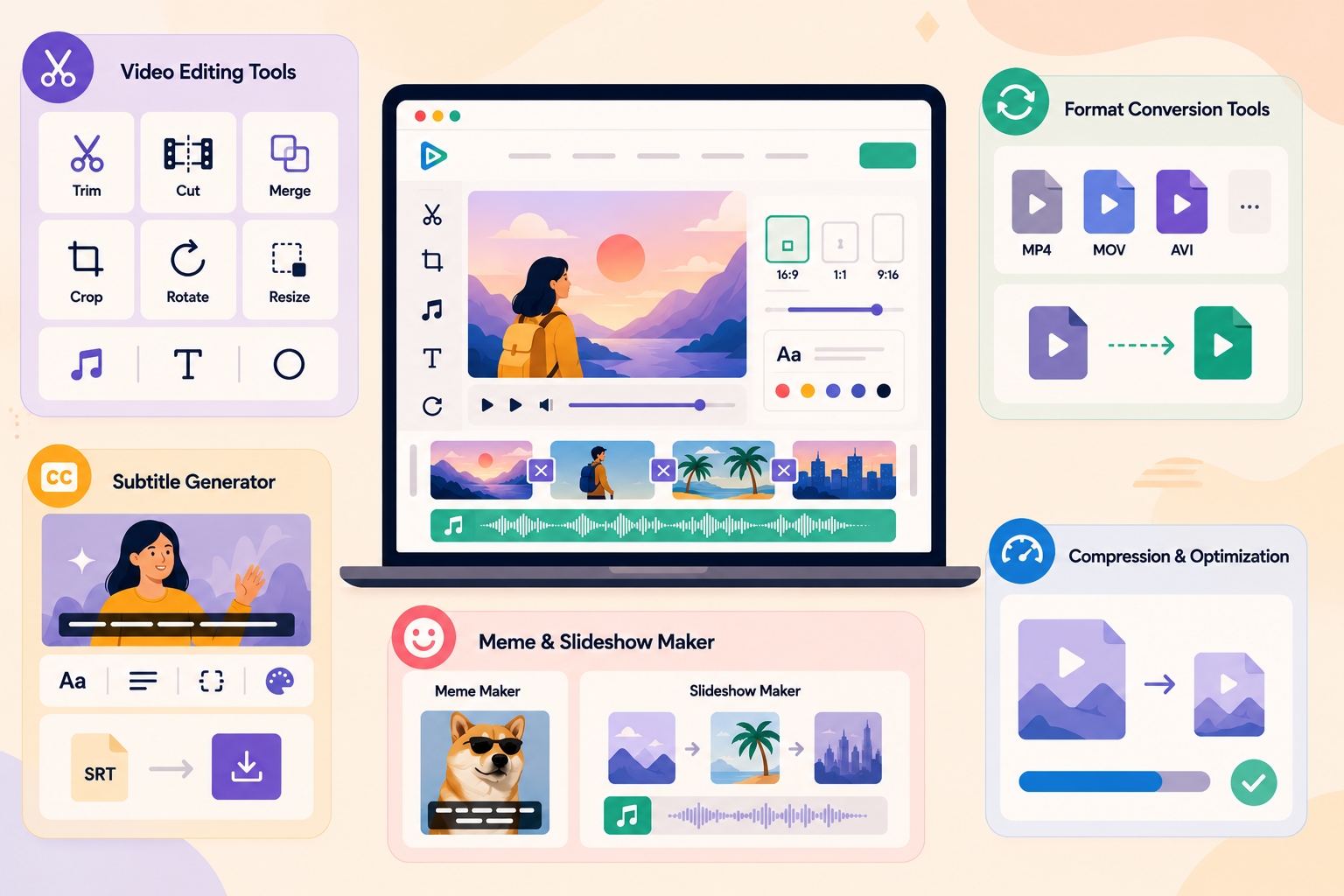
What really makes the Clideo video maker popular is its focused, single‑purpose approach. You can either use the full timeline editor or jump straight to a specific tool for a quick fix. Here are the core features that bring most people to this platform.
Video cutter and cropper
One of the most used tools is the Clideo video cutter. It lets you trim unwanted sections from the beginning, middle, or end of a clip with frame‑accurate precision. The cropping tool also allows you to adjust aspect ratios for different social platforms—1:1 for Instagram posts, 9:16 for TikTok, or 16:9 for YouTube. If you ever need to break a longer recording into smaller, more manageable pieces, you might also find a dedicated video splitter handy to keep your segments perfectly paced without losing resolution.
Merger and joiner
Content creation rarely happens in a single perfect take. The platform makes it easy to combine multiple video clips, images, and GIFs into one seamless file. You can rearrange the order of your media on a simple timeline, apply crossfade transitions, and crop everything to a uniform size. This comes in really handy for making compilation videos or stitching together short scenes from a live event.
Audio editing and music integration
Audio quality matters just as much as what's on the screen. The Clideo editor allows you to mute the original track of your footage and add background music from your local drive or cloud storage. You can adjust the volume so the music doesn't overpower any dialogue, trim the audio track to match the video length, and even apply fade‑in and fade‑out effects. For projects where you need to line up a voiceover or soundtrack precisely, knowing how to add audio to video efficiently is a skill that saves a massive amount of editing frustration.
Compression and resizing
Large video files are a pain to share via email or upload to websites with strict size limits. Clideo's compression tool shrinks file size while maintaining the highest possible visual quality. The resizing tool instantly formats your video for specific social media requirements, automatically applying blurred background padding when you switch between landscape and portrait formats.
Auto-subtitles and text overlays
Since a massive percentage of viewers watch videos on mute, captions have become non‑negotiable. Rather than typing everything out manually, the editor Clideo features an auto‑subtitle generator that uses speech recognition to transcribe your audio. You can then jump in to edit the text, change fonts and colors, and move the captions anywhere on the screen to match your brand.
Clideo pricing and subscription plans
| Plan | Price | Billing |
| Free | $0 | N/A |
| Pro (Monthly) | $12 / month | Billed monthly |
| Pro (Yearly) | $9 / month | Billed yearly as $108 |
Clideo runs on a freemium model with a free tier and two paid Pro options (monthly and yearly). The free plan gives you access to most tools but limits exports to 720p, slaps a watermark on everything, caps file uploads at 500 MB, and gives you only 10 credits per month for auto‑subtitles and translation.
The Pro plan starts at around $9 per month when billed annually (or $12 month‑to‑month). It removes the watermark, unlocks 4K exports, lifts file size limits, increases storage retention, and offers 500 credits per month for subtitles and translation. For casual creators, the free version is a decent starting point, but professional use almost always requires an upgrade.
Clideo review: Pros and cons
Before you commit to any subscription, it's worth having an honest picture of where this platform shines and where it falls short.

Pros
- Extremely easy to use with almost no learning curve.
- Cloud‑based processing saves your computer's resources.
- Smooth integration with Google Drive and Dropbox.
- Versatile toolset covering cutting, merging, compressing, and subtitling.
- Affordable Pro pricing compared to many competitors.
Cons
- The free version adds a visible watermark to all exports.
- You need a stable internet connection for uploading and processing.
- Free uploads are capped at 500 MB per file.
- The credit system limits auto‑subtitles to 500 minutes per month even on Pro.
- No advanced AI generation or text‑to‑video capabilities.
One of the biggest frustrations for free users is that watermark. Instead of paying for a subscription, some creators look for a standalone remove watermark from video tool to clean up their exports, but the only official way is to upgrade.
How to use the Clideo video editor (step by step)
Using the Clideo video editor online is incredibly straightforward, even if you have never edited a video before. Here is a quick step-by-step walkthrough of the standard workflow.
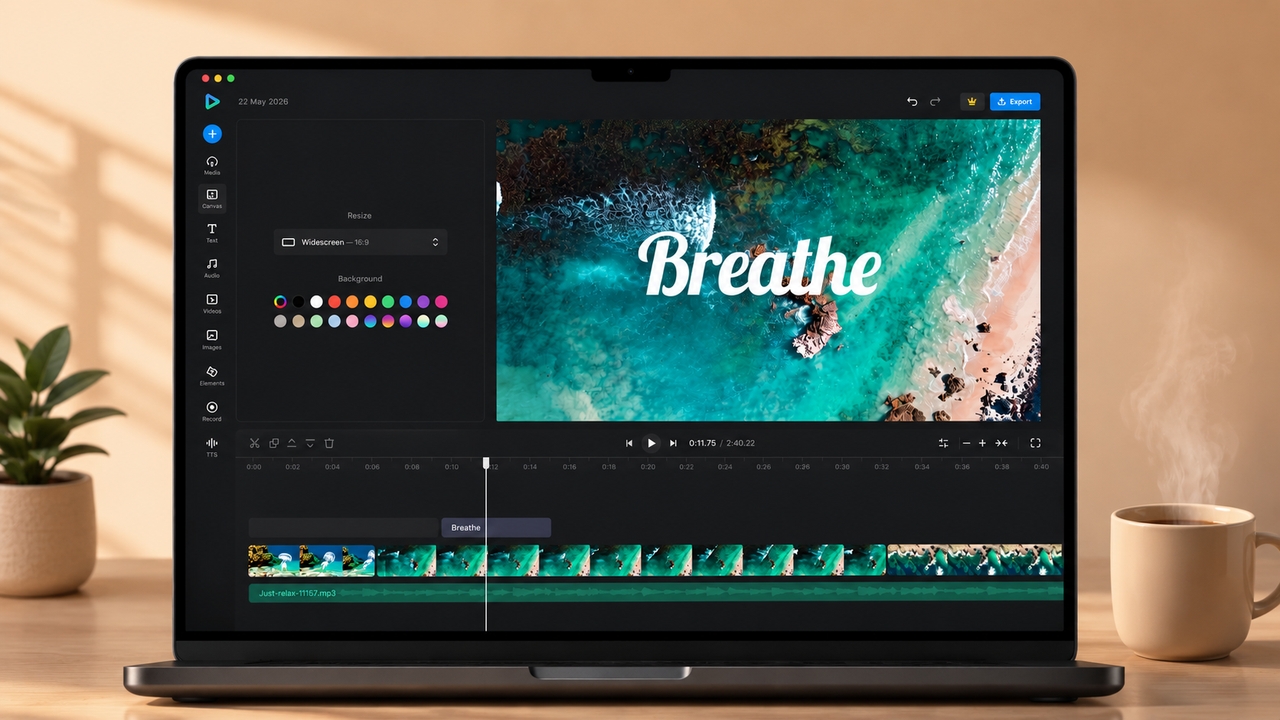
- Upload your media: Start by heading to clideo. com and selecting the tool you want to use, or open the all-in-one editor. You can upload files directly from your computer's hard drive, or import them seamlessly from Google Drive, Google Photos, or Dropbox.
- Arrange and edit: Once your media is on the timeline, you can drag and drop clips to rearrange them. Use the sidebar to access tools for cropping, adjusting brightness and contrast, changing video speed, or adding text overlays.
- Format for your platform: Select your desired aspect ratio from the canvas settings. Whether you need a widescreen 16:9 format for YouTube or a vertical 9:16 format for TikTok, the canvas adjusts instantly.
- Export and download: After finalizing your edits, hit the export button. The cloud servers will process the video. Once finished, you can download the MP4 file to your device or save it directly back to your connected cloud storage accounts.
Why you might need a Clideo alternative in 2026
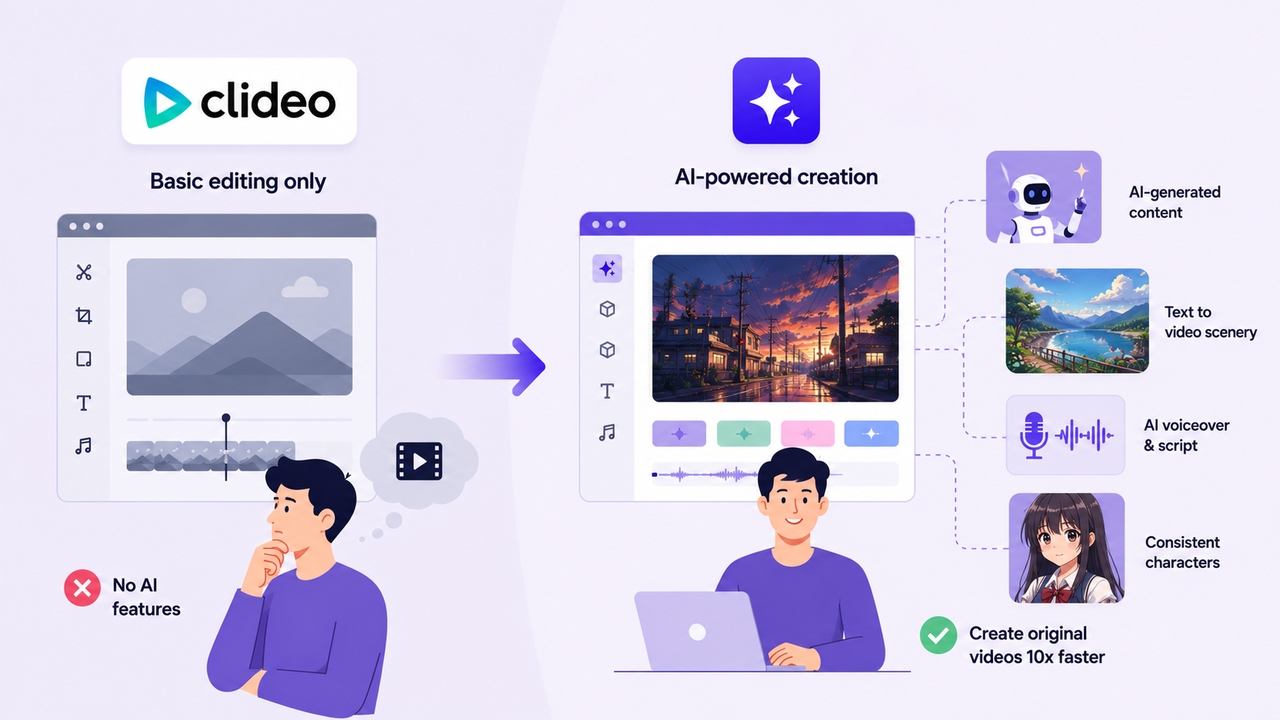
As this Clideo video maker review shows, the platform is a solid choice for basic edits. But the content creation landscape has changed. Modern creators increasingly rely on artificial intelligence to generate scripts, create b‑roll from text prompts, and keep characters consistent across multiple scenes. Clideo offers no generative AI features at all—it only edits footage you already have.
If you want to produce original videos without filming anything yourself, you need a platform that can turn a simple idea into a fully produced piece. Finding the best AI video generator for your specific workflow can save dozens of hours each month and unlock creative possibilities that simple cutting tools just can't offer.
Top 5 Clideo alternatives for advanced creators
If you feel restricted by basic cutting and merging, here are five powerful alternatives that offer more advanced features for 2026.
- Framia Pro
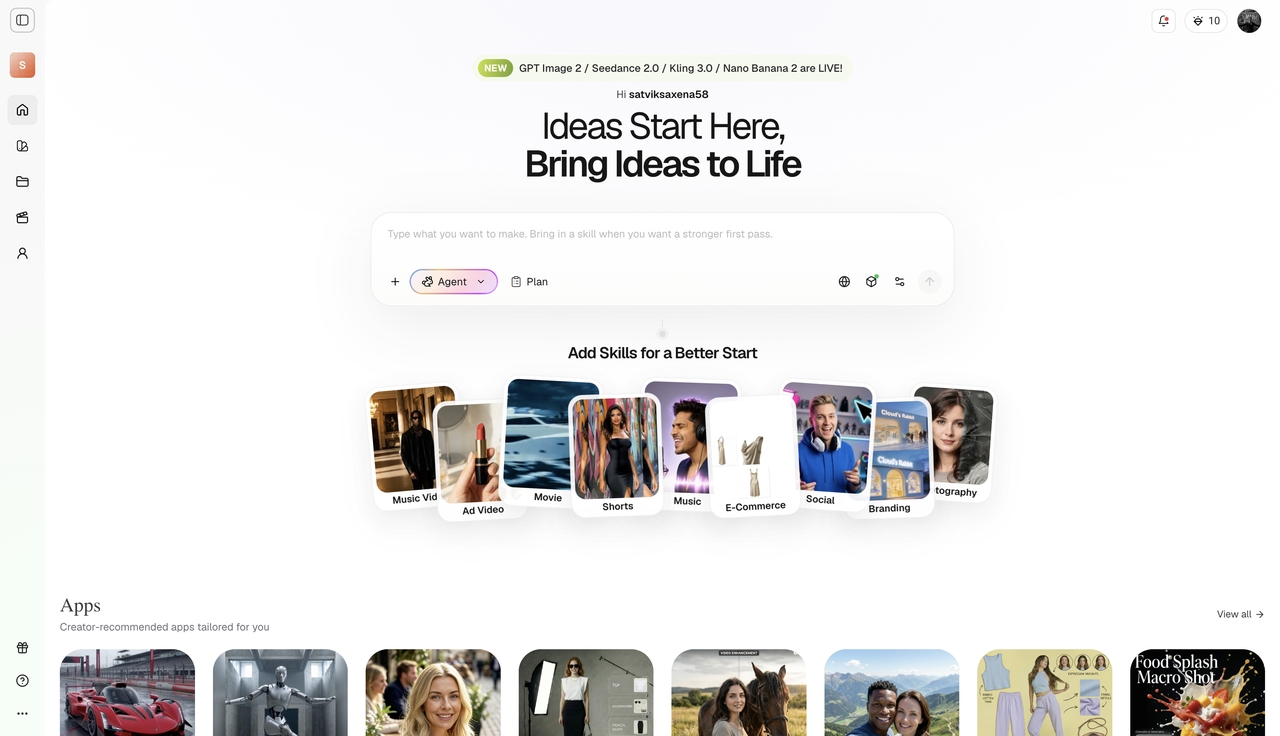
Framia Pro is an all‑in‑one AI creative agent platform. Instead of manually cutting and merging clips, you describe your vision, and the platform's specialized agents—for ads, shorts, movies, or e‑commerce—handle scriptwriting, visual generation, voiceover, music, and editing. It connects frontier models like Sora 2, Veo 3.1, and Kling 3.0 on a single interactive canvas. You can keep character consistency across scenes and refine outputs using natural language chat‑to‑edit commands. For creators who want to move beyond editing into full‑scale production, an AI video editor like Framia Pro represents the next generation of content creation.
- Canva Video
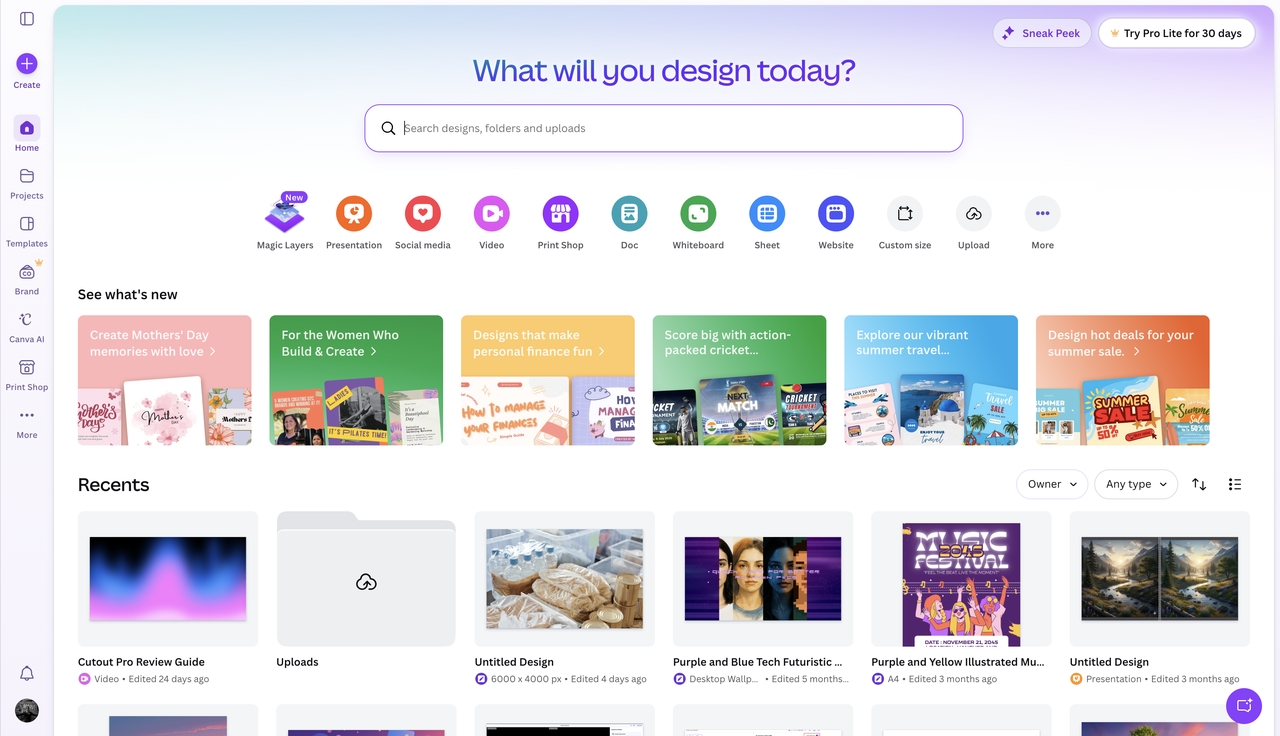
Canva has grown from a simple graphic design tool into a highly capable web-based video editor. It excels in template-driven creation. If you need to make polished social media ads, animated presentation slides, or quick promotional videos, Canva offers millions of stock assets, stickers, and animations. While it isn't built for heavy, multi-track cinematic editing, its drag-and-drop interface makes it incredibly fast for marketing teams.
- Veed.io
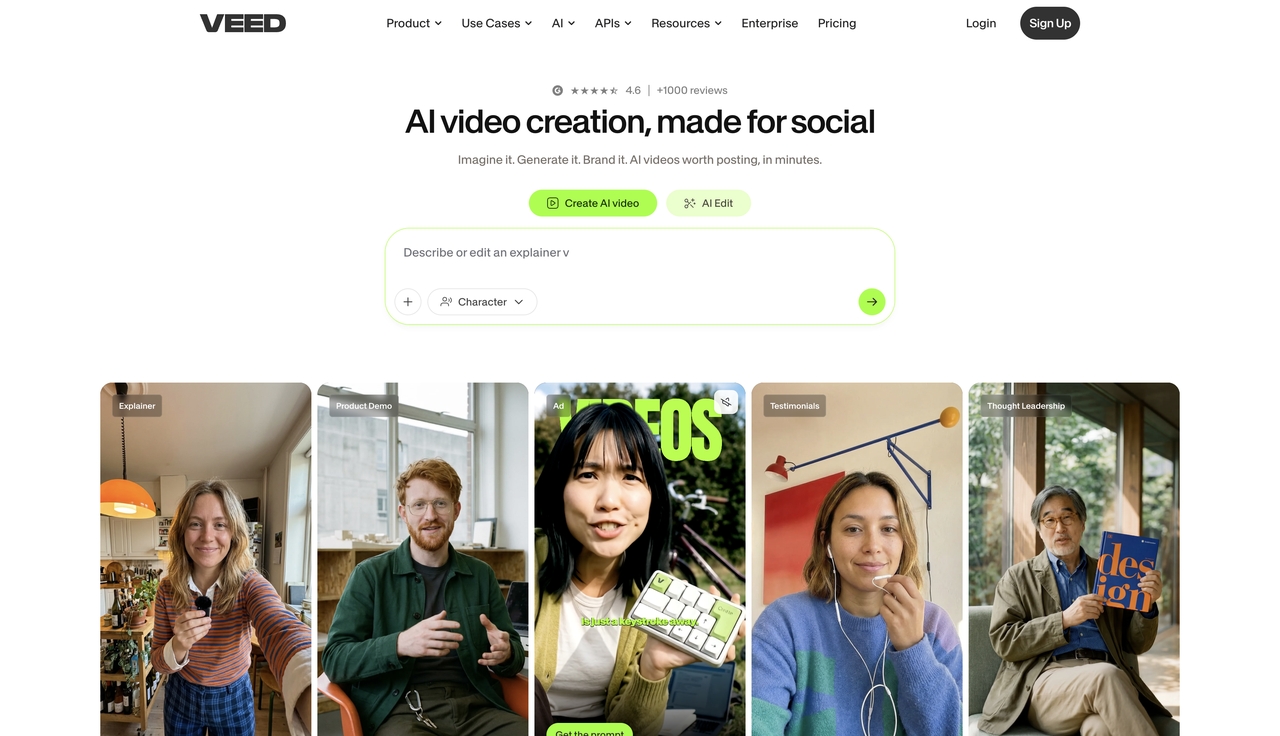
Veed.io is a popular direct competitor in terms of browser interface, but it leans much heavier into social media optimization. It offers features like automatic silence removal, eye-contact correction, and highly accurate auto-translation for subtitles. Content creators often explore various alternative platforms to balance subscription costs, but it remains specifically tailored for podcasters, TikTokers, and YouTubers who want to optimize talking-head layouts rapidly.
- CapCut
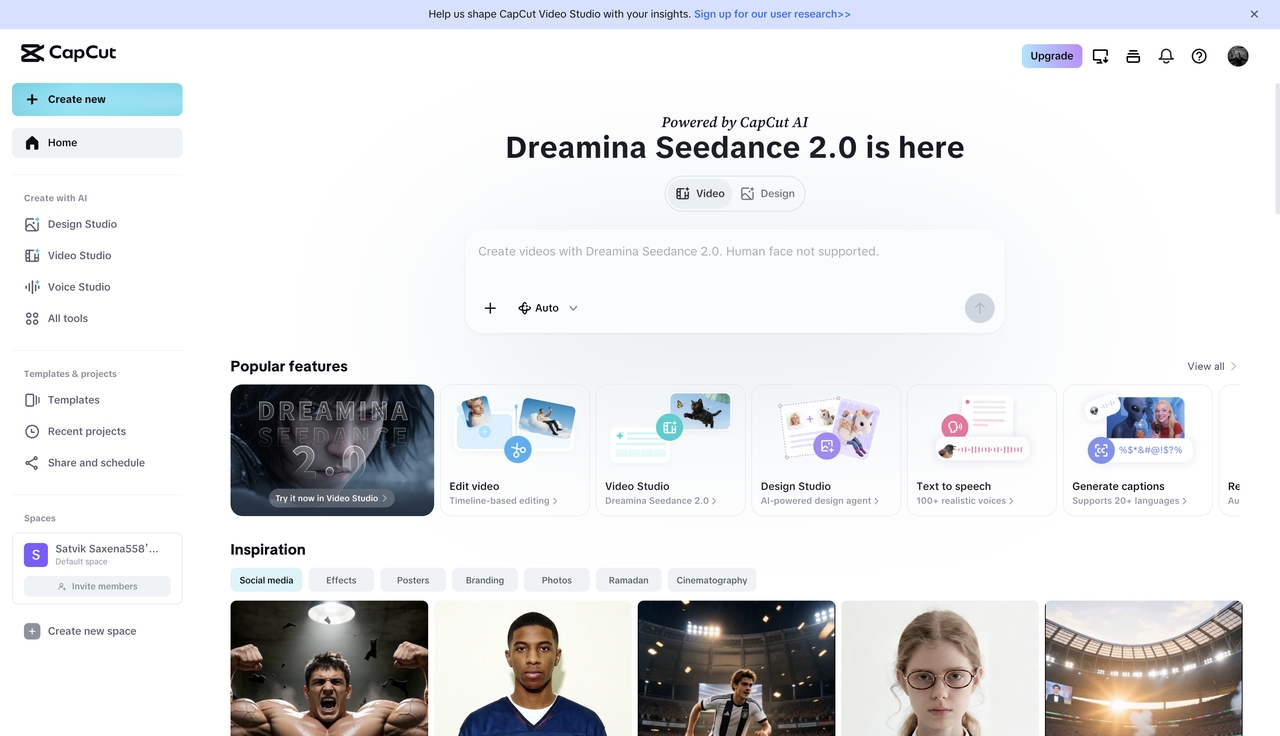
CapCut dominates the mobile and desktop editing space with its highly capable, free-to-use software. It offers advanced trending effects, seamless transitions, and native TikTok integration. Creators frequently search for desktop alternatives when they need more robust cloud-based collaboration or heavy generative AI capabilities, but for fast, viral social media edits, it is exceptionally efficient.
- Runway
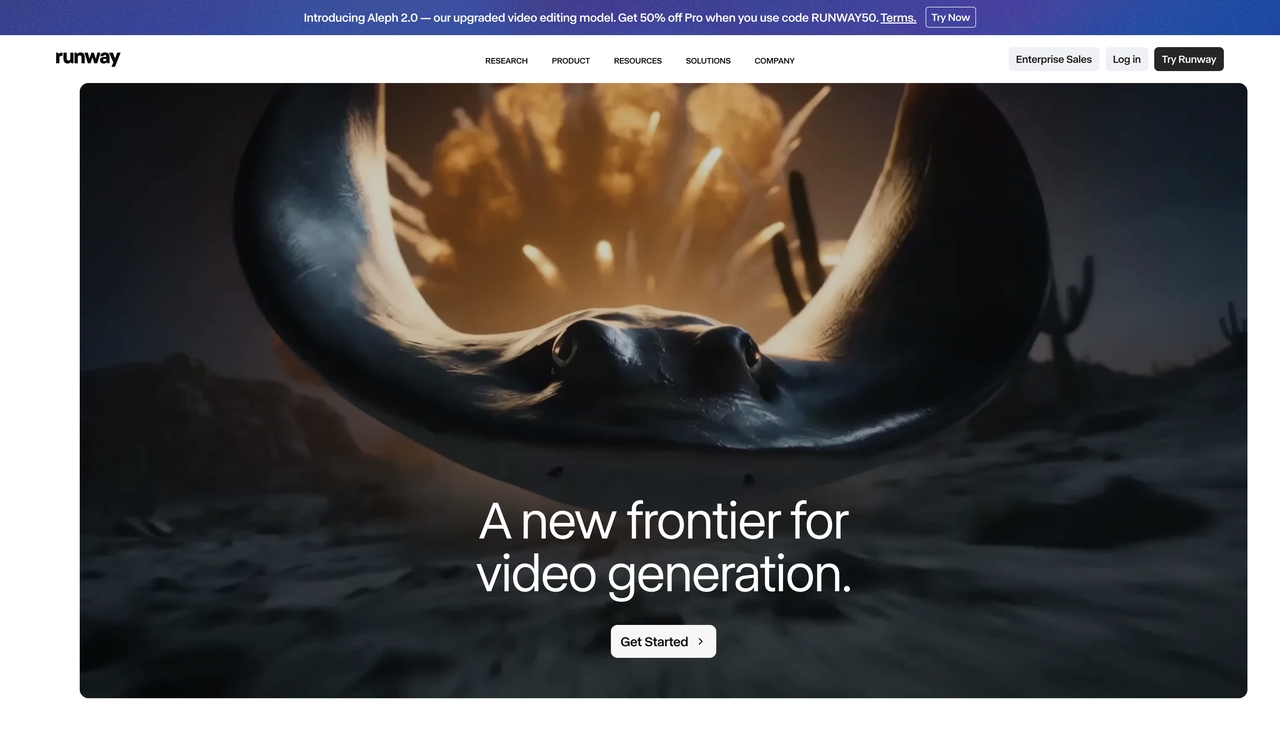
For those focused on cinematic visuals and generative artificial intelligence, Runway is an industry standard. It features advanced motion brushes, directorial camera controls, and high-fidelity text-to-video capabilities. While some creators seek alternative options due to its complex credit system and steeper learning curve, its power for VFX professionals and filmmakers is unmatched.
Clideo vs competitors: A quick comparison
To help you make the best choice for your workflow, here is a quick breakdown of how these platforms compare side-by-side with updated market configurations.
| Platform | Best For | Key Differentiator | Starting Price | Free Plan |
| Clideo | Quick, simple web edits | Modular, single-purpose tools | $9 / month | Yes (Watermarked) |
| Framia Pro | End-to-end AI automation | AI agents & multi-model canvas | $6 / month | Yes (Free credits) |
| Canva | Template-driven marketing | Massive stock & design library | $18 / month | Yes |
| Veed.io | Talking-head optimization | High-accuracy auto-subtitles | $25 / month | Yes (Watermarked) |
| CapCut | Trending social media videos | Native TikTok effects & audio | Free / $9.99 Pro | Yes |
| Runway | Generative AI & VFX | Text-to-video & motion brush | $12 / month | Yes (Limited) |
Conclusion
In this Clideo video maker review, we've seen that the platform remains a reliable, affordable tool for basic online video editing. If your needs are limited to trimming, merging, compressing, or adding simple subtitles to footage you've already recorded, Clideo gets the job done quickly without a steep learning curve.
But as your content demands grow, many creators find themselves needing original visuals, consistent characters, and automated workflows. For those situations, exploring AI‑driven platforms like Framia Pro unlocks a new level of efficiency and creativity. Take a look at your primary use case, test out some free tiers, and choose the tool that removes the biggest friction from your daily production process.
FAQs
Is Clideo safe to use?
Yes, Clideo uses SSL encryption to protect your data. Files are automatically deleted from their servers after 24 hours, so your media isn't stored indefinitely.
Is Clideo actually free?
A free version exists, but exports include a watermark, and file uploads are limited to 500 MB. To remove the watermark and access 4K exports, you need a paid Pro subscription.
How do I remove the watermark from Clideo?
The only official method is to upgrade to a Clideo Pro plan. Once you subscribe, the watermark is automatically removed from all future exports.
Can I use Clideo on my phone?
Yes, because it's a cloud‑based web application, you can access the Clideo video editor online through your mobile browser on both iOS and Android without downloading a dedicated app.
What is the best Clideo alternative for faceless videos?
For faceless channels (like history, facts, or top‑10 videos), Framia Pro is excellent. Its AI agents can generate matching b‑roll and voiceovers directly from a text script, so you don't have to hunt for stock footage manually.