
Meshy AI is an AI-powered 3D model generator that lets anyone create detailed models from simple text descriptions or reference images—without needing Blender or Maya expertise. Launched as a fast ideation tool, it has grown popular among indie game developers, concept artists, and 3D printing enthusiasts. In this Meshy AI review, we dive into its features, real-world performance, pricing, and whether it's truly worth using in 2026 for image to 3d workflows. We'll also discover powerful alternatives, like Framia Pro, to help you decide if it belongs in your creative toolkit.
What is Meshy AI?
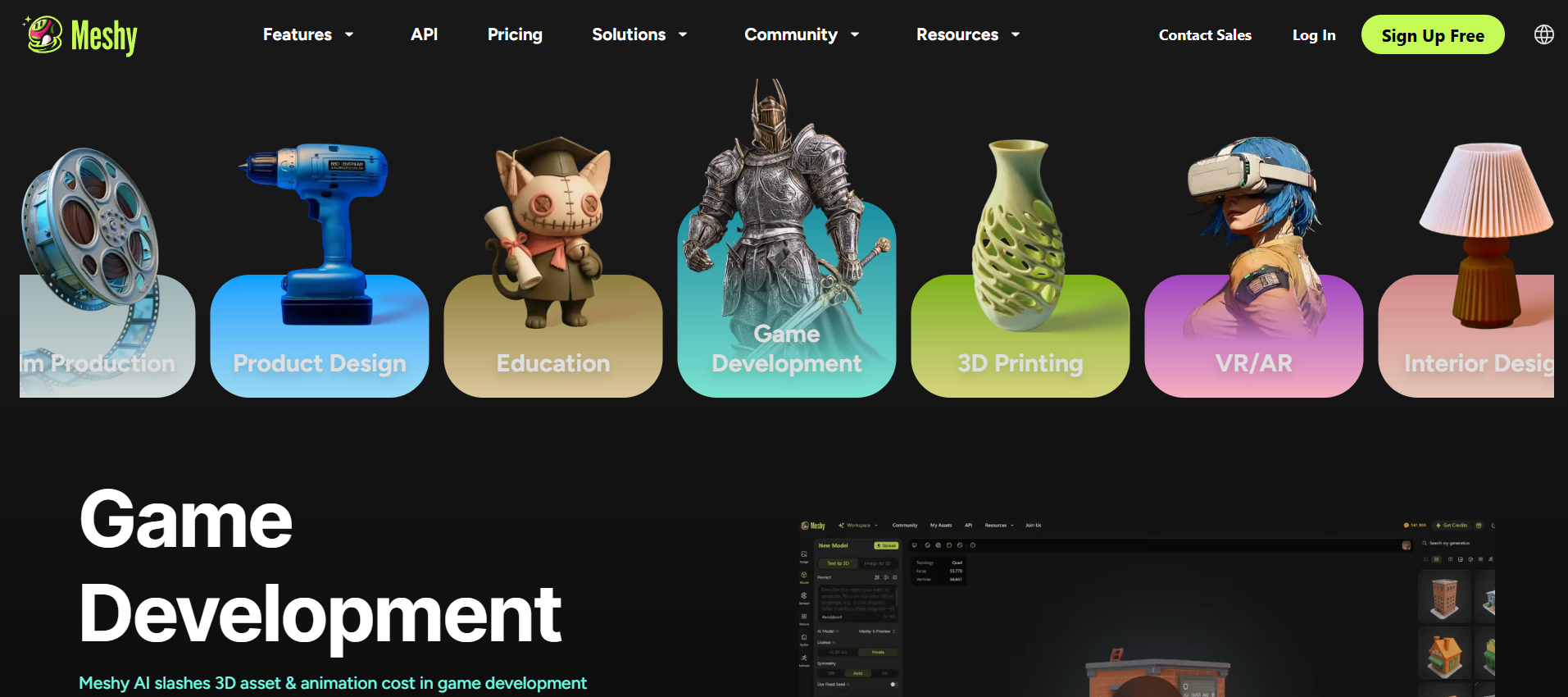
Meshy AI is a leading AI-powered 3D modeling platform that rapidly converts text prompts or 2D images into textured 3D assets in minutes. Designed for game developers, designers, and hobbyists, it streamlines workflows with text-to-3D, image-to-3D, and AI texturing, allowing users to create high-quality, game-ready models without advanced 3D skills.
With the launch of Meshy 6, the tool achieves "sculpting-level" detail and enhanced mesh fidelity, serving as a powerful AI copilot for rapid prototyping and 3D printing. By integrating PBR texturing and auto-rigging, Meshy removes technical barriers, allowing creators to produce high-quality, game-ready models without advanced modeling skills, significantly accelerating early-stage creative workflows.
Key features of Meshy AI
- Text to 3D
Meshy's Text-to-3D tool allows you to generate high-fidelity 3D models from simple descriptive prompts. Supporting over 20 languages, it interprets complex instructions to create textured meshes in about 60 seconds. With the Meshy 6 update, users can toggle between "Standard" high-detail modes and "Low Poly" modes optimized for game engines.
- Image to 3D
The Meshy AI image to 3D feature is an industry favorite for rapid prototyping. By uploading a single 2D photo, sketch, or illustration, the AI reconstructs geometry and applies professional textures instantly. It even supports multi-view generation to ensure the back and sides of the object are anatomically correct and structurally sound.
- AI Texturing
Meshy simplifies the tedious UV unwrapping and painting process through AI Texturing. You can upload your own existing models (FBX, OBJ, or STL) and apply realistic PBR textures—including base color, metallic, roughness, and normal maps—using only text prompts. This feature is perfect for stylizing assets in seconds rather than hours.
- Auto-rigging & animation
For character creators, Meshy provides a powerful auto-rigging system that supports both humanoid and quadruped models. Once rigged, you can apply any of the 500+ built-in animation presets, such as walking, running, or combat moves. This ensures your 3D assets are production-ready for Unity or Unreal Engine immediately upon export.
- 3D printability & optimization
Targeting the maker community, Meshy includes a "Printability Check" and one-click integration with slicers like Bambu Studio. The platform offers a 97% slicer pass rate and allows you to refine meshes to be watertight. Users can also utilize the "Remesh" tool to adjust polycounts, ensuring models are lightweight enough for AR/VR use.
How to use Meshy AI: Full generation toolkit guide
Meshy AI offers an intuitive browser-based interface that makes creating 3D models incredibly accessible in different ways. Below is a clear, step-by-step guide covering the three main methods: Text to 3D, Image to 3D, and AI Texturing. Each method is broken down into essential steps for quick understanding and execution.
Method 1: Text-to-3D generation
This method allows you to create 3D models purely from descriptive text prompts.
Step 1: Enter a detailed prompt
Log in to your Meshy AI account and go to the Workspace. Select "Text to 3D" from the dropdown. In the prompt box, write a clear and specific description of your desired model. Include shape, style, material, pose, and unique features for better results. Use the built-in prompt helper if needed.
Step 2: Choose AI model and settings
Select the latest AI version (such as Meshy 6 for higher quality) from the dropdown. Adjust additional settings like Model Type (Standard or Low Poly), number of generations, and pose if available. Click "Generate" to start the process. Each generation typically takes 30–90 seconds depending on complexity.
Step 3: Preview, refine, and export
Once generation completes, preview the 3D model in the built-in viewer. Rotate, zoom, and check geometry from all angles. If satisfied, proceed to texturing (optional) or download directly in formats like OBJ, GLB, STL, or FBX. Regenerate variations if the first result isn't ideal.
Method 2: Image to 3D generation
The best method for maintaining specific visual consistency from your concept art.
Step 1: Upload your reference image
Drag and drop a single PNG or JPG into the "Image to 3D" tool. For best results, use an image with a clean background and clear lighting.
Step 2: Select AI model and configure options
Choose your preferred AI model version. Enable multi-view if you have additional angles of the same object (up to 3 extra images for higher accuracy). Adjust any available settings such as model type or strength, then click "Generate."
Step 3: Pick, refine, and export
Meshy creates candidate results for you to choose from, then you can refine the model and export it for use in apps, games, or 3D workflows. Meshy's API docs also show the generated output can be retrieved and downloaded in formats like GLB.
Method 3: AI Texturing
AI Texturing adds realistic PBR materials and colors to your existing 3D models using text or image prompts.
Step 1: Upload or select your 3D model
After generating a model via Text to 3D or Image to 3D (or upload your own mesh), open the model in the preview window. Click on the "Texture" button to enter the texturing workspace.
Step 2: Describe the desired texture
Enter a detailed text prompt describing the materials and style you want (e.g., "shiny metallic armor with rust details, realistic PBR, sci-fi style" or "soft fur texture, cartoon style, Pixar look"). You can also upload a reference image for style guidance. Select the AI texturing version if multiple options are available.
Step 3: Generate, preview, and apply
Click "Texture" to start the process (this uses separate credits). Once complete, preview the textured model with realistic lighting. You can retexture specific parts by painting masks or editing the prompt. When satisfied, save the textures and export the fully textured model in your preferred format.
Meshy AI pricing: How much is Meshy AI?
Meshy AI operates on a credit-based system, where different tasks (like generating a preview, refining a mesh, or texturing) consume a specific number of credits. For 2026, Meshy has structured its tiers to accommodate everyone, from curious hobbyists to high-volume game studios.
| Plan | Price (Monthly) | Credits / Month | Concurrent Tasks | Priority | Asset Ownership | Free Retries | Best For |
| Free | $0 | 100 | 1 | Low | CC BY 4.0 (Attribution required) | None | Testing & Beginners |
| Pro | ~$16 | 1,000 | 10 | High | Private & Fully Owned | 4 per task | Individual Creators & Indie Devs |
| Studio | ~$48 | 4,000 | 20 | Higher | Private & Fully Owned | 8 per task | Small Teams & Studios |
| Enterprise | Custom (Contact Sales) | Custom | 50+ | Highest | Private & Fully Owned | Unlimited | Large Teams & Companies |
Pros and cons of Meshy AI
As of 2026, the launch of Meshy 6 has addressed many historical pain points, but like any generative AI, it still has its trade-offs. Here is an honest breakdown of where the platform excels and where it still hits a wall.
| Pros | Cons |
| Lightning Speed: Generates models and textures in under 60 seconds. | Topology Issues: Often produces "messy" meshes that require manual retopology. |
| User-Friendly: No prior 3D modeling or CAD experience is required to start. | Inconsistent Quality: Complex or organic shapes (like hands) can look "melted." |
| High-Quality Texturing: Standout AI PBR texturing that rivals manual work. | Limited Control: Lacks granular, vertex-level editing within the platform. |
| Versatile Exports: Supports industry-standard formats like .fbx, .obj, and .glb. | Credit System: High-quality "Refines" consume credits quickly on the free plan. |
Best Meshy AI alternatives: Expanding your creative toolkit
While Meshy AI delivers impressive speed and high-quality texturing for rapid 3D generation, its high post-production cleanup demands and occasional quality inconsistencies can hinder professional workflows. If you require more consistent, production-ready results with a more streamlined "all-in-one" creative process, exploring these top-rated Meshy AI alternatives can be the key to elevating your digital assets.
- Framia Pro
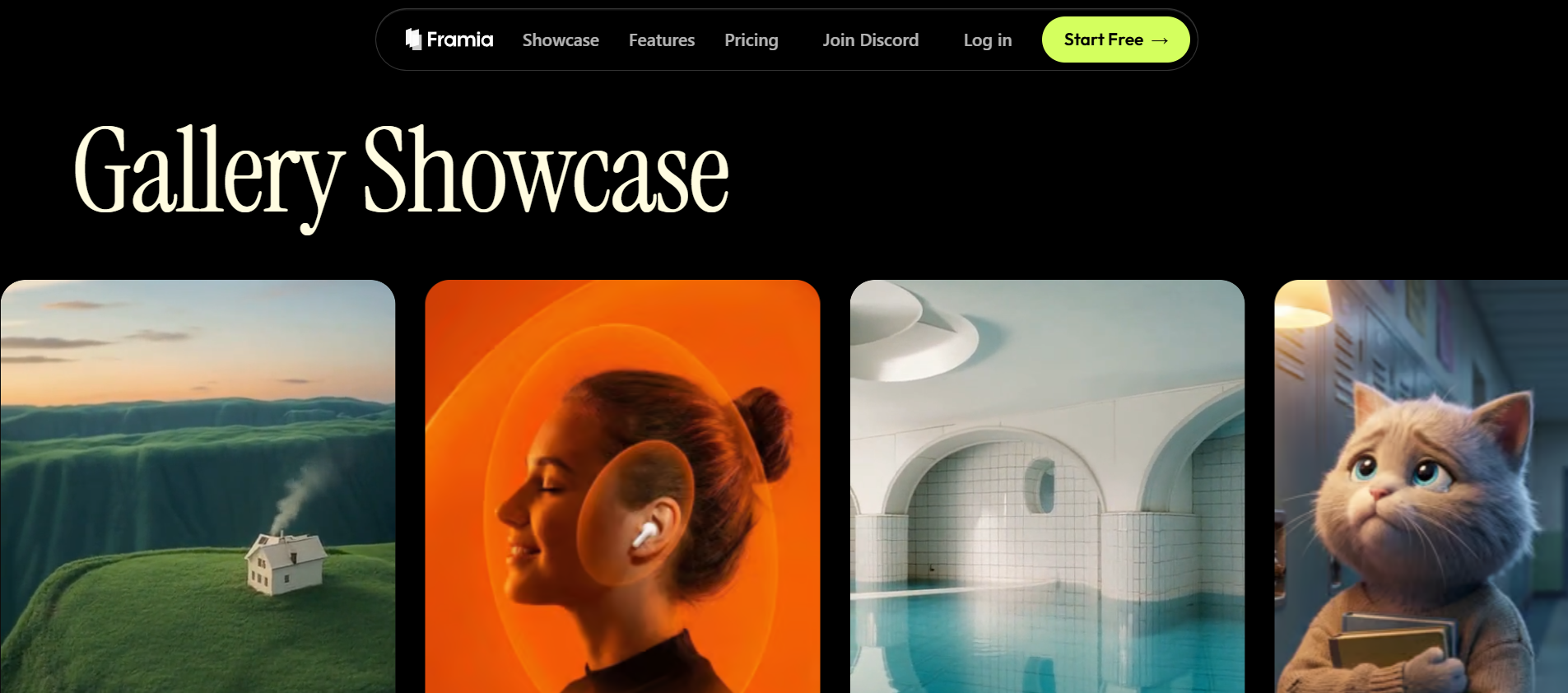
Framia Pro is an all-in-one AI platform with a strong focus on 3D model generation, enabling users to quickly turn text prompts or images into textured, creator-ready 3D assets. It integrates Meshy 6 engine into a massive, multimodal creative ecosystem. Designed for speed and accessibility, it supports workflows like concept sculpting, game asset prototyping, and stylized 3D creation. What sets it apart is its unified environment, where users can generate, refine, and integrate 3D assets alongside video, image, and animation tools without switching platforms.
Key features
- Text-to-3D model generation from prompts and images
- Direct integration with Meshy 6 engine for high-quality 3D asset generation
- Multi-modal platform (3D, video, image, and audio in one workspace).
- Conversational AI agents for editing and refining assets.
- Intelligent canvas for real-time iteration and prompt-based editing.
Pros
- All-in-one platform reduces the need for multiple tools.
- Leverages Meshy 6 for strong 3D generation quality.
- Fast and easy 3D generation suitable for beginners.
- Seamless integration with video and animation workflows.
Cons
- Not as specialized in mesh precision as dedicated 3D tools.
- Still evolving compared to more mature 3D-focused platforms.
- Tripo AI
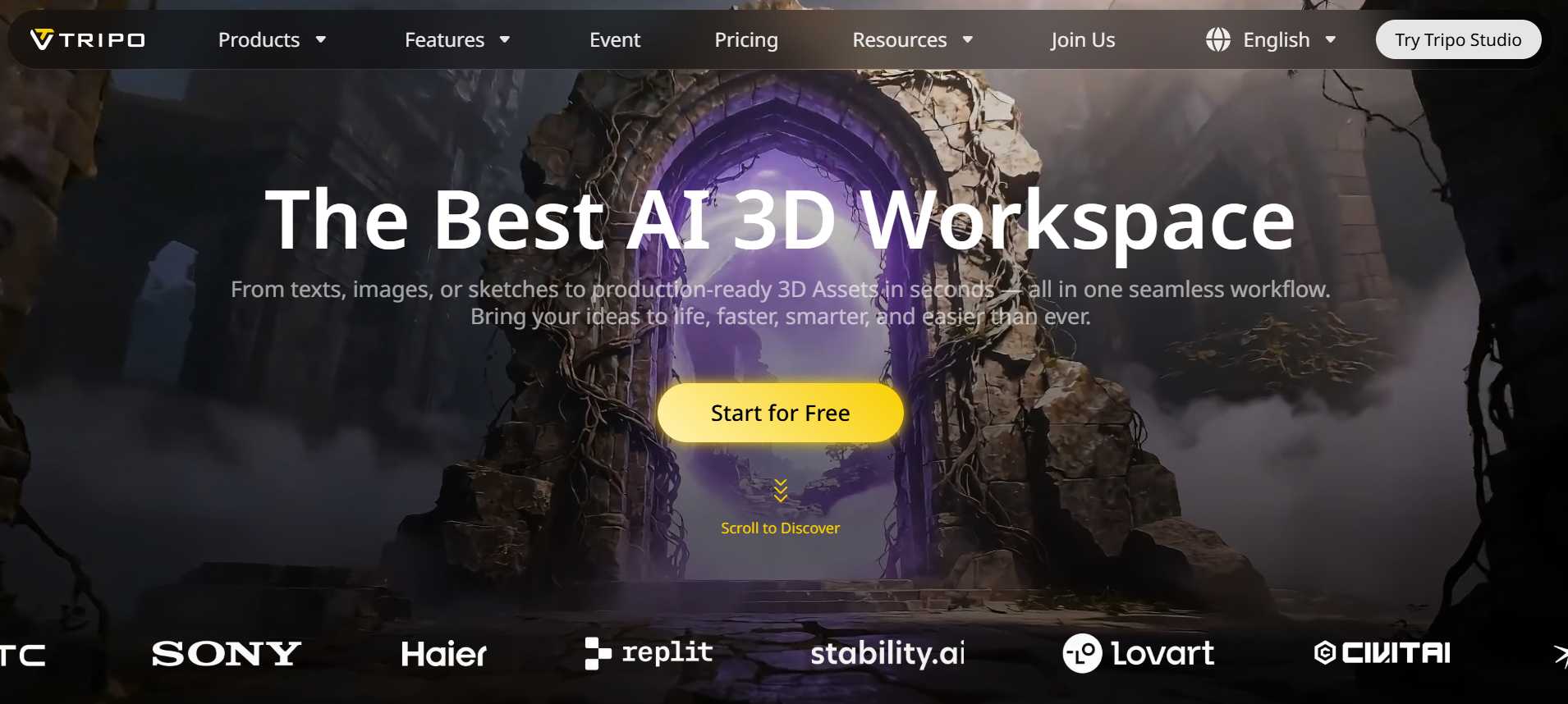
Tripo AI is a premier 3D generator specializing in transforming text and images into high-quality models. Renowned for its rapid processing and reliable image-to-3D workflows, it stands as a formidable Meshy AI free alternative. Its standout feature is superior, quad-based topology, which provides cleaner geometry for professional artists, making it the ideal choice for those requiring export-ready assets for Blender or Maya.
Key features
- Excellent single-image to 3D conversion.
- Text-to-3D generation with good topology.
- Fast generation speed and multi-view support.
- Clean export options (GLB, OBJ, STL).
Pros
- Superior mesh quality and topology compared to many competitors.
- Very fast processing times.
- Affordable pricing with good credit value.
- Beginner-friendly interface with minimal learning curve.
Cons
- Weaker text-to-3D performance than image-to-3D.
- Limited advanced texturing options.
- 3D AI Studio
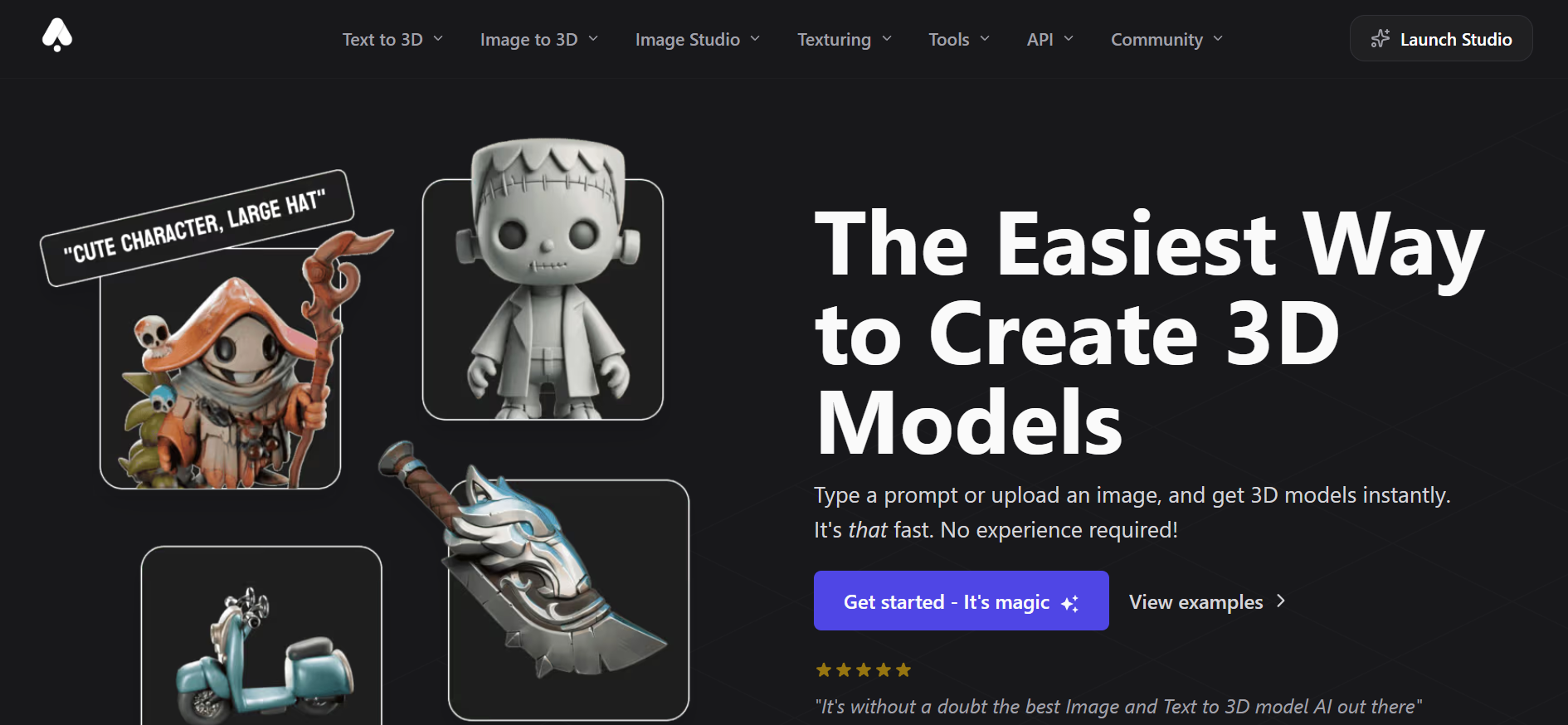
3D AI Studio is a browser-based, all-in-one platform built for creating, editing, and managing 3D models using artificial intelligence. It enables users to generate 3D assets from simple text prompts or 2D images within seconds. With features like AI-driven texturing, background removal, and mesh optimization, it’s well-suited for use in gaming, AR, and design workflows.
Key features
- Access to multiple 3D AI models in one place.
- Text-to-3D, image-to-3D, and sketch-to-3D.
- Better credit-to-price ratio than Meshy.
- Animation and texture generation support.
Pros
- Great value for money with more credits.
- Flexibility to switch between different AI engines.
- Generates models in seconds, significantly accelerating prototyping and creative workflows.
- User-friendly interface.
Cons
- Quality varies depending on the selected model.
- Can feel overwhelming with so many options.
- Occasional server load issues during peak times.
- Complex or highly detailed assets often require manual fixing.
- Rodin AI
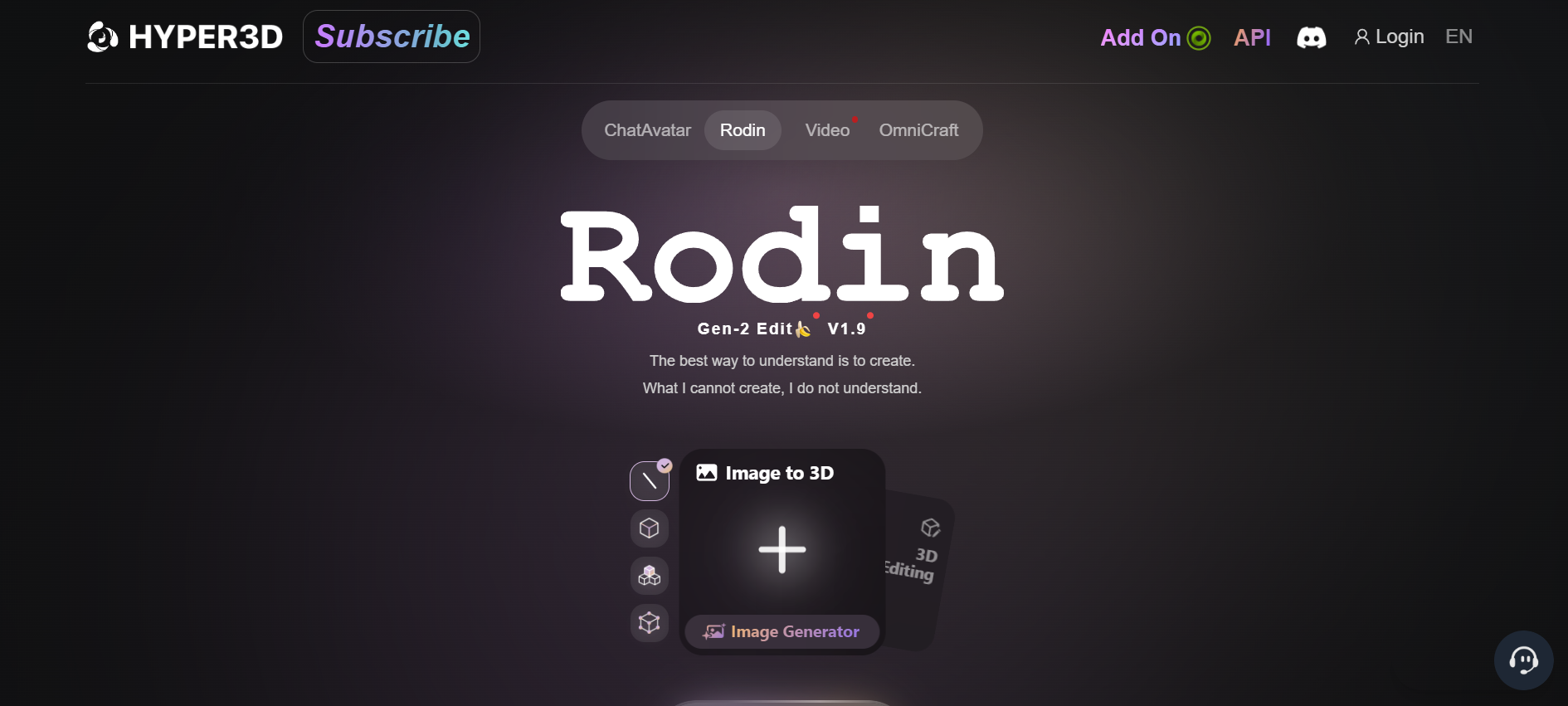
Rodin (by Deemos) is a high-end generative AI platform tailored for professional 3D artists who prioritize precision and photorealism. Unlike most tools that struggle with "melted" geometry, Rodin produces high-fidelity, production-ready assets with an emphasis on 4K PBR texturing and intricate detail. It is widely considered the industry benchmark for transforming 2D concept art into complex, multi-layered 3D "hero" models.
Key features
- High-quality text-to-3D and image-to-3D generation.
- Produces clean quad-mesh topology (animation-friendly).
- Advanced control options (polygon count, LODs, pose settings).
- Production-ready assets suitable for games, AR/VR, and film.
Pros
- Exceptional mesh quality and topology (industry-grade).
- Highly realistic textures with strong material accuracy.
- Supports both text and image workflows effectively.
- Fast generation compared to many high-quality tools.
Cons
- Higher cost compared to most AI 3D tools.
- Slightly slower than some lightweight alternatives.
- Sloyd AI
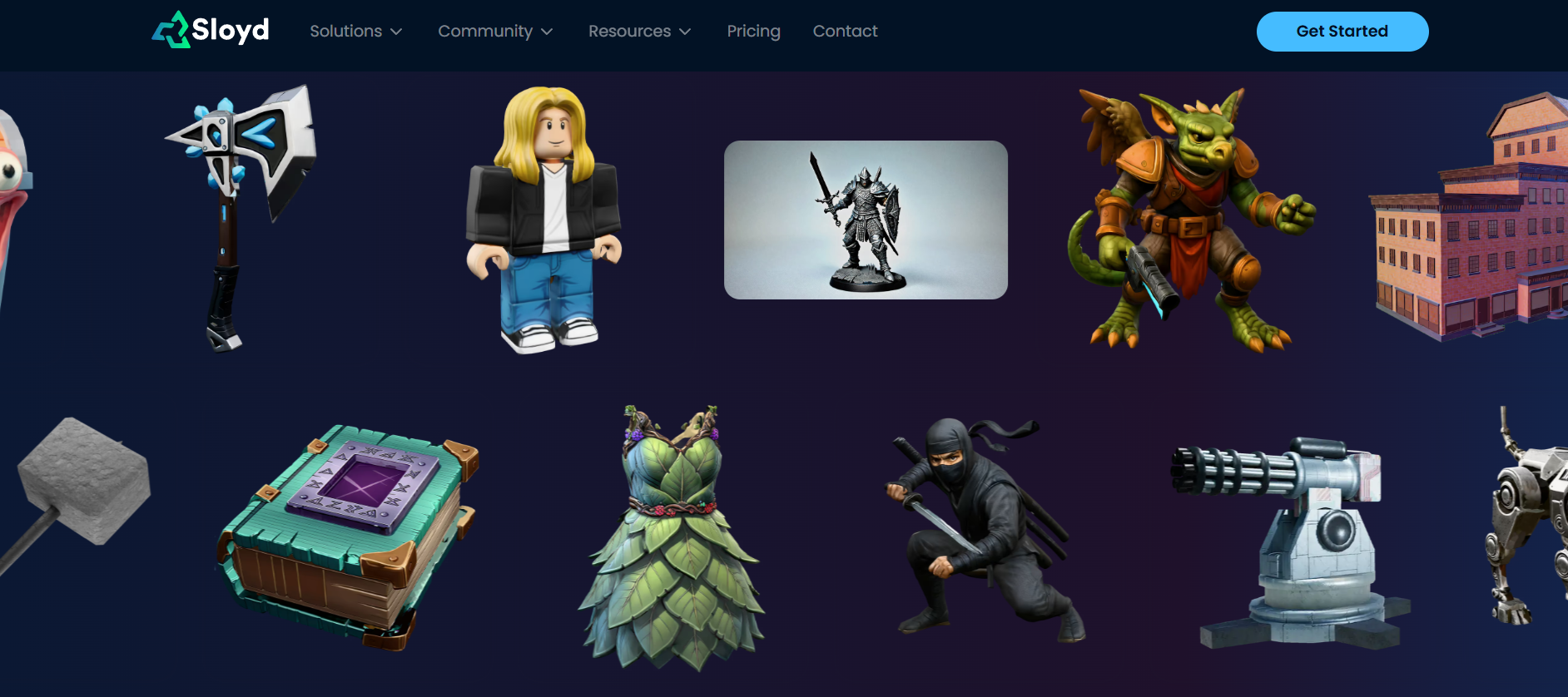
Sloyd.ai is an AI-powered 3D modeling tool focused on fast, customizable asset creation. It combines generative AI with procedural controls, allowing users to create and tweak models in real time using text prompts and sliders. It’s especially popular for game development and rapid prototyping due to its speed and simplicity.
Key features
- AI-powered text-to-3D and image-to-3D generation.
- Real-time customization using sliders and parametric controls.
- Automatic UV unwrapping, LOD generation, and optimized meshes.
- Supports export formats like OBJ, GLB, and STL.
Pros
- Extremely fast generation of game-ready assets.
- Very beginner-friendly with intuitive controls.
- Unlimited generation model (no strict credit limits).
- Great for prototyping and large-scale asset creation.
Cons
- Limited fine control compared to traditional 3D tools.
- Not ideal for highly detailed or complex custom models.
Conclusion
In our comprehensive Meshy AI review, it stands out as a powerful tool for rapid 3D model generation, especially for creators who want speed, ease of use, and decent-quality outputs without deep technical expertise. With features like text-to-3D, image-to-3D, and AI texturing, it significantly reduces the time required to build assets from scratch. However, it may still require manual refinement for production-level work. Exploring alternatives like Framia Pro, Tripo AI, or Rodin can help you find the right balance between quality, control, and workflow efficiency depending on your specific project needs.
FAQs
- Is Meshy AI free to use?
Yes, Meshy AI offers a free plan that lets users access core features with limited usage. It typically includes around 100 free credits per month, allowing you to generate and test models before upgrading to paid plans for higher limits.
- Can I use Meshy AI for commercial projects?
Yes, Meshy AI generally allows commercial use of generated assets, especially on paid plans. However, usage rights may depend on the subscription tier and terms of service, so it’s important to review licensing details before using assets in commercial projects.
- What can you create with Meshy AI?
Meshy AI allows users to create 3D models from text prompts or images, including characters, props, and environments. It’s widely used for game development, 3D printing, AR/VR experiences, and concept design workflows requiring fast asset generation.
- How long does it take to generate a 3D model?
Speed is one of Meshy's greatest strengths. A standard preview model usually takes about 60 seconds to generate. Higher-fidelity "Refine" tasks or complex AI texturing may take an additional 2–3 minutes depending on the current server queue.
- What is the difference between Meshy 5 and Meshy 6?
Meshy 6 introduces major improvements over Meshy 5, including significantly higher detail, better geometry accuracy, and cleaner mesh structures. It also adds features like multi-view image support and improved realism, making outputs more production-ready compared to Meshy 5’s simpler, less detailed models.