
Kling Motion Control is an advanced feature of Kling AI that enables precise motion transfer from a reference video to a static character image. This powerful tool generates realistic videos with controlled body movements, gestures, facial expressions, and even lip sync, making it ideal for creators, animators, and filmmakers.
Available in Kling 2.6 and the enhanced 3.0 version (with superior facial consistency and Element Binding), it supports uploads up to 30 seconds and delivers high-fidelity results. On Framia Pro, you can easily explore and apply these capabilities to elevate your video projects. Whether you're looking for Kling motion control free trials or pro tutorials, this guide covers everything you need.
What is Kling motion control?
Kling motion control is an AI-powered feature developed by Kuaishou that lets you transfer real-world movement from a reference video onto a character in a newly generated clip. Instead of describing motion through text alone, you upload a video of someone performing an action — a dance, a martial arts move, an emotional expression — and the AI maps that movement frame by frame onto your chosen subject.
The result is a generated video where your character moves exactly as the reference does, while preserving their visual identity, clothing, and scene context.
Available across Kling VIDEO 2.6 and the newer Kling VIDEO 3.0, motion control has evolved from a basic body-transfer tool into a system capable of handling complex facial expressions, 360-degree head rotations, partial occlusion recovery, and cinematic camera control.
How does Kling AI motion control work? Core features explained
Now that you understand the basics, let’s break down the core Kling AI motion control features that power realistic, cinematic animation.
Motion extraction from reference videos
Kling analyzes your uploaded reference video frame by frame, extracting gestures, body positions, timing, and transitions. That extracted motion blueprint is then applied to your chosen subject — whether it's a person, an illustrated character, or a product mascot.
Element binding for facial identity
One of the most powerful features in Kling 3.0 is Element Binding. You create an "element" by uploading images or short videos of your character's face from multiple angles. Kling then binds this facial data to the generated output, ensuring that the character's face stays recognizable and consistent — even when the action involves full head turns, close-ups, or partial face occlusion.
Character orientation control
By default, Kling generates video where the character's orientation follows the motion reference (Character Orientation Matches Video). Alternatively, you can select "Character Orientation Matches Image," which locks the character's facing direction to match the source image while the movements from the reference are still applied. This unlocks cinematic camera movements — zoom in, zoom out, camera up, camera down — all controlled through text prompts.
The motion library
Not everyone has a ready-made reference video to upload. Kling's built-in Motion Library provides a curated collection of pre-made action clips you can select directly — no filming required. Browse categories ranging from everyday gestures to high-energy performances and apply them instantly to your character image. It's the fastest way to get started with Kling motion control without any additional assets.
Kling 2.6 vs Kling 3.0 motion control: What's the difference?
Understanding the gap between versions helps you pick the right tool for your project.
Kling VIDEO 2.6 Motion Control introduced the core framework: upload a motion reference video, pair it with a character image, and generate a clip where the character mirrors the reference's movements. Key highlights include synchronized full-body motion, precision hand performances, support for 30-second one-shot actions, and scene detail control via text prompts. Standard mode costs 5 credits per second; Professional mode costs 8 credits per second.
Kling VIDEO 3.0 Motion Control builds on that foundation with a significant focus on facial consistency. Where 2.6 could sometimes drift on facial identity during long, multi-angle, or fast-paced sequences, 3.0 introduces enhanced facial consistency technology powered by Element Binding. This keeps a character's face stable and accurate even when they turn away from camera, are partially obscured, or cycle through complex emotional transitions. Professional mode is priced at 12 credits per second; Standard mode at 9 credits per second. For creators making cinematic character performances or long-duration motion sequences, the 3.0 upgrade is worth it.
How to use Kling motion control: Step-by-step
Here is the standard workflow on the Kling AI web platform:
Step 1: Upload your motion reference
Select a video of the action you want to replicate. You can upload from local storage or choose from the Motion Library. The clip should be 3–30 seconds, continuous, and single-shot (no cuts or camera changes).
Step 2: Upload your character image
This is the subject who will perform the motion. Make sure the character's body framing (half-body or full-body) matches the framing of the motion reference for the best results.
Step 3: Bind a Facial Element (Kling 3.0 only)
Click "Bind Facial Element to Enhance Facial Consistency" beneath the character image. You can create a new element by uploading facial reference images or a short facial reference video, or select an existing element from your library.
Step 4: Select character orientation
Choose whether the output should follow the motion reference's camera angle or the image's original orientation.
Step 5: Add a text prompt
Use the prompt field to control background details, lighting, clothing specifics, and other scene elements that aren't defined by the reference image alone.
Step 6: Generate and review
Click Generate. The output video will match the duration of your motion reference clip.
Kling motion control: Tips and tricks for better results
Here are 5 practical, battle-tested tips to dramatically improve the quality, consistency, and realism of your Kling motion control videos (works great for both Kling 2.6 and 3.0):
- Match body framing in both inputs: The single most common cause of poor output is a mismatch between the reference video and the character image. If your motion reference shows a full-body subject but your character image is cropped to the waist, the AI will struggle to map lower-body motion accurately. Always align half-body to half-body and full-body to full-body before generating.
- Use moderate-speed, wide-range motion references: Kling performs best when the reference video features a broad range of movement at a measured pace. Extremely fast motions can result in shorter-than-expected output, because the model extracts only the usable continuous action segments. If your output keeps coming in under the expected duration, slow down the reference action and try again.
- Build richer facial elements for Kling 3.0: The quality of your Element directly impacts facial consistency in the output. For basic head turns, upload a front-facing image alongside left and right profile shots. To capture expressions accurately, add a neutral front-facing image paired with the target expression. When the performance involves rapid emotional transitions combined with head movement, uploading a short face video provides the richest and most continuous facial data.
- Give characters room to move: For large physical motions like jumping, spinning, or wide arm movements, the character in the reference image needs empty space around them. A tightly framed portrait leaves no room for the AI to render full movement without cropping or distortion. Wider framing in the character image consistently produces cleaner results on dynamic actions.
- Control the scene with your text prompt: The motion reference drives character movement — the text prompt drives everything else. Use it to define the environment, lighting mood, background elements, and secondary subjects that the reference video cannot provide. A well-written prompt like "a corgi runs in, circling around the girl's feet" can add scene depth and narrative detail that transforms a simple motion clip into a complete video.
Use cases: What can you create with Kling motion control?
Kling motion control works across a wide range of creative and commercial projects. Here are the most impactful ways creators use it.
- Social media content: Apply trending dances or expressive gestures to branded avatars, illustrated characters, or even product mascots for TikTok, Instagram Reels, and YouTube Shorts.
- Branded video campaigns: Marketing teams can animate a single character with the same motion blueprint across multiple visual formats, keeping performance consistent while adapting the background or styling per platform.
- Film and scene previsualization: Directors and storyboard artists can test camera blocking, character choreography, and action sequences before production begins, using Kling to render rough but spatially accurate motion mockups.
- Product video creation: Bring still product images to life with controlled camera movements and ambient motion, producing commercial-quality clips without a studio.
- Music video production: Choreograph high-energy performance sequences for musicians, using a reference dance video and applying it to a custom character or stylized avatar.
Why use Kling motion control on Framia Pro?
Framia Pro stands out as a powerful all-in-one creative AI platform that seamlessly integrates Kling 2.6 and Kling 3.0 motion control alongside 20+ premium models. Instead of juggling multiple accounts and interfaces, creators get a unified intelligent canvas where you can generate, refine, edit, and export professional videos in one workflow.
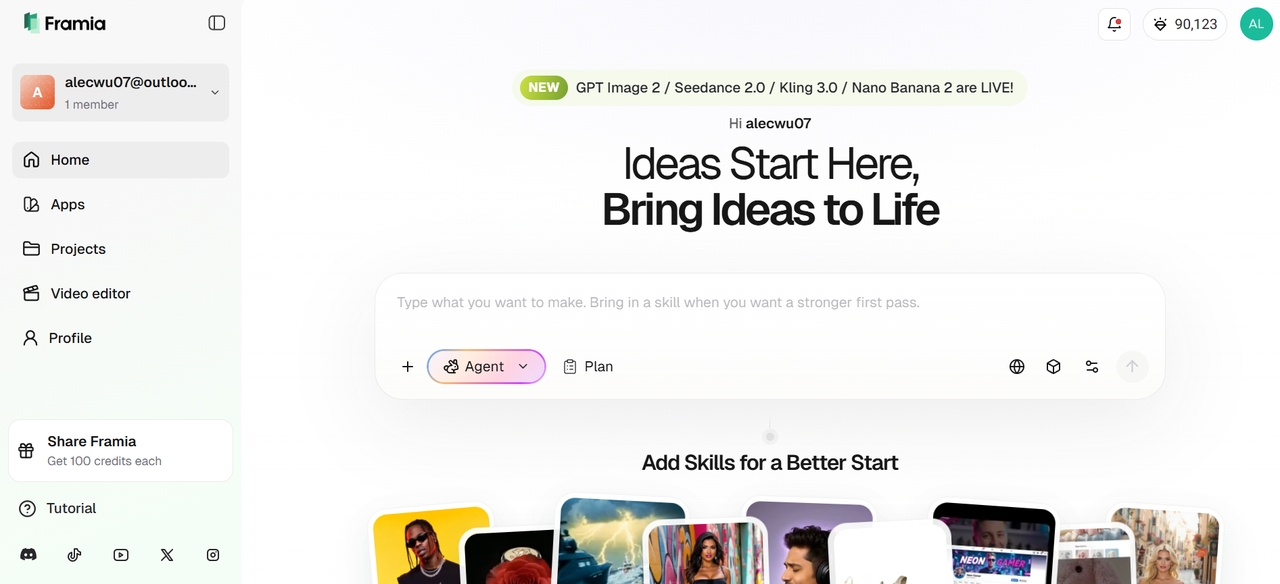
Key advantages of Kling AI motion control on Framia Pro
- Direct access to the latest versions: Instantly switch between Kling 2.6 for fast iterations and Kling 3.0 for superior facial consistency, complex emotions, and multi-angle fidelity without leaving the platform.
- Intelligent Agents: Use specialized agents (Movie Agent, Shorts Agent, Music Video Agent, etc.) that intelligently handle prompts, character consistency, and motion references for better results with less manual effort.
- End-to-end workflow: Combine motion control with Framia Pro's image generation, voiceovers, music, subtitles, and editing tools in the same project. Create a full character-consistent video series without exporting/importing files.
- Credit efficiency & free trials: Optimized credit usage across models. New users can start with generous free credits to experiment with Kling motion control.
- Enhanced consistency features: Framia Pro’s canvas helps maintain character identity across multiple clips by saving references, facial elements, and prompts for reuse.
- Faster iteration: Built-in history, quick regeneration, and multi-model comparison let you test different motion strengths or combine Kling with other engines like Veo 3.1 or Seedance 2.0.
Final Thoughts
Kling motion control is currently one of the most powerful tools available for creators who want director-level control over AI-generated videos. Whether you’re using Kling 2.6 for fast iterations or Kling 3.0 for superior facial consistency and complex performances, mastering motion transfer can dramatically elevate your content quality.
By following the right upload guidelines, framing techniques, and the five key tips shared above, you can achieve remarkably realistic and consistent results. On Framia Pro, this becomes even more powerful — with seamless integration, intelligent agents, and an end-to-end creative canvas that saves you time and credits.
The future of video creation is here. Start experimenting with Kling motion control today, refine your skills, and bring your creative vision to life like never before.
FAQs
- Can I use Kling AI motion control for free?
Yes, Kling AI offers limited free daily credits for motion control. Framia Pro provides generous free trials and optimized usage. Paid plans unlock longer clips and higher priority generation.
- What are the video upload guidelines for Kling motion control?
Videos must be 3–30 seconds, single continuous shot, no cuts or camera changes. One subject clearly visible throughout. Short edge minimum 340px, long edge maximum 3,850px. Real human actions recommended for best motion accuracy.
- What is element binding in Kling motion control?
Element Binding is a Kling 3.0 feature that anchors a character's facial identity to the output. You upload multi-angle facial images or a short video, and Kling uses that data to keep the face consistent across all frames.
- Is Kling AI safe to use?
Yes, Kling AI is safe to use on Framia Pro. The platform applies usage policies, content filters, and community guidelines to help ensure outputs are appropriate and suitable for professional video creation.
- How long can Kling motion control videos be?
When using Kling motion control on Framia Pro, generated videos match the duration of the uploaded motion reference, with a supported range of 3 to 30 seconds. If the motion is too fast or complex, the output may be shorter as the model extracts only usable continuous action.