AI-generated self-portraits are everywhere now, and for good reason. They're changing the way people show up online, grow their personal brand, and get creative. But this isn't just a fancy filter or a quick photo edit. In this guide, we'll show you how to incorporate yourself into an AI image generator. By the end, you'll know which method works best for you, how to get great results, and how to stay safe while doing it.
How do AI image generators recognize you?
When you upload a photo to an AI image generator, the tool doesn't just "see" your picture the way you do. It actually breaks it down into thousands of tiny details. It studies the shape of your face, the distance between your eyes, the curve of your nose, and even the way light falls on your skin.
Over time, it starts to create a kind of "mental map" of your face, so when you ask it to create a new image, it already knows what you look like. That's why uploading just one blurry selfie won't cut it. The AI needs enough examples to truly learn your features. Once it does, though, it can place you in almost any scene, style, or setting you can imagine.
The 3 main methods: Choosing the right path
Not all AI image generators work the same way, and there's actually more than one way to get yourself into an AI-generated image. Knowing which method to use makes a huge difference in how your final image turns out. Here's a simple breakdown of the three main paths:
Reference mode (The "look-alike" method)
This method uses one or more photos of you as reference material when generating new images. The AI looks at your photo and tries to make the new image resemble you by matching your features and general appearance.
It doesn't create a full custom model, but it gets the AI to draw you in different scenes or styles. This method is perfect if you just want a fun avatar, a creative portrait, or want to see what you'd look like as an anime character or a watercolor painting.
LoRA training (The "professional" method)
LoRA stands for "Low‑Rank Adaptation." With this, you train a small custom model on many photos of yourself. The model learns your facial structure and features so it can generate images that look like you, even in new poses or settings.
It takes a little more time to set up, but the results are on a completely different level. You get photorealistic, consistent, and genuinely impressive outputs.
Face swap (The "copy-paste" method)
Face swap works by detecting your facial features and blending them realistically onto an existing image to create a clean result. So instead of generating a brand new image of you from scratch, you take an already-generated image that you like (great background, perfect lighting, cool outfit), and simply swap the face with yours.
It's fast, it's simple, and your face will look exactly as it does in your photo. This method is best used for quick edits and post-hoc corrections.
Many experienced creators actually combine all three methods: start with Reference Mode to prototype, use LoRA training for their best work, and finish with Face Swap to fine-tune the details.
Best tools to make an AI model of yourself
While it's easy to create a great AI photo of yourself, choosing the right tool makes a huge difference. Some platforms are better for quick social media avatars, others for professional headshots, and some give you full studio-level control.
Here's a breakdown of the best tools available right now so you can pick the one that fits your needs.
| Tool | Type | Input Method | Key Capabilities | Platforms | Special Features | Output Focus |
| Framia Pro | All-in-one AI platform | Upload photo + text prompt | Image generation, video creation, face swap, consistent identity, layer-based editing | Web | Multi-model access (Nano Banana Pro, MidJourney v7, Flux, Qwen, Seedream 5.0), image-to-video, editable layers | Images + videos |
| Starry AI | AI art generator | Photo upload + text prompt | Style-based generation, image editing, upscaling, background removal | Web, Android, iOS | 1000+ styles, multiple AI modes, daily free generations | Images |
| GenYOU | AI portrait generator | Photo upload | Identity-focused portraits, stylized transformations, consistent facial mapping | Web, Mobile app | Time-period styles (historical, modern), profile-ready portraits | Images |
| Fotor AI Portrait Generator | AI portrait + editor | Photo upload or text prompt | Portrait generation, background removal, retouching, quality improvement | Web, Mobile | Built-in editing suite, multiple portrait styles, enhancement tools | Images |
| MyPicNow AI Selfie Generator | AI headshot generator | Photo upload | Studio-style headshots, style packs, prompt-based scenes | Web | Fast generation (~8 seconds), 60+ professional styles, privacy handling | Images |
| VEED AI Yourself | AI video generator | Photo upload + prompt | Talking head videos, animated avatars, video creation | Web | Voice/video avatar, gaze correction, multiple video models | Videos |
| PixelDojo | AI creation platform | Photo upload | Image generation, LoRA training, upscaling, API access | Web | 70+ tools, custom model training, upscaling up to 8K | Images + developer use |
Framia Pro
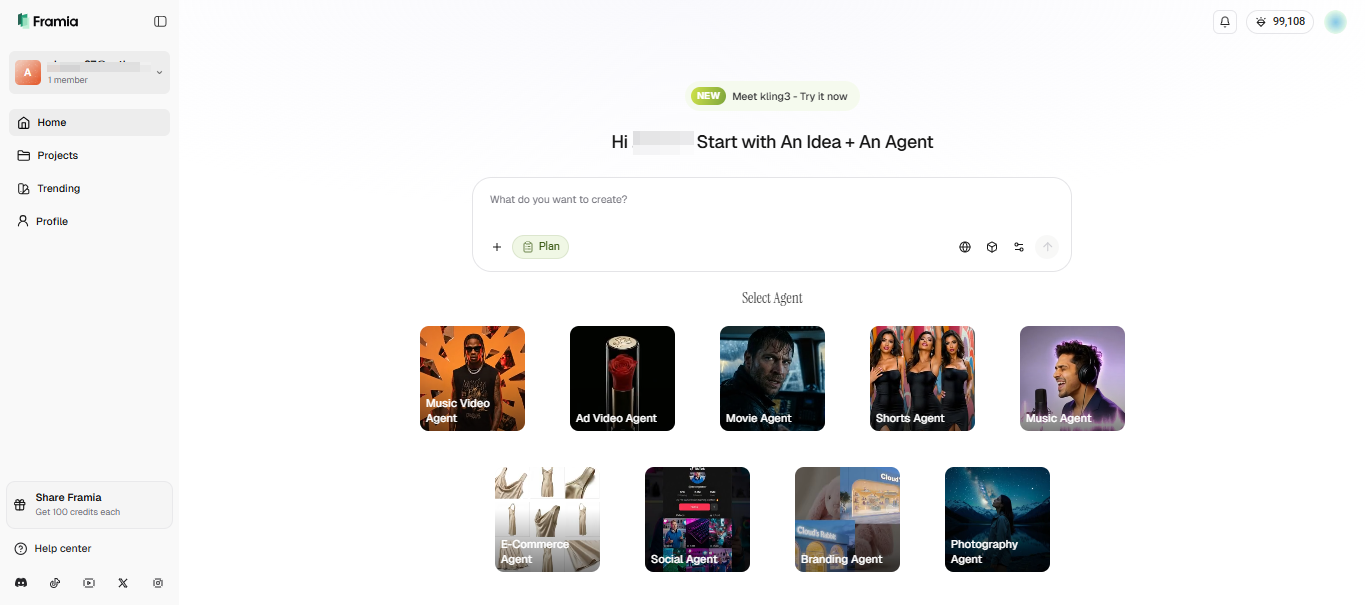
Framia Pro is an all-in-one creative platform that gives you access to more than 20 top AI models in one place, which includes image tools like Nano Banana Pro, MidJourney v7, Flux Image, Qwen Image, and Seedream 5.0. So, rather than juggling five different subscriptions just to create a photo or video of yourself, Framia puts everything under one roof. No matter if you want a professional headshot, a fantasy version of yourself, or a full cinematic video clip, it's all right there.
Key features of Framia Pro's AI-generated images of yourself for free
- Create AI photo of yourself: Want a professional headshot, a fantasy portrait, or a fun, creative avatar? Simply upload a photo of yourself, describe the style or setting you want, and Framia Pro generates a high-quality image that actually looks like you.
- Turn a photo into video: Framia Pro takes your AI photo a step further by turning it into a fully animated video clip. Just upload your image, describe the motion you want, and the AI brings it to life using powerful models like Seedance 2.0, Veo 3.1, and Kling 3.0.
- Create face swap videos with AI: Sometimes the scene is perfect, but the face just isn't quite right. That's exactly what Framia Pro's face swap feature is built to fix. Upload the image you want to use, add a clear photo of your face, and the AI blends your features into the scene with natural lighting and expression.
- Lock in your look: Once you set your face, outfit, and physical features, Framia Pro keeps them exactly the same across every image or video you generate, so every shot is consistent and recognizably you.
- Edit in Layers: Change your background or tweak your character separately without having to redo the whole image from scratch.
How to incorporate yourself in the image generator on Framia Pro?
You can follow these three quick steps to create an AI photo of yourself using Framia Pro:
Step 1: Upload your photo
- Go to the Framia web page and click "Sign up to create a free account.
- After you access the home page, type in your text prompt to describe what scene or background you want on your image.
- Click "+" and upload the photo you want to incorporate into the image generator from your PC.
- Click "Plan" if you want to plan the image generation process with AI.
Step 2: Generate photo of yourself
- Click "Select Model," go to the "Image" tab, and select any image model or leave it on "Auto."
- Select the aspect ratio under "Settings>Design."
- Click "Generate" and wait for Framia Pro to scan your image and generate a new image with your photo.
Step 3: Export to device
- Click the generated image in the canvas to select it.
- You can now remove the background, split the layers, upscale the image, and more.
- Finally, click "Download" to save the AI-generated images of yourself for free to your device.
Starry AI
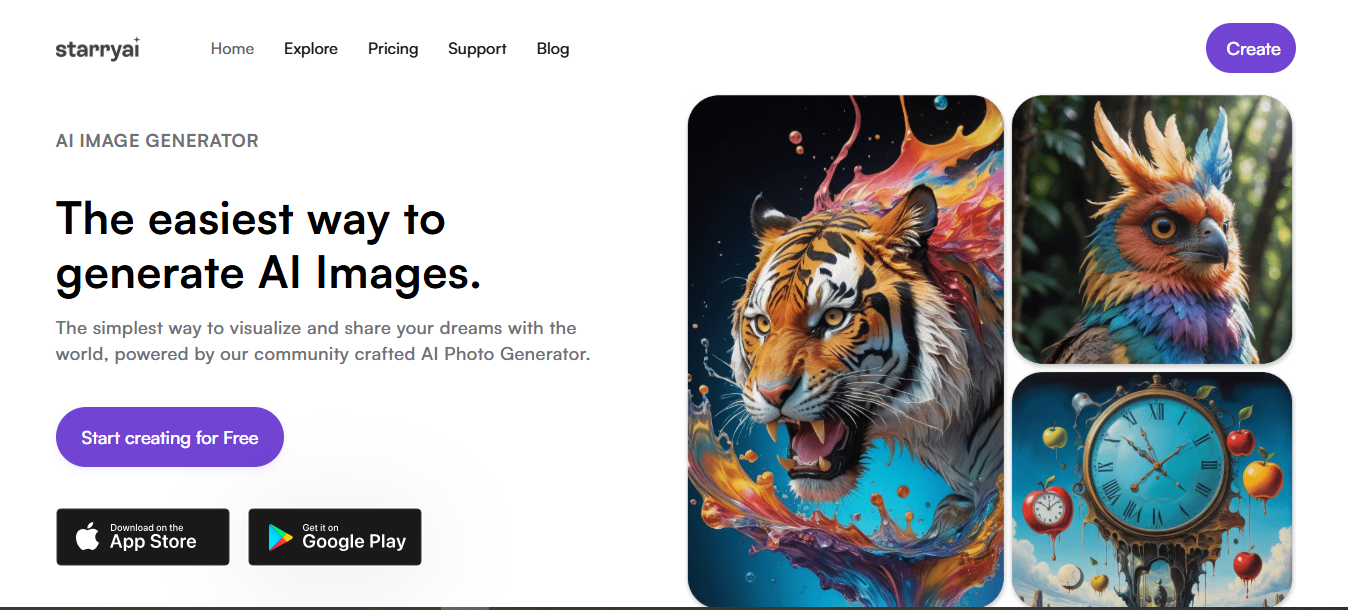
StarryAI is a popular and beginner-friendly AI image tool that lets you incorporate yourself into an AI image generator in different styles. You can upload a photo, describe what you want, and the tool generates images based on your input. It not only works on your web browser but is also available as an Android and iOS app.
Key features
- Wide range of art styles: Choose from over 1000 different styles, including anime, fantasy, and artistic looks.
- Multiple AI models: Different generation modes give varied visual results, from abstract to more detailed outputs.
- Image editing tools: Adjust and refine parts of your generated image using built-in upscale, remove background, and other options.
- Full image ownership: You keep the rights to the images you create.
- Free daily generations: The free plan gives you up to 5 image generations per day without any watermark.
GenYOU
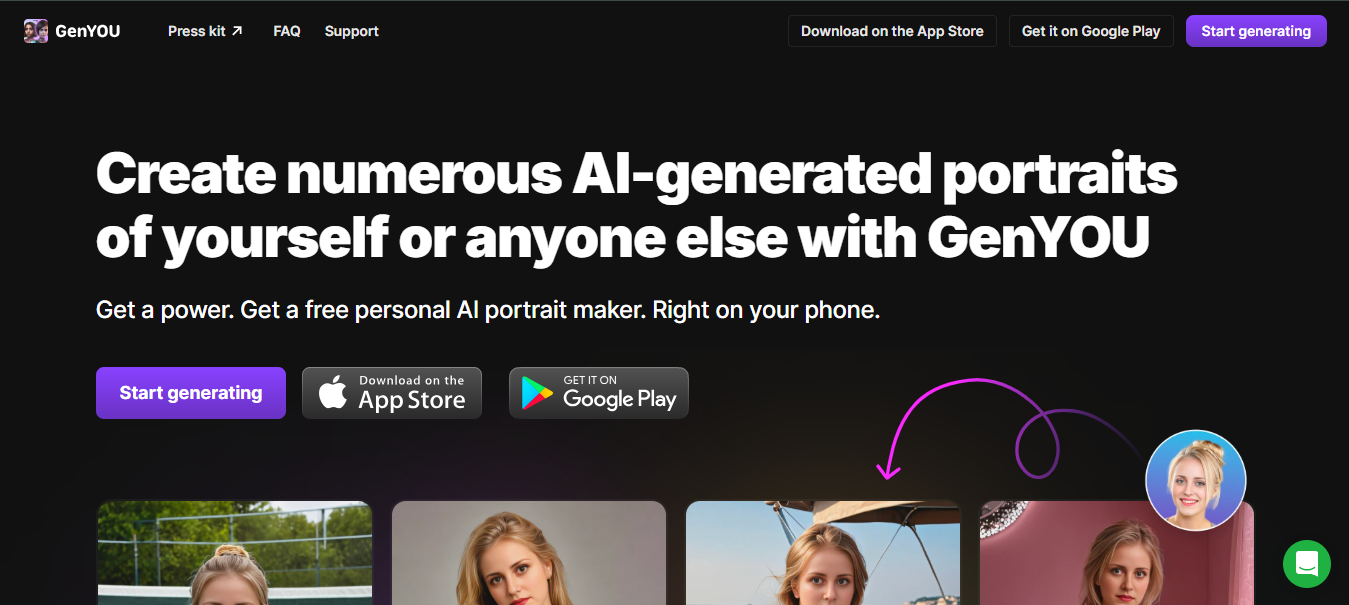
GenYOU is an AI portrait generator that focuses on personal identity. You can upload photos of yourself and use the web page or the mobile app to make creative portraits, fun characters, or stylized versions of yourself that still recognize your face. It's a great pick if you want to refresh your profile photo, try out new looks, or build a consistent visual identity across your social media.
Key features
- Your face, every time: GenYOU carefully maps your facial features and keeps them consistent, no matter what style or setting you choose
- Travel through time with your looks: Try yourself as a medieval knight, a Victorian-era character, a vintage film star, or a modern professional.
- Mobile-friendly design: Built for easy use on your Android and iOS devices.
- Free to start: You can jump in and start generating portraits for free, with the option to upgrade if you want faster results and private image storage.
Fotor AI Portrait Generator
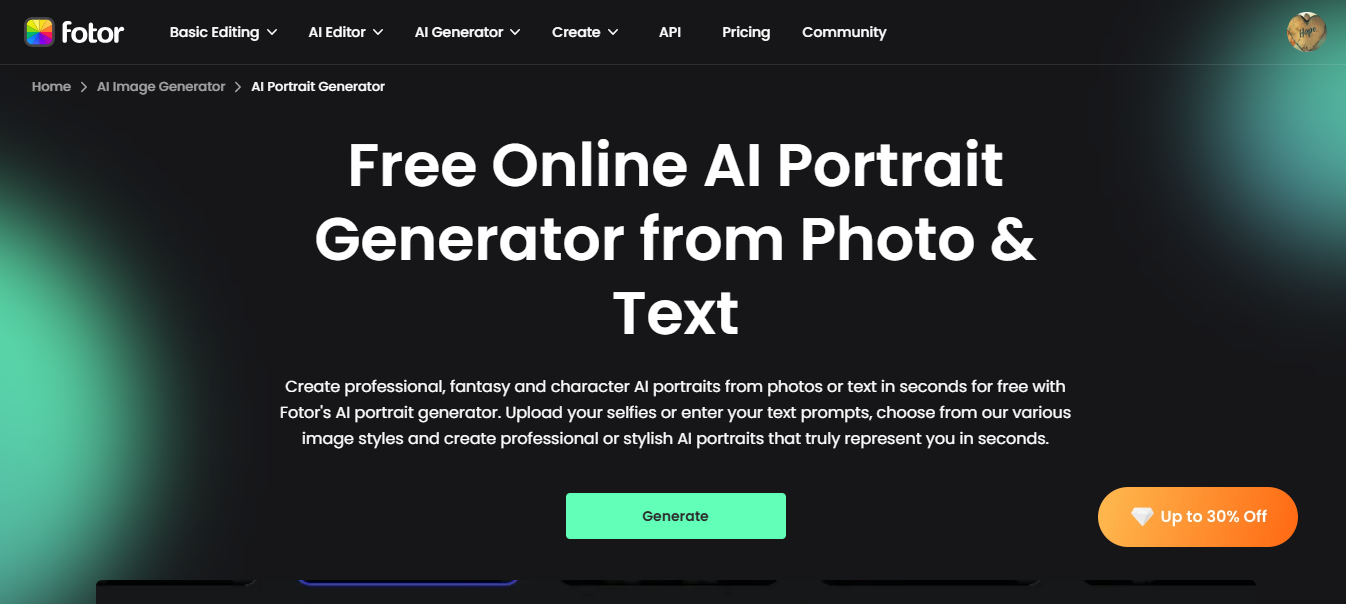
Fotor is an all-in-one AI tool that lets you turn a regular selfie into a clean portrait. It combines AI image generation with built-in editing tools, so you can create and adjust your image in one place. You can remove backgrounds, retouch details, and improve image quality right after generating your AI photo, which makes the process simple and smooth.
Key features
- Photo and text-based generation: Create portraits by uploading your photo or by using text prompts.
- Integrated editing tools: Edit your generated images using background remover, retouching, and basic adjustment tools.
- Multiple style options: Choose from different portrait styles, including realistic and artistic looks.
- Image enhancement: Improve clarity and sharpness after generating your portrait.
- Cross-platform access: Use Fotor on both web and mobile devices.
MyPicNow AI Selfie Generator
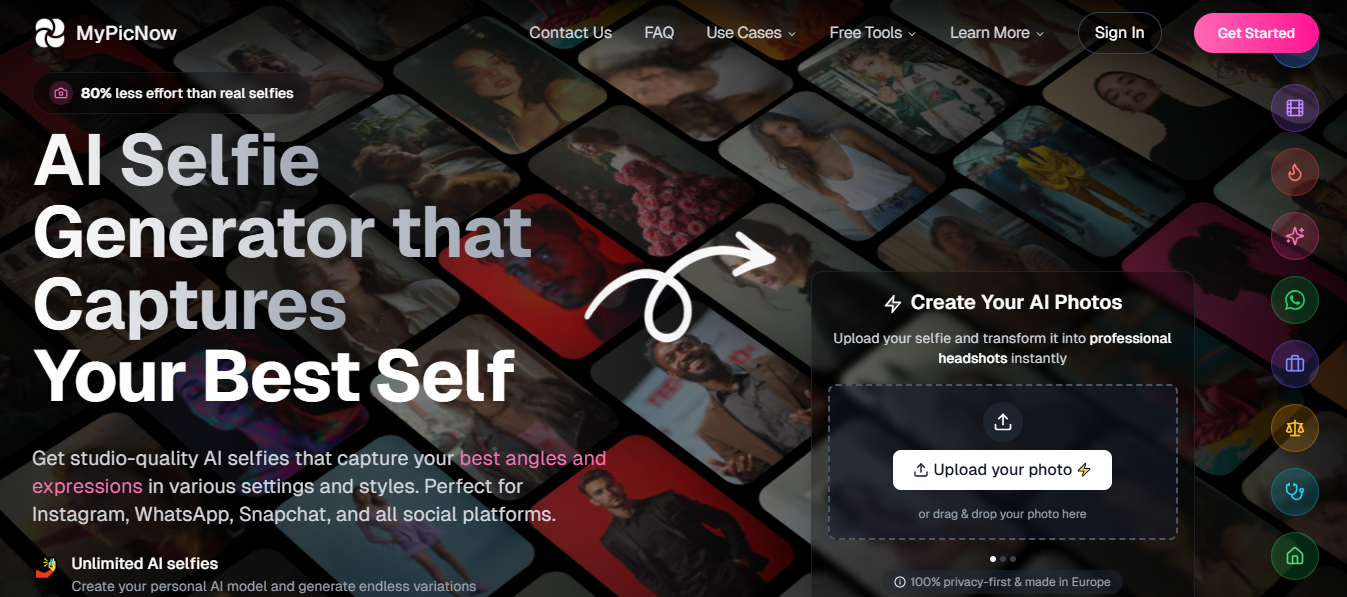
MyPicNow converts your regular selfies into clean headshot photos that look like they were taken in a real studio. It's fast (we're talking around 8 seconds per image), affordable, and built specifically for people who need great photos for LinkedIn headshots, dating app photos, or personal branding content. More than 2,500 professionals have used it, and it holds a strong 4.8 out of 5 satisfaction rating.
Key features
- 60+ professional styles: Choose from a wide range of styles optimized for LinkedIn, Instagram, Tinder, Bumble, and TikTok, so your AI photo of yourself always fits the platform you're posting to.
- Style packs for different goals: Use themed photo packs, and generate a full set of images in multiple styles using your AI model.
- Strong likeness to you: The AI is specifically designed to study your unique facial features and carry them accurately into every generated image, so the results genuinely look like you.
- Your own personal AI photoshoot: Use the prompt-based studio to place yourself in any setting you can think of.
- Privacy you can trust: MyPicNow follows GDPR privacy guidelines, which means your uploaded photos are handled securely and not shared or used without your knowledge.
VEED AI Yourself
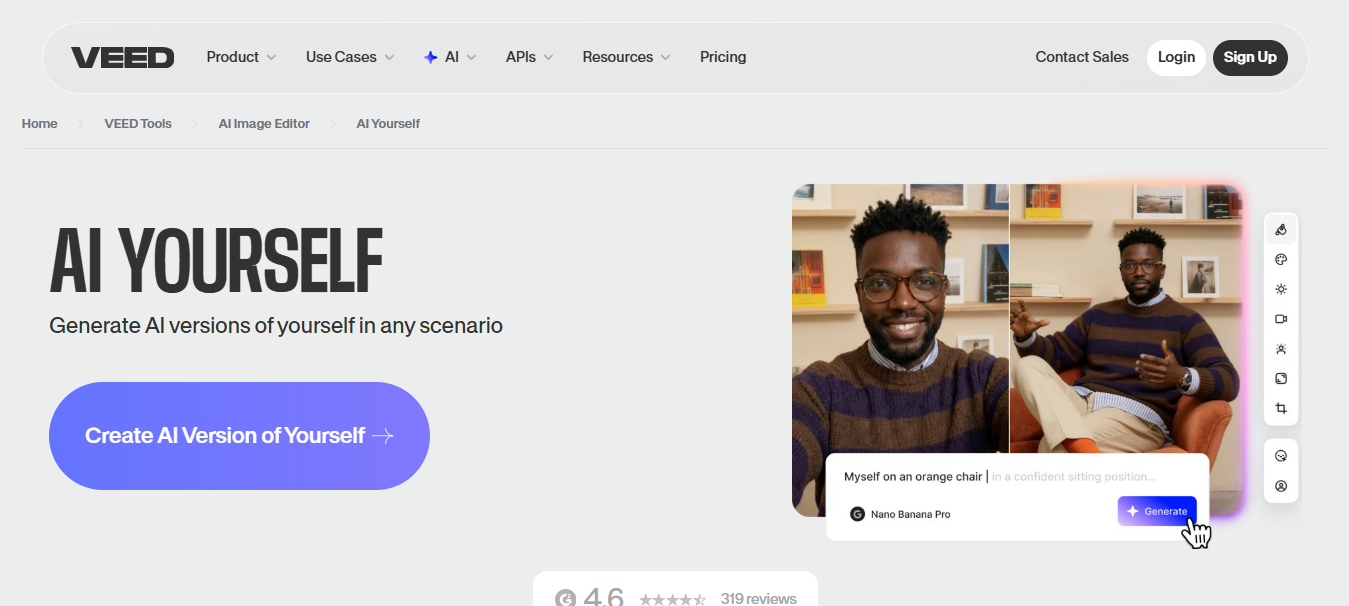
VEED takes the concept of an AI photo of yourself a step further. It actually lets you create a moving, speaking version of you. Using VEED's "Talking Head" feature, you can build a digital clone of yourself and use it to produce videos without ever turning on a camera. It's a powerful tool for content creators, marketers, or anyone who wants a consistent online presence but doesn't always want to be on screen.
Key features
- Clone yourself for videos: Create a digital version of yourself that can generate Talking Head videos for tutorials, social media content, internal business updates, and more.
- Multiple AI video models in one place: Access top video models like Veo 3.1, Kling, Hailuo AI, and Sora, so you can pick the right one depending on the style of video you want.
- Bring your photo to life: Upload a still photo of yourself and describe how you want it to move, and VEED turns it into a video clip automatically.
- Fix your eye contact: A built-in tool adjusts your gaze in recorded videos so it looks like you're always speaking directly to the viewer — even if you were looking at a script the whole time.
PixelDojo
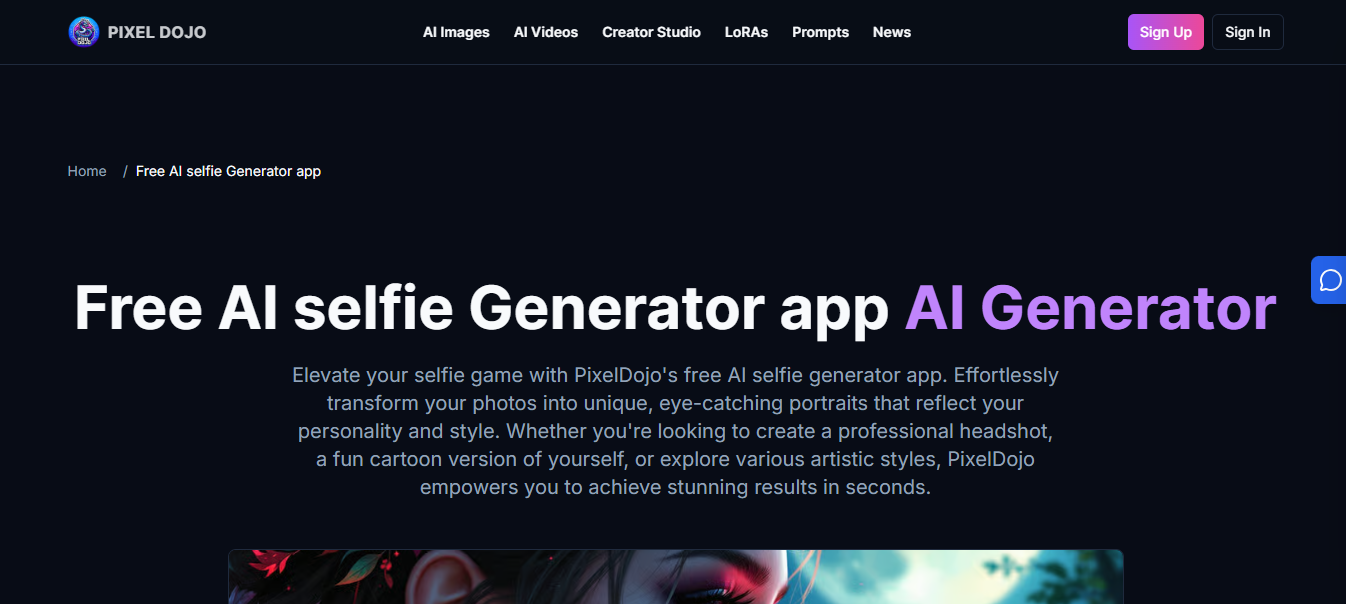
PixelDojo is an all-in-one AI platform built for creators who want serious quality when incorporating yourself in AI image generator. It gives you access to over 70 top AI tools that include Flux Pro, Kling, and Google Veo, and you don't need any technical experience to use them. What really sets PixelDojo apart for self-portraits is its flexible LoRA training options, which let you teach the AI exactly what you look like so it can generate you accurately, in any style or scene, every single time.
Key features
- Flexible LoRA training: Train the AI on your face by uploading a zip file, dragging in up to 12 photos, or even using just a single photo.
- Highly accurate self-portraits: Upload clear photos of yourself, describe the setting or style you want, and PixelDojo generates detailed, high-quality images that actually resemble you.
- 12 style presets: Choose from 12 built-in styles that keep your facial identity precise and consistent across different looks.
- Ultra-sharp 8K upscaling: Enhance any portrait to up to 8K resolution with the built-in upscaler to make your images sharp enough for printing, large displays, or high-end professional use.
- Developer-friendly API: If you're building your own app or platform, PixelDojo offers a developer API with a free plan that includes up to 100 test images to get you started.
Best practices for high-quality results
When you decide to make an AI model of yourself, the quality of what you put in directly affects the quality of what you get out. Follow these simple best practices, and you'll notice a big difference in your results right away.
- Use clear, sharp photos
If your reference photos are blurry, poorly lit, or low resolution, the AI will struggle to understand what you actually look like, and your generated images will reflect that. Use photos where your face is clearly visible, in focus, and well-lit. Avoid selfies taken in the dark, heavily filtered photos, or pictures where your face is partially hidden. The cleaner your input photos, the more accurate and realistic your AI-generated portraits will be.
- Vary lighting and angles in reference images
To truly make an AI model of yourself that can generate you in any setting, you need to show the AI multiple sides of you, literally. Mix it up with front-facing shots, side profiles, slightly angled shots, outdoor light, indoor light, and natural sunlight. The more variety you give it, the better it understands the full shape and structure of your face. This means it can recreate you accurately, whether you're in a bright studio scene or a moody, shadowed portrait.
- Be specific and creative with prompts
The AI can only create what you describe. So vague prompts lead to vague results. Rather than typing something like "a photo of me," try something more detailed, like "a cinematic portrait of me in a dark leather jacket, golden hour lighting, city skyline in the background, photorealistic." The more detail you pack into your prompt, the more the AI has to work with.
- Test different styles to find what looks best
Not every style is going to suit every face, and that's perfectly okay. The fun part of using AI to create photos of yourself is that you can experiment without any cost or commitment. Try a realistic portrait, then switch to anime, then test a cinematic style or an oil painting. Some styles will highlight your features beautifully, while others might not land the way you expected. Give yourself permission to play around before settling on a final look. The more you test, the better you'll understand which styles bring out the best version of you in AI-generated form.
- Limit background clutter
When training the AI or uploading reference photos, a busy background can actually distract the AI and pull its focus away from your face. A clean, simple background helps the AI zero in on what matters most: you. This is especially important during the training phase, where the AI is trying to learn your features. The less visual noise in the background, the more accurate and clean your final AI portraits will be.
Conclusion
Incorporating yourself into an AI image generator is no longer complicated. Anyone can do it, and the results can be genuinely impressive. The key is to start simple. As you get more comfortable, you can level up to advanced techniques like LoRA training and face swapping for results that are truly photorealistic. If you want one platform that handles all of it, Framia Pro is the place to start with 20+ top AI models, including Nano Banana Pro, MidJourney v7, Flux Image, and Seedance 2.0, all under one roof. Sign up for free today and see what you can create.
FAQs
- How to make an AI clone of yourself?
You can create an AI clone by uploading multiple clear photos so the system can learn your facial features. Some tools use simple references, while others train a custom model for better accuracy. With Framia Pro, you can upload your image, choose a model, and generate consistent results that keep your face and style the same in every output.
- Are there free tools for AI-generated images of yourself?
You can create an AI clone by uploading multiple clear photos so the system can learn your facial features. Some tools use simple references, while others train a custom model for better accuracy. With Framia Pro, you can upload your image, choose a model, and generate consistent results that keep your face and style the same in every output.
- Are AI images of yourself safe and private?
Safety depends on the platform you use, so always review their privacy policy before uploading personal photos. Some tools store your data, while others offer better control over your uploads. With Framia Pro, you can manage your images and edit them directly, which gives you more control over how your content is used.
- Do I need technical skills to make AI images of myself?
You don't need advanced skills to get started since most tools are built for beginners. Framia Pro keeps the process simple with guided steps, so you can create and adjust your images without dealing with complex settings.
- How to make AI pictures of yourself online?
You can make AI pictures by using an online generator that allows photo uploads and prompt input. After generating, you can refine the output by changing styles or adjusting details. Framia Pro lets you handle the full process in one place, from uploading your image to editing and exporting the final result.