In the competitive landscape of digital content, visual quality is the first thing an audience notices. Whether a viewer is tuning in from a massive 4K Smart TV or scrolling through a smartphone on their commute, how your content fits their screen determines if they stay or click away. Uploading a video with the wrong YouTube video size often leads to distracting black bars, blurry resolution, or essential visual information being cut off by the platform's interface.
Mastering the technical side of your uploads isn't just about aesthetics; it’s a vital part of your SEO strategy. In 2026, YouTube’s algorithm increasingly prioritizes high-fidelity content that provides a seamless viewing experience across all devices. This guide will walk you through the essential dimensions, YouTube video size ratio, and file requirements you need to know to ensure your channel looks professional and your videos perform at their absolute best.
What is the ideal size for a YouTube video?
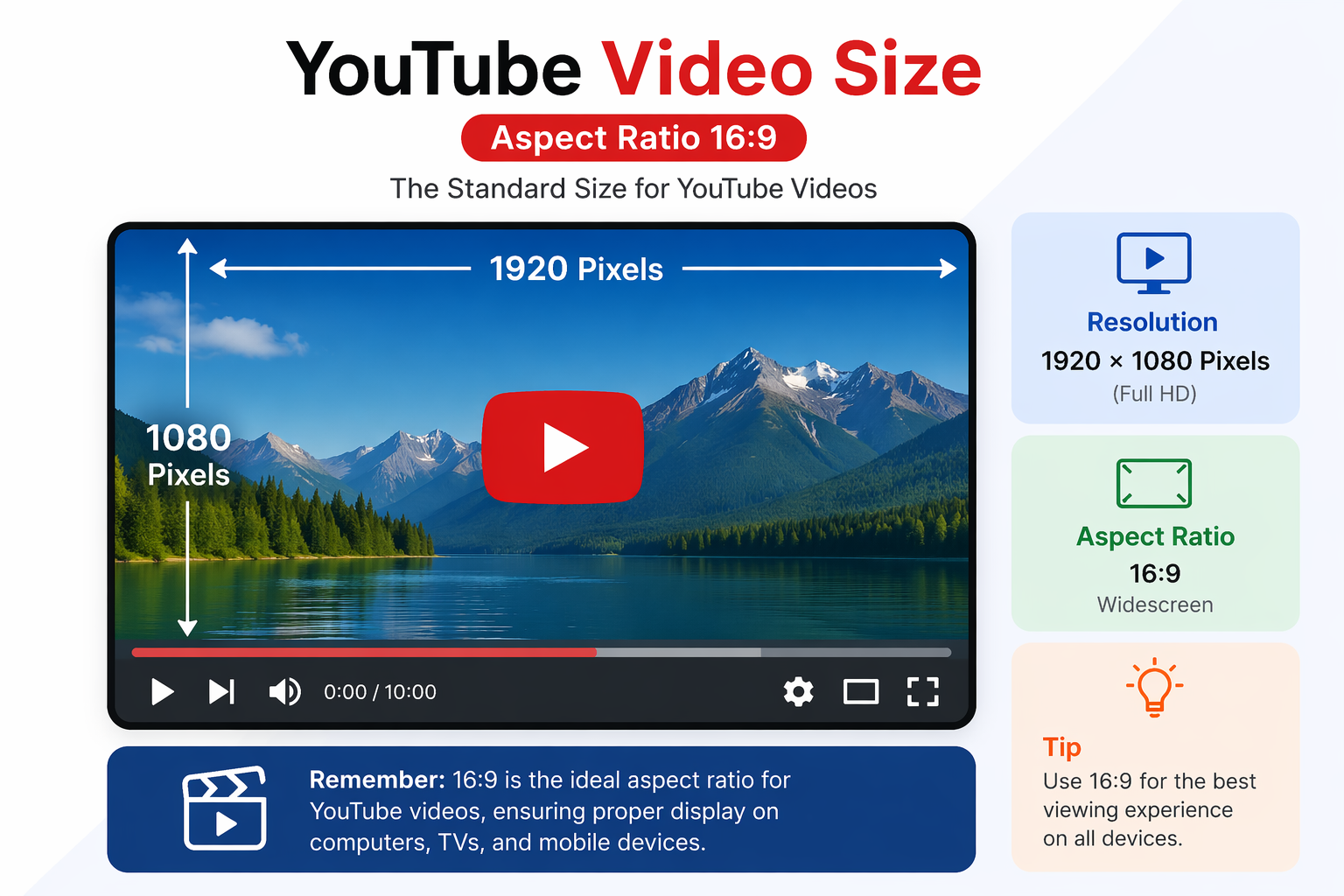
The ideal YouTube video size depends on resolution and aspect ratio. YouTube supports a wide range of formats, but the most recommended setup is:
Resolution: 1920 × 1080 pixels (Full HD);
Aspect ratio: 16:9;
Size limit: 256 GB maximum (or 12 hours irrespective of size);
Best format choice: MOV, MP4, AVI, WMV.
This combination ensures your video looks sharp across all devices without unnecessary file size increases.
Recommended YouTube video dimensions and resolutions
YouTube supports a wide range of resolutions, but not all deliver the best results. Here's the current 2026 standard for 16:9 videos:
| Resolution | Dimensions | Quality Level |
| 240p | 426 × 240 | Low |
| 360p | 640 × 360 | Standard |
| 480p | 854 × 480 | SD |
| 720p | 1280 × 720 | HD |
| 1080p | 1920 × 1080 | Full HD |
| 1440p | 2560 × 1440 | 2K |
| 2160p | 3840 × 2160 | 4K |
| 4320p | 7680×4320 | 8K |
For most creators, exporting at 1920 × 1080 (1080p) or higher (such as 4K) provides excellent quality while keeping upload and processing times reasonable. This is widely considered the ideal size of all YouTube videos for balanced performance.
YouTube Shorts dimensions
Viral YouTube Shorts have become a powerhouse for channel growth. A study from 2024 found that while Shorts generate fewer comments than long-form videos, they see significantly more views overall and higher likes per view, making them an essential part of any creator's strategy.
Shorts are designed specifically for mobile-first, vertical viewing. The specs are essentially the inverse of a standard YouTube video:
- Ideal resolution: 1080 × 1920 pixels (ideal); minimum 480p mobile / 720p desktop;
- Aspect ratio: 9:16;
- Maximum length: 60 seconds (Can be upto 3 minutes);
- File format: MP4 (preferred);
- Safe zone: Central 80% of the frame to avoid UI overlaps;
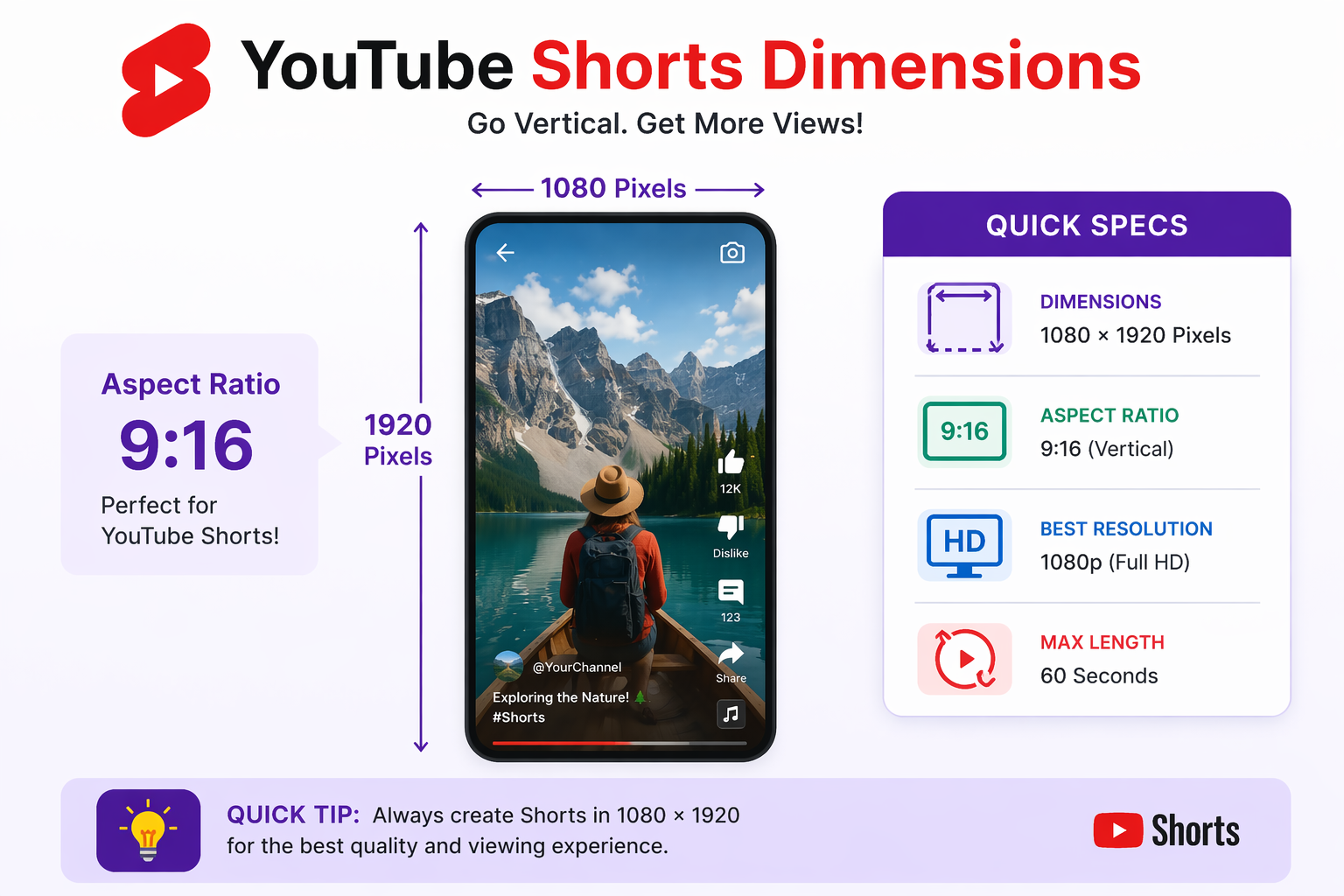
Keep your most important visual elements, faces, text overlays, product shots, anchored to the centre of the frame. The top and bottom edges of the Shorts player are covered by UI elements like the subscribe button, title, and sound controls, so anything placed too close to the edges risks being obscured.
YouTube thumbnail & channel art sizes
Your thumbnail is the single most powerful click-driver on YouTube. Getting the Youtube video dimension size right for thumbnails ensures they look crisp and professional across every surface where it appears — search results, recommended feeds, channel pages, and external shares.
Video thumbnails
In 2026, the minimum YouTube thumbnail size is 640 × 360 pixels, while the recommended size is 1280 × 720 pixels for the best visual quality. This follows a 16:9 aspect ratio, matching standard YouTube video dimensions. Additionally, thumbnail files must not exceed 2MB in size.
Channel banner (channel art)
Your channel banner is one of the trickiest assets to size correctly, because it displays differently across devices — TV, desktop, tablet, and mobile all show different portions of the same image.
In 2026, the minimun banne size is 2048 × 1152 pixels, while the recommended dimension is 2560×1440. Expressed as an aspect ratio, this is 16:9. The maximum YouTube banner file size is 6MB. Supported banner formats are JPG, PNG, Non-animated GIF.
To ensure your design looks perfect across all devices, it’s important to keep essential elements like text and logos within the safe area of 1546 × 423 pixels, centered on the banner. This is because different devices display the banner differently—TVs show the full image, while mobile screens only display the center portion.
Profile picture
YouTube recommends a 800 × 800 pixel profile image with a 1:1 (square) aspect ratio and a max file size of 2 MB. Since it displays as a circle across the platform, avoid placing important elements in the corners.
YouTube video ad specifications
If you are running a marketing campaign, your YouTube video size and length must adhere to strict advertising guidelines. Below are the standard requirements for 2026:
- Skippable in-stream ads: Aspect ratio 16:9, maximum file size 128 GB, video length 12 seconds to 6 minutes.
- Non-skippable in-stream ads: Aspect ratio 16:9, maximum file size 128 GB, video length up to 15 seconds.
- Bumper ads: Aspect ratio 16:9, maximum file size 128 GB, video length up to 6 seconds.
- TrueView ads: Aspect ratio 16:9, maximum file size 128 GB, video length 12 seconds to 3 minutes.
- Video discovery ads: Aspect ratio 16:9, minimum resolution 640 × 360, maximum file size 1 GB.
- Display ads: Aspect ratio 4:3, resolution 300 × 250, maximum file size 150 KB, video length up to 30 seconds.
YouTube vide size quick reference cheat sheet
Need a quick overview of YouTube video sizes and formats? This cheat sheet summarizes all the essential specifications—from video resolutions to thumbnails and banners—so you can easily find the right dimensions at a glance. Here’s a simplified overview of what size are YouTube videos:
| Content Type | Dimensions | Aspect Ratio | Details |
| Standard Video | 1920 × 1080 | 16:9 | Full HD, MP4 (H.264), Ideal for most content |
| 4K Video | 3840 × 2160 | 16:9 | Ultra HD, Best for large screens |
| YouTube Shorts | 1080 × 1920 | 9:16 | Vertical, Up to 60 seconds, Mobile-first |
| Thumbnail | 1280 × 720 | 16:9 | JPG or PNG, Max 2 MB |
| Channel Banner | 2560 × 1440 | 16:9 | Safe area: 1546 × 423 px, Max 6 MB |
| Profile Picture | 800 × 800 | 1:1 | JPG or PNG, Max 2 MB, Displays as circle |
Best practices for exporting YouTube videos with the right size
Exporting your YouTube videos with the right settings ensures top quality and smooth playback. Follow these best practices to optimize resolution, format, and performance across all devices.
- Use the right resolution: Always export your video in the highest resolution available, ideally 1920 × 1080 (Full HD) or higher, such as 4K (3840 × 2160). Uploading in higher resolution helps preserve visual quality even after YouTube compresses your video, ensuring a sharper and more professional final result.
- Stick to the standard aspect ratio: Using the correct aspect ratio is essential for proper display. A 16:9 aspect ratio is best for standard YouTube videos, while 9:16 is ideal for Shorts. Sticking to these formats prevents black bars and ensures your content looks clean across all devices.
- Choose the recommended format: For the best compatibility and quality, export your videos in MP4 format using the H.264 video codec and AAC audio codec. This combination is optimized for YouTube and provides a perfect balance between file size and video clarity.
- Optimize bitrate settings: Bitrate directly affects your video quality and file size. For 1080p videos, a bitrate of 8–12 Mbps (30fps) or 12–15 Mbps (60fps) is recommended. Choosing the right bitrate ensures your video maintains clarity without creating unnecessarily large files.
- Maintain original frame rate: It’s important to export your video at the same frame rate it was recorded in, whether that’s 24, 30, or 60 frames per second. Changing the frame rate can cause motion issues and reduce the smoothness of your video.
- Use proper audio settings: Clear audio is just as important as video quality. Export your audio using the AAC codec, with a bitrate of 320 kbps and a sample rate of 48 kHz. These settings ensure your sound remains crisp and professional.
- Check file size before uploading: While YouTube supports large file sizes, keeping your video reasonably optimized helps speed up the upload and processing time. Efficient file sizing also ensures a smoother publishing workflow.
- Preview before uploading: Before uploading, always review your video on different devices to catch any potential issues. Check for visual clarity, proper cropping, and audio sync to ensure everything looks and sounds as intended.
How Framia Pro automate perfect video sizing?
Getting the technical specs right is necessary — but it shouldn't consume your creative energy. Framia Pro is an AI-powered creative agent platform built for solo creators who want to produce polished, platform-ready content without a full production team.
Every creative agent, from the Shorts Skills agent to the Ad Skills and Music Video agents, outputs video in the correct dimensions and aspect ratios for its intended platform, automatically. You describe your idea, and the agent handles technical scaffolding.
This means no manual resizing, no export preset hunting, and no second-guessing whether your 9:16 Shorts footage will actually register as a Short on upload. Framia Pro takes care of the formatting, so you can stay focused on what actually matters: telling a great story and building your audience.
Whether you're creating vertical Shorts, horizontal long-form videos, ad creatives, or full music video productions, Framia Pro's AI agents adapt to your format and deliver output that's ready to upload — at the right size, the right aspect ratio, and the right quality level, every time.

Steps to create YouTube videos using Framia Pro
Framia Pro makes it incredibly easy to create perfectly sized YouTube videos from ideas. Here's a simple 3-step process to get started:
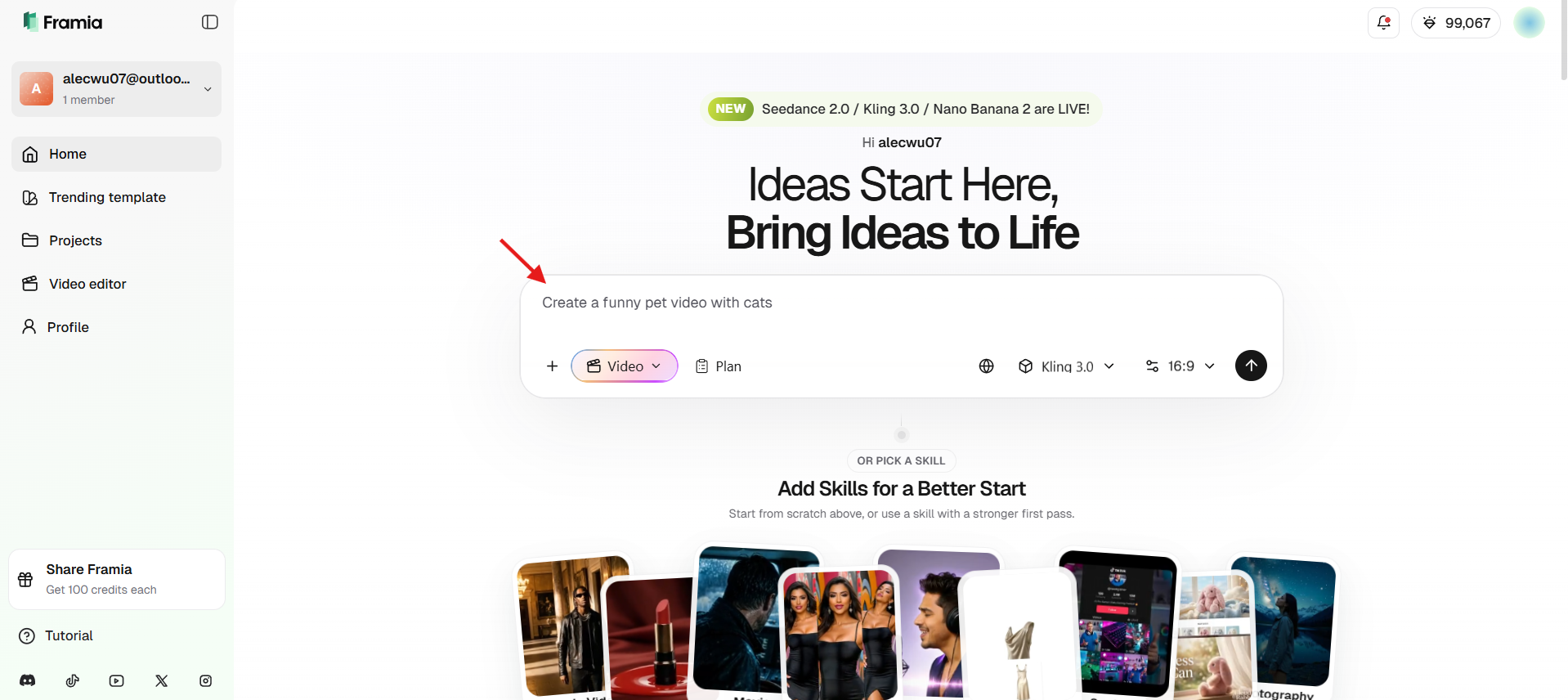
Step 1: Log in and describe your video idea
Access the Framia Pro dashboard and enter a detailed prompt in the creation box. Simply type a detailed prompt describing your vision, mentioning the theme, tone, and specific visual style, to kickstart the automated scriptwriting and scene-planning process. You can create pet videos, faceless YouTube videos, avatar videos, tutorials, ads, and more.
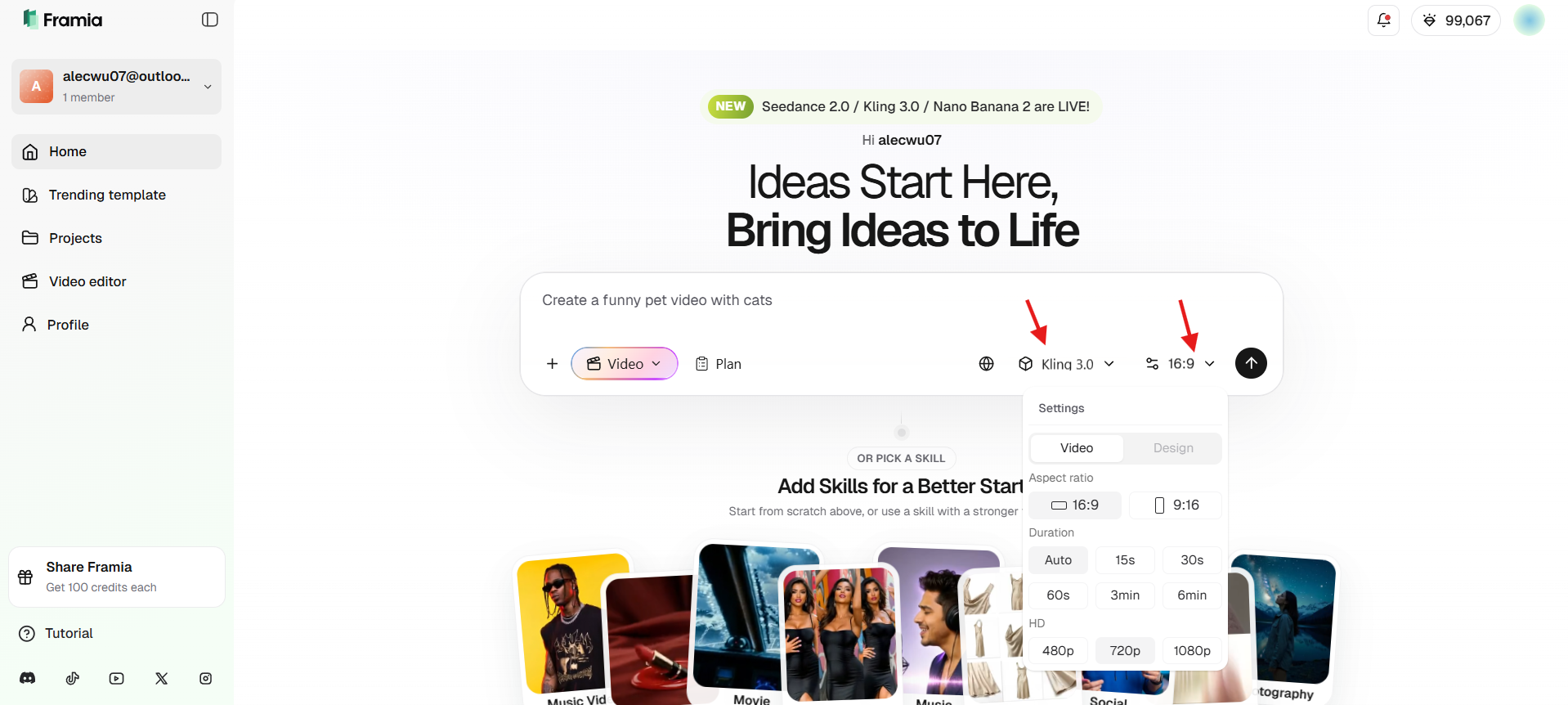
Step 2: Adjust settings and generate
Fine-tune your project by selecting the desired aspect ratio (16:9 or 9:16) and duration. Choose advanced models like Seedance 2.0 or Kling 3.0 within the platform to render high-fidelity visuals and cinematic motion that align perfectly with your initial description. Then, hit "Generate."
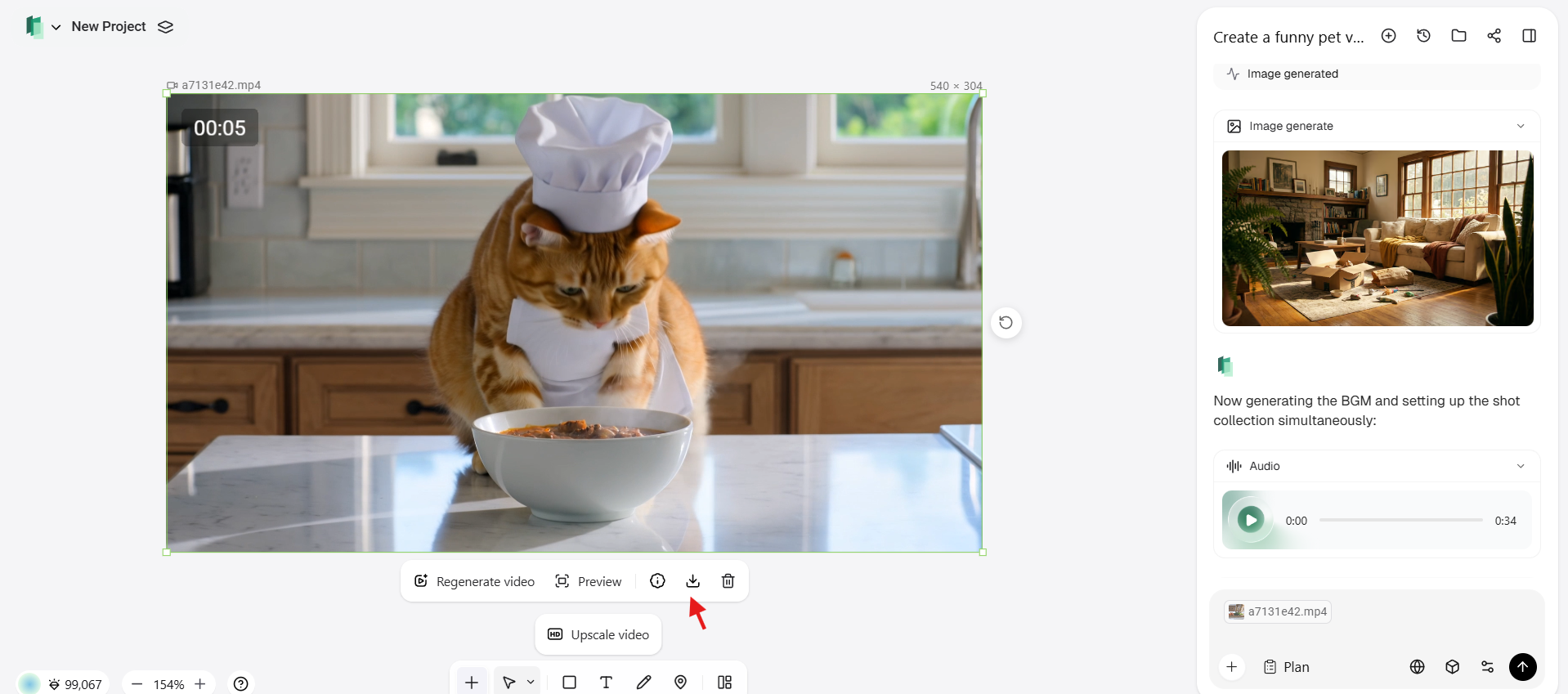
Step 3: Refine and download
Preview the generated video. Make quick refinements like editing text, pacing, or music. Once satisfied, download the final file in the perfect youtube format video size — fully optimized and ready to upload to YouTube without any resizing.
Conclusion
Choosing the right YouTube video size is essential for maintaining high quality and ensuring your content performs well across all devices. From using the correct resolution and aspect ratio to optimizing file size and export settings, every detail plays a role in how your video looks and engages viewers.
By following the recommended dimensions, formats, and best practices, you can create videos that are not only visually appealing but also optimized for faster uploads and better performance. With the right approach, you'll deliver a seamless viewing experience and maximize your content's impact.
FAQs
- What is the best resolution for YouTube videos in 2026?
For the best quality and future-proofing, 4K (3840 x 2160 pixels) is ideal. However, 1080p (1920 x 1080) remains the standard for most creators, providing a perfect balance between high-definition clarity and faster upload or processing times.
- Can I upload a 4:3 video to YouTube?
Yes, you can, but YouTube will automatically add pillarboxes (black bars) to the sides to fit the standard 16:9 player. To avoid this, it is better to record or edit your content in a native 16:9 widescreen format.
- What is the maximum file size for YouTube videos?
YouTube allows a maximum file size of 256 GB or up to 12 hours in length. However, keeping your file optimized and compressed properly helps reduce upload time and improves processing speed without affecting video quality.
- Does YouTube video size affect SEO?
Yes, YouTube video size affects SEO indirectly. Proper resolution, format, and file optimization improve video quality, watch time, and user experience, which are key factors influencing rankings and overall performance on YouTube.
- Which video format is best for YouTube?
The best format for YouTube videos is MP4 with H.264 video codec and AAC audio codec. This format provides high-quality visuals and sound while keeping file sizes manageable and fully compatible with YouTube’s channel and platform requirements.