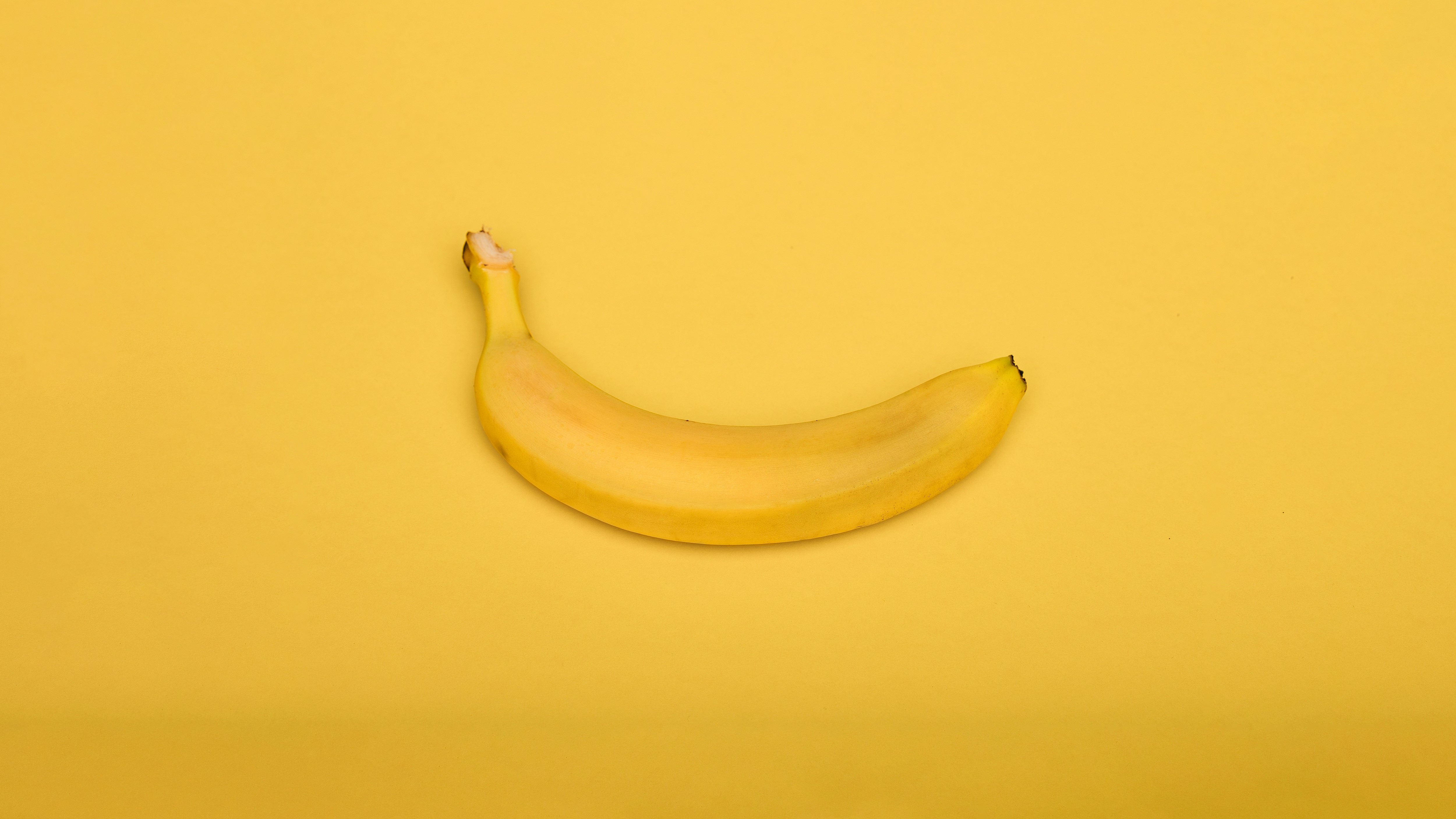
What is Nano Banana?
Nano Banana is Google Cloud’s state-of-the-art family of image generation and editing models, built natively on the powerful Gemini 3 architecture.
Designed to eliminate the endless trial and error of traditional AI generation, Nano Banana models apply deep reasoning capabilities to fully comprehend your prompts before generating any pixels. They utilize real-world knowledge to deliver precise, rich visual results.
Whether you are generating highly detailed product mockups, directing cinematic storyboards, or performing complex conversational image editing, Nano Banana bridges the gap between your creative vision and the final visual output, offering unprecedented control and stunning fidelity.
Powerful features of Nano Banana
Nano Banana pushes the boundaries of AI-generated art and design by offering robust capabilities. Here are the five standout features that make it an essential tool for modern creative workflows.
- Real-time web search grounding
Unlike static models, Nano Banana 2 actively integrates real-time information and images from web search. This allows you to generate highly accurate, localized visuals based on current events, weather conditions, or live data for dynamic marketing and educational tools.
- Advanced text rendering and localization
Say goodbye to gibberish text in images. Nano Banana excels at generating sharp, legible typography for posters and diagrams. It also supports state-of-the-art multilingual text generation and translation in over ten languages, directly within the generated image.
- Unprecedented precision and control
Creative directors can dictate exact hardware, camera lenses, and lighting setups. You can prompt for specific photographic elements like "low-angle shot with a shallow depth of field" or "chiaroscuro lighting," giving you true studio-quality control over the final composition.
- Multimodal reference inputs
Nano Banana allows you to mix up to 14 reference object images in a single prompt. This is ideal for maintaining strict character consistency, implementing style transfers, or seamlessly merging a specific product into an entirely new, generated environment.
- Conversational editing and semantic masking
Editing is as simple as chatting. You can use semantic masking through text to alter specific parts of an image while preserving the rest. Conversational follow-ups let you refine textures, add elements, or completely transfer styles without starting over.
Nano Banana 2 vs Nano Banana Pro: tech specs compared
While both models deliver exceptional quality, they are optimized for different production needs. Gemini 3.1 Flash Image (Nano Banana 2) offers blazing speed and expanded context, whereas Gemini 3 Pro Image (Nano Banana Pro) focuses on heavy-duty, premium generation. Let’s break down their technical specifications:
| Specification | Nano Banana 2 (Gemini 3.1 Flash Image) | Nano Banana Pro (Gemini 3 Pro Image) |
| Context Window | Up to 131,072 input tokens; 32,768 output | Up to 65,536 input tokens; 32,768 output |
| Text Rendering | Yes (Multilingual support, >10 languages) | Yes (Multilingual support, >10 languages) |
| Resolutions | 0.5K (512px), 1K, 2K, 4K built-in | 1K, 2K, 4K built-in |
| Aspect Ratios | 1:1, 3:2, 2:3, 3:4, 4:3, 4:5, 5:4, 9:16, 16:9, 21:9, 1:4, 4:1, 1:8, 8:1 | 1:1, 3:2, 2:3, 3:4, 4:3, 4:5, 5:4, 9:16, 16:9, 21:9 |
| Image Inputs | Mix up to 14 references (PNG, JPEG, WEBP, HEIC, HEIF) | Mix up to 14 references (PNG, JPEG, WEBP, HEIC, HEIF) |
| Document Inputs | Text & PDF (Up to 50MB via API/Cloud Storage, 7MB via Console) | Text & PDF (Up to 50MB via API/Cloud Storage, 7MB via Console) |
| Output | Text and Images | Text and Images |
| Model Knowledge Base | January 2025 cutoff | January 2025 cutoff |
| Live Data | Powered by real-time info from web search | Powered by real-time info from web search |
| Trust & Safety | C2PA Content Credentials & SynthID watermark | C2PA Content Credentials & SynthID watermark |
How to write a perfect Nano Banana prompt?
Writing effective prompts for Nano Banana requires a shift from typing simple keyword lists to acting like a creative director.
The foundation formula:
[Strong Action Verb] + [Specific Subject Details] + [Environment/Lighting] + [Camera/Composition] + [Style/Medium]
The core rule is to start with a strong verb that dictates the primary operation (e.g., "Generate," "Edit," "Transform"). Be highly specific about concrete details, relying on positive framing to describe what you want rather than what you don't want.
Use exact photographic terminology to control the camera, lighting, and composition. Finally, embrace iteration; since Nano Banana understands conversational context, you can continuously refine your initial image with follow-up instructions until it perfectly matches your vision.
Nano Banana prompt guide: best Nano Banana prompts to try out
If you are looking for a creative spark for writing the next Nano Banana prompt, then the following Nano Banana prompt collection should help you enhance your workflow, in a meaningful manner.
1. Image generation
Starting with a blank canvas means you must describe the scene narratively rather than just listing words to get the best result.
- Formula: [Subject] + [Action] + [Location/context] + [Composition] + [Style]
- Example: A striking fashion model wearing a tailored brown dress. Posing confidently. A seamless, deep cherry red studio backdrop. Medium-full shot, center-framed. Fashion magazine editorial style, shot on medium-format analog film with pronounced grain.
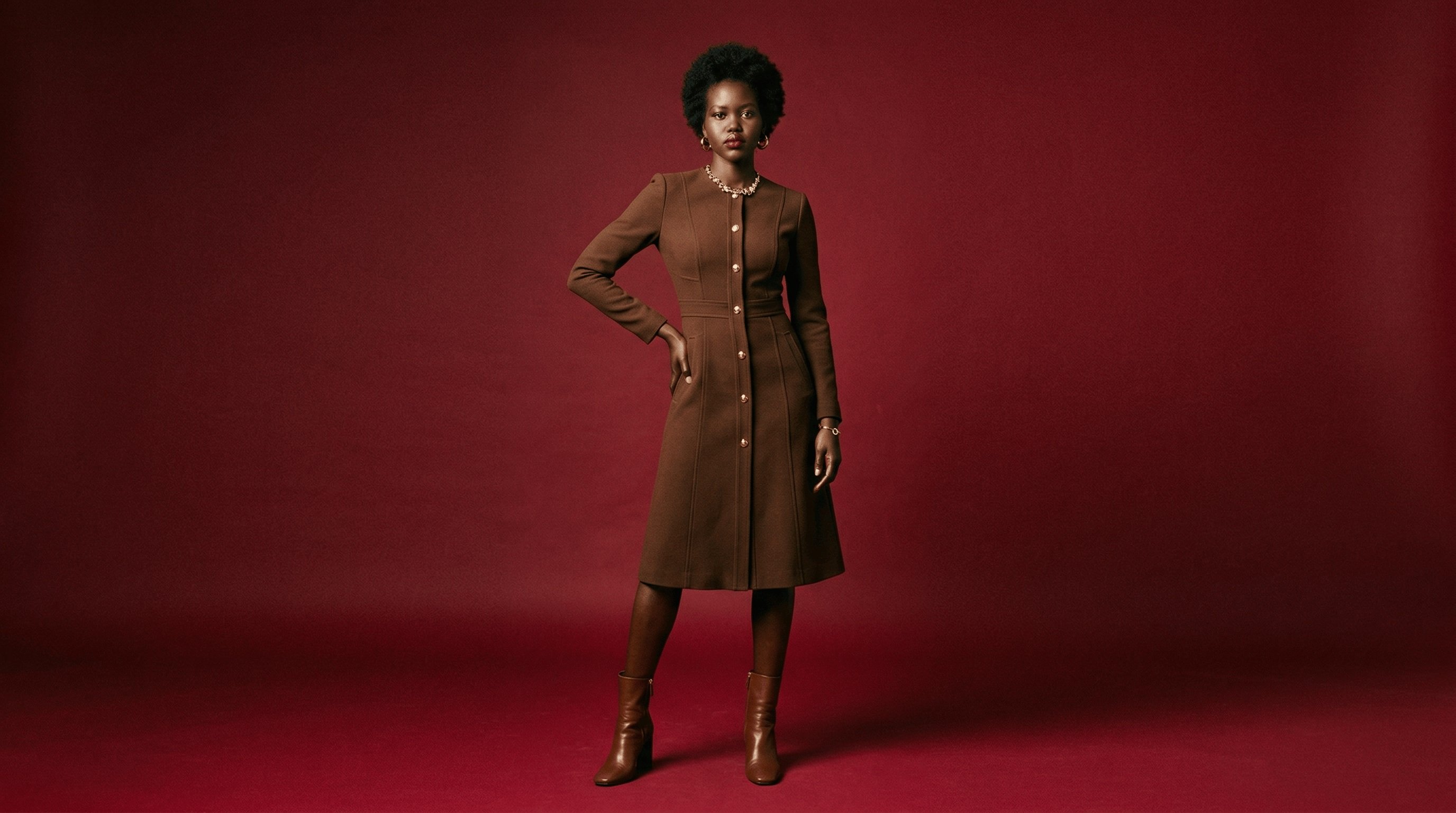
Image generation with references (multimodal)
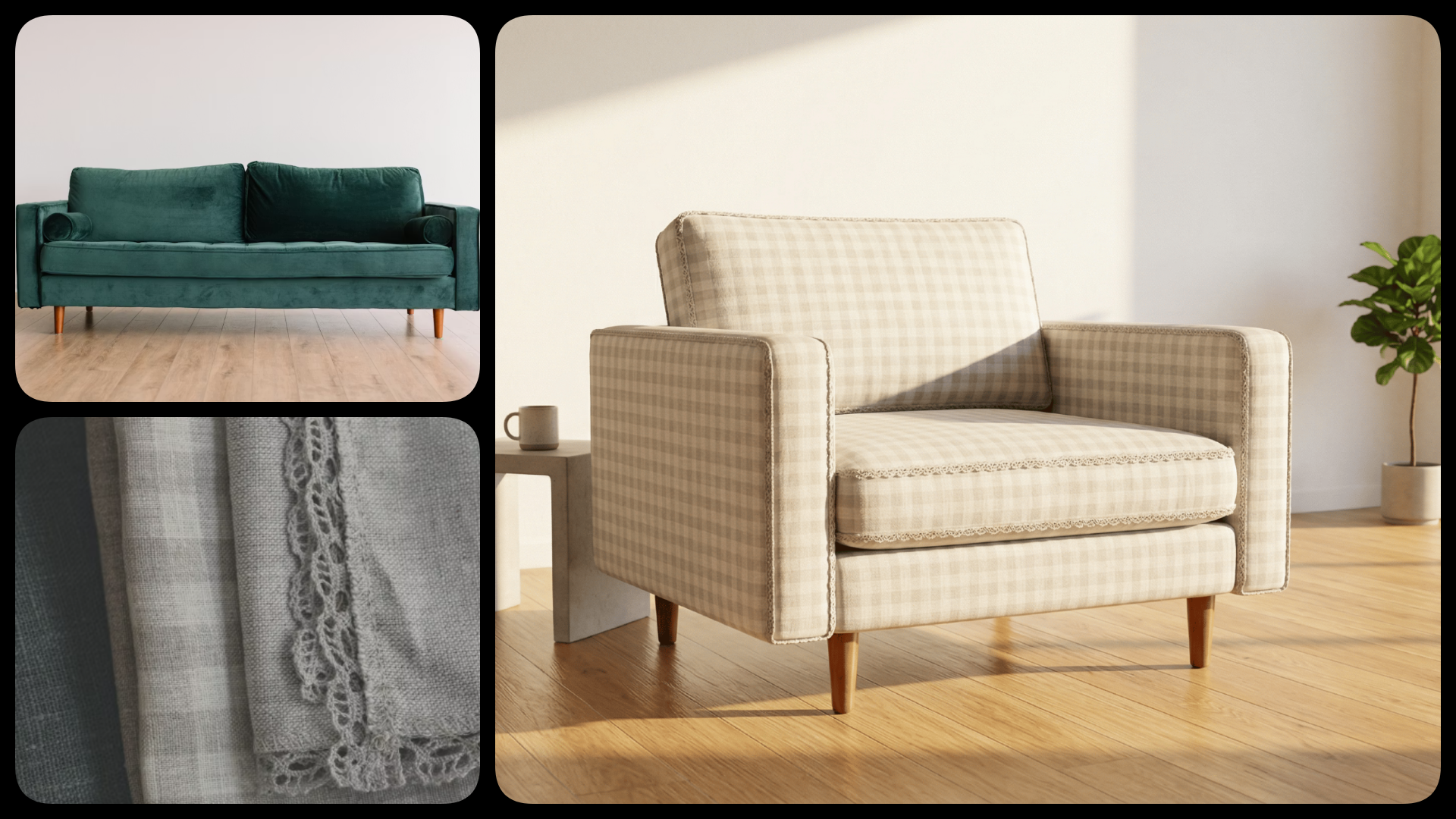
Combine multiple reference images to maintain strict character consistency or place a specific product into a completely new environment.
- Formula: [Reference images] + [Relationship instruction] + [New scenario]
- Example: Using the attached sofa set as the structure and the attached napkin fabric as the texture, transform this into a high-fidelity 3D armchair render. Place it in a sun-drenched, minimalist living room.
2. Image editing
Base image
A man in a suit, wearing sunglasses, sitting at an outdoor cafe, with a cup in his hand

Object removal
Editing requires conversational prompting where you define a semantic mask through text, telling the model exactly what to remove while preserving the background.
- Formula: [Action/Remove] + [Target Object] + [Preservation Context (Optional)]
- Example: Remove the white coffee mug from the man's hand, keeping his hand posture and the cafe table behind it exactly the same.

Object addition
You can seamlessly introduce new elements into an existing image. Upload your base image along with an object image, and instruct the model to combine them.
- Formula: [Base Image] + [Object Image] + [Action/Add] + [Placement/Context]
- Example: Take the base image of the man at the cafe and add the attached reference image of a ceramic fruit bowl to the empty space on the table, matching the ambient outdoor lighting.

Object replacement
Swap out elements or subjects entirely using semantic masking. Describe the element to replace and provide the new subject, ensuring surrounding elements remain untouched.
- Formula: [Action/Replace] + [Old Object] + [With New Object/Reference] + [Context constraint]
- Example: Replace the standard white coffee mug on the cafe table with an ornate, Victorian-style teacup. Maintain the exact same background, table texture, and soft lighting hitting the object.

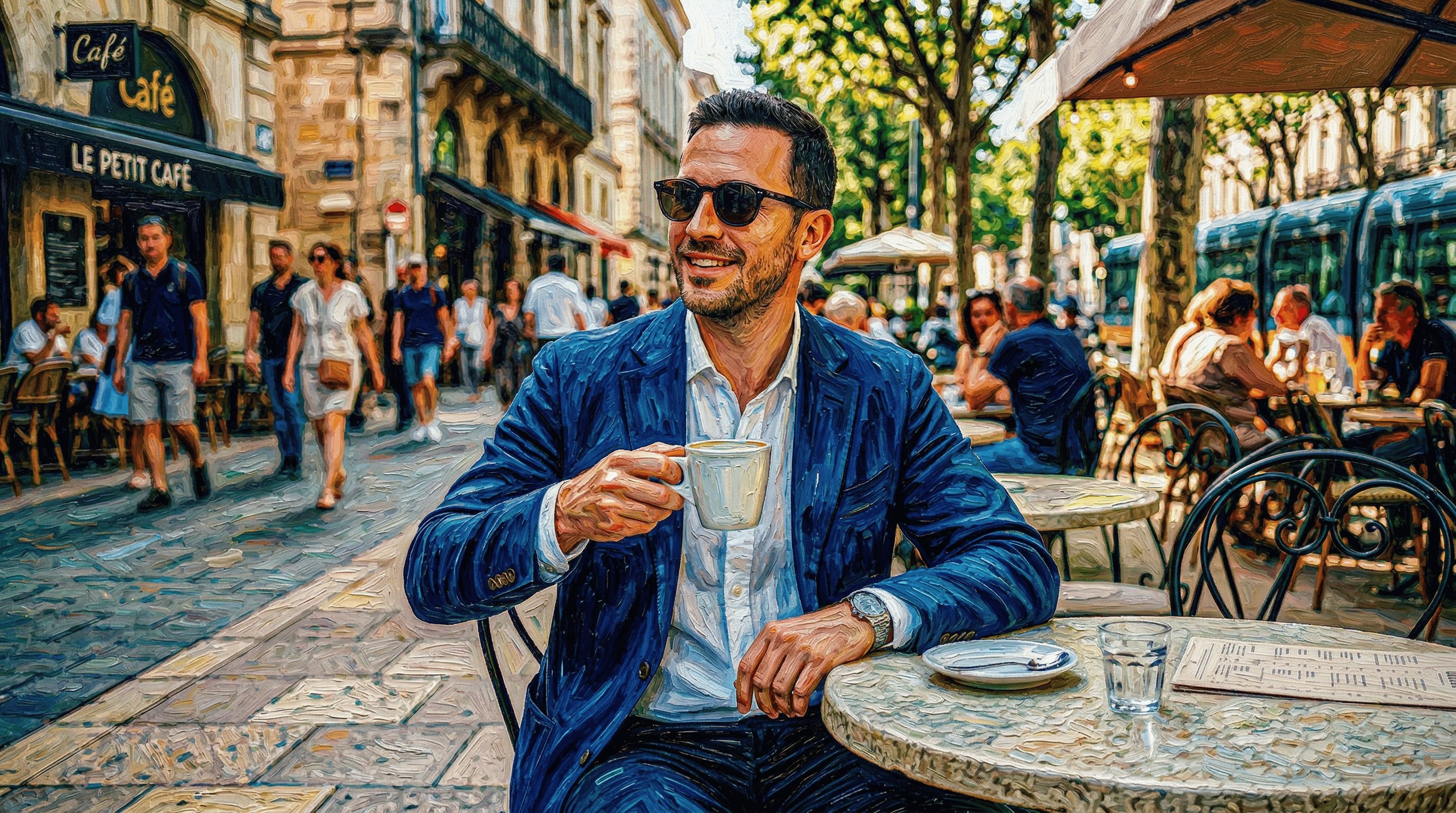
Style transfer
Dramatically alter the artistic medium of an existing image while keeping its exact content and composition intact by using specific style descriptors.
- Formula: [Base Image] + [Action/Recreate] + [Target Artistic Style]
- Example: Take this uploaded photograph of the man sitting at the outdoor cafe and recreate its exact content in the artistic style of a Vincent Van Gogh oil painting, using thick impasto brushstrokes.
Face swap
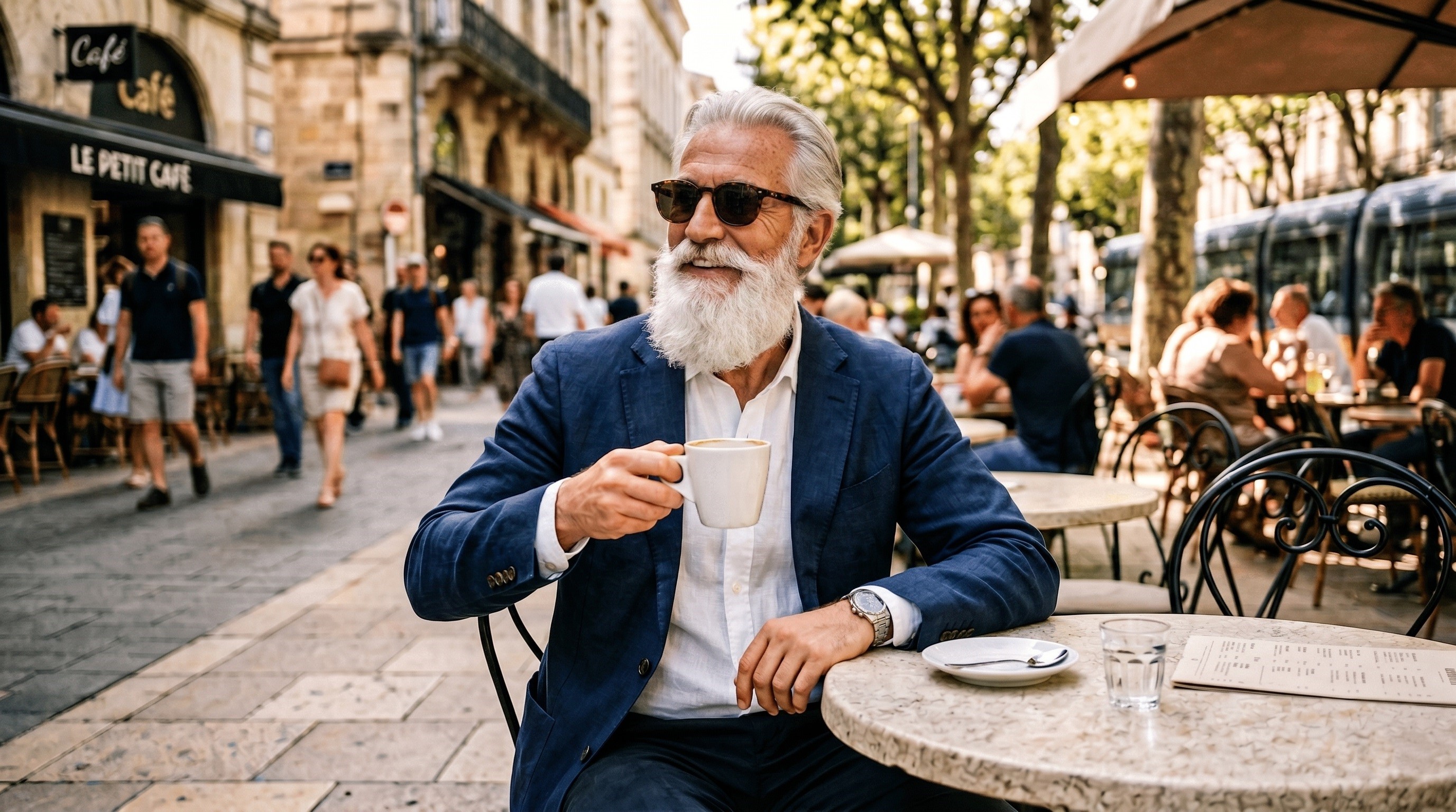
With Nano Banana face swap prompt, you can seamlessly replace a character's face using semantic masking while keeping their original pose, clothing, and background intact. Provide the target subject and the new facial reference.
- Formula: [Action/Swap] + [Target Face] + [New Face/Reference] + [Preservation Context]
- Example: Swap the face of the male model wearing sunglasses at the cafe with the face provided in the attached reference image. Preserve the exact lighting, skin tone blending, sunglasses, and the blurry street background.
3. Creative direction (advanced-level)
Lighting
Direct the emotional tone and visual depth of your generated image by explicitly designing the studio setup or natural lighting conditions.
- Formula: [Subject/Scene] + [Specific Lighting Setup] + [Desired Effect]
- Example: A macro shot of a wet autumn leaf resting on pavement. Use chiaroscuro lighting with harsh, high contrast, featuring golden hour backlighting to create long, dramatic shadows that emphasize the leaf's veins.

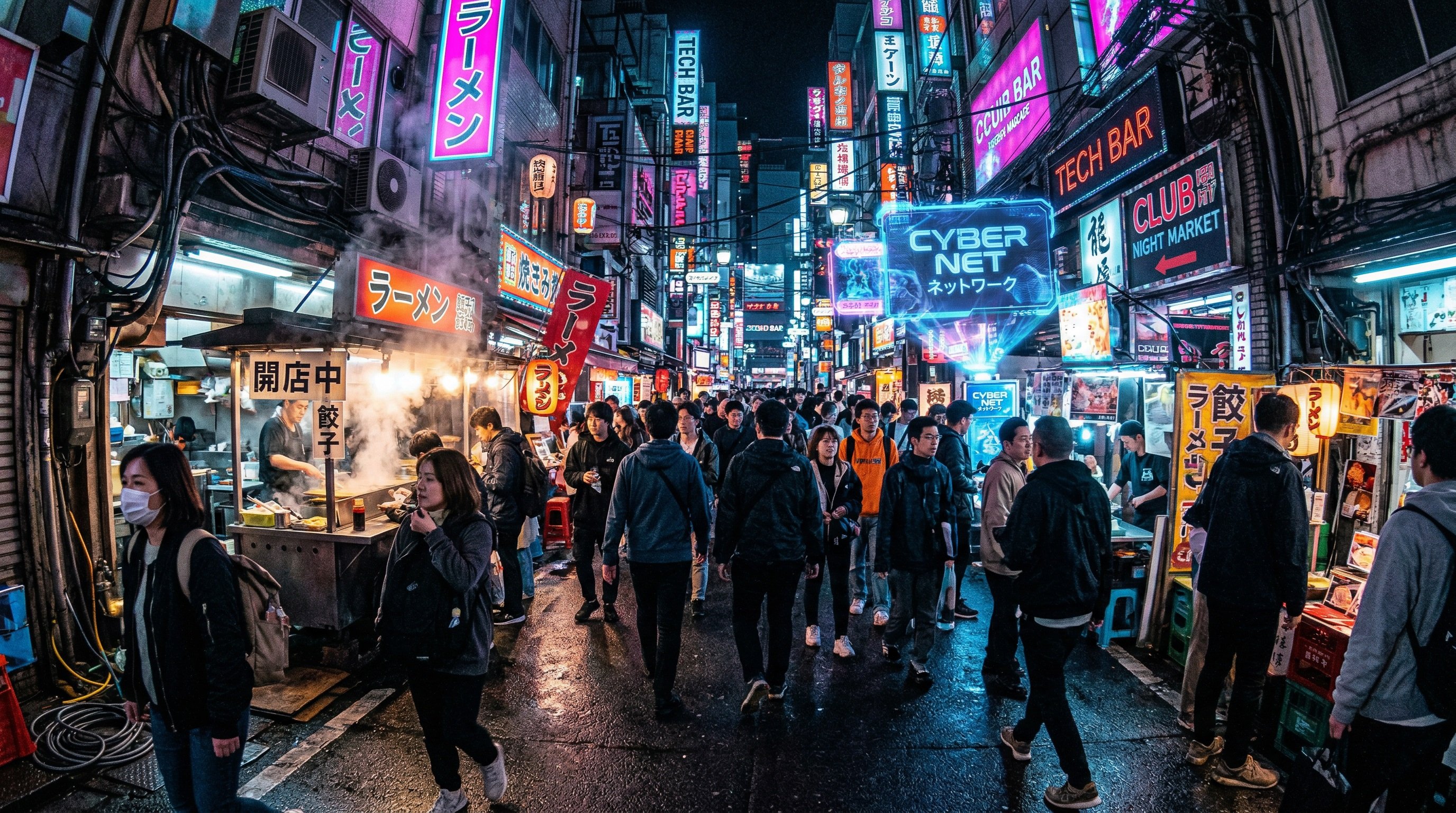
Camera, lens, focus
Control perspective, scale, and visual DNA by dictating the exact photographic hardware and lens settings used to capture your generated scene.
- Formula: [Subject/Scene] + [Camera Type] + [Lens Type] + [Focus/Aperture]
- Example: A crowded neon-lit cyberpunk street market. Shot on a GoPro for an immersive, distorted action feel. Use a wide-angle lens with a deep depth of field (f/16) so both the foreground and background are in sharp focus.
Color grading & film stock
Define the final aesthetic and era of your visual by specifying the exact film stock, grain level, or color grading style you want applied.
- Formula: [Subject/Scene] + [Film Stock/Era] + [Color Palette]
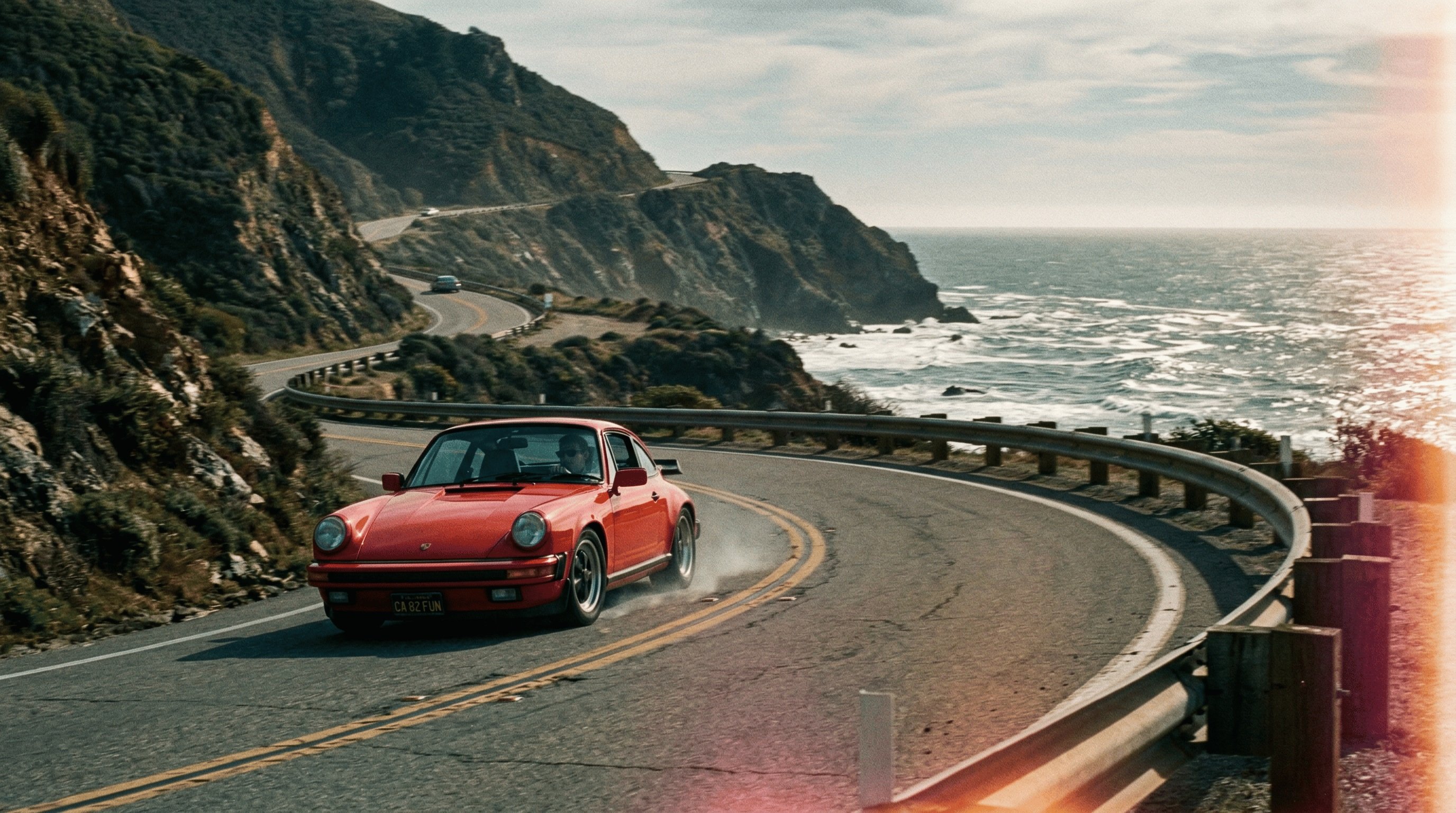
- Example: A vintage sports car driving down a coastal highway. Render the image as if shot in 1980s color film, slightly grainy, using cinematic color grading with muted teal and warm orange tones for a moody aesthetic.
Materiality and texture
Bring your subjects and products to life by moving beyond simple color names and defining their exact physical makeup and surface qualities.
- Formula: [Subject/Object] + [Specific Material] + [Surface Detail/Texture]
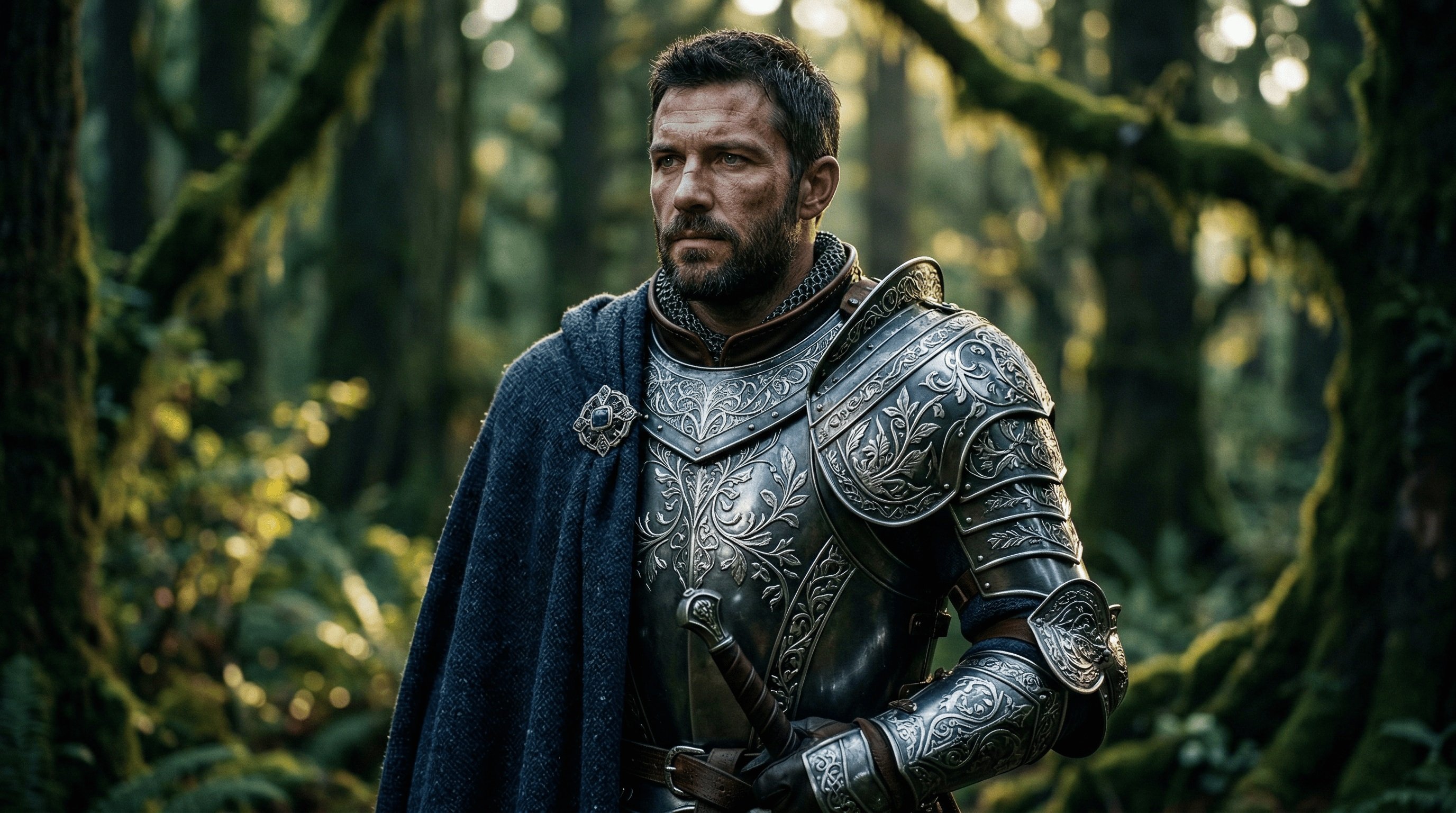
- Example: A portrait of a fantasy knight. Do not just use standard metal; describe the armor as ornate elven plate armor, etched with delicate silver leaf patterns, draped with a heavy, textured navy blue tweed cloak.
Professional headshots
By using this Nano Banana professional headshot prompt, you can generate incredibly lifelike professional portraits by combining strict composition rules with premium studio lighting and targeted camera lens directives.
- Formula: [Subject] + [Attire] + [Lighting Setup] + [Camera/Lens] + [Background]
- Example: A corporate headshot of a smiling woman in her 30s wearing a tailored charcoal blazer. Use a three-point softbox studio lighting setup. Shot on an 85mm portrait lens with a shallow depth of field (f/2.8) against a blurred modern office background.

4. Graphic designing
Infographics/Logos
Nano Banana logo prompt is excellent for conceptualizing graphic design assets. Emphasize the materiality and physical shape of the logo to get a highly textured result.
- Formula: [Asset Type] + [Core Concept] + [Material/Texture] + [Background]
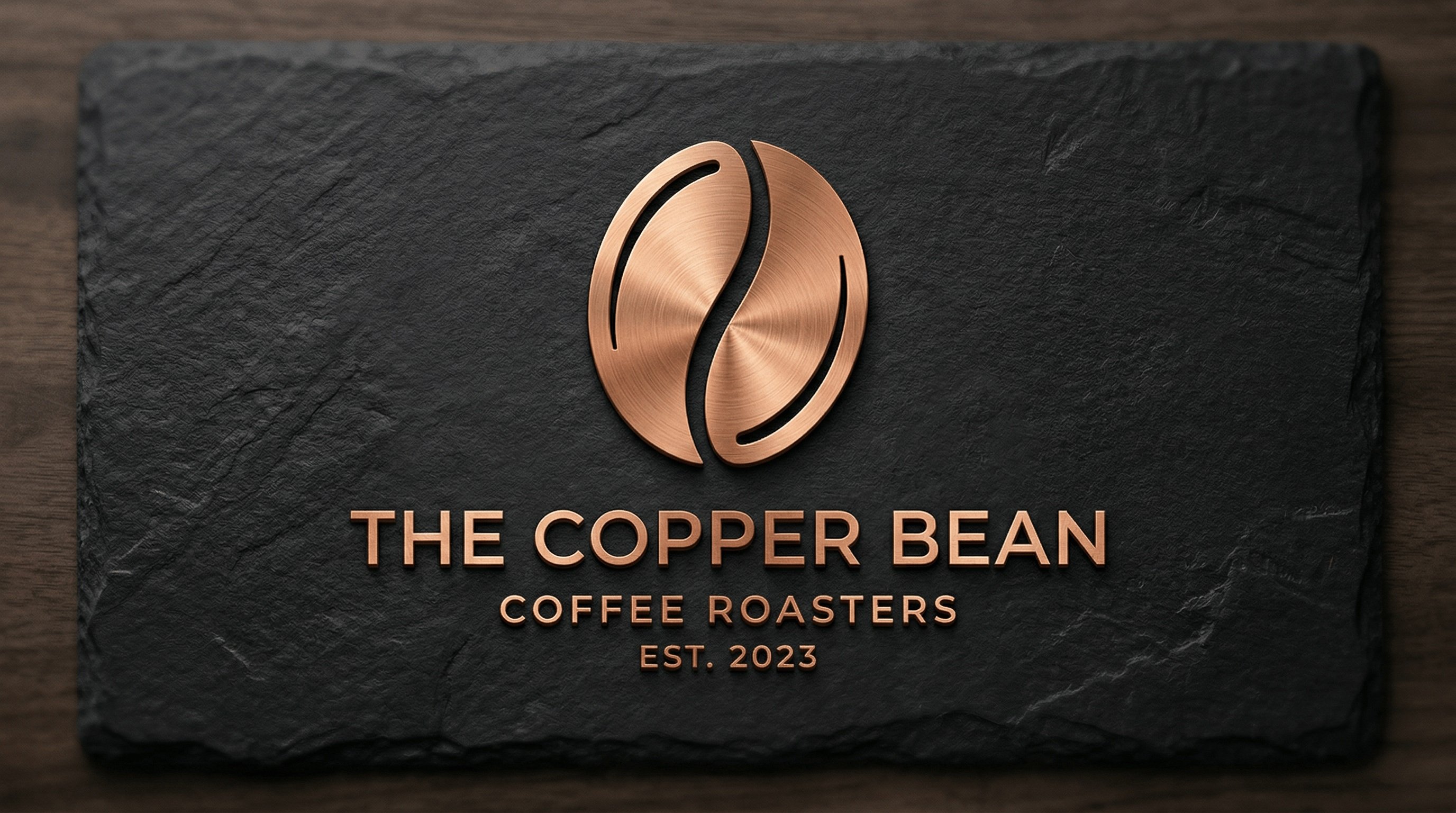
- Example: Generate a minimalist logo concept for a coffee shop featuring a stylized coffee bean. Render the logo as if it is made from brushed copper, resting on a matte black slate background with subtle studio lighting.
5. Localization & text rendering
Translations
Leverage Nano Banana's advanced localized text rendering by writing your prompt in one language but requesting typography to be output in a different language.
- Formula: [Scene Description] + [Original Text] + [Translation Instruction/Target Language]
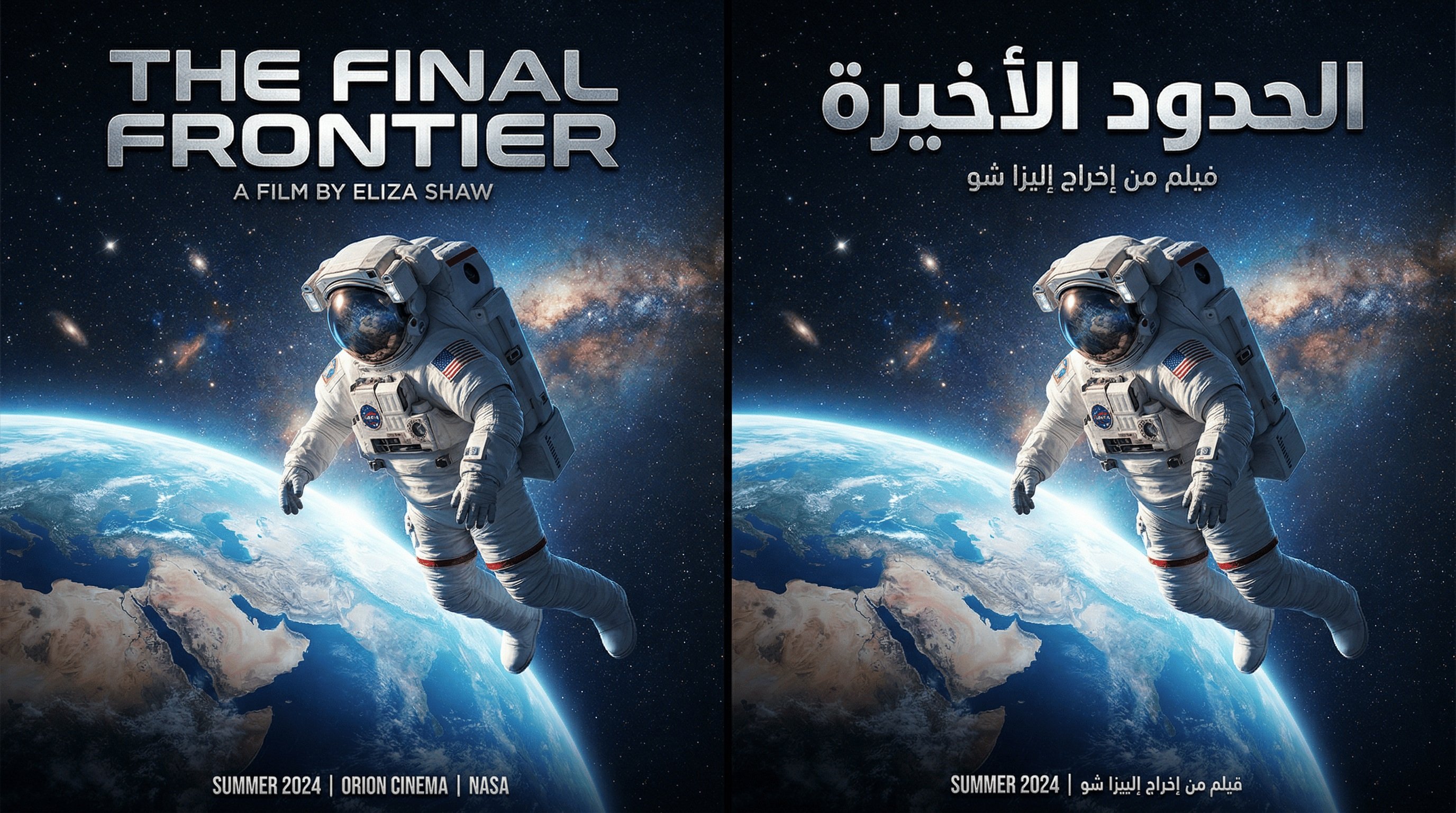
- Example: A cinematic poster of an astronaut looking at Earth. The title text at the top should say "The Final Frontier" rendered in a bold, metallic, futuristic sans-serif font. Then, translate this exact text into Arabic.
Typography
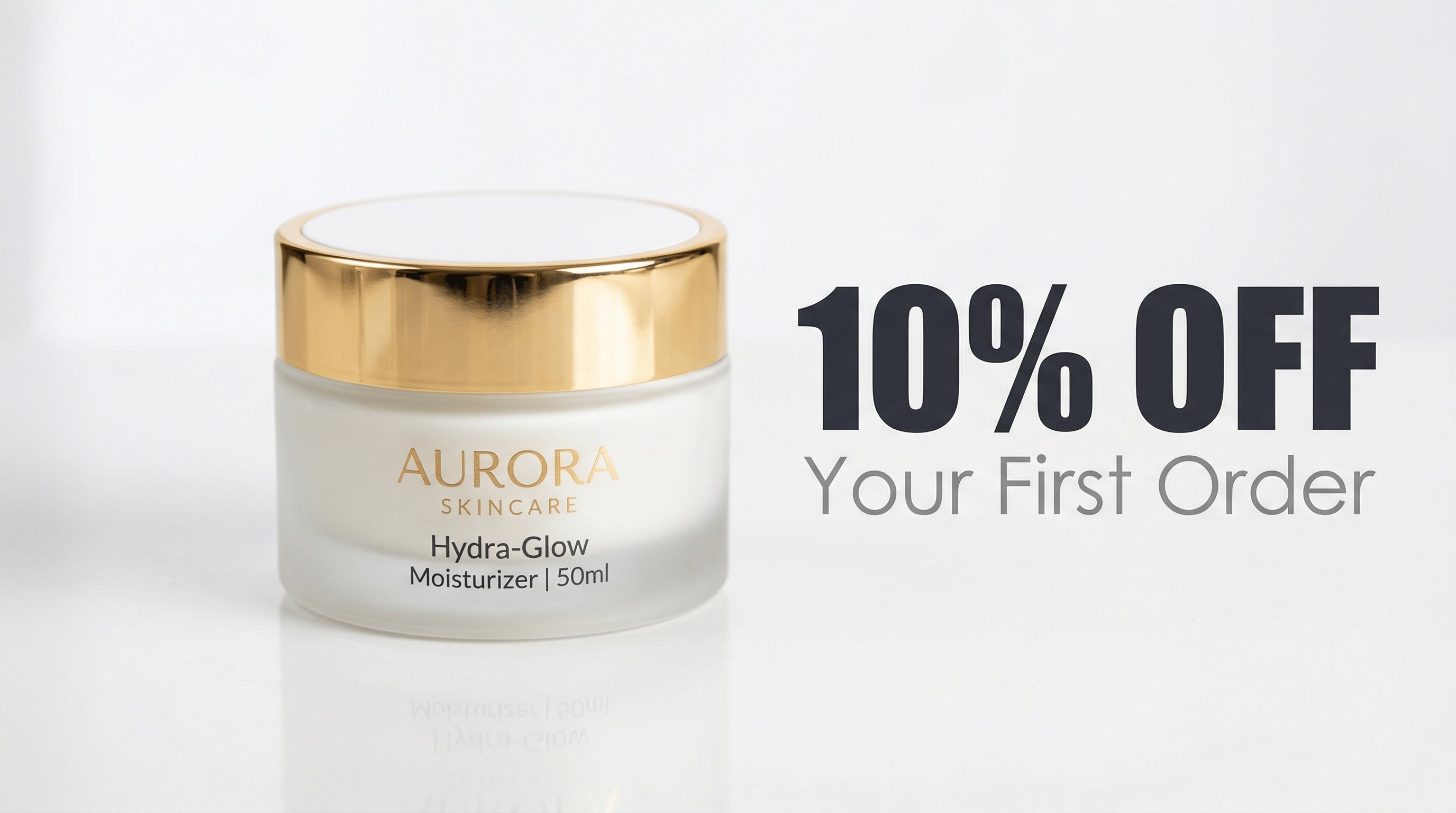
Render sharp, legible text directly within your generated images. For the best typography results, use quotes for the exact text and specify the font style.
- Formula: [Scene Description] + [Text contained in quotes] + [Font Style]
- Example: A glossy commercial beauty shot of a sleek face moisturizer jar. Next to the product, render the text "10% OFF" in a heavy, blocky Impact font, and "Your First Order" in a thin, minimalist Century Gothic font.
6. Using real-time web info
Real-time information from the web
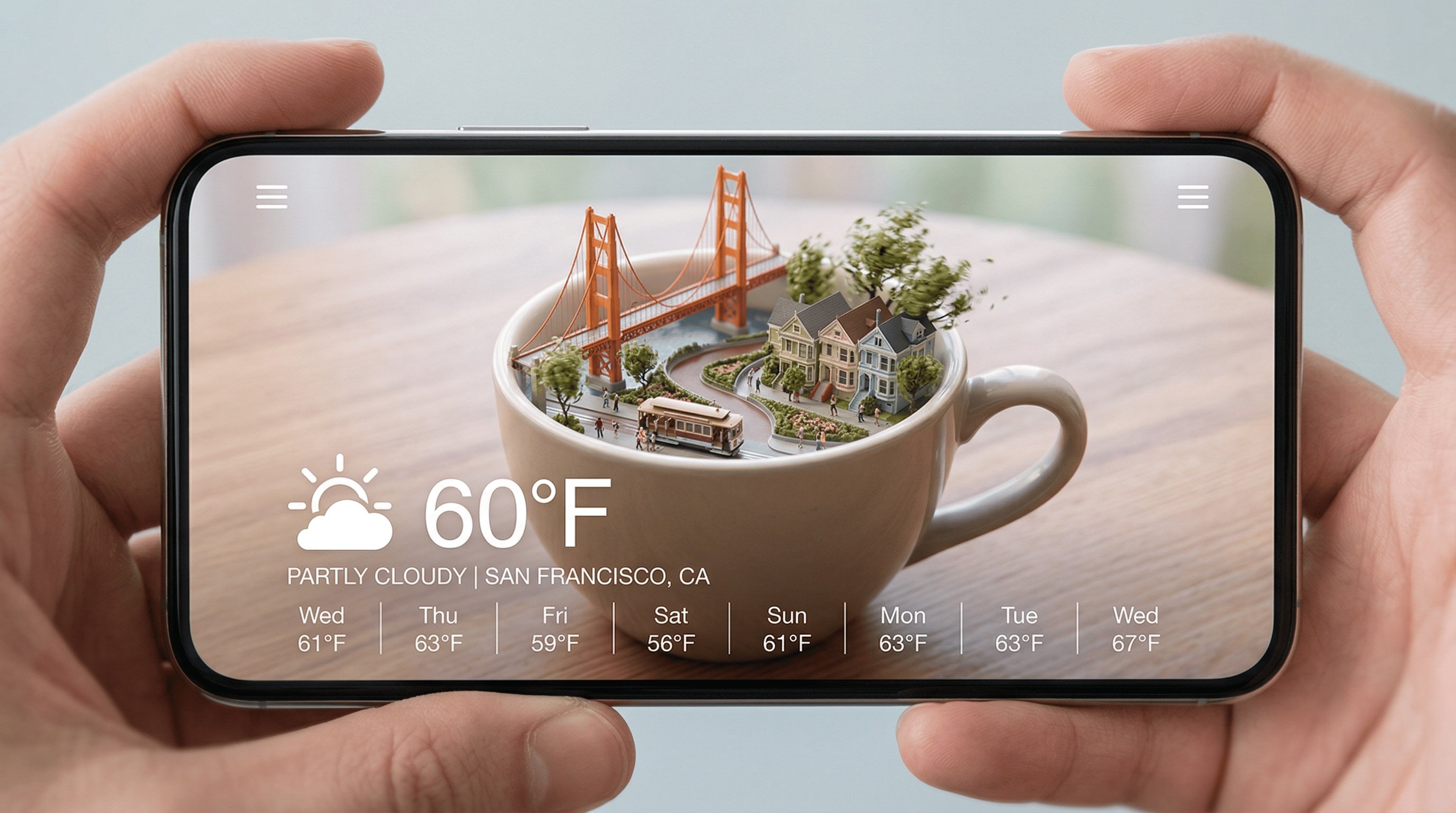
Instruct the model to fetch real-world data and use those facts to dynamically shape the context and composition of the generated visual.
- Formula: [Search Request] + [Analytical Task] + [Visual Translation]
- Example: [Search for current weather and date in San Francisco]. Analytically, use this data to modify the scene (e.g., if raining, make it look grey and wet). Visualize this in a miniature city-in-a-cup concept within a smartphone UI.
How to prompt Nano Banana via Framia Pro?
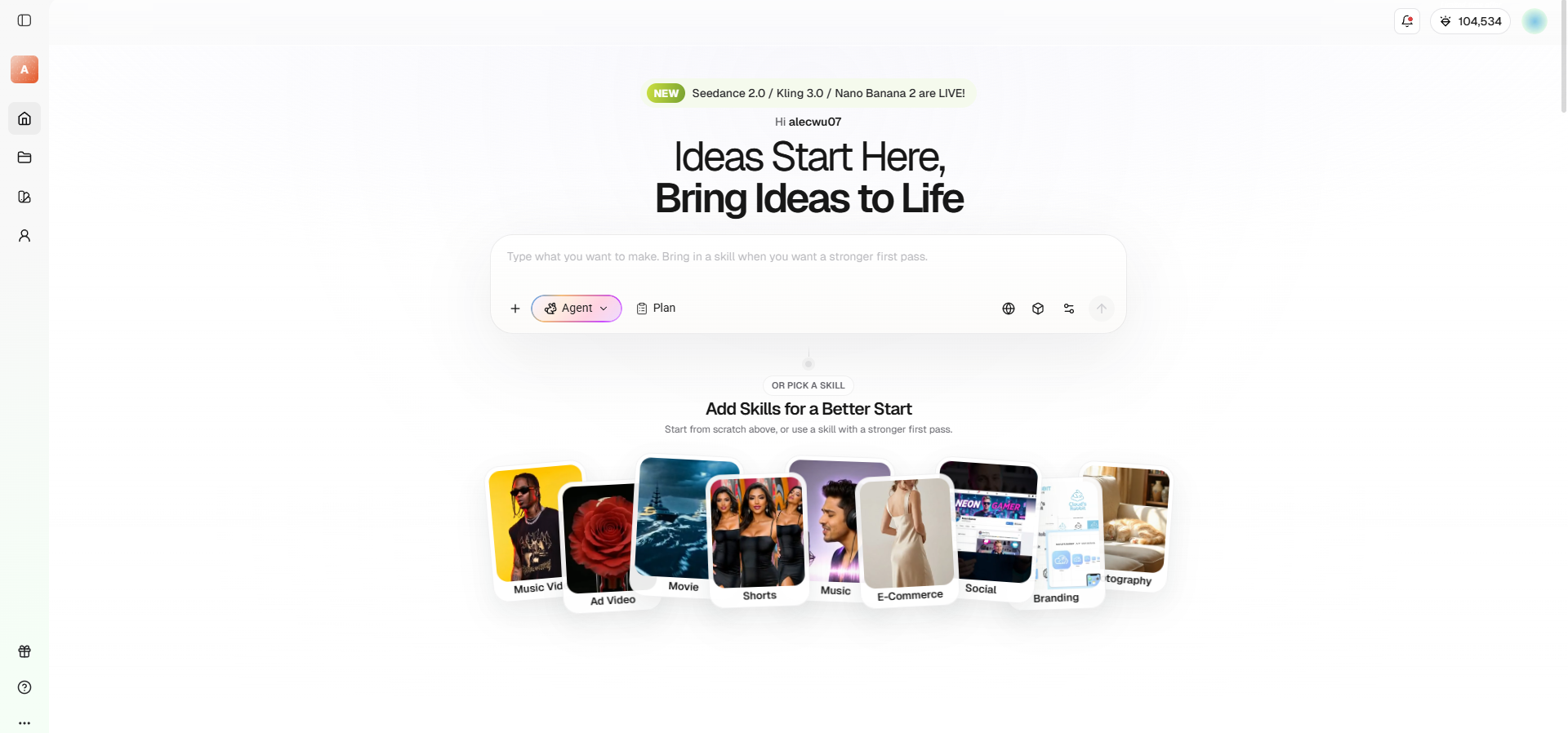
Framia Pro is an advanced AI-powered creative suite that supercharges your workflow by integrating top-tier models like Nano Banana. Instead of relying solely on text prompts, Framia Pro's intuitive "Design" agent allows you to visually generate, manipulate, and refine Nano Banana outputs with complete editorial control.
Why use Framia Pro?
- Multi-model ecosystem: Framia Pro goes beyond just Nano Banana. It natively supports industry-leading AI image generation models, including Seedream, Flux Max, and Midjourney, giving you the ultimate flexibility to choose the perfect engine.
- Split layers capability: Elevate your Nano Banana outputs by transforming flat AI designs into fully editable layers. You can seamlessly separate text, images, shapes, and backgrounds to individually move, resize, or delete elements.
- Conversational chat-to-edit: Say goodbye to constantly regenerating entire designs. With Framia Pro, you can pinpoint specific edits conversationally, like asking the agent to "change the background to a sunset gradient" or "make the logo 20% bigger."
- Seamless brand integration: Take generated artwork to production instantly. Framia Pro lets you easily apply your specific brand color palette, integrate product images, and ensure consistent typography across all your Nano Banana creations.
Steps to use Nano Banana on Framia Pro
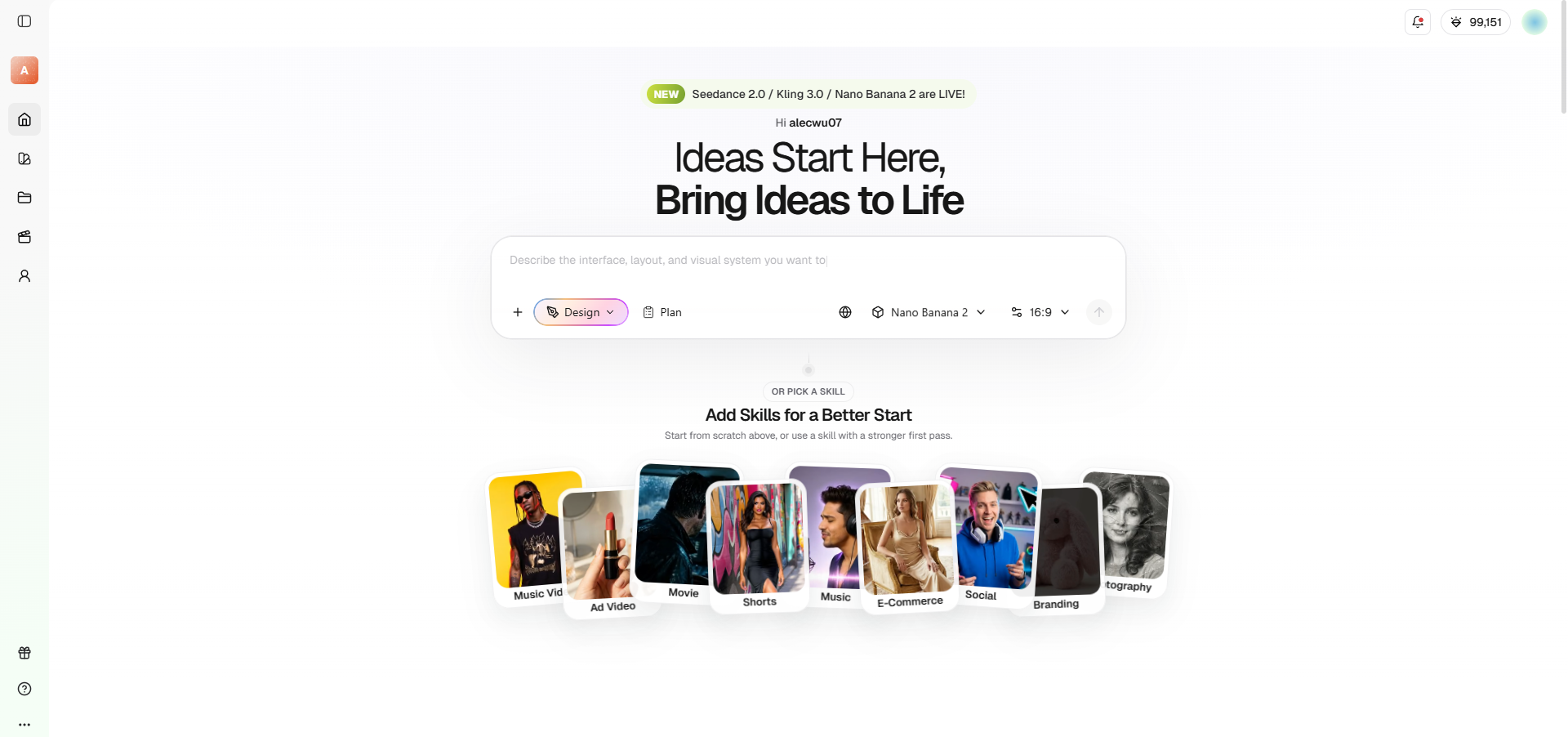
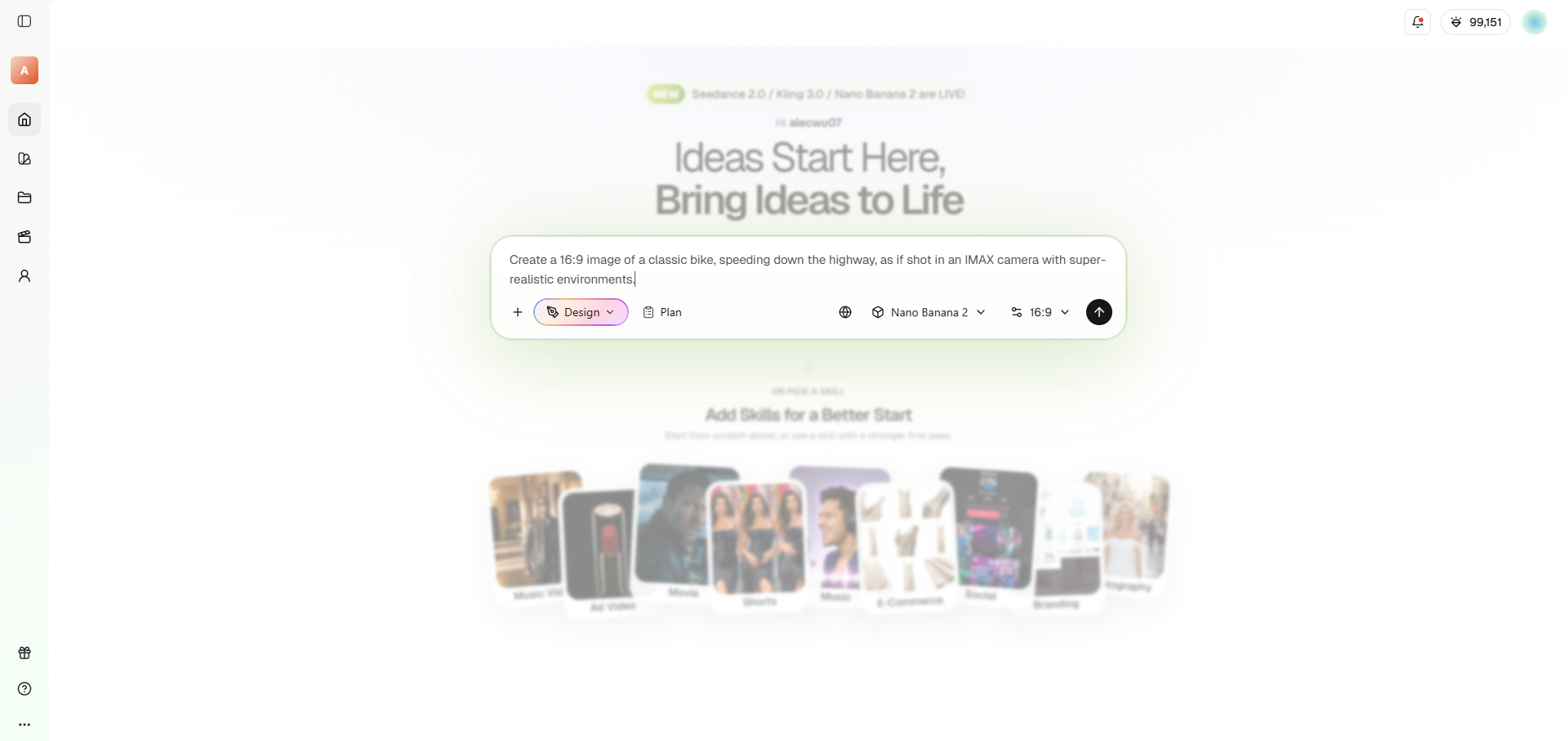
Step 1: Select Framia's "Design" agent and choose "Nano Banana 2"
Navigate to the Framia Pro dashboard and select the dedicated "Design" agent. From the available AI generation models dropdown, choose "Nano Banana 2" to ensure you are utilizing the absolute best, most recent reasoning capabilities for your specific visual artwork.
Step 2: Enter your detailed prompt
Using the foundation formula discussed earlier, type your comprehensive prompt into the text box. Be highly specific about your subject, lighting, and camera angles. You can also upload reference images directly into the chat interface for guided, multimodal generation.
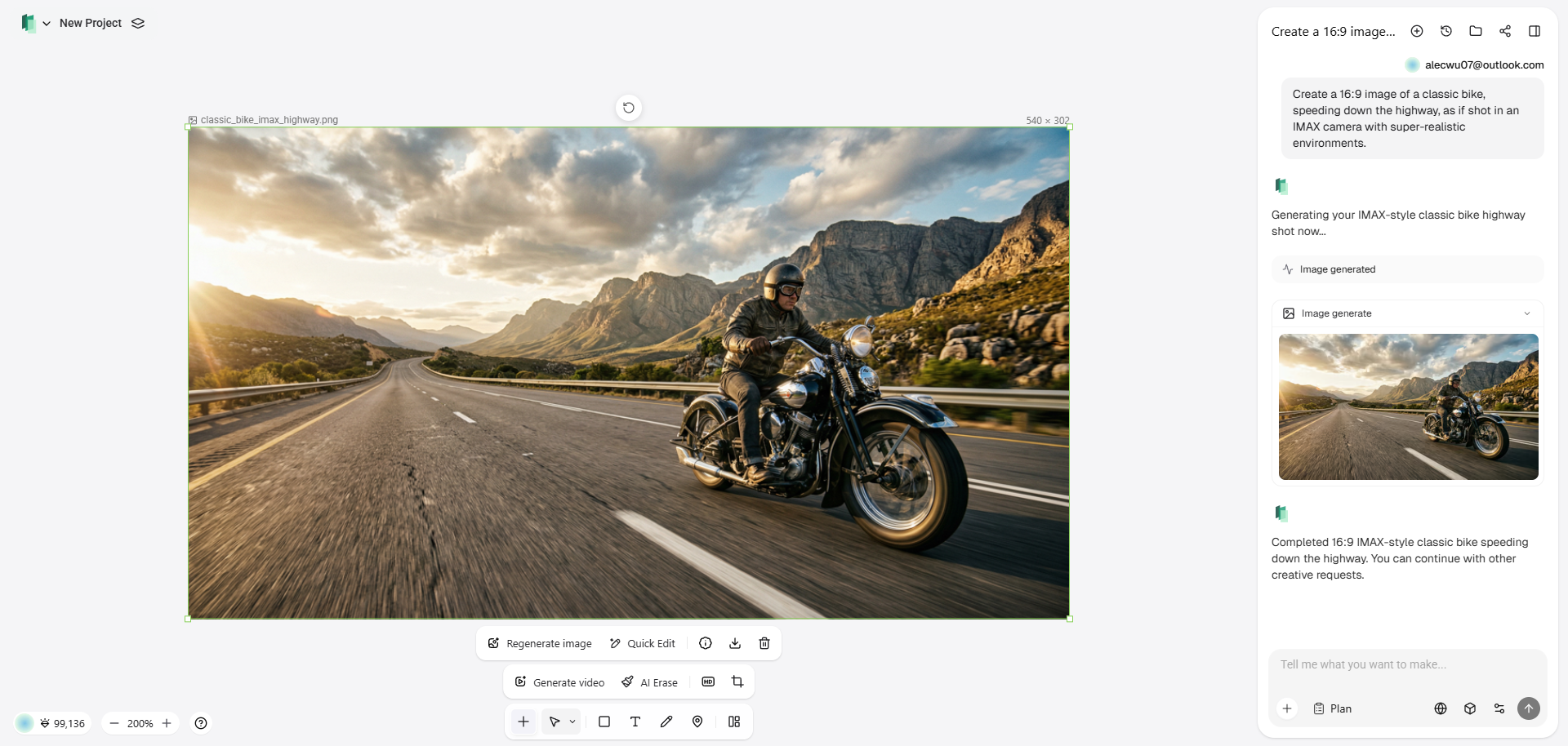
Step 3: Finalize and export your image
Once generated, use Framia Pro's chat-to-edit feature or split layers to tweak specific elements. When satisfied, utilize the multi-format export tool to automatically resize and download your final, polished image seamlessly for various social media platforms and marketing needs.
Best practices for effective Nano Banana prompts
To achieve the most stunning and accurate visual results, you must master the art of communication. Follow these five essential best practices to elevate your Nano Banana prompting skills today.
- Be specific: Always provide concrete, exact details about your subject, the lighting setup, and the overall composition. Vague keywords produce unpredictable outcomes, whereas descriptive narratives ensure precise, professional-grade visual generation every time.
- Use positive framing: Tell the AI exactly what you want to see rather than what to avoid. For example, request an empty street instead of explicitly commanding the model to include no cars.
- Control the camera: Leverage professional photographic and cinematic terminology to dictate perspective and scale. Specify details like a low-angle shot, aerial view, or macro lens to dramatically alter the final generated image's DNA.
- Start with a strong verb: Begin your prompt with a definitive action word that establishes the primary operation. Verbs like generate, edit, transform, or replace instantly align the model with your exact core creative intention.
- Embrace iteration: Do not expect perfection on the first try. Use conversational follow-up prompts to continuously refine lighting, adjust textures, or mask out unwanted elements until the result matches your vision perfectly.
Wrapping up
Nano Banana represents a monumental shift in how creatives and professionals generate visual content. By combining the deep reasoning capabilities of the Gemini 3 architecture with real-world grounding via Google Search, it eliminates the unpredictable guesswork of older AI models. Whether you are using the lightning-fast Nano Banana 2 or the heavy-duty Nano Banana Pro, you now have unprecedented control over text rendering, lighting, composition, and consistent character generation. Tools like Framia Pro further amplify this power, making it easier than ever to edit and deploy assets. Embrace these frameworks and start directing your AI visuals like a true professional.
FAQs
What is the difference between Nano Banana 2 and Pro?
Nano Banana 2 (Flash) is optimized for high-speed, everyday generation and editing, while Nano Banana Pro is built for complex reasoning, 4K resolution, and high-fidelity text rendering.
Can I use Nano Banana images for commercial purposes?
Yes! You have full commercial rights to monetize generated images for marketing, advertising, and client work, provided you adhere to Google's content policies and avoid copyright infringement.
How much does Nano Banana 2 cost?
It follows a freemium and API pricing model. However, with Framia Pro, you do not need to worry about costs, since the same will be taken care of via Framia Pro's free or paid tiers.
Does Nano Banana actually spell words correctly?
Yes. Unlike older AI models, Nano Banana models excel at rendering sharp, legible text in over ten languages, making them perfect for posters, diagrams, and UI mockups.
How does Google ensure AI images are identifiable?
All images generated or edited with Nano Banana include SynthID, an imperceptible digital watermark embedded directly into the pixels to transparently identify the visual as AI-generated.