Pixel art is a timeless digital art style that uses small squares (pixels) to create charming, blocky images reminiscent of classic video games like Super Mario or Pokémon. Its simplicity makes it incredibly accessible, yet it offers endless room for creativity. Whether you want to design game assets, decorate your digital projects, or just unwind with a relaxing hobby, pixel art ideas are perfect for all skill levels.
In this guide, you'll find dozens of easy pixel art ideas categorized for quick inspiration. We'll also cover tips to improve, and how Framia Pro can help you experiment faster. Let's dive into the world of pixels!
What is pixel art and why is it so popular?
Pixel art involves placing individual colored pixels on a grid to form images. It originated from hardware limitations in early video games but has become a beloved artistic medium for its nostalgic feel, bold colors, and minimalist charm. Today, it's widely used in indie games, NFTs, social media icons, and personal projects.
The beauty of pixel art lies in its constraints: limited colors and small canvases (like 16x16 or 32x32) force you to focus on clean shapes, shading, and readability. This makes it ideal for beginners while allowing advanced artists to create stunning detailed scenes.
Top 20+ creative pixel art ideas
Explore these creative pixel art ideas to boost your imagination. From simple designs to detailed scenes, these concepts help you practice and create stunning pixel artwork easily. Whether you are looking for easy cool pixel art ideas to start your journey or complex grid pixel art ideas for your next big project, this collection has something for everyone.
1. Simple pixel art ideas
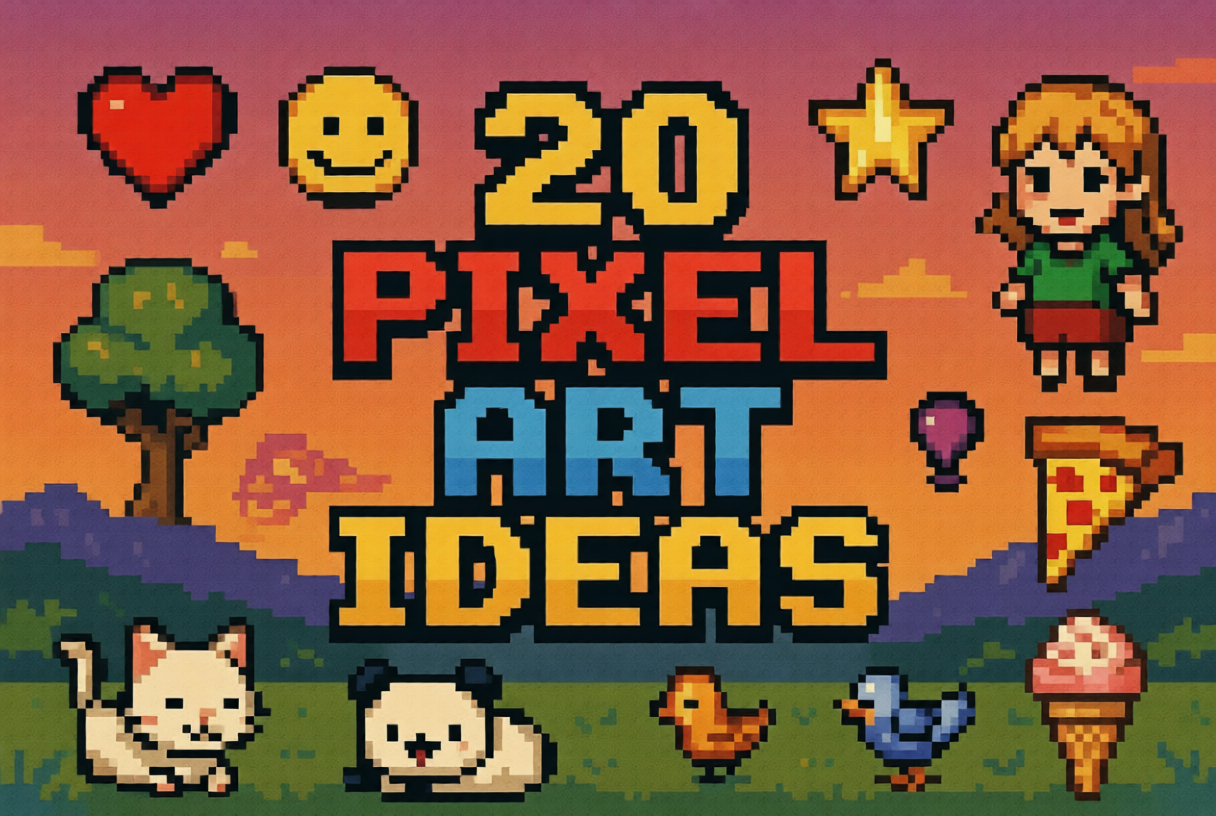
- Heart icon
A heart icon is one of the easiest pixel art ideas to start with. It helps beginners understand symmetry and color filling. By using just a few pixels, you can create a clean and recognizable design while practicing balance and basic shading techniques.
- Smiley face
Creating a smiley face allows you to explore expressions using minimal pixels. You can experiment with different emotions like happy, sad, or surprised. This idea is great for learning how small changes in pixel placement can impact the overall look.
- Star shape
A star design helps you practice sharp edges and geometric balance — a perfect addition to your grid pixel art ideas collection. You can try different styles such as solid, outlined, or glowing stars. It's a great way to improve precision and understand how contrast works in pixel art.
- Pixel lettering
Designing letters or initials in pixel form is a fun way to combine typography and art. It helps improve spacing, alignment, and readability while allowing you to experiment with creative fonts and decorative styles.
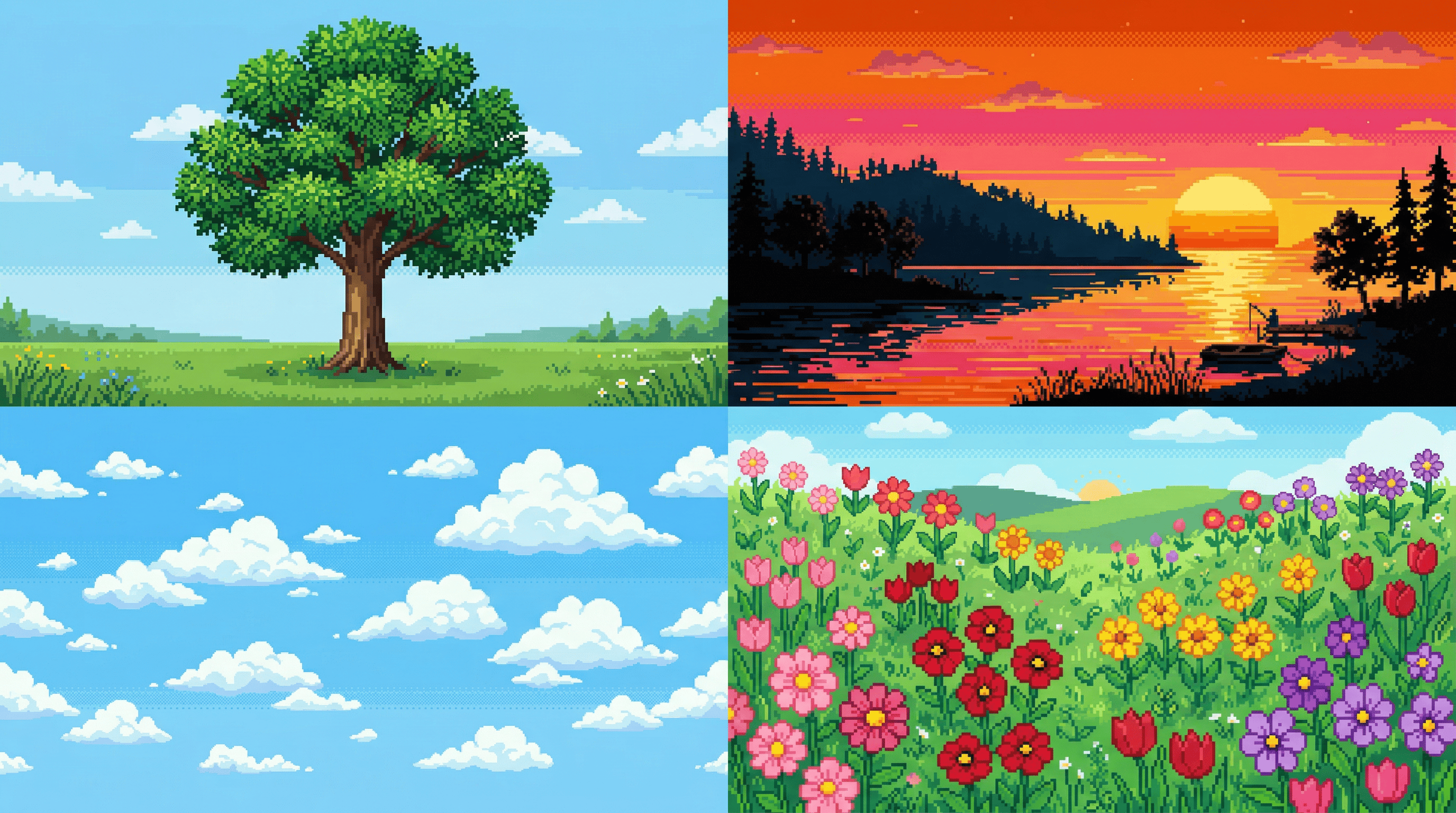
2. Nature-inspired pixel art ideas
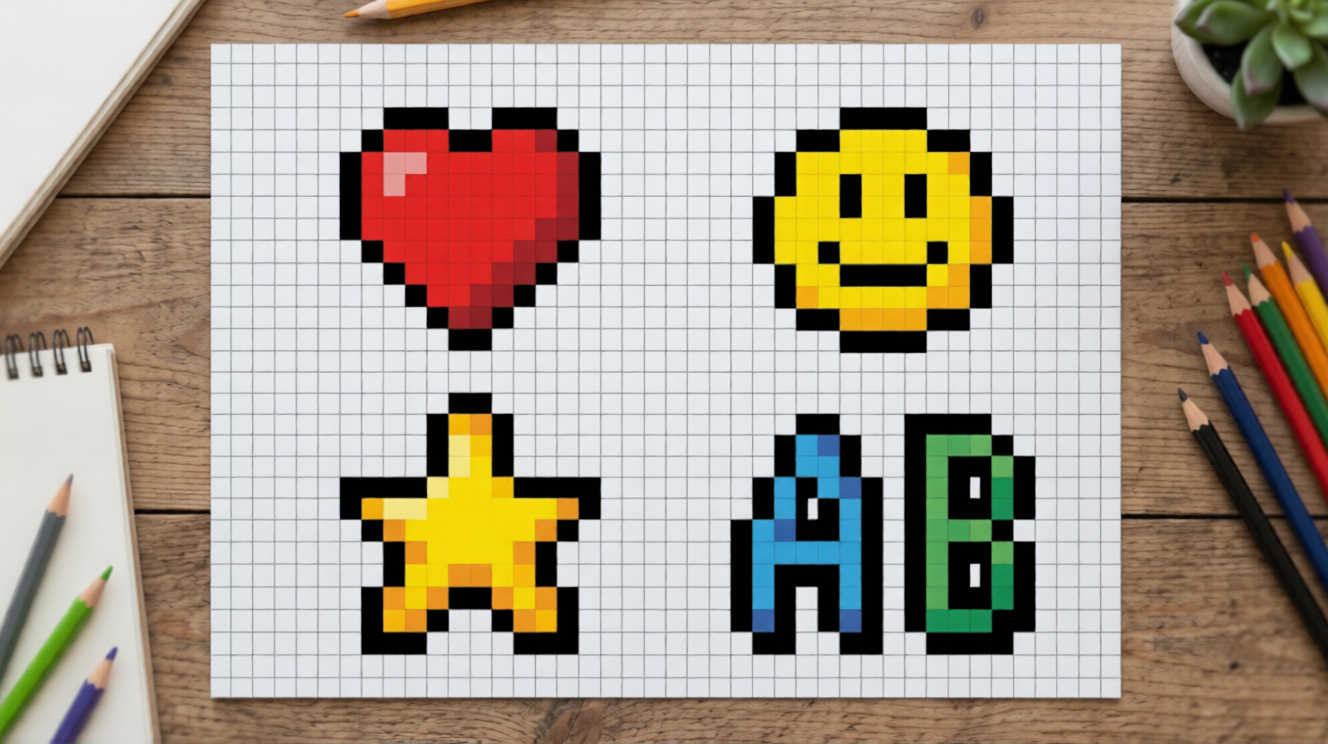
- Pixel tree
A pixel tree is perfect for practicing organic shapes and layering. You can experiment with different shades of green and brown to create depth and texture. It’s a simple yet effective way to learn natural color blending.
- Sunset scene
A sunset pixel art piece helps you explore gradients and warm color palettes. By blending oranges, pinks, and purples, you can create a visually appealing background while improving your understanding of color transitions.
- Cloud design
Drawing clouds allows you to work with soft shapes and light shading. You can create fluffy or stylized clouds using minimal pixels. This idea helps you learn subtle shading techniques and smooth outlines.
- Flower pixel art
Flowers are great for experimenting with color combinations and symmetry. You can design different types of flowers with unique petal shapes, helping you improve detail work and creative variation.
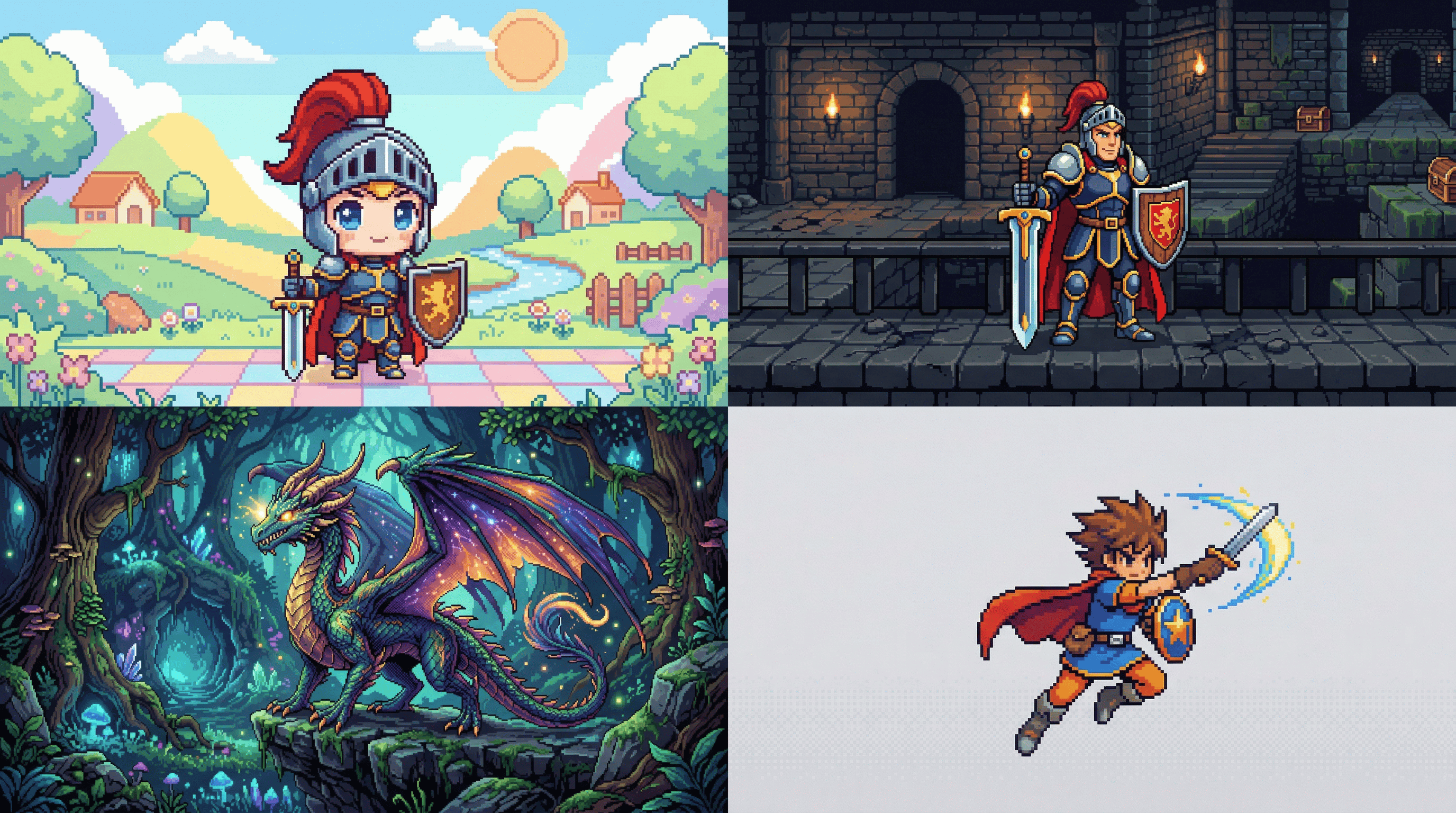
3. Character pixel art ideas
- Chibi character
Chibi characters are small, cute figures with exaggerated features. This cute pixel art idea helps you learn proportions and expressive design. It’s perfect for practicing character creation while keeping the pixel count manageable.
- Retro game hero
Design a pixel version of a classic video game hero inspired by old-school arcade styles. Focus on bold colors, simple shapes, and recognizable features to capture the nostalgic feel of early gaming characters.
- Fantasy creature
Create dragons, monsters, or magical beings. This encourages imagination and helps you experiment with unique shapes, textures, and color schemes in cool pixel art ideas.
- Game character sprite
Design a simple game character sprite for a retro-style game. This helps you understand character proportions, animation basics, and how pixel art is used in game development.
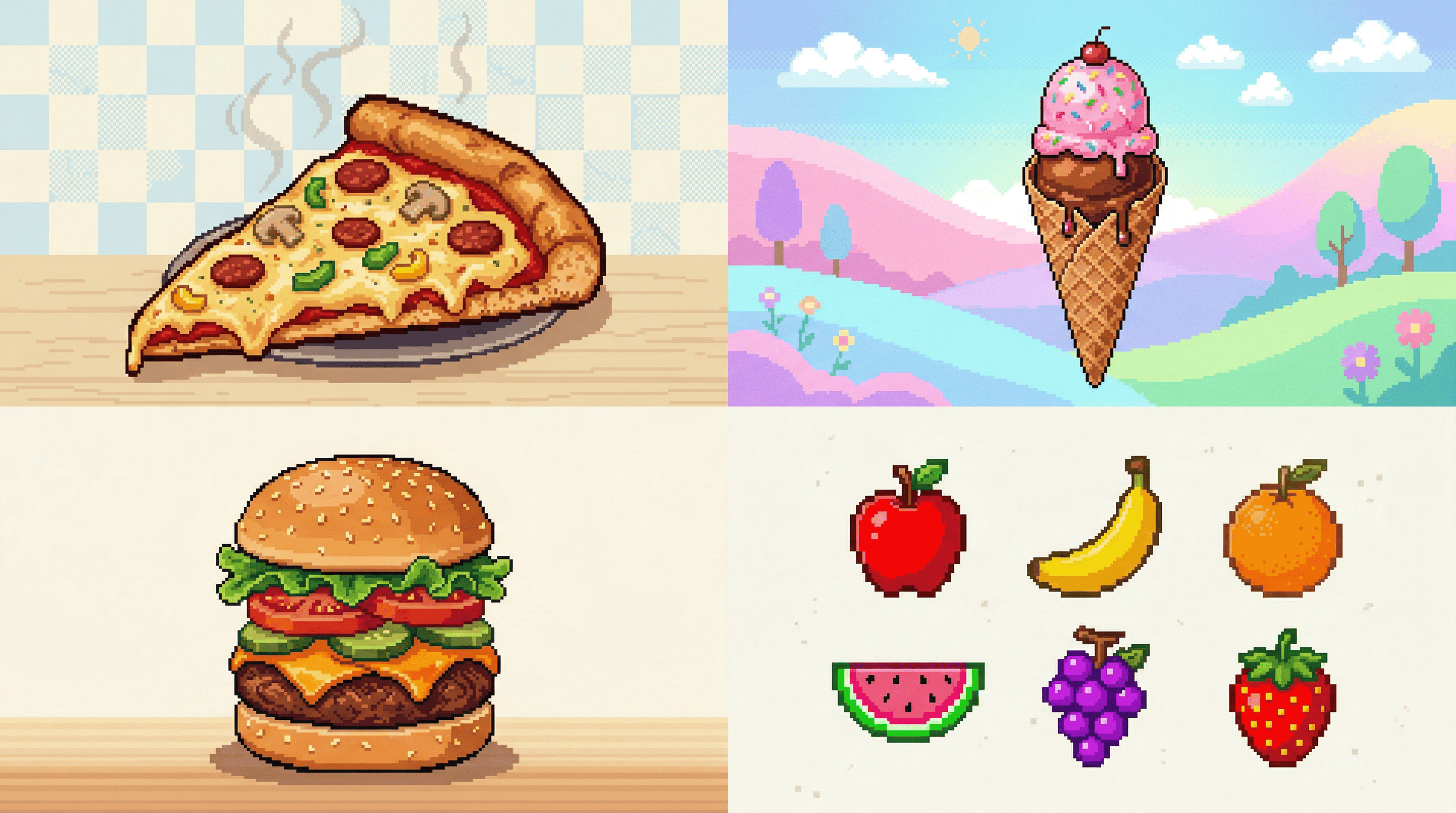
4. Food pixel art ideas
- Pizza slice
A pizza slice is a colorful and detailed pixel art idea. You can add toppings like pepperoni, cheese, and vegetables, making it a great exercise for practicing texture and color variety.
- Ice cream cone
Designing an ice cream cone lets you experiment with soft shapes and pastel colors. You can create different flavors and styles while learning shading techniques for a smooth, appealing look.
- Burger
A burger design involves layering multiple elements like buns, lettuce, and patties. This helps you understand depth and stacking while working with different textures and colors.
- Fruit collection
Create a set of pixel fruits like apples, bananas, and strawberries. This idea helps you practice consistency, color variation, and creating cohesive designs across multiple objects.
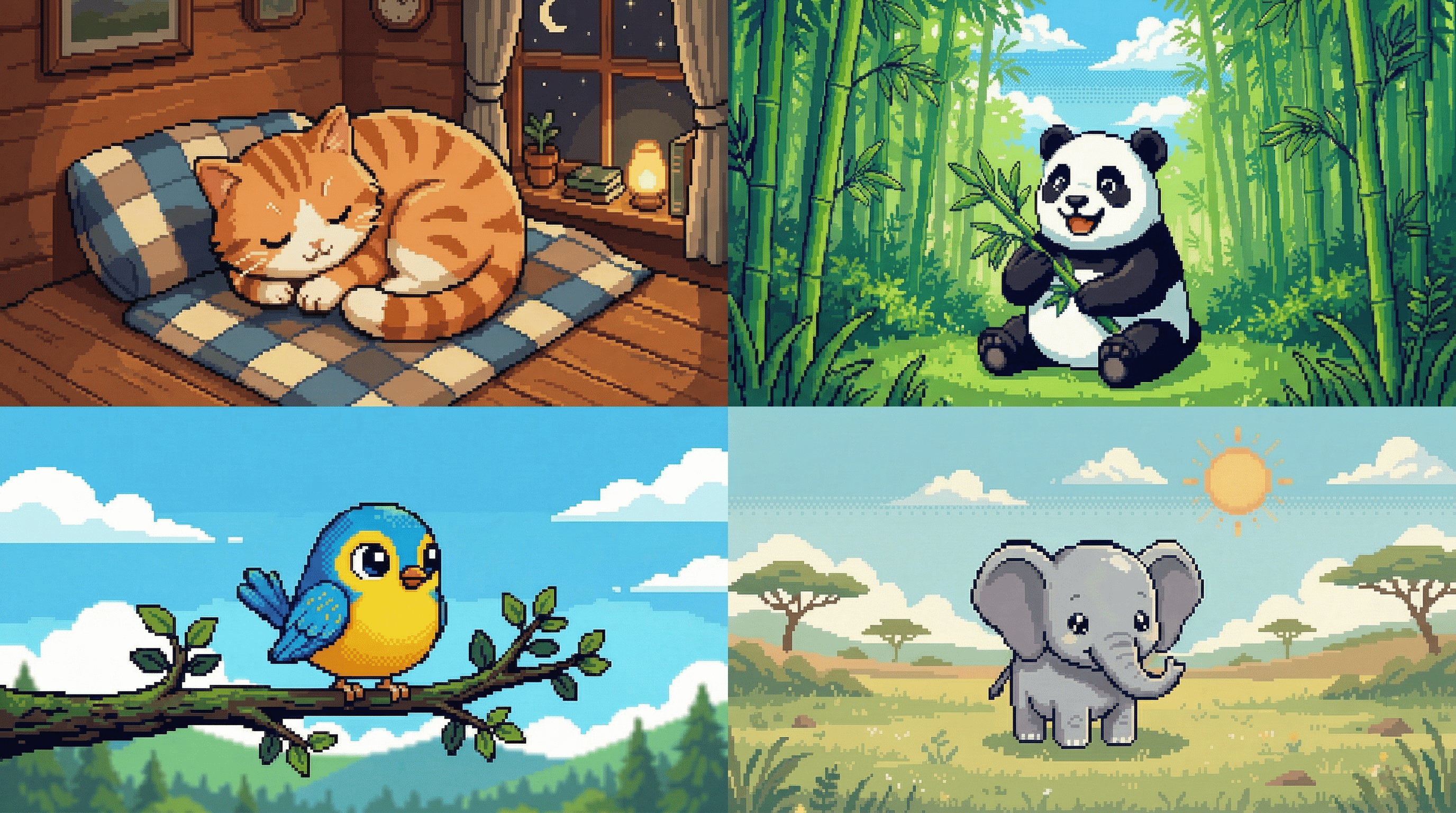
5. Cute animals pixel art ideas
- Sleeping cat
Create a curled-up sleeping cat using soft colors and rounded shapes. The cat pixel art ideas genre is enormous online, and this cozy design is one of the most searched. Focus on smooth outlines and minimal details to capture a peaceful vibe while practicing shading techniques in small pixel grids.
- Happy panda
Design a cute panda with big eyes and simple black-and-white contrast. This idea helps you explore character expressions and balance while working with limited color palettes in pixel art.
- Tiny bird
Draw a small bird perched on a branch using bright colors. This helps you practice proportions and adding personality to small designs with just a few pixels.
- Baby elephant
Create an adorable baby elephant with large ears and a small body. This idea improves your ability to exaggerate features and maintain clarity in low-resolution pixel art.
6. Aesthetic pixel art ideas
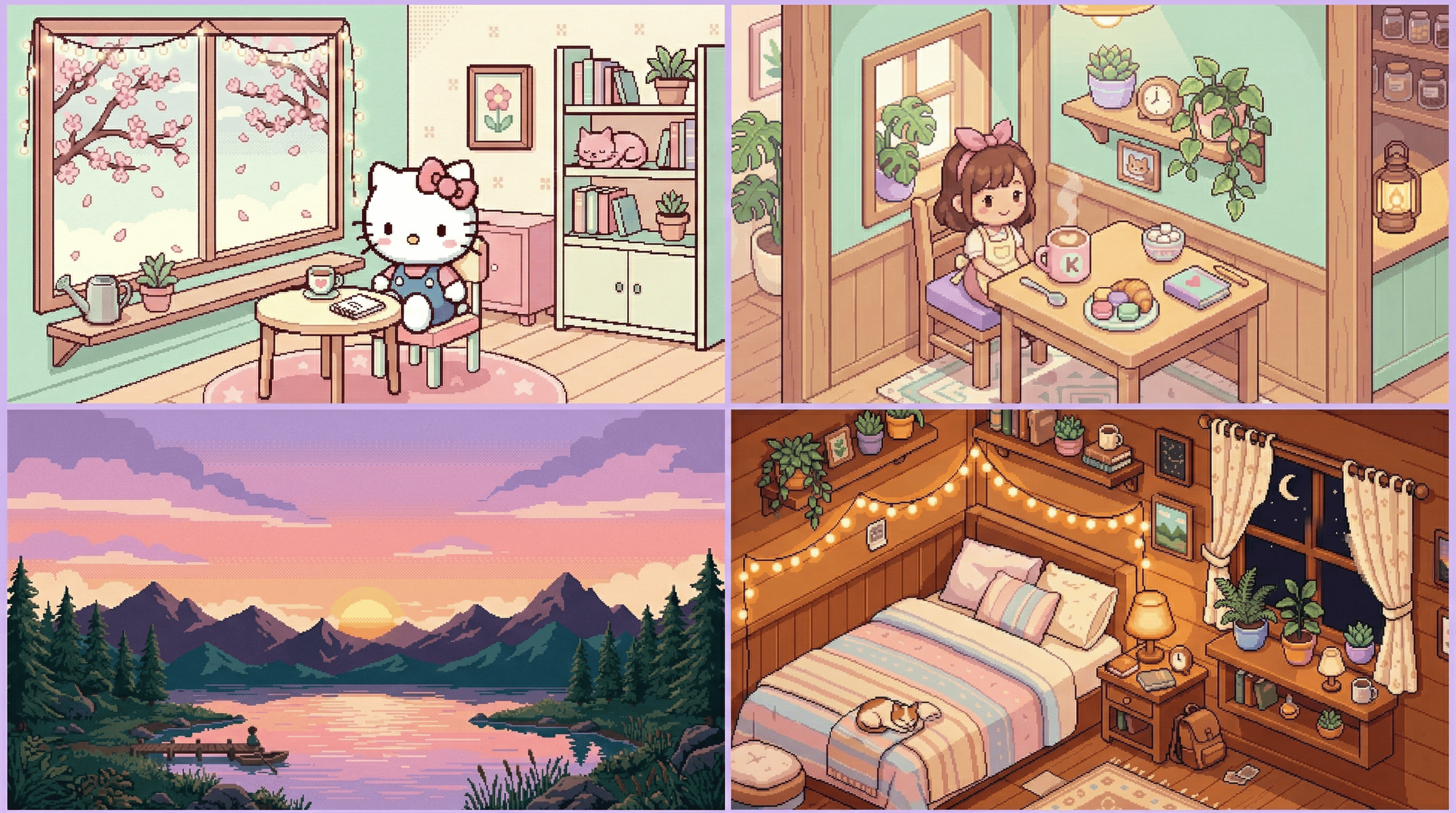
- Pastel sunset landscape
Create a soft sunset with gradients of pink, orange, and purple. Add minimal mountains or water reflections for a calming, dreamy vibe.
- Cozy bedroom scene
Design a small room with a bed, plants, fairy lights, and a window. Use warm tones and soft lighting to give a peaceful aesthetic feel.
- Aesthetic hello kitty scene
Hello Kitty sitting in a cozy room with cherry blossoms, fairy lights, and minimalist furniture. Use soft pastel colors and clean lines for a cute yet stylish look that fans of kawaii culture will love.
- Kawaii café corner
Draw a cute café setup with coffee, pastries, and plants. Use pastel colors and tiny details to make it visually pleasing and cozy.
Ready to move beyond manual pixel placement? These creative pixel art ideas provide endless inspiration, but bringing them to life quickly can be time-consuming. That's where powerful AI tools come in. Discover how Framia Pro's intelligent features can help you generate, refine, and animate stunning pixel designs in seconds—turning your ideas into polished artwork effortlessly.
How to design stunning pixel art using Framia Pro
Framia Pro is a powerful creative AI platform that simplifies pixel art creation with its intelligent canvas and specialized AI agents. Powered by image models, like Nano Banana 2, and Seedream 4.5. Whether you're a beginner or experienced designer, you can generate high-quality pixel sprites, characters, icons, and scenes from simple text prompts or reference images. The tool supports consistent styles, easy editing, animation, and sprite sheet creation—perfect for game assets or fun projects. No need to place every pixel manually; Framia Pro handles the technical work while you focus on creativity.
Key features of Framia Pro for pixel art
- AI sprite generator: Turn simple text prompts or reference images into pixel-perfect sprite sheets, animated characters, and 2D game assets in seconds. Ideal for creating walk cycles, idle animations, and full character sets.
- Multiple AI models for style variety: Framia Pro integrates advanced AI models (Nano Banana 2, Seedream 4.5), allowing you to experiment with different artistic styles. You can switch between models to create unique pixel art aesthetics and find the best look for your project.
- Intelligent canvas & easy editing: Work on a single interactive canvas where you can refine, upscale, inpaint, or iterate on your pixel art with natural language commands.
- Consistent character & style generation: Maintain the same character design, color palette, and pixel resolution across multiple sprites, animations, and scenes — perfect for game development.
- Rapid concept prototyping: Instead of spending hours sketching multiple variations, you can iterate through dozens of concepts in seconds. This speed allows you to experiment with different genres—from dark fantasy to vibrant sci-fi—without wasting creative energy.
Steps to generate pixel art with Framia Pro
Ready to transform your imagination into stunning pixel art? Follow these simple steps to bring your pixel art ideas to life:
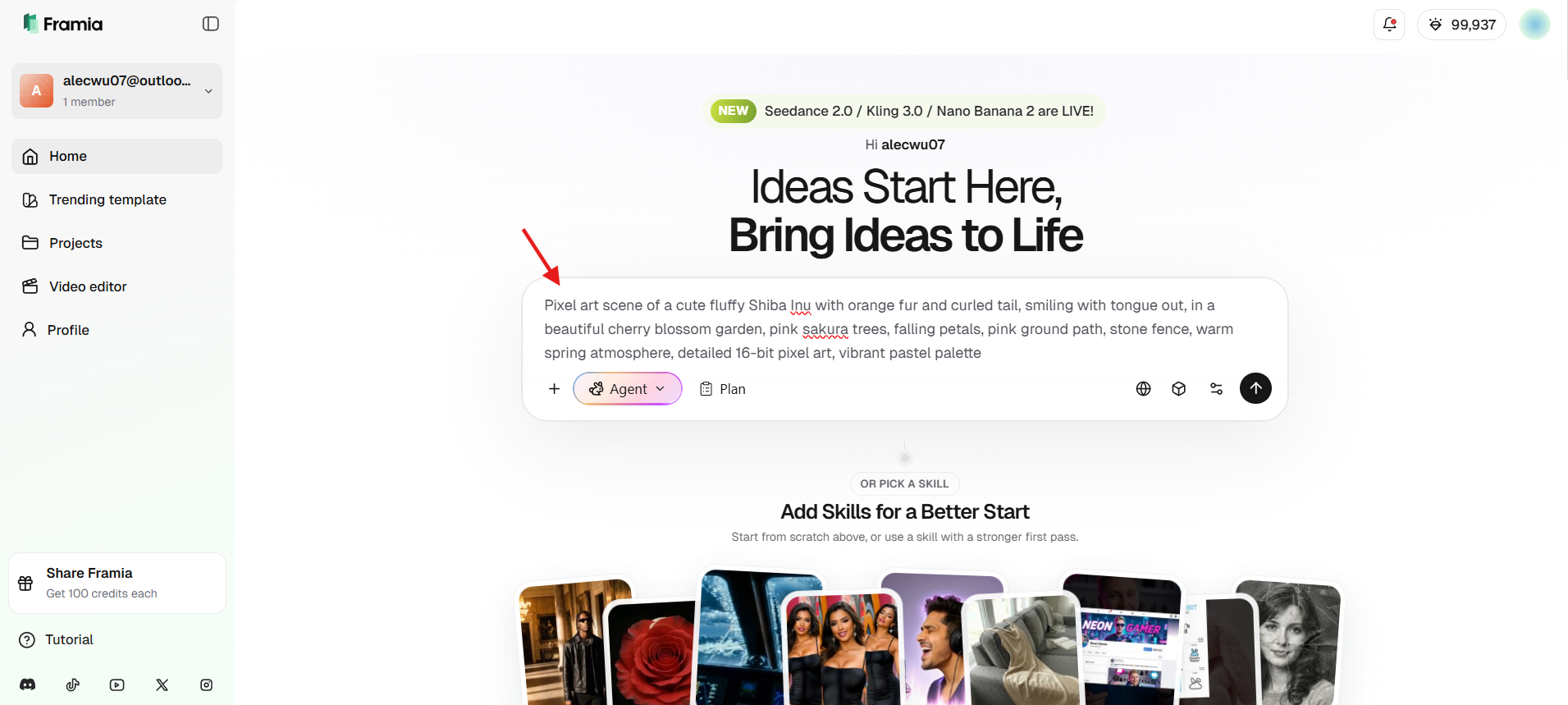
Step 1: Describe your pixel art idea
Start by describing your pixel art idea in text. Be specific about the style, colors, and subject (e.g., “cute pixel cat, 16x16, pastel colors”) to get more accurate results. Alternatively, upload a reference image (PNG or JPG) to guide the AI.
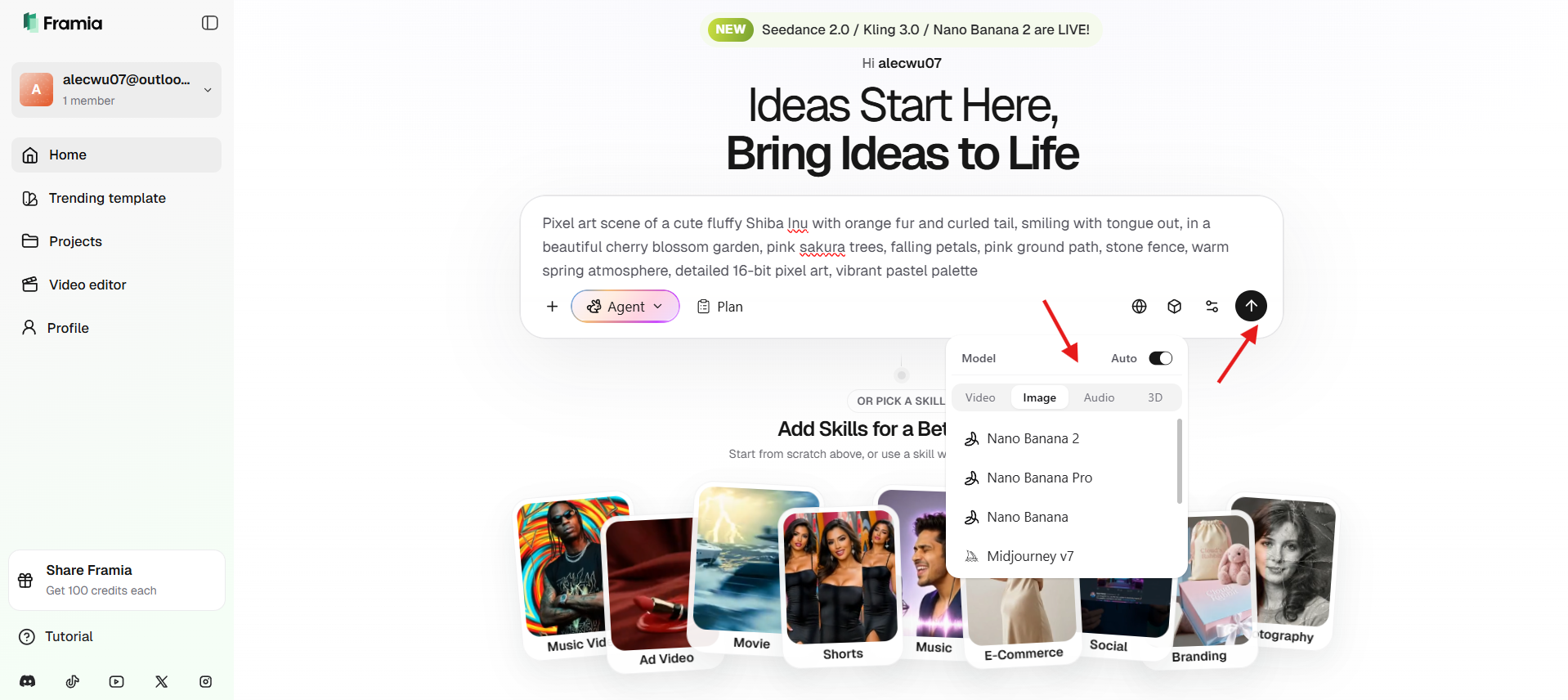
Step 2: Choose model and generate
Next, select the AI image models from the dropdown, such as Nano Banana 2 for fast, clean results or Seedream 4.5 for higher detail and consistency. Click "Generate" and Framia Pro will create your pixel art sprites or scenes in seconds.
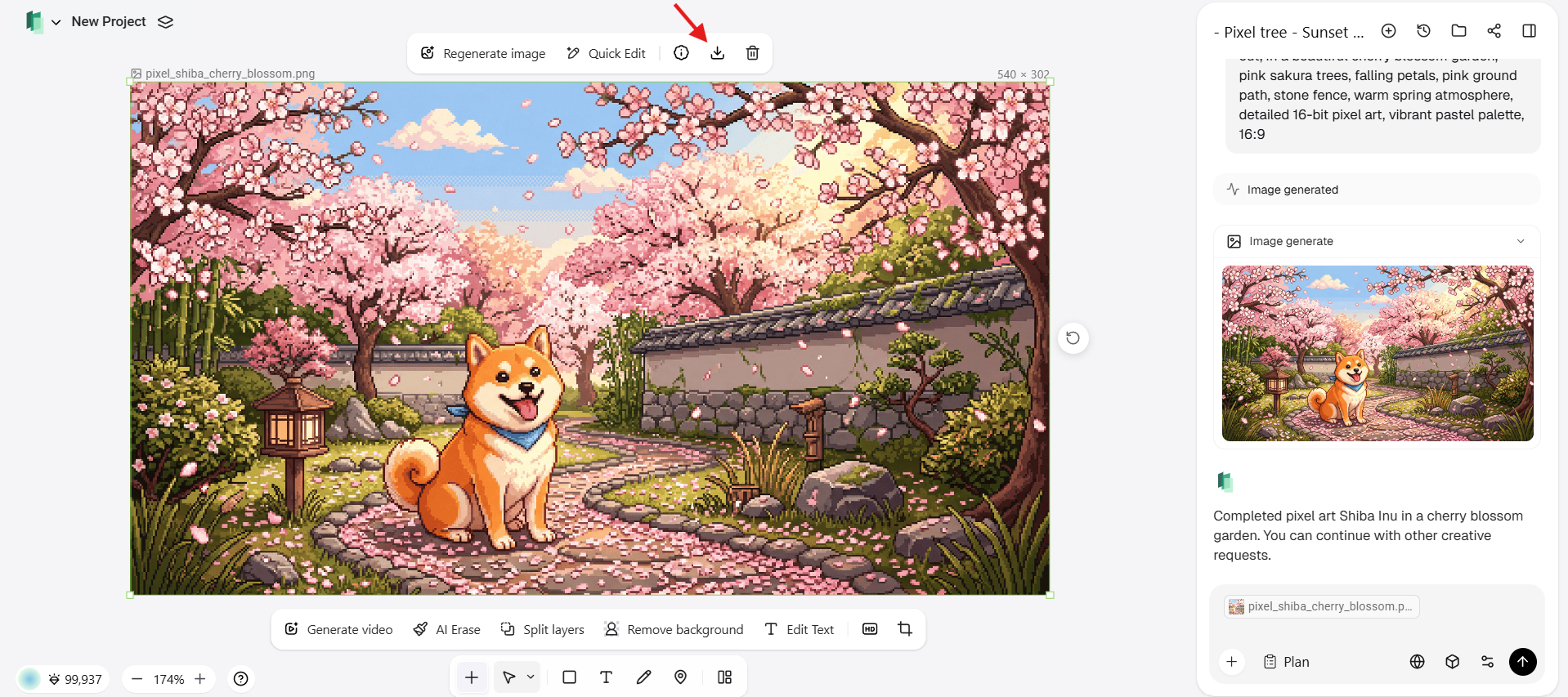
Step 3: Refine and download
Review the generated art, and use the built-in editing tools to remove backgrounds, adjust details, upscale, or regenerate specific parts with new instructions. Once satisfied, download your high-quality pixel art files ready for use.
Tips to improve your pixel art
Improving your pixel art takes practice, patience, and the right techniques. By focusing on core fundamentals like color, composition, and detail, you can gradually enhance your skills and create more polished and visually appealing designs.
- Start with a small canvas
Begin with tiny canvases like 16x16 or 32x32 pixels. This forces you to make every pixel count, helping you master shapes, readability, and composition before tackling complex scenes.
- Use limited color palettes
Restrict yourself to 4–16 colors per piece. A limited palette improves contrast, unity, and that classic retro feel while training your eye for effective shading and hue shifts.
- Master shading and contrast
Focus on light sources and volume. Add highlights and shadows strategically—avoid flat colors. Strong contrast, especially on faces and key features, makes your pixel art pop even at low resolutions.
- Study references and classics
Analyze sprites from games like Super Mario, Pokémon, or modern indie titles. Recreate small sections to understand techniques, then modify them to develop your own style.
- Zoom in and out frequently
Zooming in helps you refine details, while zooming out ensures your artwork looks good at actual size. This habit allows you to spot inconsistencies and maintain balance, making your final design more polished and visually effective.
Conclusion
Pixel art continues to captivate artists and game developers with its charming simplicity and endless creative potential. From simple icons like hearts and smileys to detailed characters, animals, and scenic designs, the 20 pixel art ideas shared here offer plenty of inspiration for beginners and seasoned creators alike.
Whether you enjoy the meditative process of placing pixels manually or want to accelerate your workflow, Framia Pro makes pixel art creation faster, easier, and more fun. With its intelligent canvas, powerful AI image models, and features tailored for sprites and animations, you can bring your ideas to life in minutes instead of hours. Now that you’re armed with inspiration and the right workflow, it’s time to start placing your pixels and bringing your 8-bit visions to life.
FAQs
- Is pixel art suitable for beginners?
Yes! Pixel art is beginner-friendly because it uses small canvases and limited colors. Start with simple shapes like hearts or smileys to learn basics like symmetry and shading quickly.
- What are the best pixel art ideas for starters?
Great beginner ideas include hearts, smiley faces, stars, pixel trees, flowers, pizza slices, and cute animals like sleeping cats or happy pandas. They help practice shapes, colors, and symmetry.
- Can I turn real photos into pixel art?
Absolutely. Upload any photo or drawing, and Framia Pro converts it into retro-style pixel sprites or full sprite sheets while keeping the original concept intact.
- What canvas size should I start with?
Beginners should start with small canvas sizes like 16x16 or 32x32 pixels. These sizes help you focus on clarity and basic shapes while learning how to place pixels effectively.
- How many colors should I use in pixel art?
It’s best to start with a limited color palette, usually 4–8 colors. This helps maintain consistency, improves visual clarity, and makes shading easier to manage in your designs.
- What are the best pixel art ideas for halloween?
Spooky ghosts, carved pumpkins, black cats, haunted houses, witches on broomsticks, bats, and candy corn. Perfect cute yet eerie ideas for beginners!