
Creating eye-catching YouTube channel art is one of the most important steps for building a strong brand. The correct YouTube channel art size ensures your banner displays perfectly across mobile, desktop, and TV without ugly cropping or blurriness.
In 2026, YouTube still recommends uploading your channel banner at 2560 x 1440 pixels (16:9 aspect ratio). This gives you the highest quality while keeping key elements visible everywhere. Whether you need a sleek black background for gaming channels (PUBG, Jonathan-style live streams) or vibrant designs, getting the dimensions right is essential for professionalism and better viewer engagement. In this guide, you’ll learn the exact dimensions, safe areas, and layout tips for channel art. Also, we'll discuss how Framia Pro can help you to design stunning channel art effortlessly.
What is YouTube channel art?
YouTube channel art, also called a YouTube banner, is the large header image displayed at the top of your channel page. It's one of the first things visitors see, making it a critical piece of your channel's branding.
A well-designed banner communicates your niche, personality, and upload schedule at a glance. It should complement your profile picture, use consistent brand colors and fonts, and — most importantly — be sized correctly, so it doesn't appear stretched, blurry, or cropped on any device.
YouTube channel art size: The official dimensions
Getting the dimensions right is non-negotiable. Here are the official YouTube banner size specifications you need to follow:
Key dimensions cheat sheet:
- Recommended size: 2560 x 1440 px
- Minimum upload size: 2048 x 1152 px
- Maximum file size: 6 MB
- Aspect ratio: 16:9
- Accepted file formats: JPG, PNG, BMP, GIF
These numbers might look large, but there's a good reason for that — YouTube needs a single image that scales across wildly different screen sizes, from a small smartphone to a large 4K television.
Understanding YouTube banner safe zones
Here's something many creators miss: your full 2560 x 1440 px banner is never shown in its entirety on most devices. Different screen types crop the image differently, which is why YouTube defines safe zones — areas guaranteed to be visible regardless of device.
Safe zone breakdown:
- TV display area: 2560 x 1440 px (full image visible)
- Desktop display area: approximately 2560 x 423 px (wide strip across center)
- Tablet display area: approximately 1855 x 423 px
- Mobile display area: approximately 1546 x 423 px
- Standard safe zone for text and logos (all devices): 1546 x 423 px
- Minimum safe area: 1235 x 338 px
The most important rule: keep all text, logos, and key design elements inside the 1546 x 423 px central safe zone. Anything outside this area may be cropped on mobile or tablet screens. You can still fill the outer areas with background colors, patterns, or decorative visuals — just don't put anything critical there.
Beyond the banner: Essential YouTube sizes
While the banner is your "billboard," other visual elements contribute to your channel's success.
YouTube thumbnail size
Your YouTube thumbnail is arguably the single most powerful tool for getting clicks on YouTube. Before someone ever lands on your channel page, they'll encounter your thumbnails in search results, the homepage feed, and recommended videos.
Official YouTube thumbnail size specifications
- Recommended size: 1280 x 720 pixels
- Minimum size: 640 x 360 pixels
- Aspect ratio: 16:9
- Maximum file size: 2 MB
- Accepted file formats: JPG, PNG, GIF, BMP
The 1280 x 720 px dimension is the sweet spot — large enough to look crisp on high-resolution displays, small enough to keep file sizes manageable.
Best practices for YouTube thumbnails:
- Use bold, readable text with high contrast against the background
- Stick to 2–3 colors maximum for visual clarity
- Include a clear, expressive face or object as the focal point
- Keep important elements away from the bottom-right corner, where YouTube overlays the video duration
- Stay consistent with your style across all videos, so your brand is instantly recognizable
A strong thumbnail paired with a great title is what separates channels that grow from channels that stagnate. Design yours at the correct thumbnail size for YouTube — 1280 x 720 px — every single time.
YouTube video size: Resolution guide
The size of videos on YouTube isn't just about how they look during upload — it directly affects video quality, file size, compression, and how YouTube's algorithm treats your content. Uploading at the highest resolution your content allows is always the better choice.
YouTube video size and resolution options:
| Resolution | Name | Dimensions |
| 4K Ultra HD | 2160p | 3840 x 2160 px |
| Quad HD | 1440p | 2560 x 1440 px |
| Full HD | 1080p | 1920 x 1080 px |
| HD | 720p | 1280 x 720 px |
| Standard | 480p | 854 x 480 px |
| Low | 360p | 640 x 360 px |
| Very Low | 240p | 426 x 240 px |
The recommended YouTube video size for most creators is 1920 x 1080 px (1080p Full HD). It offers an excellent balance between video quality and file size, and YouTube's compression handles it well.
If you're recording gameplay, shooting cinematic footage, or targeting an audience that watches on large screens, consider uploading at 1440p or 4K, YouTube rewards channels having higher-resolution uploads with less aggressive compression, which often results in better visual quality even when viewers watch at lower resolutions.
Additional YouTube video specs:
- Aspect ratio: 16:9 (standard); 4:3 is accepted but will display with black bars
- Max file size: 256 GB or 12 hours (whichever is less)
- Accepted formats: MP4, MOV, AVI, WMV, FLV, WebM, and others
- Recommended video codec: H.264
- Recommended audio codec: AAC-LC, 384 kbps stereo
YouTube profile picture
Your YouTube profile picture, also called a channel icon, appears alongside your banner, in search results, in comment sections, and next to every video you publish. It needs to look great in very small sizes.
- Recommended size: 800 x 800 pixels
- Minimum size: 98 x 98 pixels
- Aspect ratio: 1:1 (square)
- File formats: JPG, PNG, GIF (no animation)
- Max file size: 4MB
How to create perfect YouTube channel art with Framia Pro
Creating high-impact banners is effortless with Framia Pro’s conversational AI agents. Instead of wrestling with complex design software, you simply describe your vision to the Design Agent. Whether you need a professional YouTube banner size black aesthetic or a dynamic gaming layout, the AI handles technical precision, ensuring your graphics fit the 2560 x 1440 px canvas perfectly. Using the Intelligent Canvas, you can refine elements in real-time—adjusting logos, colors, and text to stay within the "safe area." Framia Pro ensures your channel art is character-consistent and visually stunning across all devices.
Steps to design professional channel art with Framia Pro
Creating professional YouTube channel art is simple with Framia Pro. Follow these easy steps to design a banner that looks sharp on mobile, desktop, and TV.
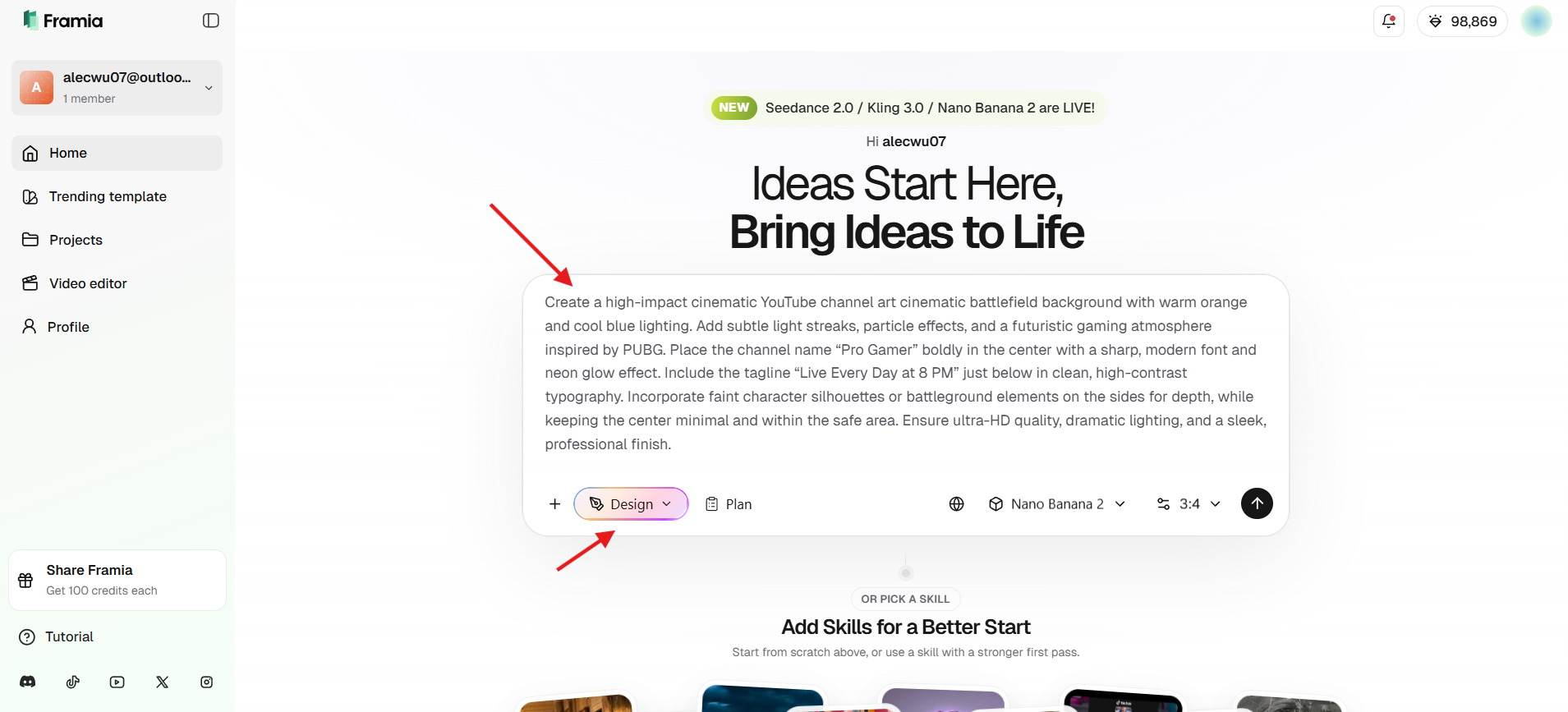
Step 1: Describe your banner
Log in to Framia Pro. Once in the dashboard, select "Design Agent", and describe your banner in simple words. Include your niche, colors, style (e.g., gaming, minimal), and elements like logo or tagline for best results. Add any reference images if needed.
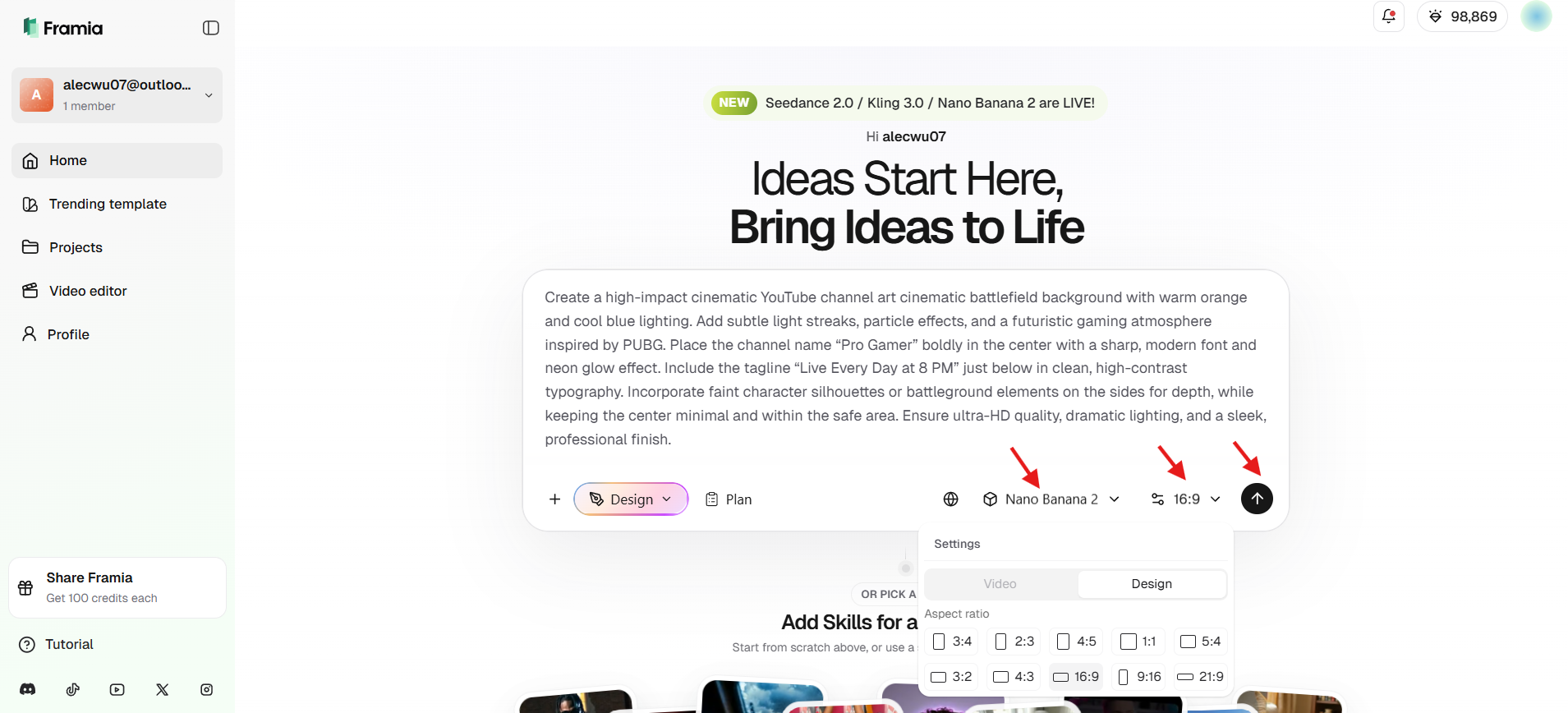
Step 2: Adjust settings and generate
After describing, set the exact dimensions. Choose aspect ratio 16:9, pick the image model from the list, then hit "Generate."
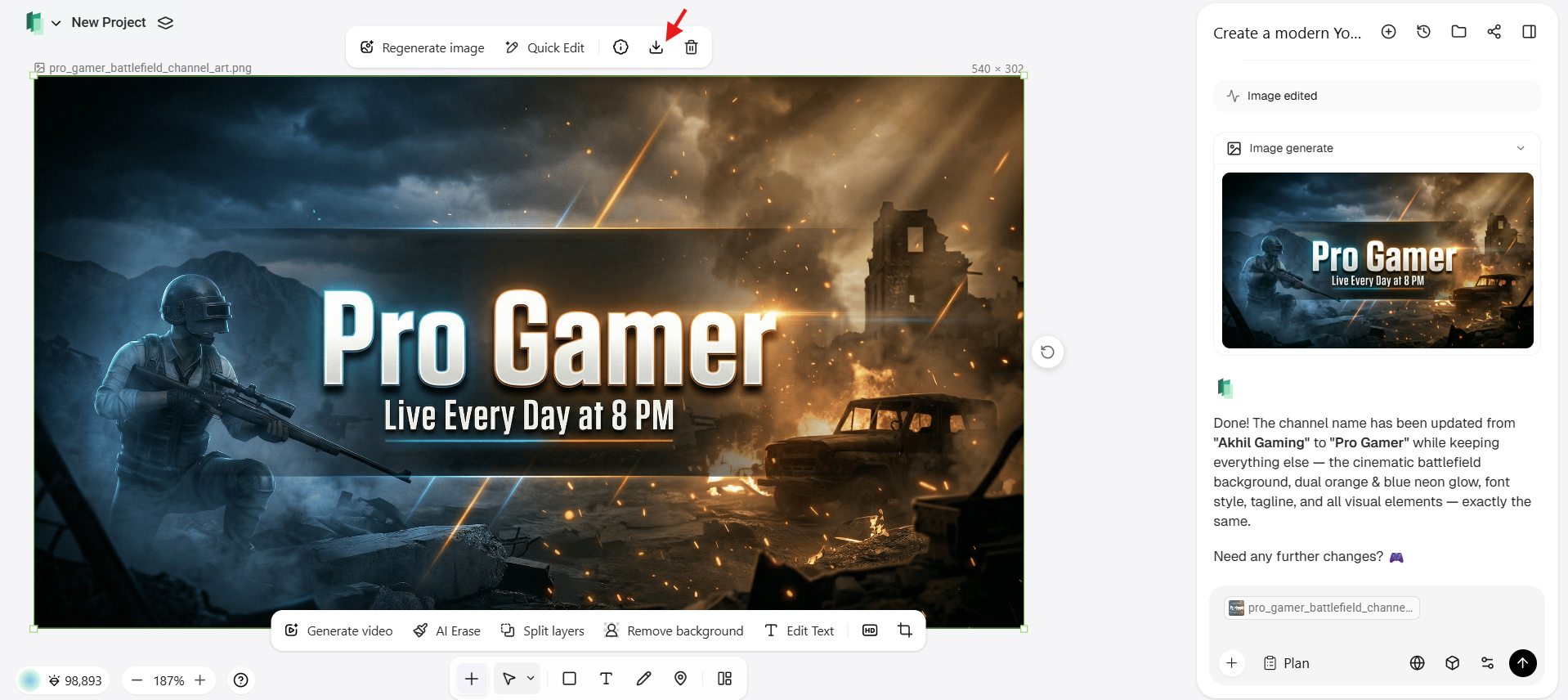
Step 3: Refine and download
Once the draft appears on the Intelligent Canvas, you can make final polishments. Use the chat to request specific changes, like "change the background to a deep black" or "brighten the accent colors." Once satisfied, download your banner in high resolution and upload it to your YouTube channel.
How to upload your YouTube channel art
Once your banner is designed at the correct YouTube channel art size, uploading it takes less than two minutes.
- Go to YouTube.com and click your profile icon in the top-right corner
- Select YouTube Studio
- In the left sidebar, click Customization
- Go to the Branding tab
- Under Banner Image, click Upload
- Select your 2560 x 1440 px image file
- YouTube will show a preview of how your banner looks on desktop, mobile, and TV
- Click Done, then Publish
If your image is rejected, check that it meets the minimum size requirement of 2048 x 1152 px and is under 6 MB. PNG format tends to give the sharpest results for banners with text or logos.
Best practices for designing YouTube channel art
Creating a banner that looks great on both a massive 4K TV and a compact smartphone screen requires a strategic approach. To ensure your YouTube channel art size works for your brand rather than against it, follow these industry-standard best practices:
- Keep content within the safe area: Always place important elements like text, logo, and call-to-action inside the safe area (1546 x 423 px) to prevent cropping on mobile and smaller screens.
- Use high-resolution images: Blurry backgrounds look especially bad on large TV screens. Always use images at or above the recommended resolution, and avoid upscaling small images. Use Framia Pro’s AI Upscaler to keep your art crisp.
- Maintain consistent branding: Use the same colors, fonts, and style across your banner, thumbnails, and videos to build a strong and recognizable channel identity.
- Choose clean and readable typography: Avoid cluttered designs and use bold, clear fonts, so your message is easy to read, even on smaller screens.
- Optimize for all devices: Preview your banner on mobile, desktop, and TV formats to ensure it displays correctly and maintains visual balance everywhere.
Conclusion
Mastering the YouTube channel art size is more than just a technical requirement; it’s about ensuring your brand’s message is delivered clearly to every viewer, regardless of their device. By sticking to the 2560 x 1440 px standard and respecting the mobile safe zone, you eliminate the risk of awkward cropping and unprofessional layouts.
Whether you are designing a high-octane PUBG YouTube live banner layout or a sleek, minimalist YouTube banner with black background, the right dimensions provide the foundation for growth. With Framia Pro, you can bypass the manual struggle of traditional design tools. Our AI-driven platform handles pixel-perfect precision for you, allowing you to focus on what you do best: creating incredible content.
Ready to transform your channel? Head over to Framia Pro and start designing your professional YouTube assets today.
FAQs
- What is the correct YouTube channel art size?
The correct YouTube channel art size is 2560 x 1440 pixels. This ensures your banner displays properly across all devices. Keep important text within the 1546 x 423 pixels safe area to avoid cropping issues on mobile screens.
- Why does my YouTube banner get cropped?
Your YouTube banner gets cropped because different devices display different portions of the image. If important elements are placed outside the safe area, they may not appear correctly on mobile or smaller screens.
- How do I make my YouTube banner look professional?
To make your banner professional, use high resolution, keep elements in the safe area, maintain consistent branding, and choose clean typography. Tools like Framia Pro can help create polished designs quickly and easily.
- How often should I update my YouTube channel art?
You should update your YouTube channel art whenever your branding changes, during special events, or to promote new content, whether in long-form or in YouTube Shorts. Regular updates keep your channel fresh and engaging for both new and returning viewers. Use Framia Pro to make it quick and easy to create updated, professional designs.
- What format should YouTube channel art be?
YouTube channel art should be uploaded in JPG, PNG, or GIF format (non-animated). PNG is preferred for better quality and sharpness, especially if your design includes text, logos, or detailed graphics.